https://main--cc--adobecom.aem.live/cc-shared/assets/img/firefly.svg | Adobe Firefly logohttps://main--cc--adobecom.aem.live/cc-shared/assets/img/ff-lockup-f4.svg| Adobe Firefly


Convert photos to cartoons with the Firefly AI cartoon generator.
Cartoonify photos for avatars, illustrations and social content.


Or tap here
File must be JPEG(JPG), PNG or WEBP and up to 100 MB.
By uploading your image or video, you agree to the Adobe Terms of Use and Privacy Policy and confirm you are 18 years of age or older.
https://main--cc--adobecom.aem.live/cc-shared/assets/svg/s2-icon-upload-20-n.svg Upload your image
Or tap here
File must be JPEG(JPG), PNG or WEBP and up to 100 MB.
By uploading your image or video, you agree to the Adobe Terms of Use and Privacy Policy and confirm you are 18 years of age or older.
https://main--cc--adobecom.aem.live/cc-shared/assets/svg/s2-icon-upload-20-n.svg Upload your image
Or drag and drop here
File must be JPEG(JPG), PNG or WEBP and up to 100 MB.
By uploading your image or video, you agree to the Adobe Terms of Use and Privacy Policy and confirm you are 18 years of age or older.
- File size larger than 100 MB
- Unable to process the request
- We are unable to process this file type. Please try again.
- Only one file can be uploaded at a time.
- Image is smaller than the minimum dimensions (512 x 512 pixels). Please resize and try again.
https://main--cc--adobecom.aem.live/cc-shared/assets/img/product-icons/svg/firefly-80.svg

{{nbsp}}
Generate cartoon | Convert photos to cartoons with the Firefly AI cartoon generator
https://main--cc--adobecom.aem.live/cc-shared/assets/img/product-icons/svg/firefly-80.svg
Adobe Firefly
Use everyday language to create extraordinary results with generative AI.
Generate cartoon | Convert photos to cartoons with the Firefly AI cartoon generator
https://main--cc--adobecom.aem.live/cc-shared/assets/img/product-icons/svg/firefly-80.svg
Adobe Firefly
Use everyday language to create extraordinary results with generative AI.
Generate cartoon | Convert photos to cartoons with the Firefly AI cartoon generator
Get quick photo-to-cartoon transformations.
Easily turn selfies or pictures of friends or pets into cartoons by choosing from a variety of cartoon styles. With Firefly as your free AI cartoon generator, all you need is a reference photo or text prompt to begin transforming ideas into eye-catching AI cartoons. It’s designed for creators of any skill level.
Describe your cartoon design.
The first step in AI cartoon generation is writing a detailed prompt. Use adjectives, like “bright colours” or describe the cartoon style you’re going for, like “the style of a 1950s comic book.” You can also turn photos into cartoons by uploading a reference image, such as a photograph or a sketch. Cartoonise a selfie to create a fun cartoon character.
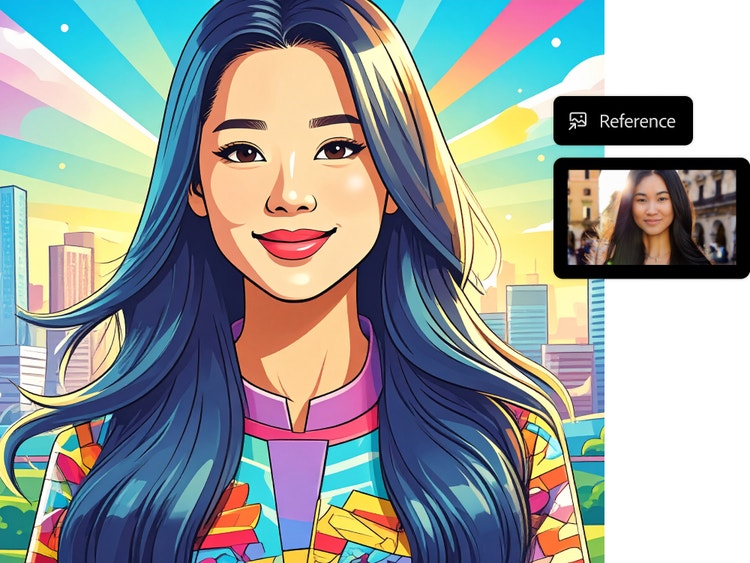
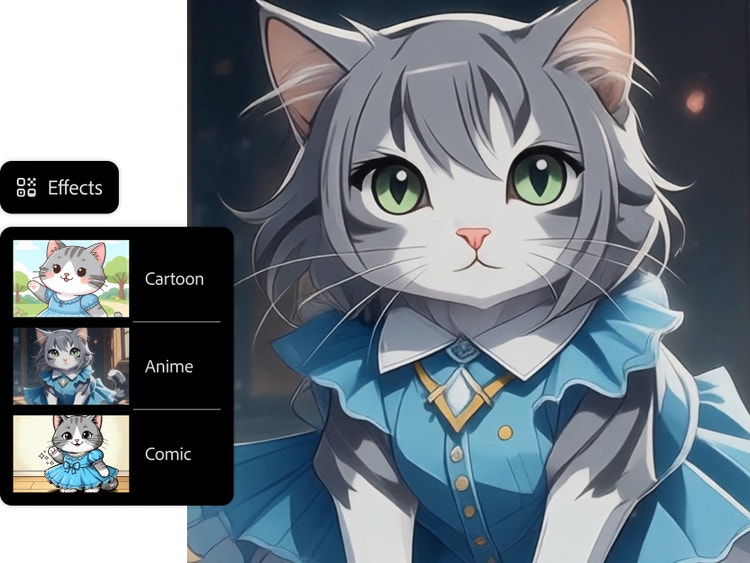
Customise your AI cartoons.
Whether you want a flat illustration or a 3D cartoon, you can get the exact look you want with advanced customisation options in the Firefly AI cartoon generator. Choose your size and camera angle. Add effects like Cartoon, Anime and Comic Book and adjust lighting, colour and tone for the perfect result.
Use your cartoonised images anywhere.
Turn your AI-generated cartoons into social media avatars, branded content, customised prints or digital assets — even use them to generate stickers. Wherever you need a playful touch or a distinctive look, your cartoonised images will make an impact.
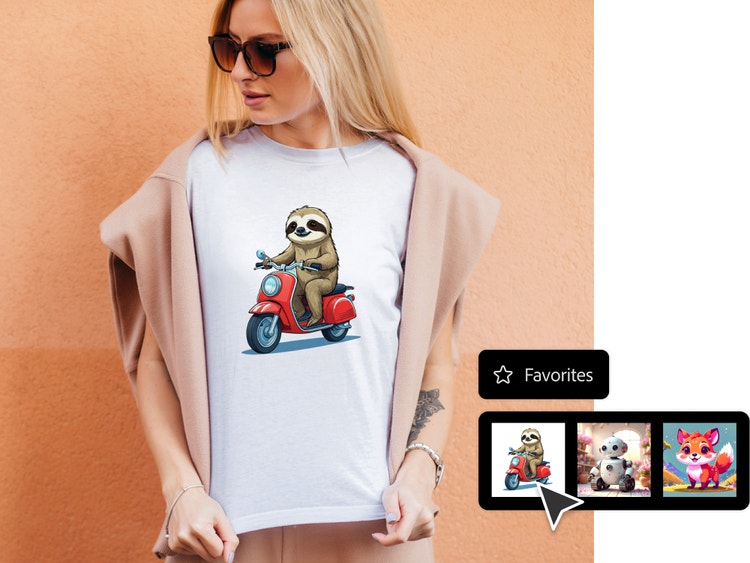
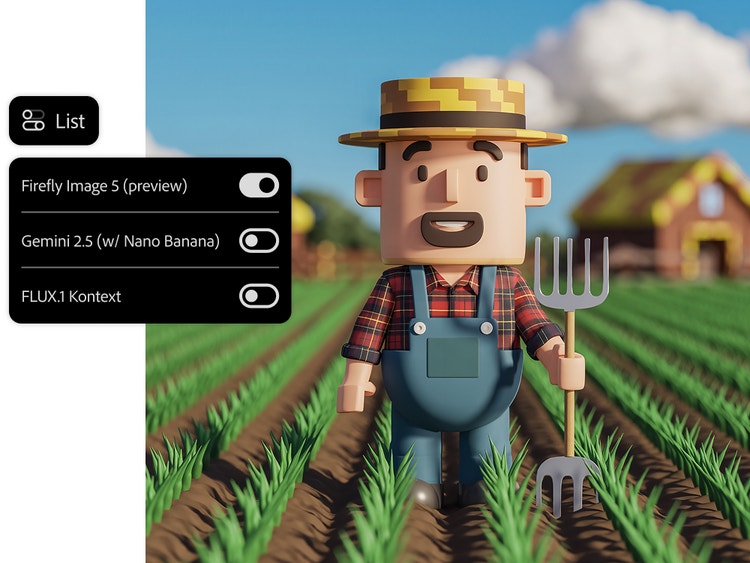
Create cartoons with your favourite partner models.
Firefly makes it possible to create cartoon art using a range of leading image models — all in one place. Choose from partner models like Nano Banana, FLUX, Runway and more to experiment with different cartoon styles, levels of detail and creative approaches — from simple hand-drawn cartoon styles to complex 3D cartoon aesthetics.
How to cartoonise a photo with Adobe Firefly.
Step 1
Log in to Firefly.
Step 2
Upload an image or write a prompt.
Step 3
Adjust your settings.
Step 4
Download, share and keep editing your image.
- How to cartoonise a photo with Adobe Firefly.
- Steps on how to cartoonise a photo with Adobe Firefly
- PT5M
- firefly

Creative control
The Firefly photo-to-cartoon generator gives you precise control over cartoon styles, poses, facial expressions, lighting, colour and more so you can create whatever you envision.
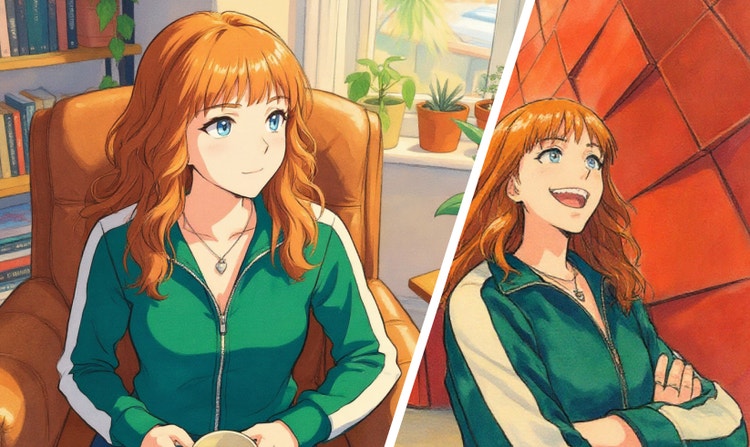
Consistent characters
With Firefly, it’s easy to ensure that your characters are recognisable across comics, animations and storyboards — even as your ideas grow and evolve.
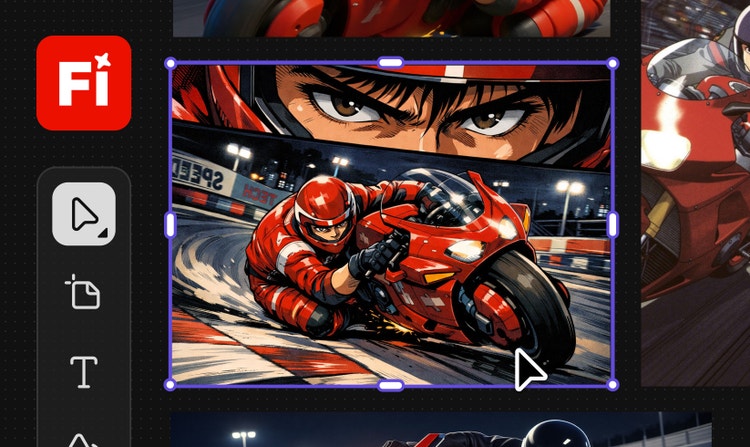
One workflow for multiple variations
Explore a variety of styles and compare aesthetics side by side so you can quickly choose which cartoons are right for your projects.
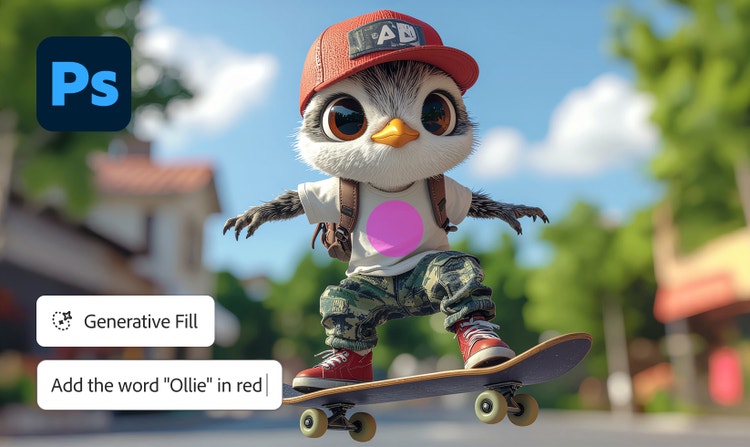
Workflow integration
The Firefly AI cartoon generator makes it simple to refine your cartoon images using Generative Fill, transform them into new formats like video or send them to your Creative Cloud apps to incorporate them into collages, banners, animations and more.
See what you can do in Firefly.
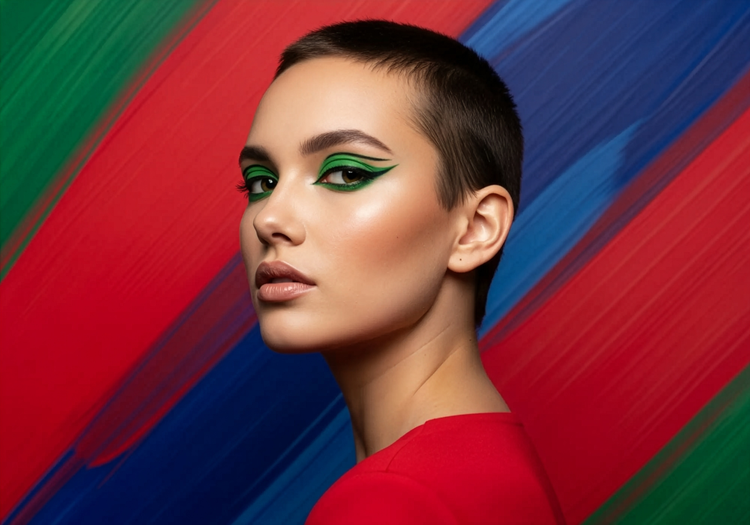
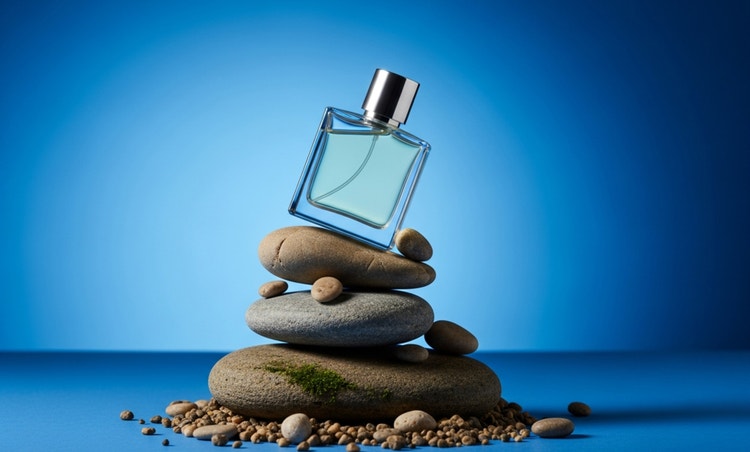
Discover even more features.
Questions? We have answers.
How does the AI cartoon generator work?
What types of images can I cartoonise?
How can I go from photo to cartoon?
Can I create a cartoon using text only?
Can I use the cartoons I generate for commercial purposes?
What formats and resolutions are available for download?
Is Adobe Firefly AI cartoon generator free to use?
What image models are integrated into Firefly?
How can I enhance prompts for AI cartoon generation?
You can improve prompts by adding clear style cues, colours, mood and character details. Including animation-style terms or artistic references helps Firefly understand your intent and generate more polished cartoon visuals.
When using Firefly Image 4 or Firefly Image 4 Ultra to generate images, you can turn on the Enhance Prompt feature to improve your prompts automatically. This feature refines your prompt in the background by making it more detailed and descriptive, which contributes to generating richer and more diverse images.
Are there any limitations when generating images?
Yes, there are a few practical constraints to keep in mind:
Image resolution: You can download generated images at up to 2000×2000 pixels, as noted in Firefly technical requirements.
Style options: Styles are controlled through built-in effects, reference images and adjustable sliders such as Visual Intensity and Strength. However, the final look will vary depending on the model you choose and how you structure your prompt.
Processing time: Generation speed can also vary based on the complexity of your prompt and the model you select. For example, Fast Mode versus higher-detail models.
How can I use the AI cartoon generator for creative projects?
What is the best AI cartoon generator?
Share this page.
Explore more Firefly tools.
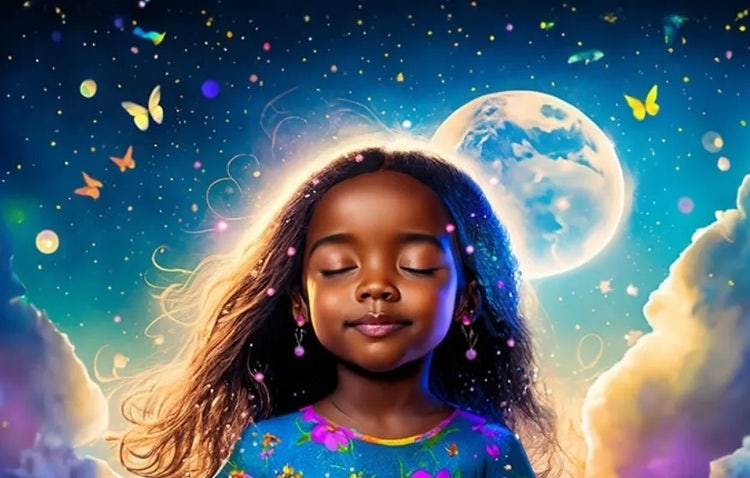
What is AI art and how is it made?
Generative AI is quickly becoming a vital tool for artists. Read on to learn about what generative AI art is, how to create it and how you can use it in your practice.
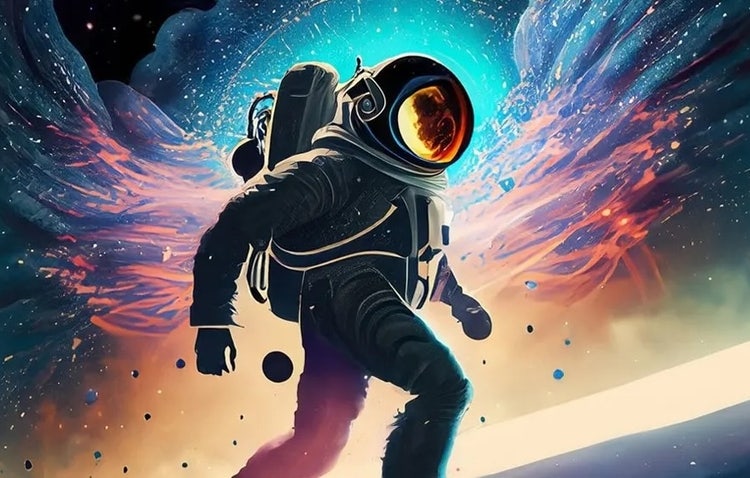
How AI Changes Creative Work
Generative AI can mimic — but not replace — human intelligence. Learn how it can help you to take your creativity to new places.
Learn how | Learn how - Generative AI is changing creative work
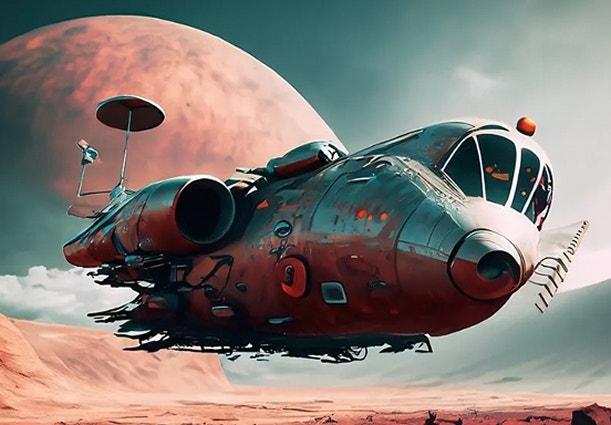
How to write AI art prompts that get results.
The best prompts for AI aren't always obvious. These tips get you to your destination in record time.
Learn more | Learn more - How to write AI art prompts that get results.
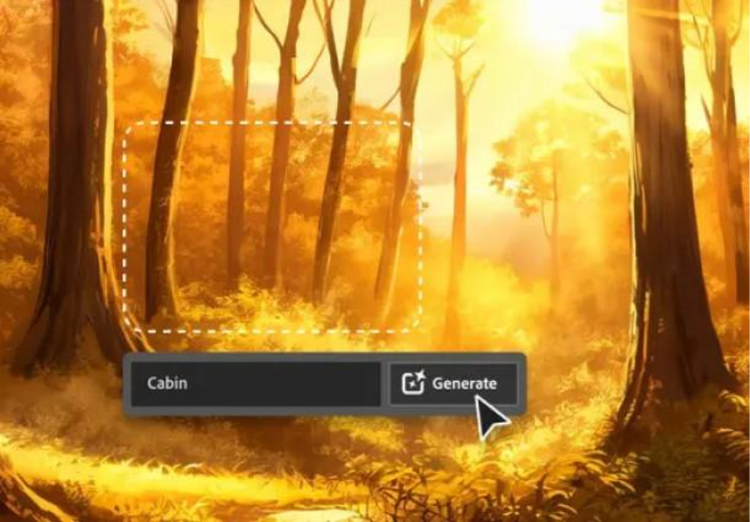
AI for graphic designers.
Learn about the AI tools available to graphic designers and how they can help you be more productive and take your work in surprising directions.