Adobe Firefly
AI Image style transfer with Generative Match.
Apply visual styles from one image to another using Adobe Firefly’s AI image style transfer generator. Get started stylizing images in the Text to Image module inside the Firefly web app.
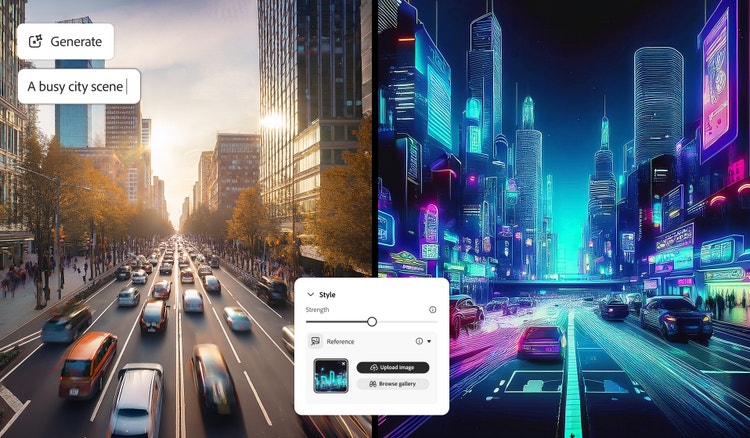

The powerful features of AI image style transfer.
AI image style transfer powered by Adobe Firefly uses machine learning to blend the content of one image with the visual style of another, transforming your original image into something new. With Generative Match, you can upload your own image to generate images in your unique style, or apply a reference image to guide the new aesthetic.
Just upload a style reference, like a watercolor painting, pencil sketch, textured landscape, or even other AI-generated art, and Firefly will apply that look to your new image. You can also browse the curated gallery to explore dozens of ready-made styles. Whether you’re aiming for subtle changes or bold transformations, AI style transfer makes it fast and easy to achieve your creative vision.
Transfer image styles for cohesive content.
AI image style transfer lets you upload an image as a reference, then generate new assets that align with that style. Whether you're creating art, illustrations, product concepts, logos, or social content, applying a consistent look helps everything feel cohesive. Use reference images to produce unified visuals for articles, blogs, ads, social content and more.
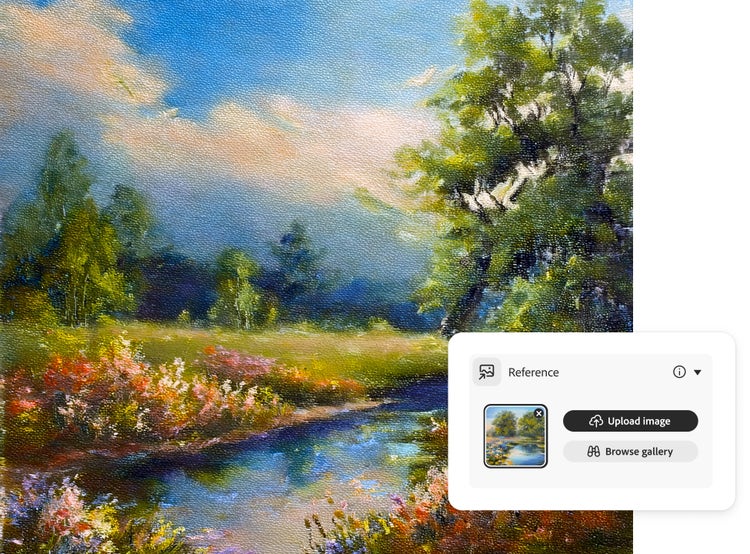
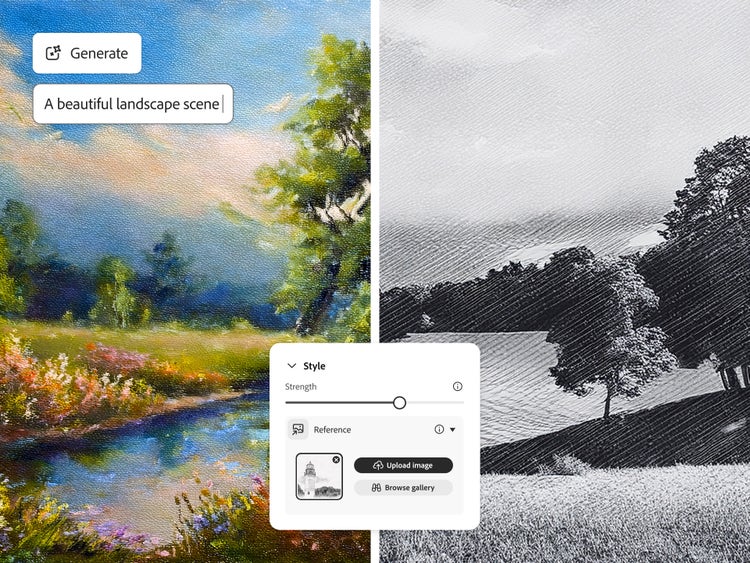
Update image styles and visuals faster.
An image style transfer tool makes it easy to refresh the look of your assets without starting over. Whether you're following new design trends or simply changing your personal style, you can update colors, textures, and overall aesthetic in minutes. Apply a new reference image to adjust one piece or quickly transform a set of visuals into a consistent, updated style.
Stylize images with no experience.
You don’t need to be a professional designer to create cohesive, professional-looking assets. Upload a reference image to apply that style across logos, product concepts, social graphics, and more. Image style transfer makes it easy to keep everything on-brand without advanced design skills.
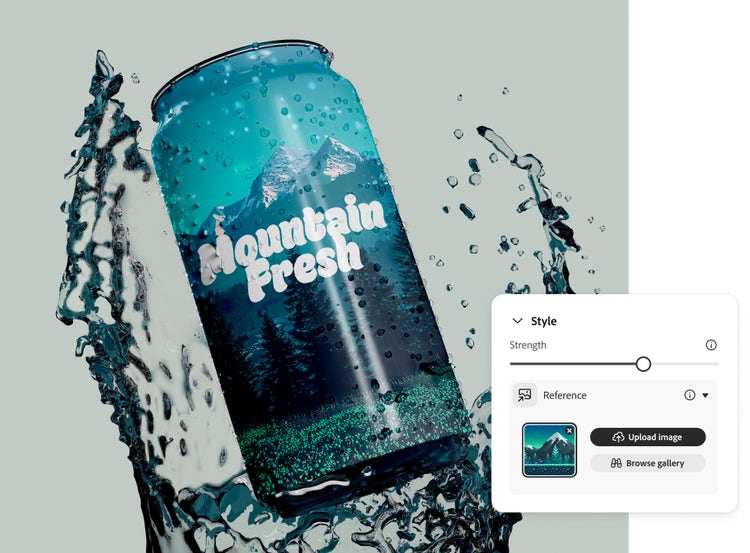
How to stylize images with AI Generative Match.
Learn how to create more personalized, cohesive, and on-brand visuals in less time with the AI image style transfer tool. By applying styles from a reference image, you can match your artwork to a specific look, whether it’s hand-drawn, realistic, or completely abstract. With Generative Match in Firefly, it’s simple to change or update your creative direction without starting over.
Here’s how to apply a style transfer to your AI-generated images:
- Open Firefly to use the image style transfer feature.
Go to the Text to Image module in the Firefly web app. (If you’re not signed in, sign in to your Adobe account or create an account for free.) Hover over any image in the gallery and select View Samples. - Select a reference image to transfer styles from.
In the control panel to the right of the image results, make sure Firefly Image 2 model is selected. In that same panel, scroll down to the Match section. Click the Reference Gallery to scroll through the images until you find a style you want to apply.
To use your own image, drag and drop it into the control panel or click Upload Your Own Image and select it from the pop-up menu. (You must have the rights to any third-party images you upload.) - Click ‘Generate’ to apply style.
Click Generate to apply the reference style. Firefly will produce a stylized image that blends your original idea with the visual look of your selected reference. - Refine generated image.
Use the Style Strength slider in the control panel to fine-tune how strongly the reference image influences your design using AI image style transfer. You can also adjust color and tone, lighting, and composition to further customize your results. For more detailed edits, click the Edit button in the top left of a stylized image to open it in the Generative Fill workspace. - Save your work.
Click the heart in the top right to save the image to your Favorites, or click the More Options button to download it as a PNG or save it your libraries.
Remix content from the community.
Discover Firefly prompts to remix and submit your own images to the gallery.
Discover even more AI features.
AI image generator AI video generator AI tattoo generator AI cartoon generator AI pixel generator AI portrait generator AI anime generator AI art generator