
Prøv disse veiledningene med Photoshop
Rediger bilder for å skape nye bilder og grafikk.
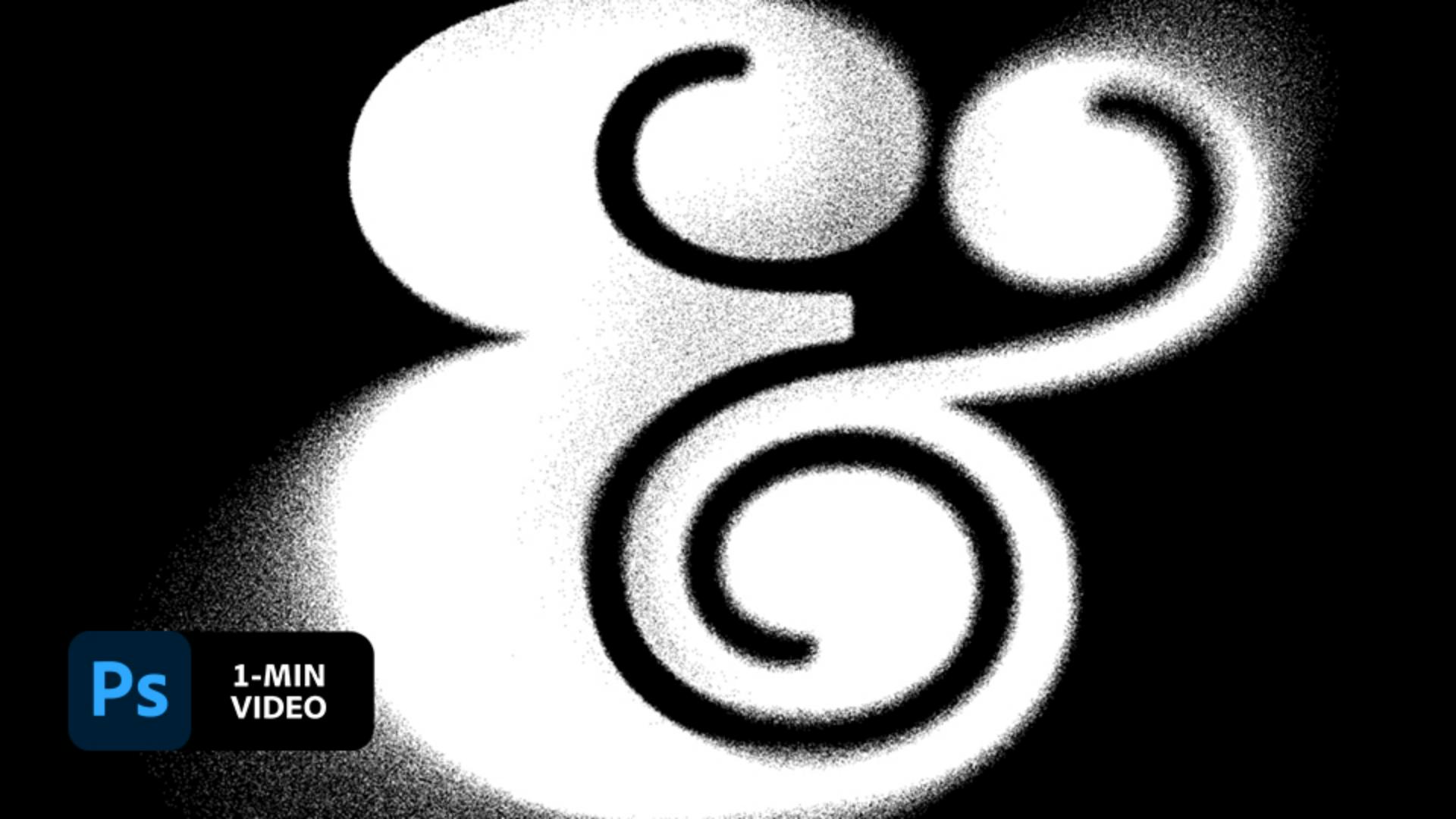
Erica Larson adds a handmade touch to decorative text. See how Larson creates a dissolving text effect in Adobe Photoshop.
Larson used the Type tool to add an ampersand using the Blenny Black font with the anti-aliasing set to Smooth. Then, she right-clicked the type layer and converted it to a Smart Object so she could add special effects.

To create the scattered paint look, Larson set the blend mode for the type layer to Dissolve. The change is not noticeable yet.

Larson used the Field Blur tool (Filter > Blur Gallery > Field Blur) to selectively apply different spatter effects. When she used the tool, Photoshop placed the first pin automatically. Larson moved the pin, then added a second pin to the upper right and increased the blur amount.

By the time she finished, Larson had added multiple pins, each with different blur amounts, to emphasize the effect on the outer edges of the ampersand.

Next, Larson selected the Brush tool to add a bit more detail. She chose a Soft Round brush and reduced its opacity.

Larson wanted to create a distressed look, so she added a layer mask to the type layer. Then, she painted with a black brush on the mask to reveal the dissolved pattern on parts of the Ampersand.

As a final touch, Larson right-clicked to convert the layer to a Smart Object and set the blend mode to Normal. Then, she used a Gaussian Blur (Filter > Blur > Gaussian Blur) to soften the edges.

Save the paint cans and create your own spray-painted designs in Photoshop.

Note: Project files included with this tutorial are for practice purposes only.


All Consent Allowed