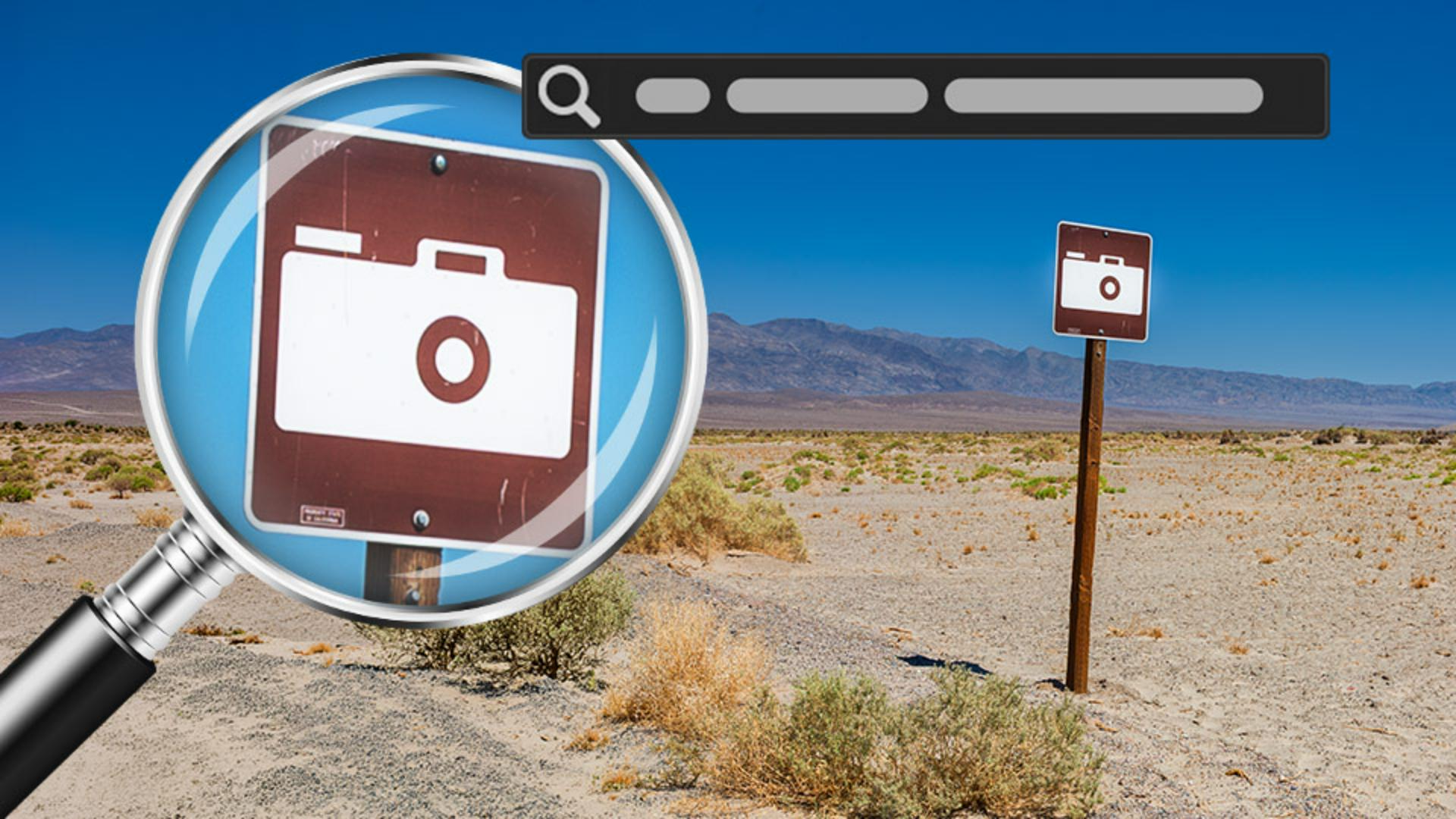
Quickly locate photos in Lightroom using descriptions of the scene, subject, lighting, time of day, or processing style.
Published
Introduction
[Seán Duggan]: Searching for a specific photo in an image archive that contains many thousands of photos is now easier than ever, thanks to the enhanced search capabilities in Lightroom.
Hi, I'm Seán Duggan with Adobe Learn.
In this tutorial, we'll take a look at different ways that you can search for your photos and find them by simply describing the images using natural language.
Use filters to locate images based on metadata
For quite some time, Lightroom has offered ways to find photos by using filters that look for specific metadata tags associated with the file.
If I click the Filter icon to the right of the search field at the top of the interface, you can see the different types of search filters that are available.
There are a lot of ways to look for an image, but all of these are dependent on specific metadata being present in the file.
Find photos with terms that identify the subject
The enhanced search capabilities work the way that photographers would naturally think of their images, by simply describing the scene or the content in the photo.
Let me show you what I mean.
I'm currently viewing all photos in Lightroom.
Let's start out with a simple search where we just describe what the main subject is.
I'll click in the search field and type "camera."
And since I'm a photographer, of course I have lots of photos of cameras, which Lightroom has no trouble identifying.
But let's try something a bit more specific.
I'll remove the previous search term and type: "a small sign with a camera on it."
And there it is.
That first one is the photo I was hoping to find.
If I click the Keywords icon in the lower right corner, you can see that there are no keywords attached to this file.
So, Lightroom was able to find it just based on the description of the image content.
The other images that this search turned up give you an insight into how the search feature is working.
Since the word "camera" was in the search request, it obviously is surfacing any image where it finds a camera, even double exposures where the camera is partially obscured and blended with another scene.
But it's also finding photos of small signs because, of course, that was also part of the search criteria.
Search using detailed descriptions of a scene
Let's try another subject search: "a picket fence covered with ivy."
And here are several photos of that subject.
And this shot is the one that I had in mind.
And once again, if I go to the Keywords panel, you can see that there are no keywords for this file.
Let's try another detailed search query: "a man with an umbrella looking at a painting in a museum."
And there it is.
No keywords, but Lightroom was able to find this just from a description of the scene.
Use search terms for lighting, time of day, and processing style
Let's finish up with searches that don't reference the subject or the content in a photo, but the time of day and the type of light in the scene, or how an image was processed.
I'll type in: "golden hour light on the water."
It's found a lot of images.
And most of them do have the qualities of golden hour, or sunrise, or sunset lighting, as well as the presence of water in the scene.
How about a search that describes how I've processed a photo?
For that, I'll use the search term: "black & white."
And look at that.
Lightroom has surfaced images that I've processed with a black-and-white treatment.
This is great because there are many photos here that I really like, but that I have not seen or even thought of for a long time.
It's great to be able to rediscover these just by using the excellent search feature in Lightroom.
The ability to use natural language to simply describe an image that you want to find is a major enhancement for working with your photos.
Because if you can easily locate the images that you want to find, you'll enjoy your photos more.
Give it a try and see what hidden treasures you can find in your photo library.
I'm Seán Duggan with Adobe Learn.
Thanks for watching.
What you’ll learn
Use filters to locate Images based on metadata
Lightroom includes a variety of search filters that help you locate photos using metadata. These filters can search for information such as keywords, ratings, camera details, and other file attributes when that data is associated with an image.
Find photos with terms that identify the subject
You can find photos simply by describing the main subject of an image. For example, searching for terms like “camera” or “a small sign with a camera on it” can help locate photos even when no keywords have been added to the file.
Search using detailed descriptions of a scene
Natural language search can understand surprisingly specific descriptions of a scene. Try entering phrases such as “a picket fence covered with ivy” or “a man with an umbrella looking at a painting in a museum”, to find images that contain the content you remember.
Use search terms for lighting, time of day, and processing style
You can also search based on visual characteristics rather than specific subjects. Descriptions such as “golden hour light on the water” or “black and white” allow Lightroom to surface images that match a particular lighting condition, mood, or editing treatment.
You can control how Adobe websites use cookies and similar technologies by making choices below. But note that if you disable cookies and similar technologies entirely, Adobe websites may not function properly.
Cookies are small text files stored by your web browser when you use websites. There are also other technologies that can be used for similar purposes like HTML5 Local Storage and local shared objects, web beacons, and embedded scripts. These technologies help us do things like remembering you and your preferences when you return to our sites, measure how you use the website, conduct market research, and gather information about the ads you see and interact with.
You can make choices in the menu below about what cookies and other technologies you want us to use on Adobe sites when you visit them from this browser. You can always change those choices later by clicking on the Cookie Preferences link at the bottom of the page.
If enabled:
We can improve your experience by tailoring the site and the content to things we think might be of interest
We can better keep track of your preferences — like what language you prefer to use
We will better understand your likely interests so we can provide you more relevant Adobe ads and content on non-Adobe websites and in non-Adobe apps
It will help us improve the performance of our website and those of our partners who use the Adobe Experience Cloud
If disabled:
We won’t be able to remember you from session to session so the experience may not be tailored to your interests
You’ll still have access to the content of the site but certain features that depend on cookies may not function
You’ll still see ads, they just may not be as relevant to you
General information
You can control how Adobe websites use cookies and similar technologies by making choices below. But note that if you disable cookies and similar technologies entirely, Adobe websites may not function properly.
Cookies are small text files stored by your web browser when you use websites. There are also other technologies that can be used for similar purposes like HTML5 Local Storage, web beacons, and embedded scripts. These technologies help us do things like remembering you and your preferences when you return to our sites, measure how you use the website, conduct market research, and gather information about the ads you see and interact with.
You can make choices in the menu below about what cookies and other technologies you want us to use on Adobe sites when you visit them from this browser. You can always change those choices later by clicking on the Cookie Preferences link at the bottom of the page.
If enabled:
We can improve your experience by tailoring the site and the content to things we think might be of interest
We can better keep track of your preferences — like what language you prefer to use
We will better understand your likely interests so we can provide you more relevant Adobe ads and content on non-Adobe websites and in non-Adobe apps
It will help us improve the performance of our website and those of our partners who use the Adobe Experience Cloud
If disabled:
We won’t be able to remember you from session to session so the experience may not be tailored to your interests
We’ll still count your use of our site and services
You’ll still have access to the content of the site but certain features that depend on cookies may not function
You’ll still see ads, they just may not be as relevant to you
Operate the site and core servicesOperate site and measure engagement
Always active
These cookies are required, and they are used to enable the site and related services core functionality. Without them the site could not operate, so they cannot be disabled.
These cookies enable the site and related services’ core functionality and collect statistics about user engagement, such as counting active use to help us understand trends. These cookies cannot be disabled.
Measure performance
These cookies are used to analyze site usage to measure and improve performance. Without them Adobe cannot know what content is most valued and how often unique visitors return to the site, making it hard to improve information we offer to you.
These cookies are used to analyze site usage to measure and improve performance. Without them Adobe cannot know what content is most valued, making it hard to improve information we offer to you.
Extend functionality
These cookies are used to enhance the functionality of Adobe sites such as remembering your settings and preferences to deliver a personalized experience; for example, your username, your repeated visits, preferred language, your country, or any other saved preference.
Personalize advertising
These cookies are used to enable Adobe and our partners to serve ads more relevant to your interests. Without them you will still see ads, but they might not be as relevant to you.
Personalize advertising
These cookies are used to enable Adobe and our partners to serve ads more relevant to your interests. Without them you will still see ads, but they might not be as relevant to you.