Quickly delete PDF pages
Remove pages from a PDF with ease using Adobe Acrobat online services. Upload a PDF document and sign in to access the PDF page remover. Once finished, download or share your new file instantly.
Follow these easy steps to delete pages from a PDF using the Acrobat online tool:
Remove pages from a PDF with ease using Adobe Acrobat online services. Upload a PDF document and sign in to access the PDF page remover. Once finished, download or share your new file instantly.

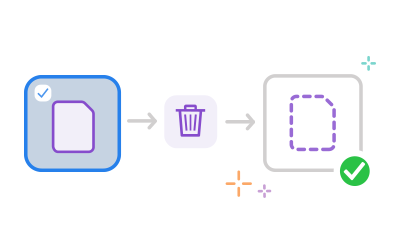
After signing in, you can highlight any page thumbnails you want to delete. When you’ve highlighted every page that you want to remove, click the dustbin icon in the top toolbar.

Whether you’re using a desktop, laptop, tablet, or smartphone, you can access Acrobat online tools. They work in any browser and on any operating system, letting you keep work moving without any hassles.
Acrobat lets you set up a PDF just how you need. Simply drag and drop PDF pages to reorder them. You can rotate a selected page to landscape or portrait mode by clicking the rotate clockwise or rotate anticlockwise icon. To add a page, click the Insert pages icon and then click a + button wherever you want to insert a file. To delete a page, select it and click the dustbin icon.
For more advanced PDF tools, start a seven-day free trial of Adobe Acrobat Pro. Unlock features like:
Supported on Mac, Windows, and Linux.