How to rearrange and organise PDF pages online
Follow these easy steps to rearrange and organise PDF pages for a well-structured document:
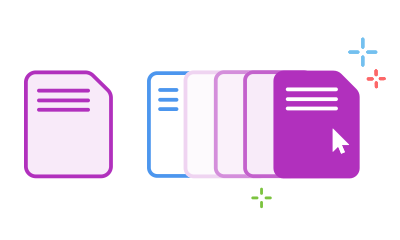
- Click on the "Select a file" button shown above, or drag and drop a PDF into the drop zone.
- Choose the PDF document you want to rearrange or reorganise from your folders.
- Acrobat will upload the file, and then sign in to proceed.
- Select the page thumbnail you want to move to another location in the PDF file.
- Drag and drop pages into your desired order.
- Once done, click "Save". You can now download the file or get a link to share it with others.
Try our online PDF reorder and organiser tool for free

Rearrange and organise your PDF pages easily
With Adobe Acrobat online services, it’s easy to rearrange and organise pages in a PDF file. Upload a PDF file and sign in to move, sort, or reorganise pages as needed.

Process up to 500 pages at once
You can rearrange pages in a PDF with a maximum of 500 pages and a file size of less than 100 MB. Try the Acrobat Compress PDF tool to reduce a file's size.

Keep your document formatting intact
Maintaining document formatting while editing, modifying, or converting PDFs is essential. The Acrobat PDF organiser ensures that your pages move to a new location in your PDF without altering the content.

Easily add, delete or rotate PDF files
With an Adobe free account, you can add pages in PDF, delete or even rotate PDF pages to portrait or landscape mode. Acrobat’s PDF organiser offers all necessary tools in one place, making page management effortless.

Reuse PDF content to speed up tasks
You can rework an existing PDF to meet new project needs. Increase your efficiency by using Acrobat to reorder content, add comments to a PDF and share your file for review.

Trusted Adobe Acrobat PDF tools
Adobe invented the PDF file format and its several features. Use Acrobat online tools to manage, rearrange, and organise PDF pages from any web browser.
Common use cases for rearranging PDF pages
When should you rearrange PDF pages?
- Merging reports and proposals: Combine multiple documents and reorder pages to create a cohesive file.
- Reordering legal documents: Ensure the correct sequence of legal or contractual documents.
- Restructuring course materials: Organise learning materials for better comprehension and smoother flow.
- Streamlining presentation decks: Arrange slides or presentation files in the desired sequence before sharing.
Tips to optimise PDF page order for better readability
- Group-related content: Place similar or related sections together for better organisation.
- Prioritise key information: Position critical pages or sections at the beginning for immediate impact.
- Avoid duplicate pages: Ensure pages aren’t repeated to maintain document clarity.
- Check page orientation: Rotate pages to ensure consistent orientation for seamless viewing.
Questions about rearranging and organising PDF pages? We've got answers.
Our Acrobat PDF solution makes it quick and easy to organise PDF pages in whatever page order you want. Set up your desired order by highlighting a page thumbnail. Then, drag and drop the page into your new desired location. You can also rotate pages to portrait or landscape mode. If you need to delete a page, select it and click the dustbin icon in the toolbar.
For more advanced features, try Adobe Acrobat Pro free for seven days on Windows or Mac OS. The Acrobat Pro trial provides seamless access to PDF editor tools, allowing you to:
- Edit PDF text and images.
- Annotate files and add comments.
- Recognise text with OCR functionality.
- Insert blank pages and extract pages.
- Add page numbers and bookmarks.
- Merge, split, compress, and convert PDFs.
- Sign PDFs and more.

Use Acrobat tools for free
- Sign in to try 25+ tools, like convert or compress
- Add comments, fill in forms and sign PDFs for free
- Store your files online to access from any device
Create a free account | Create free account Adobe Acrobat Sign in


