How to make a flyer for projects, events, and announcements.
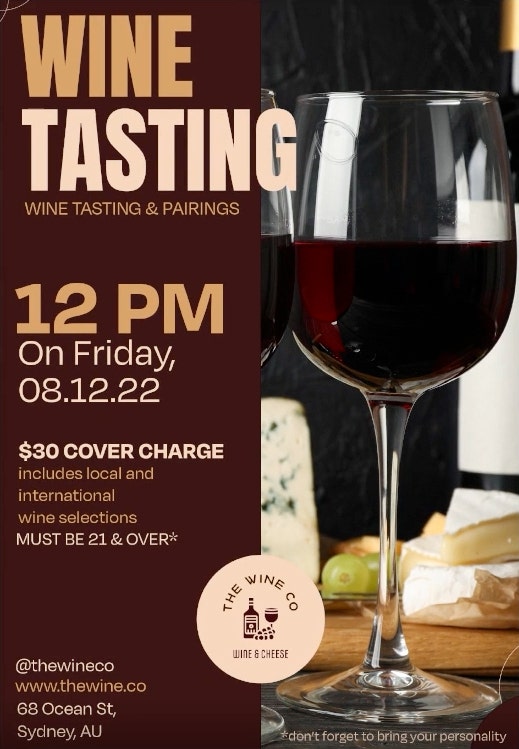
Learn how to design a clear, eye-catching flyer using simple layout, text, and imagery. Whether you are promoting an event, presenting a project, or sharing an announcement, you can turn your ideas into a professional-looking design.
What is a flyer and why is it useful?
A flyer is a single-page printed or digital design used to share information quickly and clearly. It is commonly used for school projects, presentations, events, clubs, or announcements, and is one of the simplest ways to communicate a message visually.
In design, a flyer combines concise text, strong visuals, and a clear focus to capture attention and make information easy to understand. Learning how to create flyers helps build practical communication and design skills that can be used in assignments, presentations, and creative portfolios.
How does flyer design influence attention and response?
Flyer design skills are often applied by students across academic and creative contexts where clear communication and visual impact matter.
- Academic projects: Helps students structure information clearly, highlight key points, and present research or concepts in a visually engaging way.
- Presentations: Supports stronger slide or handout design by improving visual hierarchy, readability, and flow of information.
- Campus events and activities: Enables students to create promotional flyers that attract attention, communicate details quickly, and encourage participation.
- Portfolios: Allows students to showcase design thinking, layout skills, and visual communication ability through polished, real-world examples.
- Skill development: Helps students understand how design choices influence attention, response, and engagement, linking creative decisions to outcomes.
Why use Adobe Photoshop for creating marketing collateral?
- Use Adobe Photoshop to create eye-catching marketing collateral, such as a promotional flyer, that can be print-ready in CMYK (Cyan, Magenta, Yellow and Key (Black) colour).
- Use more than photo editing capabilities, with tools that support full design workflows for print-ready marketing assets.
- Add layers, make precise selections and edits, and include text to build clear and structured layouts.
- Maintain visual consistency by creating memorable collateral that aligns with your business branding.
- Customise designs easily to communicate your brand or business message clearly.
- Reuse and adapt layouts by tweaking content and colours for different marketing needs.
How do you design a flyer using Photoshop?
- Set up your flyer to be print-ready.
- Add imagery and build the layout structure.
- Select fonts and organise text hierarchy.
- Apply type colours and refine the colour palette.
- Export the flyer as a print-ready PDF.
Step 1: Set up your flyer to be print-ready.
CMYK colour scheme standard for print.
CMYK is a colour mode that is the industry standard for full colour image printing. The letters refer to the four inks used in the printing process - Cyan, Magenta, Yellow and Key (Black). CMYK files are offered in an array of file formats, PDFs being ideal.
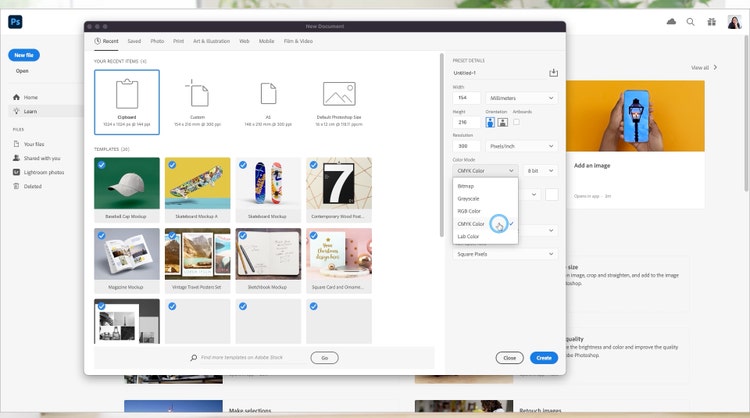
To set the colour mode in Photoshop:
- Go to Image > Mode > CMYK Colour, or
- When creating a new document, select Colour Mode > CMYK Colour, then click Create
Setting the bleed area.
When you are creating a flyer, the bleed area is the area on the outside of your flyer that is trimmed after printing. Setting up the bleed area in Photoshop is important because it ensures that none of your design is accidentally cropped once it is printed.
To add a bleed in Photoshop:
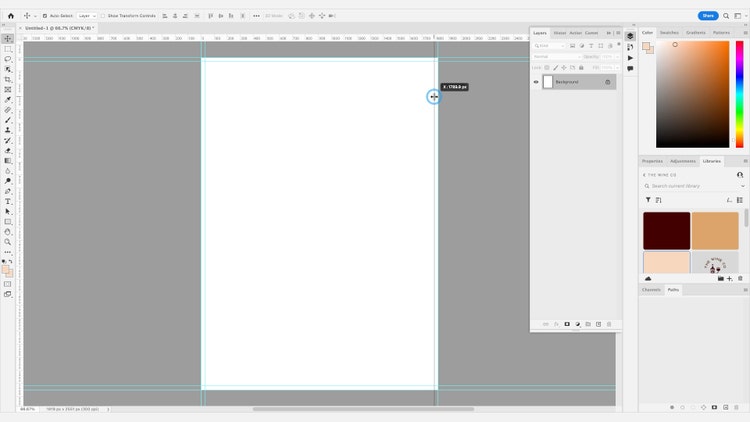
- Enable rulers by going to View > Rulers
- Turn on snapping via View > Snap
- Drag guides from the rulers to the edges of the document on all four sides
Next, add the bleed dimensions:
- Go to Image > Canvas Size and increase the document size by your required bleed amount
- For example, an A5 flyer sized at 154 × 216 mm requires a 3 mm bleed and a resolution of 300 pixels per inch
- Use the Move Tool (V) to position horizontal and vertical guides 3 mm from each edge
Step 2: Add imagery and build the layout structure.
Set the flyer background.
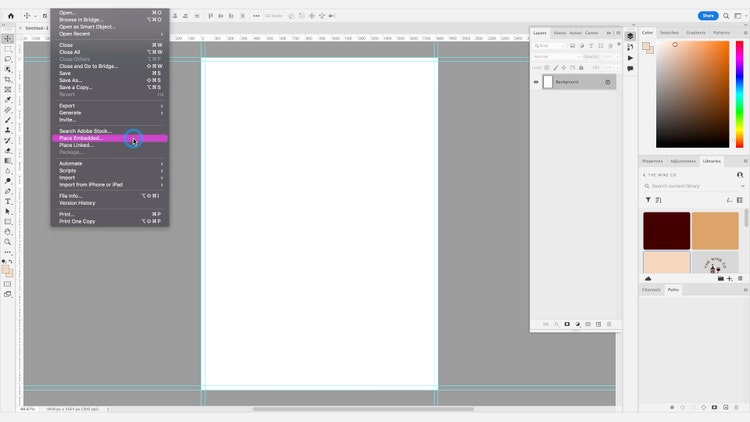
- To set a background for your flyer in Photoshop, go to File> Place Embedded > and select the image you would like to add. This could be your product, logo or photo from a location or recent shoot.
- You can also use Adobe Stock to find millions of high-quality, curated, royalty-free photos and vector graphics that you can include as imagery in your design.
Once you’ve set your background, it’s time for text placement.
Step 3: Select fonts and organise text hierarchy.
Setting up for text.
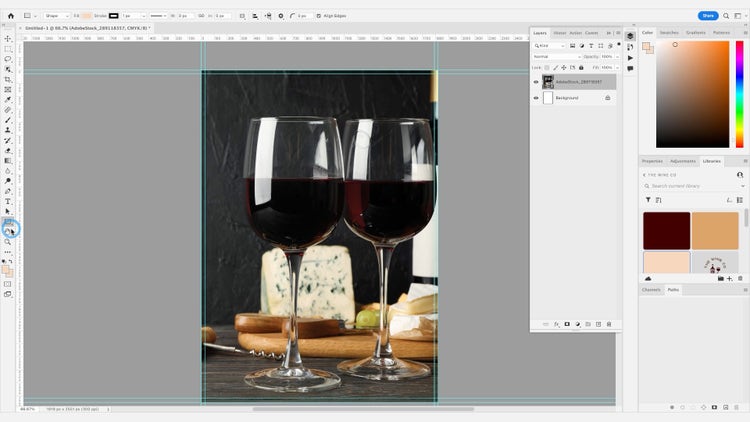
Click the Rectangle Tool from the toolbar to create a rectangle wherever you wish to place text. Remember that a great flyer has the perfect balance between text and imagery. Ensure that you place your text in a location that is easy to read.
Think about the text and information you want to share.
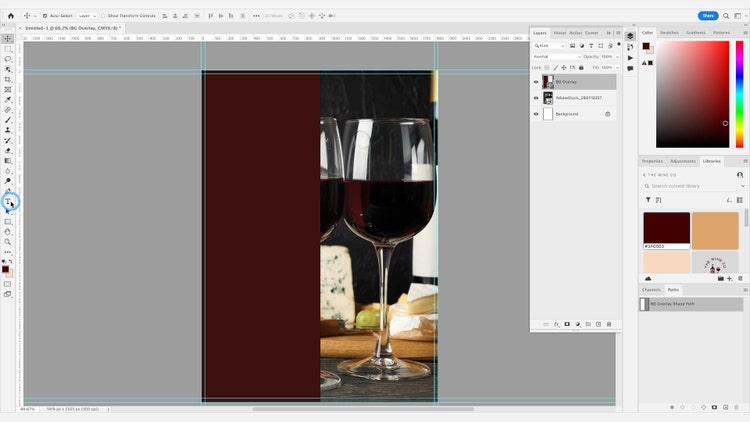
- Think about the text and information you want to share. To add a title and text to your flyer, click the Type Tool in the toolbar.
- Tip: Less is more with font families. As you want your flyer to look professional and cohesive, it’s important you only pick 1-2 font families which can have various font weights. Using 1-2 similar fonts is a way to add variety to your design while keeping things refined and easy to read.
Step 4: Apply type colours and refine the colour palette.
Deciding colours.
Colour is an important consideration when designing promotional assets or printed flyers as it can be used to draw attention, direct the eye and emphasise specific information.
Tip: Make sure that you choose a colour that aligns with your business, brand or product. It’s important to have about 2-3 primary colours which establishes the flyer’s colour palette. Any More will be distracting to the reader.
Learn more about changing font colour or adding effects.
Adding colour.
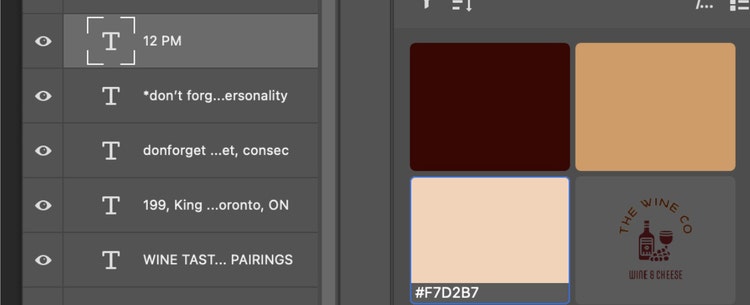
To add colour to specific text, select the text layer from the Layers panel in Photoshop and click the colour you want to choose from the creative library.
Step 5: Export the flyer as a print-ready PDF.
- Once your promotional flyer has images, information and colours, you can finalise the document for print.
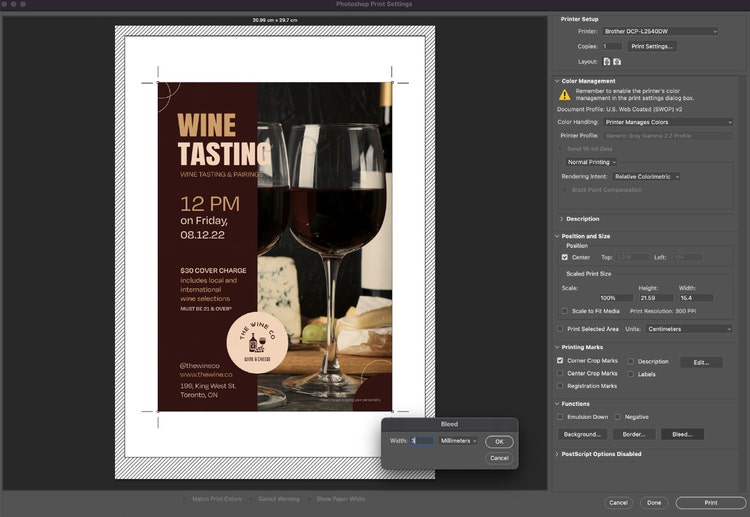
- Click File> Print, then move to the printing marks section and check the Crop Marks box.
- Go to the Functions section > Bleed button and set the width to 3 mm - the bleed area set earlier.
- Click OK> Print, this will save your document as a PDF.
You’ll note that when you open your flyer as a PDF, it will include the crop marks - perfect and ready for print.
Let yourself grow with Adobe Photoshop.
Grow your Photoshop repertoire and explore other tools that can help you create professional-looking assets, such as learning the basics of Photoshop with a Photoshop tutorial for beginners guide, or creating a mock-up with Photoshop.