• File size larger than 40MB
  • Unable to process the request
  • We are unable to process this file type. Please try again.
  • Only one file can be uploaded at a time.
  • Image exceeds maximum dimensions (8,000 x 8,000 pixels). Please resize and try again.
  • promoid=KLZPTZV5&mv=other

https://main--cc--adobecom.hlx.page/cc-shared/fragments/merch/products/photoshop/sticky-banner/default

Index: Photoshop tutorial for beginners

Lesson 1: Get started with Photoshop basics
{{nbsp}} {{nbsp}} 1.1 Begin your first project
{{nbsp}} {{nbsp}} 1.2 Start from scratch or a template
{{nbsp}} {{nbsp}} 1.3 Choose a document size
{{nbsp}} {{nbsp}} 1.4 Choose your resolution

Lesson 2: Discover how to work with layers
{{nbsp}} {{nbsp}} 2.1 Create a new layer from scratch
{{nbsp}} {{nbsp}} 2.2 Create a layer from an existing file

Lesson 3: Adjust certain areas of your image with layer masks
{{nbsp}} {{nbsp}} 3.1 How to add a mask to a layer

Lesson 4: Remove an object or spot from an image
{{nbsp}} {{nbsp}} 4.1 How to clean up your image

Lesson 5: Write on your layers
{{nbsp}} {{nbsp}} 5.1 Add text in a variety of styles
{{nbsp}} {{nbsp}} 5.2 Move, warp and shape your words
{{nbsp}} {{nbsp}} 5.3 How to add text

Lesson 6: Draw on your layers
{{nbsp}} {{nbsp}} 6.1 Add shapes to your design
{{nbsp}} {{nbsp}} 6.2 Choose from a thousand brushes

Lesson 7: How to paint in Photoshop

Lesson 8: Save your file

Lesson 9: Make big changes in an instant with Neural Filters
{{nbsp}} {{nbsp}} 9.1 Colourise black-and-white photos
{{nbsp}} {{nbsp}} 9.2 Zoom in while staying sharp
{{nbsp}} {{nbsp}} 9.3 Smooth skin
{{nbsp}} {{nbsp}} 9.4 Clean up your photos

Lesson 10: Try these step-by-step Photoshop tutorials

Index: Photoshop tutorial for beginners

  1. Lesson 1: Get started with Photoshop basics
    1.1 Begin your first project
    1.2 Start from scratch or a template
    1.3 Choose a document size
    1.4 Choose your resolution
  2. Lesson 2: Discover how to work with layers
    2.1 Create a new layer from scratch
    2.2 Create a layer from an existing file
  3. Lesson 3: Adjust certain areas of your image with layer masks
    3.1 How to add a mask to a layer
  4. Lesson 4: Remove an object or spot from an image
    4.1 How to clean up your image
  5. Lesson 5: Write on your layers
    5.1 Add text in a variety of styles
    5.2 Move, warp and shape your words
    5.3 How to add text
  6. Lesson 6: Draw on your layers
    6.1 Add shapes to your design
    6.2 Choose from a thousand brushes
  7. Lesson 7: How to paint in Photoshop
  8. Lesson 8: Save your file
  9. Lesson 9: Make big changes in an instant with Neural Filters
    9.1 Colourise black-and-white photos
    9.2 Zoom in while staying sharp
    9.3 Smooth skin
    9.4 Clean up your photos
  10. Lesson 10: Try these step-by-step Photoshop tutorials

Get started with Photoshop basics.

Some fundamental knowledge of Photoshop can help you to take the first steps to creating impressive digital artwork using photos, textures, shapes and line drawings. Start learning how to use Photoshop by trying a simple project such as a postcard or flyer. This is a great way to explore layers, text and image tools in a real design.
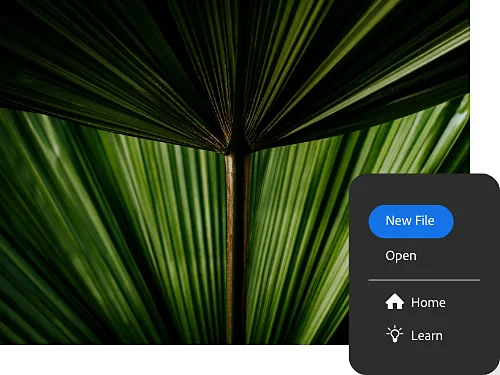
Image of leaves next to a Photoshop screenshot showing how to create a new file — a basic first step for beginners

Begin your first project.

After you download and open the app, create a new file in the Photoshop Document (PSD) format. This is the best starting point for someone following a Photoshop tutorial for beginners. As the native file format for Photoshop, a PSD file can store a large amount of data, including high-quality images.
Start from scratch or a template.

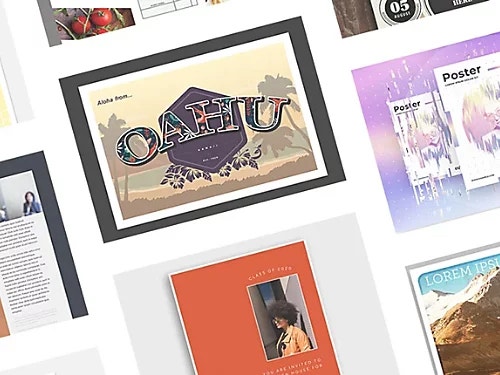
You can get a head start on flyers, postcards and posters with a Photoshop template, or begin with a blank document that is entirely your own.

Collage with 'Oahu' in fancy font, showing beginner designs using Photoshop templates
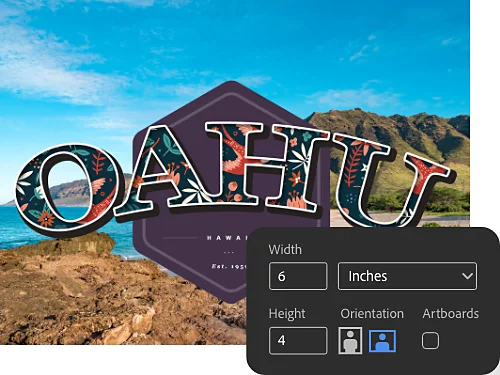
Text 'Oahu Hawaii' in large font over a beach background, with a Photoshop screenshot showing how to edit width and height

Choose a document size.

To create a new document, click the blue New File button. Then select the canvas size and resolution that fits your project.

For example, a standard postcard is usually 4 × 6 inches (10.2 × 15.2 cm).

Choose your resolution.

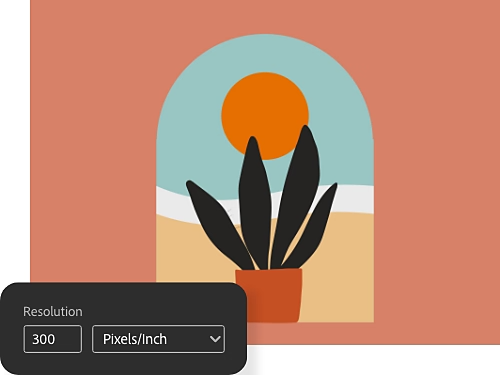
Choose 300 pixels per inch (ppi) to make sure you don’t lose any detail if you print it. This ensures that your images retain sharpness and detail, which is a best practice covered in many Photoshop tutorials.

Illustration of a tree and sun with a Photoshop screenshot displaying resolution settings - ideal for beginners learning image quality adjustments

Discover how to work with layers.

Layers are like clear sheets placed on top of background images or other layers. Working in layers allows you to add and adjust different elements like portions of photos or text. If your layer is transparent or semi-transparent, you can see through it to the layers below it.

You can add images, textures, colours and text to one layer without affecting the content in the layers below it, so you can undo or adjust any moves you make that you’re not happy with. Create a new layer from scratch or create one from an existing image.

Understanding layers is a key part of learning how to use Adobe Photoshop effectively.

Create a new layer from scratch.

Click the Create a New Layer button in the Layers panel or choose Layer › New › Layer from the top menu. Give your layer a name that makes it easy to identify later, especially if you are building more complex designs.

Create a layer from an existing file.

Add a piece of artwork or an image to your project as a new layer. This can help you practise working with layers, image formats, and composition.

  • Import the file.
    Let’s say you’re creating a postcard from a perfect beach photo you captured. To add the photo, drag and drop a JPEG or PNG photo file from your desktop into your Photoshop project. It will become a new layer over the background layer.
  • Reposition and resize it.
    Click and drag the corners or edges of your photo to make it larger or smaller. (Make sure the Show Transform Controls box is checked in the options bar at the top of Photoshop.) Use the Move tool to reposition your photo to fit your layout.
  • Press Enter or Return.
    Photoshop will automatically turn the layer into a Smart Object layer. This is simply an object you can change as you like without reducing the resolution.
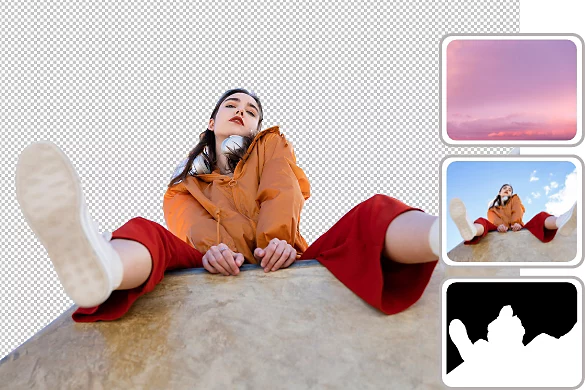
Photo of a girl with a transparent overlay and three visible layers shown beside it
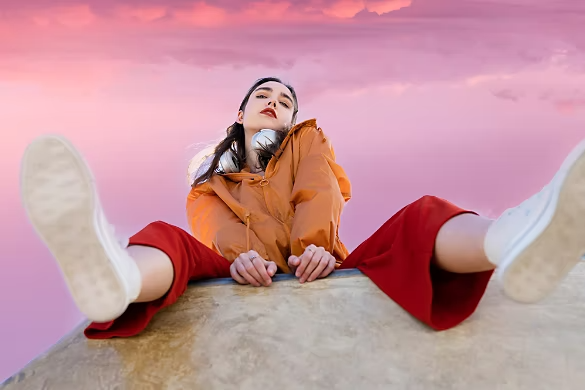
Photo of the girl with the blurred sky layer selected in the Layers panel

Adjust certain areas of your image with layer masks.

A layer mask allows you to control what to hide and what to show on a layer. This powerful feature helps you blend multiple images together smoothly. For example, you can combine two photos by creating a layer mask for your subject, then placing that subject onto a different background.

How to add a mask to a layer.

Let’s say you want to add someone who wasn’t there to your beach postcard photo. You can do this in the Select and Mask workspace.

{{nbsp}}
Step-by-step instructions:

  • Set up the photo.
    Drag and drop a photo of the person (or pet) you want to add. Make sure this new subject is placed in a layer above your background image.
  • Make your selection.
    Click the layer with your subject — the layer you want to mask — in the Layers panel. In the top menu, click Select › Select and Mask
  • Select your subject.
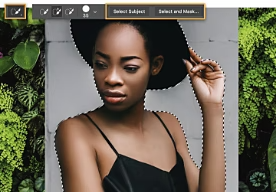
    Click Select Subject in the options bar. Photoshop will automatically select the most prominent subjects in the image. Note that the layer mask thumbnail will appear next to the image thumbnail in the Layers panel. The selection will appear white against a black background. The white part is the part that will be revealed while the rest will be hidden.
  • Refine your selection.
    Use the Add or Subtract buttons to add or take away pixels from your selection. You can also click Refine Hair and Photoshop will automatically find and refine difficult hair selections. Or try the Refine Edge Brush tool, the Lasso tool or the Quick Selection tool in the upper left of the toolbar to refine with even more control.

Remove an object or spot from an image.

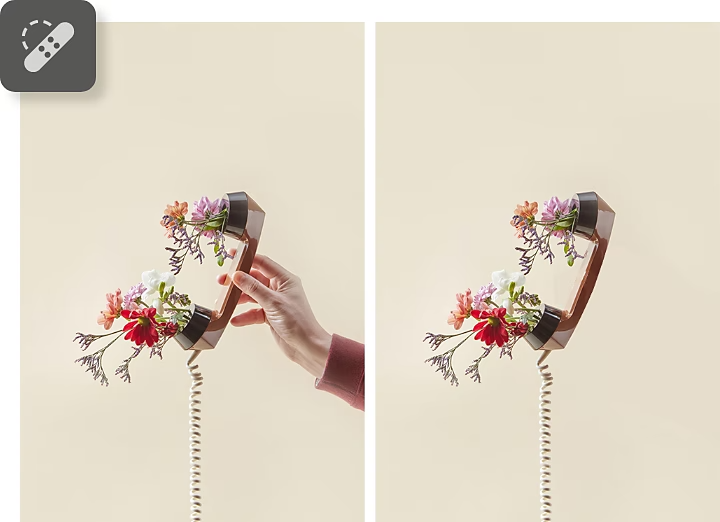
One easy way to use Photoshop is to remove things like rubbish bins, power lines and photobombers from your pictures. It’s also easy to remove a blemish from a portrait or a piece of litter from your perfect postcard beach shot.
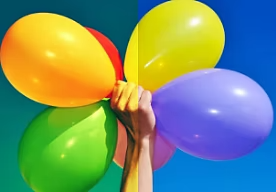
Before and after image showing Photoshop’s object removal feature, with illustrated flowers on a headset held by hands in one part, and the hands removed in the other

How to clean up your image.

Follow these steps to take out what you don’t want.

  • Select the layer.
    In the Layers panel, choose the layer with the spots or objects you want to remove.
  • Select the Spot Healing Brush tool.
    Click the Spot Healing Brush tool in the Tools panel or just press the J key. In the options bar, you can adjust the size and hardness of the brush edge (harder creates more clearly defined edges). Keep the type setting at Content-Aware, which means the tool will sample pixels and match the texture, lighting, transparency and shading of the sampled pixels to the pixels being healed.
  • Click or drag.
    Click a spot or drag the brush over the object you want to remove. Photoshop will automatically blend the area with the background.

Write on your layers.

If you’re making a postcard from your beach paradise, you may want to add the name of the place or a message. Photoshop makes it easy to add and customise text on your layers. Learning how to use text tools is a key part of building your Photoshop skills.
Image showing font selection and resizing options in Photoshop, with two sections displaying different text styles

Add text in a variety of styles.

Insert and resize your text using the Type Tool. Choose from thousands of fonts included with your Adobe Creative Cloud subscription.

Adjust font size, colour and alignment to suit your layout. If you are following a Photoshop tutorial, try experimenting with different text styles to build confidence with the tool.

Move, warp and shape your words.

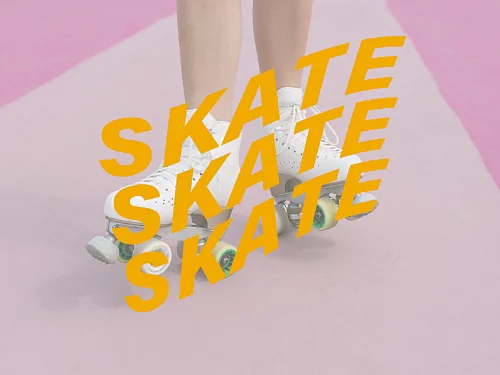
After adding text to an image, adjust its colour, placement and look — perhaps add a bit of bending or warping to the letters. Use the Move Tool to reposition the text and the Warp Tool to curve or bend your letters for added style.

Exploring text transformations helps you learn how to use Photoshop creatively and improves your design flexibility.

Photo of legs wearing sketching shoes in the background, with the word 'sketch' written three times to show text colour and placement adjustments

How to add text.

Write your message and then experiment with different fonts, sizes and text styles. Adding text allows you to explore how Adobe Photoshop can be used for design projects like posters, postcards, and social media graphics.

  • Select the Type tool.
    Click the Type Tool in the toolbar, or press the T key on your keyboard.
  • Pick your spot.
    Click the image where you want to place the type. In the options bar at the top of Photoshop, you can choose whether you want the type to be horizontal or vertical, as well as the font, size, colour, alignment and any warp effects you want to add.
  • Type your text.
    Add your own text over the “Lorem ipsum” sample text. Adjust the text to fit your design.
  • Edit and position.
    Highlight the text to make style changes. Use the Move Tool to position the text exactly where you want it on the image.
#f5f5f5
https://main--cc--adobecom.hlx.page/cc-shared/assets/img/product-icons/svg/photoshop.svg

Photoshop

Create gorgeous images, rich graphics and incredible art.

View product details

Draw on your layers.

Paint a picture on your picture. Maybe you want to add a cartoon umbrella or your beach photo looks a little too wonderful and you want to limit your viewers’ FOMO by drawing a shark in the water. Whatever your vision, Photoshop gives you the tools to realise it.

Add shapes to your design.

Use the Rectangle and Ellipse tools to draw those shapes or use Pen tools to create more complicated shapes with anchor points and handles. Using shapes in your designs makes it easier to create professional-looking logos, icons, and layout components.

Choose from a thousand brushes.

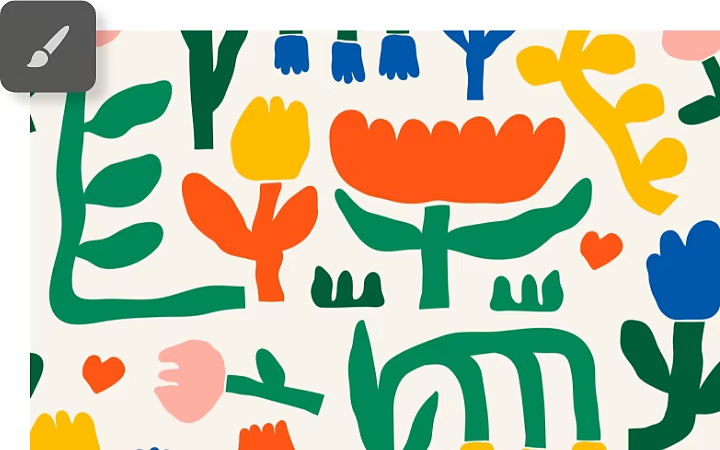
Paint or draw whatever you want on your image. Select a preset brush, brush tip and shape or create a unique brush tip from part of an image. These options are ideal for learners who want to master Photoshop tools and explore digital illustration.

Image showing colourful flower shapes created with the Brush tool in Photoshop, demonstrating how to draw on layers

How to paint in Photoshop.

Whether you want to draw freehand with the Brush Tool or add geometric shapes, the steps to start painting in Photoshop are very similar. This hands-on approach is ideal for learners exploring how to use Photoshop creatively.

  • Select the tool from the toolbar.
    Click the tool in the toolbar (or press the B key for the Brush or the M key for the Rectangular Marquee tool).
  • Customise the tool in the options bar.
    Choose your brush size and how fast you want the paint to flow or the colour that will fill your rectangle or ellipse.
  • Make your mark.
    Paint, draw or play with shapes. Try different brush presets and settings to see how they affect your artwork.

Save your file.

Saving your project properly is an essential step when learning how to use Photoshop. You can save your file in the original PSD format or export it to a different file type, depending on your needs.

To save your file:

  1. Go to File > Save, Save As or Save a Copy
    Choose how you want to save your document. Use Save for quick updates, Save As to rename or duplicate, and Save a Copy to avoid overwriting the original.
  2. Choose your save location
    Save to cloud documents for easy access across devices.
    Save locally to store the file on your computer.
  3. Select the file format
    The default format is PSD, which preserves all layers and editing options.

To export your file as an image:

  1. Go to File > Export > Export As
    This option lets you export the project in common image formats.
  2. Choose your export format
    Select JPEG, PNG, or PDF depending on where or how you want to use the file.
  3. Adjust export settings
    Set the image size, resolution and file quality before clicking Export.

Make big changes in an instant with Neural Filters.

Neural Filters are smart filters that use the power of Adobe Sensei AI technology to make quick, automatic edits to images. Now you can make the kinds of edits that used to take hours for professional graphic designers in seconds. These filters are perfect for retouching portraits, enhancing images, or adding creative effects.

How to use Neural Filters in Photoshop:

  1. Go to the top menu and click Filter > Neural Filters
    This opens the Neural Filters panel.
  2. Download the filter you want to use
    If a filter is not already installed, click the download icon next to it.
  3. Toggle on the filter
    Use the switch next to the filter’s name to activate it.
  4. Adjust the settings
    Use sliders and options to customise the effect to your liking. You can preview the changes in real time.
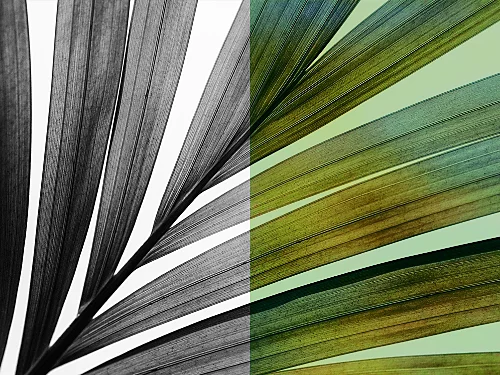
Leaf image shown in black and white on one side and in colour on the other, demonstrating the Colourise Neural Filter in Photoshop

Colourise black-and-white photos.

Turn black-and-white images into full colour in a few clicks with the Colourise filter. You can choose your preferred hues and adjust saturation using focus points to get the look you want.

This feature is useful when practising creative retouching in a Photoshop tutorial or learning to apply AI effects.

Zoom in while staying sharp.

With the Super Zoom filter, you can get close and personal without losing detail. It enhances facial features and reduces blur, helping you maintain sharpness in close-up shots.

Photo of a girl with a Photoshop screenshot highlighting the Super Zoom feature for close-up editing without losing detail
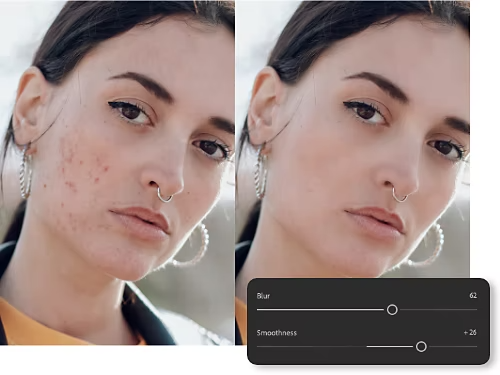
Split photo of a girl showing before and after results of the Skin Smoothing filter, with blemishes removed

Smooth skin.

Remove blemishes, tattoos, scars and more with the Skin Smoothing filter. As you’re retouching, use the Smoothness and Blur sliders to get just the right look. You can also try the Spot Healing Brush tool for quick touch-ups. This is one of the most commonly used Photoshop tools for enhancing portraits.

Clean up your photos.

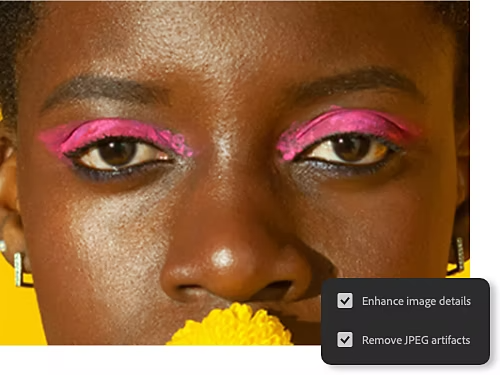
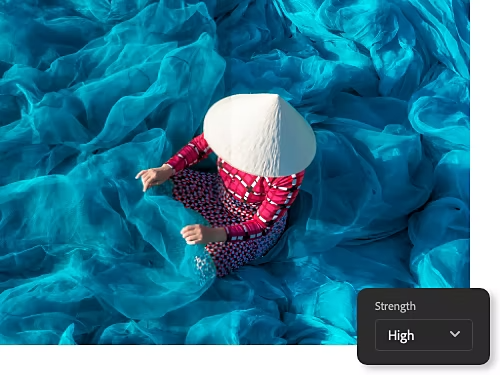
If you’ve converted a JPEG to PSD, you may notice fuzzy or pixelated areas. You can remove these artefacts of compression with the JPEG Artefacts Removal filter. Fine-tune with either a high, medium or low level of blur. It’s a helpful filter when learning how to clean up images in Photoshop.

Vietnamese person wearing a traditional hat, showing use of the JPEG Artefacts Removal filter with adjustable blur levels

Protect your work with official Photoshop

Using genuine Adobe Photoshop ensures you get the latest features, performance updates, and access to support and cloud services. Non-genuine or pirated versions may seem similar but often come with risks such as software instability, missing tools, lack of updates, and potential security threats. To enjoy a secure and reliable editing experience, always download Photoshop from Adobe's official website or authorised partners.

Try these step-by-step Photoshop tutorials.

Familiarise yourself with more tools and learn how to take your photo editing to the next level.

Take your photos places.

Separate your subjects from their original backgrounds with the Quick Selection tool and place them somewhere completely different.

Add a new background to a photo|Add a new background to a photo

Go deeper with colour.

Adjust the colours in your photos to add vibrance, mute a distracting tone or just make one element pop.

Change the colours in an image|Change the colours in an image

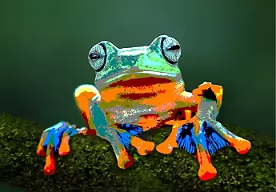
Stylise a photo.

Achieve a painted or airbrushed look by limiting the number of colours that appear across a photo or just a specific selection.

Posterise your pic|Posterise your pic

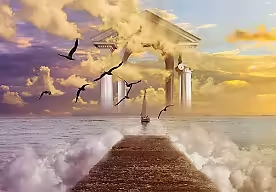
Combine images.

Combine two different photos to create a composite that is a work of art in its own right.

Create a composite|Create a composite

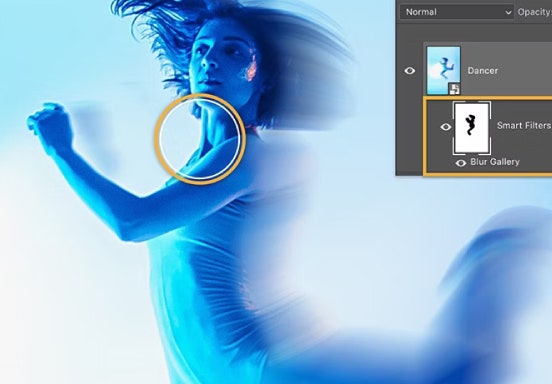
Add blur to an image.

Learn how to add a blur effect to a photo to focus attention or amplify a sense of motion.

Learn to blur|Learn to blur

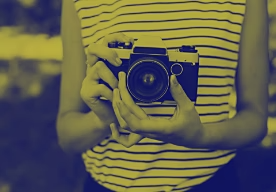
Create a duotone effect.

Give any high-contrast, black-and-white image a bold new look by adding a Gradient Map Adjustment Layer.

Set the tone|Set the tone

https://main--cc--adobecom.hlx.page/cc-shared/fragments/products/photoshop/do-more-with-adobe-photoshop

Questions? We have answers.

Can I use Photoshop without an internet connection?

Yes. Once installed and activated, Photoshop can be used offline. However, certain features like cloud document syncing and some AI-based tools require an internet connection.

What is the difference between Photoshop and Photoshop Express?

Photoshop is a professional desktop application with full editing capabilities, while Photoshop Express is a mobile-friendly app designed for quick edits and basic adjustments on smartphones and tablets.

How do I speed up Photoshop if it starts running slow?

You can improve performance by increasing available RAM, closing unused files, clearing cache, and adjusting preferences like disabling animated zoom or reducing history states.

Can I use Photoshop across multiple devices?

Yes. Adobe allows installation on two devices, such as a desktop and a laptop, as long as you are the primary user. You can also access Photoshop on the iPad with your Creative Cloud subscription.

What are the risks of using non-genuine Photoshop?

Non-genuine versions may lack essential features, updates, and support. They can also expose your device to security threats and cause software errors. Always use genuine Photoshop to ensure a safe and reliable editing experience.

https://main--cc--adobecom.aem.page/in/cc-shared/fragments/roc/mep/products/photoshop/media-blade-146492

https://main--cc--adobecom.hlx.page/cc-shared/fragments/merch/products/photoshop/merch-card/segment-blade