Make your picture perfect.
Use the Spot Healing Brush tool to remove unwanted spots, marks or small objects in your image. The brush automatically selects pixels from one part of your image to replace unwanted ones, ensuring a seamless blend.


Tap to upload the image
File must be JPEG, JPG or PNG and up to 40MB
By uploading your image or video, you agree to the Adobe
Terms of Use and Privacy Policy
Tap to upload the image
File must be JPEG, JPG or PNG and up to 40MB
By uploading your image or video, you agree to the Adobe
Terms of Use and Privacy Policy
Drag and drop an image
to try it today
File must be JPEG, JPG or PNG and up to 40MB
By uploading your image or video, you agree to the Adobe
Terms of Use and Privacy Policy
Use the Spot Healing Brush tool in Adobe Photoshop to hide imperfections or remove blemishes quickly and accurately. From retouching portraits to enhancing product photos, this tool delivers fast and seamless correction every time.
Use the Spot Healing Brush tool to remove unwanted spots, marks or small objects in your image. The brush automatically selects pixels from one part of your image to replace unwanted ones, ensuring a seamless blend.


Photoshop offers several tools for retouching. The Spot Healing Brush tool is ideal for effortlessly removing blemishes and small flaws from photos.
Use the Clone Stamp tool for seamless duplication and for blending imperfections with more precision, try the Healing Brush tool.
To get the best results using the Spot Healing Brush tool, make sure your brush is slightly larger than the spot you want to remove so that Adobe Photoshop can copy part of the image around the spot to fill it in. You can set the brush size and hardness in the Options bar. A harder brush will remove blemishes and spots without blurring the edges.


To remove an object or blemish using the Spot Healing Brush tool, click or drag over the area you want to correct.
Learn how to use the Spot Healing Brush tool in Photoshop to retouch your photos with this simple step-by-step guide:
The process of removing blemishes from photos is the same whether you’re clearing an acne scar or dark spots on the skin. Without the right tools, edits can look unnatural, but the Spot Healing Brush seamlessly blends imperfections, making blemishes and dark spots disappear while keeping a natural skin texture.
How to remove blemishes from photo and even out skin tone:
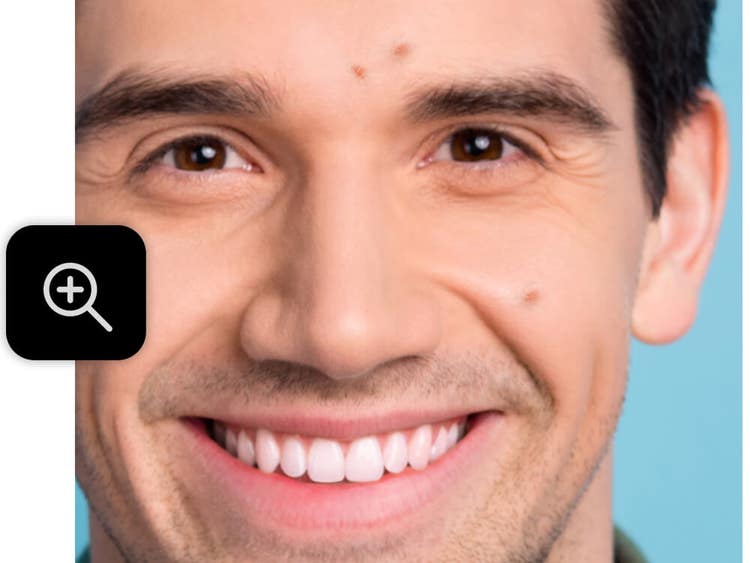
Select the Zoom Tool or press Z, then click on the area of the photo you want to enhance. A closer view helps you target acne scars or blemishes more accurately, reducing the risk of over-editing surrounding skin.
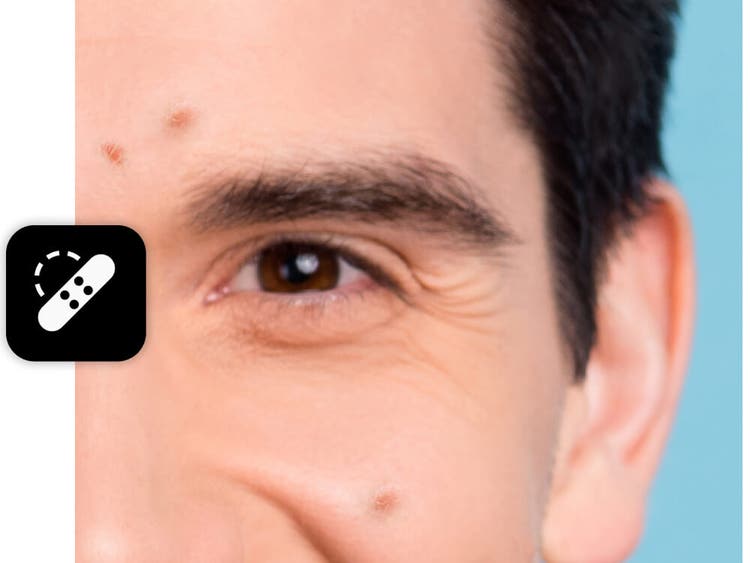
Choose the Spot Healing Brush tool from the toolbar or press J. Adjust the brush size slightly larger than the blemish and set hardness to medium or low for smoother blending with the surrounding skin texture.
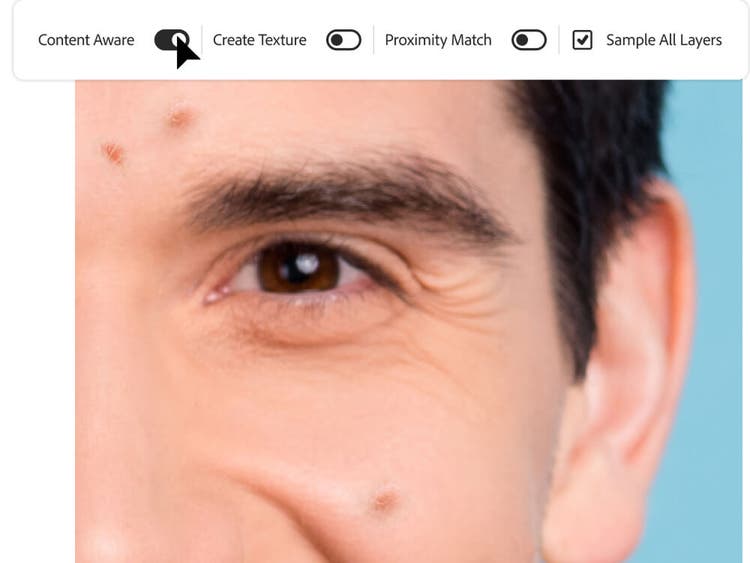
In the Options bar at the top, set the brush type to Content-Aware to allow Photoshop to intelligently blend the retouched area. Tick Sample All Layers if you’re working on a separate retouch layer, as this keeps your edits non-destructive.
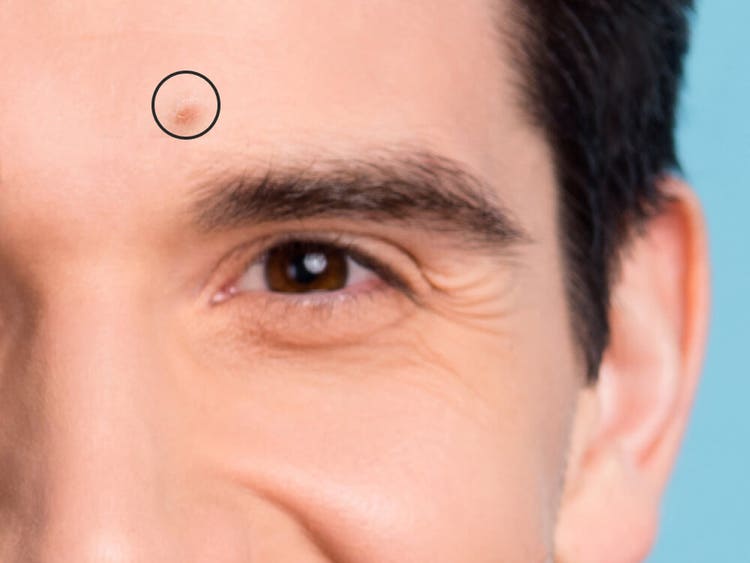
Click once for isolated blemishes like pimples or moles. For larger or textured areas, lightly paint over the spot using short, controlled strokes. The Spot Healing Brush tool samples surrounding pixels to maintain a natural skin tone and texture.
Wondering what the Spot Healing Brush tool is used for? Here are some common ways to edit and enhance your photos using this tool:
The Spot Healing Brush Tool is powerful, but using it incorrectly can lead to unrealistic results or uneven edits. Here are some common mistakes to watch out for and how to fix them:
The Spot Healing Brush tool has three modes:
Content-Aware: Analyses the content around the selection to blend the area seamlessly.

Annual, billed monthly
₹733.96/moincl. GST
Get Photoshop on desktop and iPad as part of Creative Cloud.
Annual, billed monthly
₹2,714.00/moincl. GST
Get 20+ Creative Cloud apps, including Photoshop on desktop and iPad.
Annual, billed monthly
Save on 20+ Creative Cloud Pro.
₹9,312.00/moper licenseexcl. GST
Industry-leading creative apps with simple licence management.

Based on your location, we think you may prefer the United States website, where you'll get regional content, offerings, and pricing.


