










Special pricing for India.

See plans

Creative Cloud Pro now available at a special price.

View plans and pricing

Save over 40% on Creative Cloud Pro for the first year.

Save today

.
  • File size larger than 40MB
  • Unable to process the request
  • We are unable to process this file type. Please try again.
  • Only one file can be uploaded at a time.
  • Image exceeds maximum dimensions (8,000 x 8,000 pixels). Please resize and try again.
  • promoid=98SH4CHF&mv=other

Perfect your images with the Remove tool.

The Remove Tool is your go-to option for quickly cleaning up your photos and putting the focus on your subject. Erase unwanted elements of all sizes and automatically fill them in with new content that blends in with the rest of the image. Think of it like a photo eraser and object remover rolled into one.

To remove object from photo online free without disturbing the original composition, this tool is a perfect choice.

Two women looking at a map with a couple highlighted in pink for removal in the background.

Tips for using Object Remover to erase things from photos.

Use these tips to refine your edits for the best results when removing an object from a photo. Minor adjustments and the right settings can help you to achieve a seamless look.

  • Add a blank layer and check the Sample All Layers option to sample data from every visible layer for non-destructive edits. Make sure your blank layer is selected when you make changes and the original image won’t be altered.
  • Turn off Remove after every stroke to make multiple strokes before removing the object if you’re removing a complicated selection.
  • Use the Healing Brush or Clone Stamp after using the Removal Tool. Refine edges and textures with the Healing Brush or Clone Stamp to blend any remaining imperfections.
  • Zoom in for precision. Working at a higher zoom level helps you to make more accurate selections and cleaner edits, especially for detailed backgrounds.

Adjust the brush size. A smaller brush works better for intricate areas, while a larger brush speeds up removal for bigger objects.

These tips are especially useful if you're trying to remove unwanted object from photo online free or want AI to handle intricate edits.


https://www.youtube.com/watch?v=guH8oaGbqu4

What can you remove with a photo eraser?

A photo eraser, like the Adobe Photoshop Removal Tool, can seamlessly remove unwanted elements from your images. Whether you’re cleaning up distractions or refining your composition, here are some ways to use object removal:

Ultimately, this feature is perfect for anyone wondering how to remove an object from a photo online or get rid of background distractions that clutter the image.
A roman ruin with tourists highlighted for removal in the foreground., Picture

AI-powered tools for object removal.

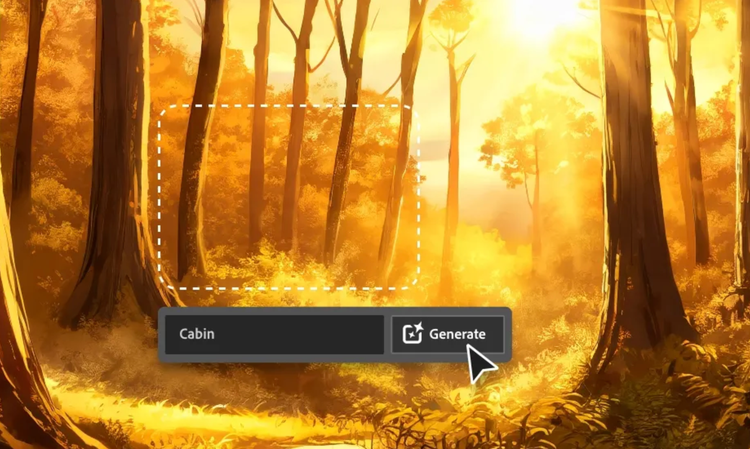
  • Generative Fill: Let AI intelligently replace a selected area with realistic details based on the surrounding environment. This tool works well for large removals or intricate textures.
  • Content-aware Fill: Fill in the space left by removed people or objects with matching pixels. By analysing the surrounding area, AI can generate a natural-looking result. Great for removing people, objects or even large sections of an image.
  • Remove Tool: Adjust the generative AI settings for the Remove tool to erase objects with a single stroke while automatically blending the background. Ideal for quick touch-ups or removing small to medium-sized distractions.

With AI-powered editing features in Adobe Photoshop, you can easily remove unwanted elements from your photos and achieve professional-quality results.

Before and after of a roman ruin with tourists highlighted for removal in the foreground.

Common mistakes to avoid when removing objects in Photoshop

When using tools like the Remove tool, Content-Aware Fill or Generative Fill, a few common missteps can affect the final quality of your edits. Here are some mistakes to avoid for more seamless results:

  1. Ignoring the background context
    If the surrounding area has complex patterns or gradients, removing an object without considering the background can lead to visible patchiness. Always zoom in and inspect the area before and after editing.
  2. Using the tool on the original layer
    Editing directly on your original image can make it difficult to correct mistakes. Instead, work on a duplicate layer to preserve the original image and allow non-destructive editing.
  3. Overusing the tool on large areas
    While it might be tempting to select large regions for quick fixes, tools like Content-Aware Fill and the Remove tool perform better on smaller, well-defined selections. Tackle complex areas in stages for cleaner results.
  4. Not refining the selection edges
    Rough or jagged selections can cause unnatural blends. Use feathering or edge refinement tools to soften the transition between the edited and untouched areas.
  5. Ignoring lighting and shadows
    Removing an object without accounting for its shadow or light source can leave behind inconsistencies. Make sure the replacement pixels match the lighting and perspective of the scene.
  6. Forgetting to review the result at 100% zoom
    Always inspect your edit at full resolution. Artefacts and irregularities that are not visible at smaller sizes may stand out in print or high-res outputs.

Avoiding these mistakes can help you achieve more realistic and professional-looking edits, whether you are retouching photos or transforming entire scenes.

Questions? We have answers.

Photoshop and Creative Cloud Pro Work Better Together

  • Effortlessly switch between industry-leading apps like Illustrator, and Premiere without losing quality or data.
  • Help protect your projects with auto-save and secure cloud storage.
  • Create faster with the latest time-saving generative AI features.

Find the Creative Cloud plan that’s right for you.

Adobe Photoshop Single App

Annual, billed monthly

733.96/mo incl. GST

Get Photoshop on desktop and iPad as part of Creative Cloud.

Learn more

Creative Cloud Pro

Annual, billed monthly

2,714.00/mo incl. GST

Get 20+ Creative Cloud apps, including Photoshop on desktop and iPad.

See what's included | Learn more

Students and Teachers

Annual, billed monthly

Regularly at 2,714.00/mo Alternatively at 638.38/mo incl. GST

Save over 70% on 20+ Creative Cloud Pro.

See terms | Learn more

Business

Annual, billed monthly

Regularly at 8,389.00/mo Alternatively at 4,405.00/mo per licence for the first year excl. GST | See terms.

Get up to 9 licences for your team and save 47% for the 1st year on 20+ Creative Cloud apps incl. Photoshop plus exclusive business features. First-time subscribers only.

See what's included | Learn more

47% off