https://main--cc--adobecom.hlx.page/cc-shared/fragments/merch/products/firefly/sticky-banner/get-firefly-free

AI-generated image in Photoshop: A plain sneaker "before" and a floral-patterned, artistic sneaker "after" against a pink and blue faded backdrop adorned with more floral accents.

Unleash your creativity.

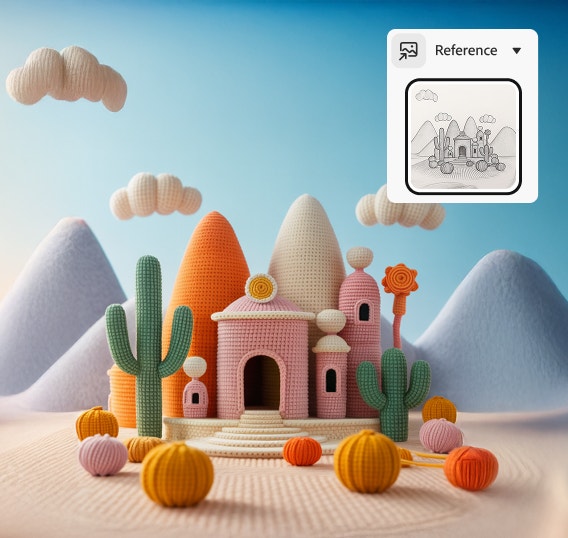
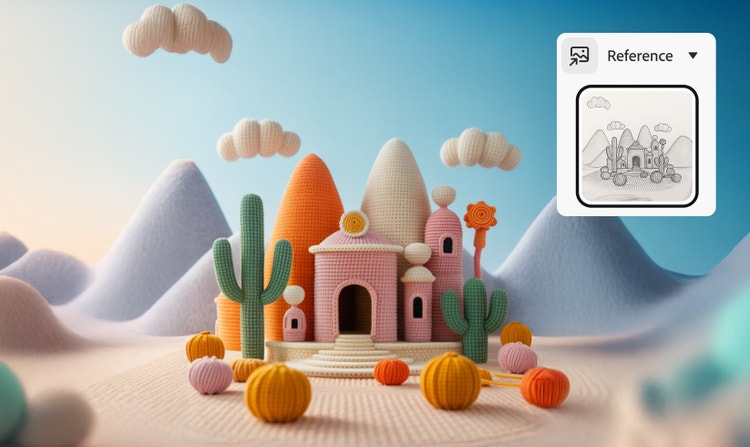
Use image to image AI to generate fresh variations of your visuals. Reimagine colours, compositions, and styles to explore new creative directions with every prompt.

Enhance your workflow.

Transform images instantly with image to image AI tools like Generative Fill and Text to Image. Speed up production while keeping your creative vision intact.

Scenic forest bridge with distant mountains, highlighting the transformative capabilities of generative AI in Photoshop.
Four colourful ice cream sundaes, each with a unique style, highlighting experimenting with different styles in your images.

Explore artistic styles.

Experiment with image to image AI to apply painterly, graphic, or photorealistic effects. Give your images a distinct style that stands out.

Create effortlessly with AI — no experience needed.

Image-to-image AI is accessible for all skill levels. Whether you're a seasoned designer or a complete beginner, you can create professional-looking visuals without the need for extensive design experience.

A small, plain bear photo overlaid on a larger, colourful digital image of a bear in a spacesuit exploring space, showcasing the power of AI image transformation.

How to convert image to AI image?

  • Go to the Adobe Firefly web app.
  • Scroll down and select Text to Image, then enter a prompt to begin creating your image.

    TIP: You can also go directly to the image editor by typing any prompt in the text box and clicking Generate.
  • In the General Settings panel, either enter a text prompt or go to Structure to upload your own sketch.
  • Use the Strength slider to adjust the outline and depth of your image.
  • Explore the Styles section to fine-tune Visual Intensity, Effects, Colour and Tone, Lighting, and Camera Angle.

    TIP: If the result is not quite what you want, edit your text prompt or style settings to refine your image.
  • When you are satisfied, click Generate, then save and share your creation.

Image to Image AI for Every Creator

For content creators

Level up your visuals with Image to Image AI. Transform sketches, references, or photos into polished assets that match your creative vision. Ideal for thumbnails, social posts, and video covers across platforms like YouTube, Instagram, and X.

For entrepreneurs

Quickly generate professional visuals for campaigns, ads, and product concepts. Image to Image AI helps you refine or restyle existing assets to align with your brand, keeping your marketing consistent across channels.

For artists and designers

Bring your ideas to life faster. Use Image to Image AI to turn outlines into finished illustrations or reimagine concepts in different art styles — from pencil sketches to 3D renders. It is a creative shortcut that keeps your unique touch intact.

For hobbyists and explorers

Have fun experimenting with AI. Image to Image AI makes it easy to turn photos into artistic interpretations or stylised scenes, whether you are creating fan art, exploring new aesthetics, or just seeing where your imagination takes you.

FAQs about Image to Image AI.

What is an image-to-image AI generator?
An image to image AI generator is a type of generative AI that transforms one image into another while maintaining the original structure or style. It can be used for style transfer, colour adjustments, texture changes, and creative reinterpretations of your visuals.
How do image-to-image generators work?
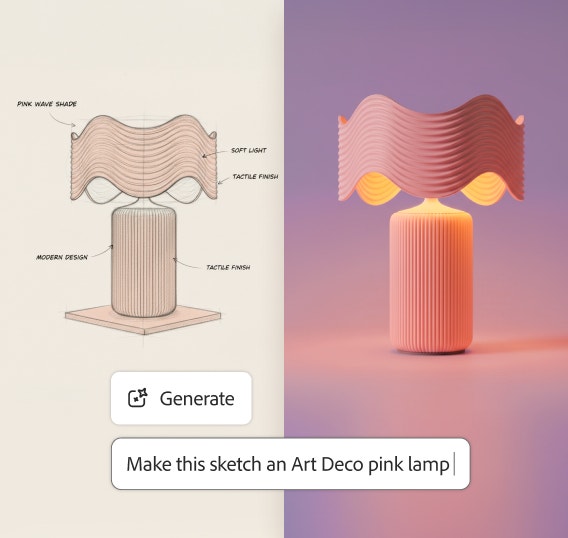
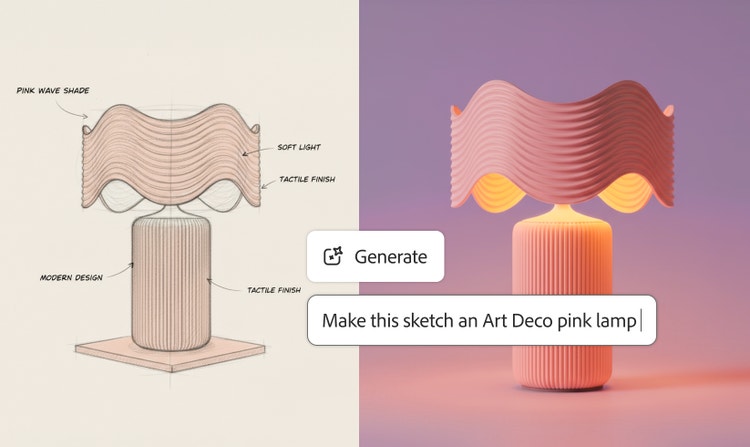
Image to image AI uses deep learning to analyse a source image and apply its structure to new creations. Simply upload an image as a visual reference, and the AI generates multiple variations with the same composition, no perfect prompt needed.
How does image to image differ from text to image generation?
Image to image AI starts with an existing image as a visual guide, while text to image uses written prompts to generate visuals from scratch. Image to image offers more control over layout and composition, making it ideal for refining specific ideas.
How do I convert an image to AI art?
Upload your own image to generate images in your unique style. Or apply a style reference from the curated gallery, which includes dozens of options in several categories, including Watercolour, Pencil, 3D, Neon, Landscapes, Texture and more.
Can I upload multiple images?
You can upload and blend multiple images into a single scene using the Image to Image feature in Adobe Firefly. For best results, use clear, descriptive prompts that specify what to keep or change. For example, “place the logo on the coffee mug” or “combine the sky from one image with the cityscape from another.”
Can I generate images in Adobe Firefly using Nano Banana?
Nano Banana is available as a partner model for image generation in Adobe Firefly. You can access it in the Text to Image module by selecting Gemini 2.5 Flash Image from the model drop-down menu.
What types of images work best with image to image AI?
High-quality, well-lit images with clear subjects work best. The more defined your structure and composition, the more accurate and creative your AI-generated results will be.
How long does the image transformation process take?
Transformations with image to image AI typically take just a few seconds. The process may vary slightly based on image complexity and internet speed, but results appear almost instantly.
Can I use the transformed images commercially?
Images generated with Adobe Firefly’s image to image AI can be used commercially if they are created using models trained on licensed content such as Adobe Stock and public domain materials.

https://main--cc--adobecom.hlx.page/cc-shared/fragments/products/firefly/firefly-sketch-to-image-four-cards-up