
Photography
How to add a blur effect to an image in Adobe Photoshop.
Learn techniques for adding blur to specific areas of a photo and how to use a blur effect to express motion in your static image in Adobe Photoshop.


Photography
Learn techniques for adding blur to specific areas of a photo and how to use a blur effect to express motion in your static image in Adobe Photoshop.
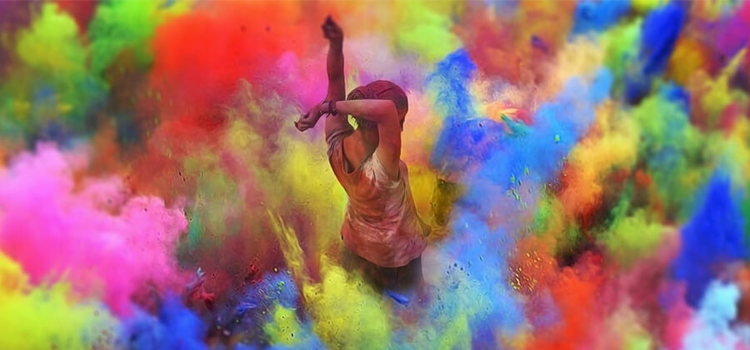
Blurring an image can enhance focus, amplify motion, and introduce artistic elements to your photos. A blurred background or a radial blur in an image can imitate the high-focus look of a shallow depth of field. You can also add a linear blur to mimic tilt-shift photography or even use motion blur to add movement to a static object.
Whether you're editing on desktop or mobile, Adobe Creative Cloud makes it easy to blur photos with precision. If you're looking to achieve a professional photo background blur, tools in Adobe Photoshop and Lightroom allow you to quickly blur the background while keeping your subject sharp. Not sure how to blur background in photo editing? Creative Cloud apps offer intuitive, AI-powered features that help you get stunning, studio-style results with just a few clicks - no camera required.
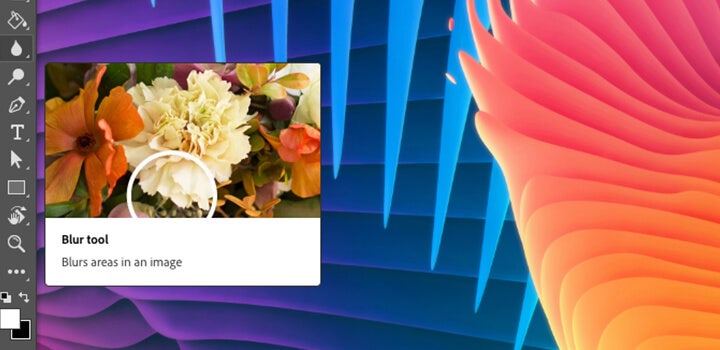
Apply a blur effect with a brush.
Soften specific parts of an image and draw attention to your subject by applying blur with your favourite brush. Select the Blur tool in Photoshop, choose a brush tip and strength, and drag it over the areas you want to blur. You can achieve a similar effect using Lightroom.
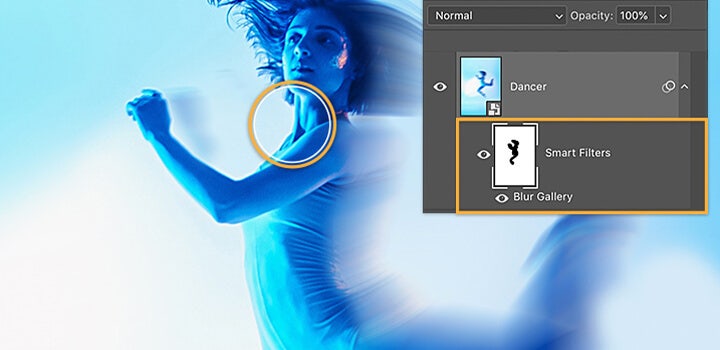
Create motion with a blur effect.
Add movement to a static object or subject in a photo by applying a directional Path Blur filter in Photoshop. Discover how art director Kathleen Martin uses a motion blur effect and learn how to add drama with blur filters.
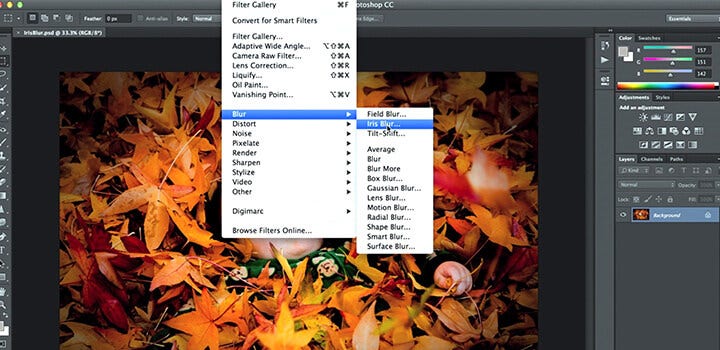
See how you can create a radial blur effect around a specific focal point using Iris Blur in Photoshop. Select an area to keep in focus and control the amount and adjust the blur's intensity and gradient for a smooth transition.
1. In Photoshop, go to Filter > Blur Gallery and select Iris Blur.
2. Click the pin at the centre of the blur ring and position it over your focal point.
3. Click and drag single points to elongate the ellipsis or drag the outer line to resize the blur area.
4. Click and drag the dots inside the blur preview ring to adjust the size of the blur transition area.
5. Adjust the round blur dial to control the amount of blur applied.
6. When you’re finished, press Enter or click OK at the top of the Blur Gallery window.
Get creative using blur as a tool to create a composite image or transform photos into colour palette explorations.
Radial or directional blur effects can help blend elements seamlessly in composite images using Photoshop. Use blur to add motion to your composite with radial blur or add texture to lessen noise in the background of a photo.
Watch Julieanne Kost’s tutorial on how she created her Colours of Place artwork - a creative use of Photoshop’s Blur Tool to extract colour palettes from images.
Understanding each of the ways to blur an image can do more than just enhance the look of a photo, it can open new doors to creative expression. Try each of the various blurring effects in Photoshop to discover all that’s possible.
Blurring a specific part of an image can help you direct focus, create depth, or conceal sensitive details. Photoshop offers several methods to achieve the blur effect with precision.
Method 1: Using the Selection Tools
1. Open your image in Photoshop and select the Lasso Tool, Quick Selection Tool, or Pen Tool to outline the area you want to blur.
2. Once selected, go to Filter > Blur and choose from options like:
3. Adjust the blur intensity using the Radius or Strength slider.
4. If the blur edges look unnatural, refine them using Feathering or Layer Masks for a seamless transition.
Method 2: Using the Blur Tool for Selective Softening
1. Select the Blur Tool from the Photoshop toolbar.
2. Adjust the brush size and strength in the top menu.
3. Gently brush over the areas you want to blur. This method provides more control for subtle effects.
Pro Tip: Use Smart Objects before applying blur effects. This allows for non-destructive editing, so you can adjust or remove the blur later.
Photoshop opens up a range of creative possibilities for professionals across India, from photographers to graphic designers. With tools that allow precise background blurring, subject isolation, and motion effects, it's easy to enhance visual storytelling and create high-impact imagery. Whether you're working on a wedding portrait or designing a digital ad, Photoshop gives you the flexibility to craft images that stand out.
Here are a few practical ways professionals in India can use Photoshop to add impact:
To blur an entire image:
1. Open your image in Photoshop.
2. Go to Filter > Blur and choose a blur effect, such as Gaussian Blur or Lens Blur.
3. Adjust the blur intensity using the slider.
4. Click OK to apply the blur.
To blur only a section of an image:
1. Select the Lasso Tool or Quick Selection Tool and outline the area.
2. Go to Filter > Blur and choose a blur effect like Gaussian Blur or Lens Blur.
3. Adjust the blur level and refine edges using Feathering or Layer Masks for a seamless effect.
Photoshop offers multiple blur tools depending on the effect you want:
Yes, you can blur images using Photoshop for iPad or Adobe Express:
Blurring can look artificial if not applied correctly. Common mistakes include:
If the blur was applied as a Smart Filter, simply disable or adjust it in the Layers panel.
If the blur is permanent, try:
Based on your location, we think you may prefer the United States website, where you'll get regional content, offerings, and pricing.


