PHOTOGRAPHY
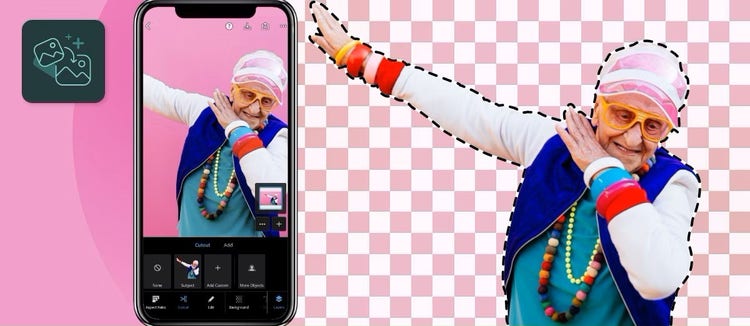
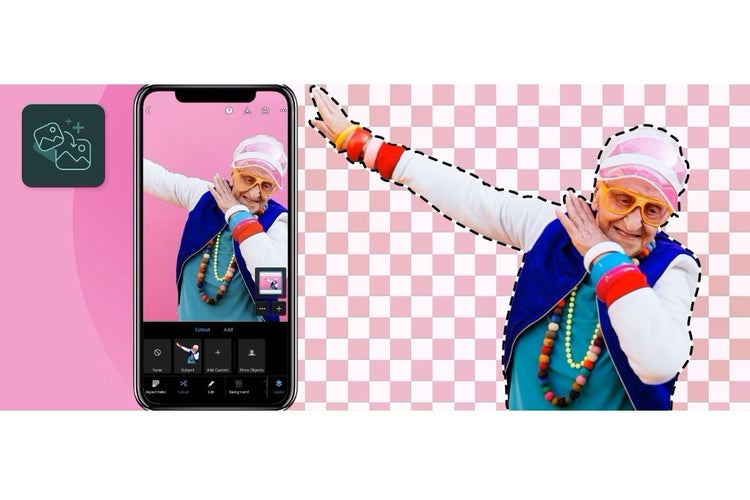
How to cut out images with precision in Photoshop.
Master the art of cutting out images in Photoshop with precision techniques to achieve clean, professional results in any project.
The art of seamless cutouts in Photoshop.
Cutting out images with precision is a fundamental skill in photo editing, allowing you to isolate subjects, replace backgrounds, or integrate elements into new compositions. Whether you’re working on product photography, digital art, or simple edits, mastering this technique can elevate your work to a professional standard. This guide will walk you through various methods for making accurate cutouts in Photoshop, ensuring clean results every time.
A clean cutout can transform an image, making it more versatile for graphic design, advertisements, or personal projects. Whether you need to cut out a person in Photoshop or remove the background from a product shot, precision is key to achieving a natural, polished result. Before you begin, it can help to familiarise yourself with Photoshop’s selection tools, ensuring you’re comfortable with the core features used for cutting out subjects.
Choosing the right selection tool.
Photoshop offers several tools to cut out photos effectively. Selecting the right tool for your subject can save time and improve accuracy. If you need to quickly select people, objects, or backgrounds, check out Photoshop’s Object Selection tool, which intelligently detects subjects with just a click.
1. Quick selection tool:
- Best for: Simple backgrounds and well-defined subjects.
- How to use: Click and drag over the subject; the tool will automatically detect edges.
2. Magic wand tool:
- Best for: High-contrast backgrounds or solid colours.
- How to use: Click on the background or subject; adjust Tolerance in the toolbar to refine your selection.
3. Lasso tools:
- Best for: Freehand selections or irregular shapes.
Options:
- Lasso tool: Draw freely around the subject.
- Polygonal Lasso tool: Click to create straight-edged selections.
- Magnetic Lasso tool: Snaps to object edges as you trace.
4. Pen tool:
- Best for: Ultimate precision and complex objects.
- How to use: Click to create anchor points and curve lines around the subject; convert the path into a selection.
Refining the edges for a professional finish.
Even with a good selection, refining the edges is often necessary for a realistic result, especially with subjects like hair or fur.
1. Select and Mask:
- After making a selection, click Select and Mask in the toolbar.
- Adjust Edge Detection (Radius) to improve edge accuracy.
- Use the Refine Edge Brush to fine-tune hair or soft edges.
- Adjust Smooth, Feather, Contrast, and Shift Edge sliders for a clean finish.
2. Feathering edges:
- Soften hard edges by adding a slight Feather (Select > Modify > Feather).
3. Removing fringe or halo effects:
- After masking, go to Layer > Matting > Defringe to remove any colour halo around the edges.
Advanced cutout techniques for tricky subjects.
Some images require more advanced methods to achieve a seamless cutout.
1. Cutting out hair in Photoshop:
- Make an initial selection with the Quick Selection tool.
- Enter Select and Mask and use the Refine Edge Brush to trace the hair.
- Output as a Layer Mask for non-destructive editing.
2. Cutting out semi-transparent objects:
- Use the Select and Mask workspace.
- Reduce Opacity of the background layer to check transparency.
- Use the Brush tool on the Layer Mask to manually refine the transparency.
3. Complex objects with inner details:
- Combine the Pen tool for precise outlines with the Quick Selection tool for inner areas.
- Create multiple selections and merge them.
Using layer masks for non-destructive editing.
Layer Masks allow you to hide or reveal parts of an image without permanently erasing pixels.
1. Apply a Layer Mask:
- After making a selection, click the Add Layer Mask icon.
2. Edit the mask:
- Use a black brush to hide parts of the image.
- Use a white brush to reveal hidden areas.
- Adjust Brush Hardness for soft or hard edges.
Combining cutouts with new backgrounds.
Once you cut out an image, blending it seamlessly into a new background is the final step.
1. Match lighting and shadows:
- Use Curves or Levels adjustments to match the lighting of the cutout and the background.
- Add shadows using the Brush tool or by duplicating the cutout, filling it with black, and applying Gaussian Blur.
2. Adjust colour tones:
- Use the Match Colour adjustment (Image > Adjustments > Match Colour) to unify the subject with the background.
Practical tips for achieving clean results.
- Zoom in closely while refining edges.
- Work with high-resolution images for better detail.
- Use keyboard shortcuts like Ctrl + Z (Undo) and Ctrl + D (Deselect) to speed up your workflow.
- Save your work in PSD format to retain Layer Masks and adjustments.
Boost efficiency with Photoshop's AI-powered tools.
Photoshop’s Generative AI features and automated tools can significantly streamline your cutout process.
1. Select Subject:
- Automatically detects and selects the main subject with one click.
- Learn more about Select Subject and other auto-selection tools.
2. Remove Background:
- Instantly isolates the subject from the background.
- Explore how to remove backgrounds with Photoshop.
3. Generative Fill:
- Fill in gaps or extend backgrounds seamlessly.
- See how Generative Fill transforms cutouts and unlocks new creative possibilities.
Mastering how to cut out images in Photoshop opens up endless creative possibilities. Whether you’re crafting digital art, designing advertisements, or simply enhancing personal photos, precision cutouts will elevate your projects to a professional standard.
By combining manual techniques with AI-powered tools, you can achieve flawless results with efficiency and ease. Explore more Photoshop editing tips and keep refining your cutout skills for stunning visual results.