Introduction
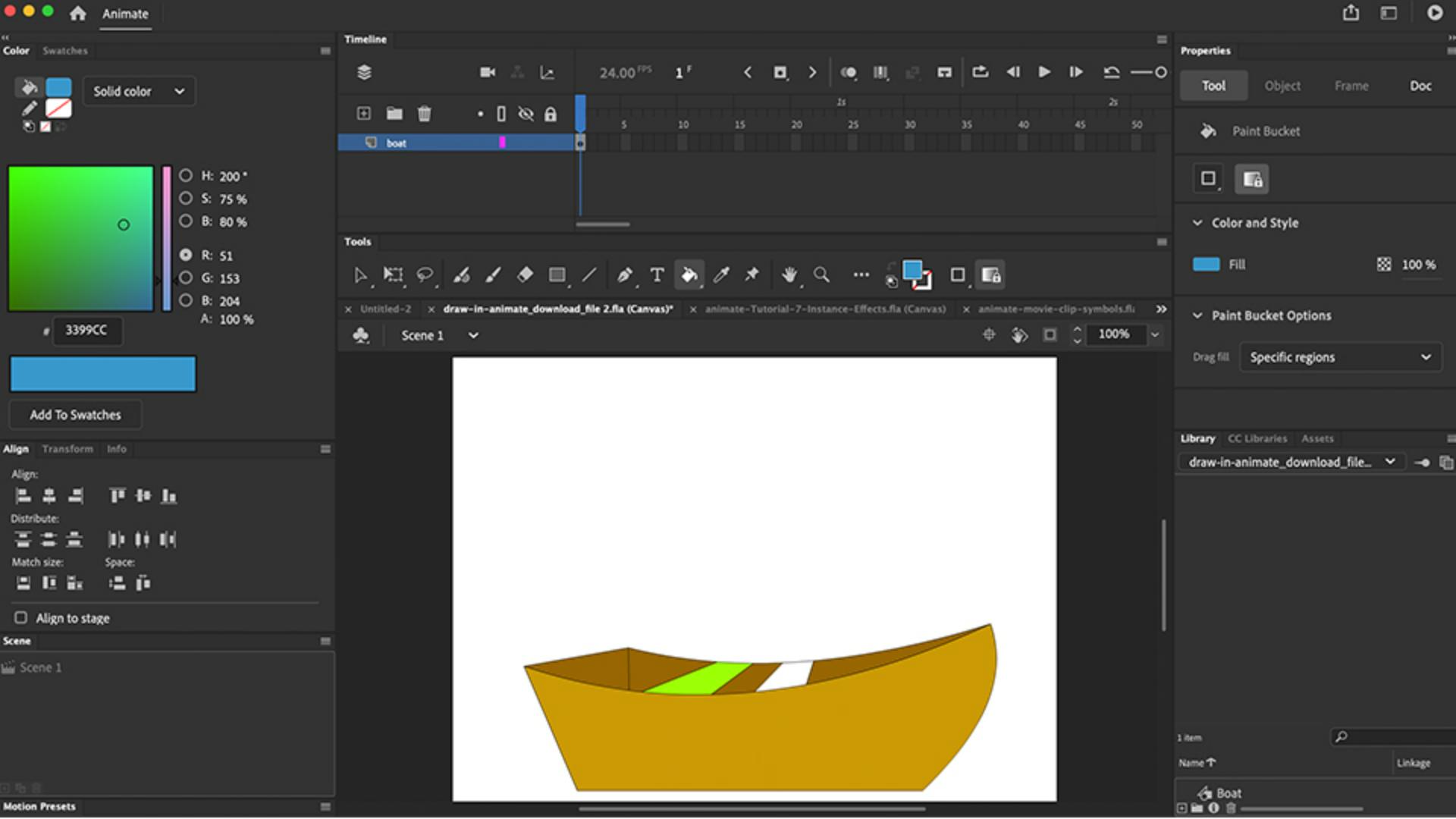
So let's see if we can learn how to create this simple little boat for the beginning of our animation.
Let's start by opening a brand-new file.
Setting up a new file and exploring drawing tools
And I'll show you a little bit about the drawing tools and how they work.
For this, we can just use any size really, but let's start with this.
On the web setting, 640 by 480.
I'll press Create.
Animate, before it became Flash, started out as a drawing tool called Smart Sketch.
And it was a neat little program.
We were able to draw a circle, and you'll see if I hover over that little circle there, I can constrain it to a perfect circle, or of course I could always press the Shift key.
So now, if I click the Selection Tool, you'll see I can actually click in the center and drag it out separating the stroke from the inside of the fill.
But I could always use the Paint Bucket to fill the stroke or use the Ink Bottle to add a stroke to the fill.
Pretty cool.
So Animate is a vector application.
Understanding vector drawing and shape editing
And a vector is usually created with this Pen Tool.
And it's created out of points of vector shape, which is why it's small in file size, and it's also scalable.
However, using this Pen Tool, which is the exact same Pen Tool from Adobe Illustrator, can sometimes be a little overwhelming having to use these Bezier curves, which is exactly what makes the drawing tools in Animate so unique is that I could just drag two lines, have them touch, and bam, they're connected.
And now, if I hover over this corner point, you'll see it shows me this corner icon.
Showing me that this will move like a corner point.
And if I grab over the line, you'll see I have a curved icon there - tool tip showing me that this is a more like a curve.
So now, I'm using the Bezier curves but just with my mouse, not having to use the actual Pen Tool.
What's also nice about this is if I was to draw a circle,
Cutting shapes and filling segments
remember that perfect circle we drew, I could always delete the center, and I'm going to grab my Line Tool, and just drag a line through the circle.
Not worrying about going outside the circle.
Because what's really nice about Animate in the Drawing Tools here, I could just click, and where it gets divided between the other segments is where it gets cut.
So I could simply just click and delete.
Click and delete.
Click and delete and it cuts off exactly where the lines intersect.
Now, I can easily if I wanted to come in here and fill those different segments using the Paint Bucket Tool, so I'm just going to use four different colors here.
And now, if I wanted to, I could actually click on these lines to get rid of them.
Either one at a time, or if I double click the stroke it selects all of them and I can delete.
But now, you'll see these all move together as a unit.
Pretty neat.
Using the pencil tool modes
What I could also use is use the Pencil Tool.
And using the Pencil Tool, it's usually set to ink.
Meaning, I can just kind of draw like normal.
But what I can also do is set this to Smooth, which draws it a little bit smoother, tightening up the points, making my lines a little bit smoother.
And lastly, I can come in here and select Straighten.
And what that does is now if I draw a circle, boom, it snaps to a perfect circle.
If I draw square, snaps to a perfect square.
And of course, the triangle freeform, boom, and you'll see it straightens the lines and creates a triangle for me.
Drawing and coloring a simple boat
So let's see if we can create this boat.
We're going to go in here and grab the Rectangle Tool.
And I can either draw it like this with the center inside, and then click with the Arrow Tool to delete, or we can start by selecting the Fill and setting the Fill to None.
Keeping the stroke as black, I'm just going to click the Rectangle Tool and draw a rectangle just like that.
Now, if we go back to the Selection Tool, I can grab the points, you'll see it's going to drag like a corner point.
Making the front of the boat.
I can come to the side, fill all of this out, like a curve.
Maybe I could do the same thing to the inside of the boat.
You'll see I can just drag it to the left, to the right, to move that curve a little bit.
And maybe lastly, I'll bring in this corner point here.
Great.
So we start to have the outline of our boat.
I'm going to click on this little line here and I'm just going to either Option drag or Copy Paste.
Edit, Copy.
And then Edit, Paste.
Command C, Command V.
And I'm going to drag it up here, deselect it and then grab this point and just attach it to the front of the boat.
I can grab this line and move it.
This is going to be the inside of the boat.
I can just move it to where I think that second part of the boat should be.
I'll grab a Line Tool and I'll drag that from here, right across, you'll see they snap, because I have this little magnet on, this Snap to Objects.
So everything just snaps together.
Again, I will click on this straw in garbage and press Delete.
And we'll grab the Line Tool and drag a corner into the boat, and we'll add two seats diagonally across with a little perspective maybe.
And that's it.
There's a simple way to draw in Animate.
Let's quickly fill it with the Paint Bucket Tool.
Maybe I'll select this brown for the outside.
And I'll choose a darker brown for the inside of the boat.
And then lastly, I will maybe make the seats a bright yellow.
And that's it.
Drawing in Animate makes it pretty easy.
Next up, we're going to create some symbols and animate our boat.
Stay tuned.