
File must be JPEG, JPG or PNG or WEBP and up to 40 MB
https://main--cc--adobecom.aem.live/cc-shared/assets/img/upload-white.svg Upload your photo

By uploading your image or video, you agree to the Adobe
Terms of Use and Privacy Policy
File must be JPEG, JPG or PNG and up to 40 MB
https://main--cc--adobecom.aem.live/cc-shared/assets/img/upload-white.svg Upload your photo
By uploading your image or video, you agree to the Adobe
Terms of Use and Privacy Policy
to try it today.
File must be JPG or PNG
and up to 40 MB
https://main--cc--adobecom.aem.live/cc-shared/assets/img/upload-white.svg Upload your photo
By uploading your image or video, you agree to the Adobe
Terms of Use and Privacy Policy
- File size larger than 40 MB
- Unable to process the request
- We are unable to process this file type. Please try again.
- Only one file can be uploaded at a time.
- Image is smaller than the minimum dimensions (512 x 512 pixels). Please resize and try again.
- promoid=55KD8FYQ&mv=other
{{Adobe Firefly}}
https://www.adobe.com/cc-shared/assets/img/product-icons/svg/firefly-appicon-64-new.svg

{{Adobe Firefly}}
Use everyday language to create extraordinary results with generative AI.
https://www.adobe.com/cc-shared/assets/img/product-icons/svg/firefly-appicon-64-new.svg
{{Adobe Firefly}}
Use everyday language to create extraordinary results with generative AI.
Bring your photos to life with an AI portrait generator.
Discover what you can do with the Firefly AI portrait generator. Create a polished headshot for professional profiles, design social media avatars from a simple prompt or turn personal photos into customised artwork for meaningful gifts. No matter what kind of portrait you envision, Adobe Firefly has the AI tools to bring it to life.

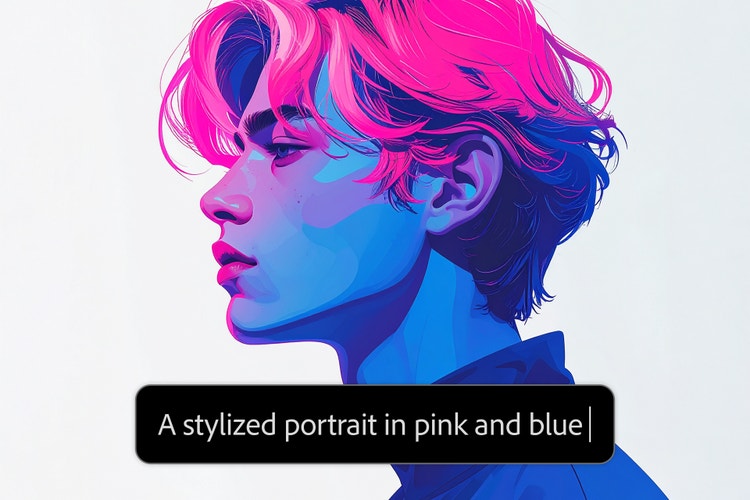
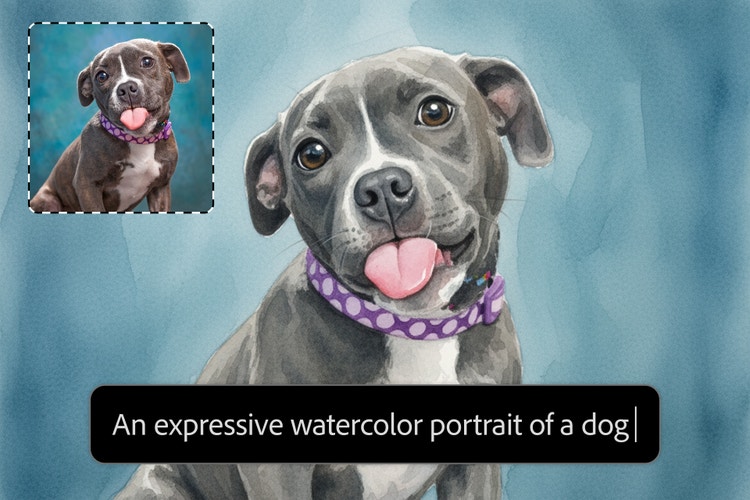
Artistic portraits are just a few clicks away.
Use the Generate Image feature in the Firefly web app to create beautiful portraits and headshots of people based on an image or an imaginative text prompt.
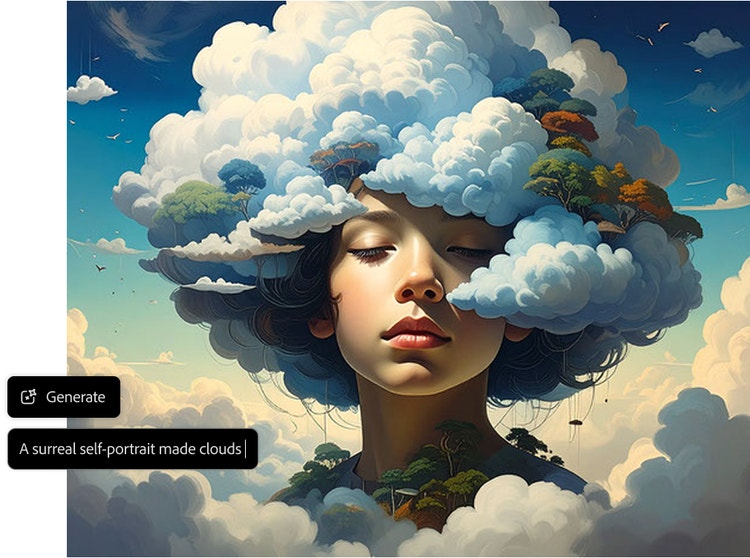
Go from prompt to portrait with Firefly.
Use the Generate Image feature in the Firefly web app as a portrait generator for free. Upload an image and transform it into an artistic take on the original or simply describe a portrait in a prompt to generate an image of a person you imagine.
Use an image or just your words.
Upload a photo as a Reference Image, adjust your settings and write a prompt to guide the artistic adaptation — something as simple as “turn photo into oil painting” can produce compelling results. To create a portrait of an imaginary person, describe the image you want to generate, such as “portrait of a woman with long brown hair smiling”.
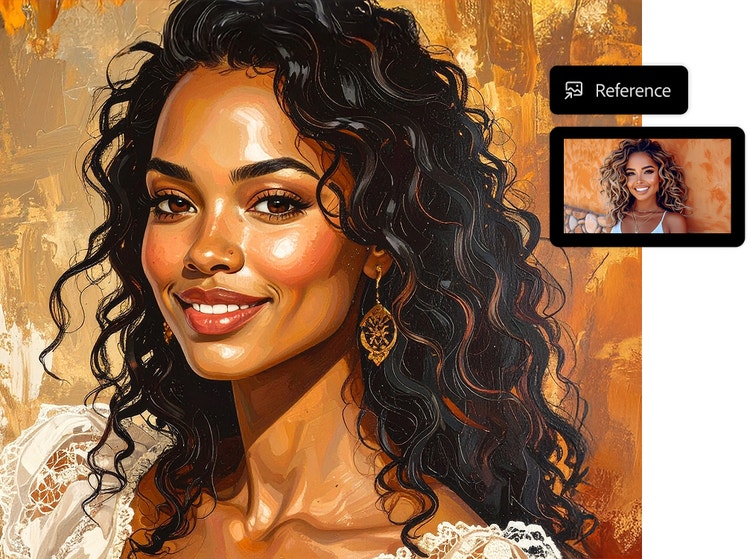
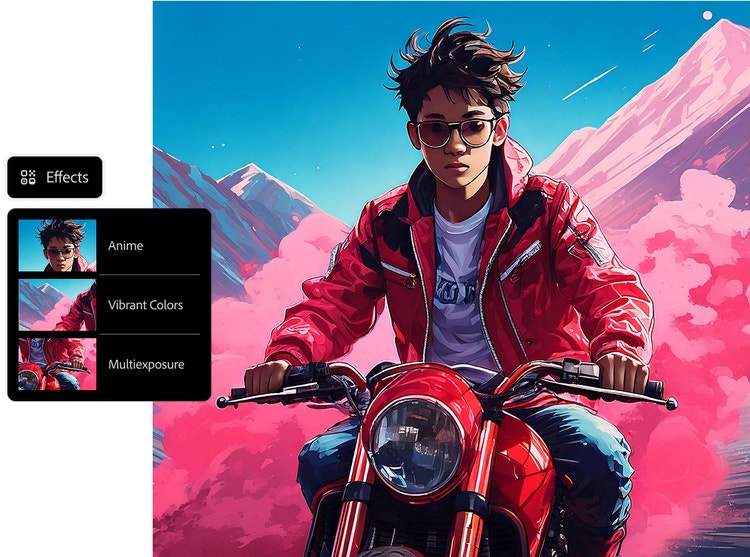
Customise your portrait.
Select an effect like Anime or Linocut from the Effects section to add artistic flair to your portrait. You can also customise the angle, lighting, colour and tone in your settings. Use highly detailed descriptions, particularly if you are creating an image only from a prompt.
Use your portraits anywhere.
Use adapted photo portraits for profile images, as social media avatars, to create unique gifts for friends and beyond. Portraits of imagined people are ideal for mocking up ideas for games, books, website designs and more — or simply as digital artworks.
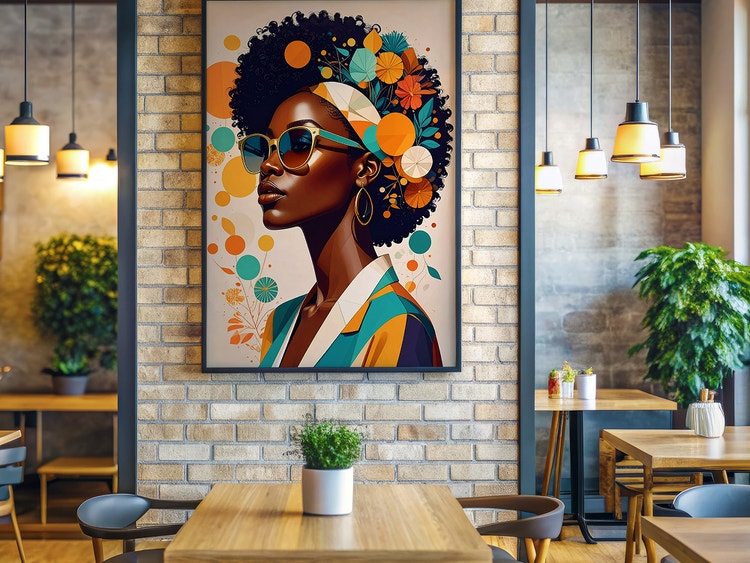
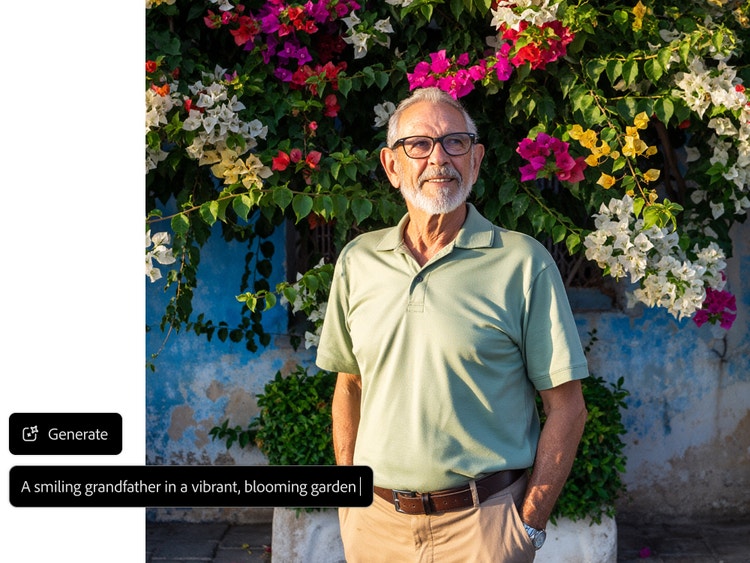
Create and adapt portraits safely.
Firefly is guided by Adobe AI ethics principles, which prioritise accountability, responsibility and transparency in AI-powered image generation. Firefly models are designed to support brand-safe creation, helping you to generate and share AI portraits responsibly across personal, professional and commercial projects.
How to generate portraits with Adobe Firefly.
Learn how to transform images and text by using Generate Image as an AI portrait generator.
- Log in to Firefly.
Go to the Image section of the web app and select Generate Image. - Upload an image or use text alone.
Upload a reference photo to use with a prompt or simply write a description of the portrait you want to generate. Be detailed and use adjectives to get just the look you want. - Adjust your settings.
Set the Intensity and Strength of your reference photo, choose Effects and select options from the Lighting, Camera Angle and Colour and Tone menus to customise your images. - Generate your image.
Click Generate in the prompt bar to see your image results. - Download, share and keep editing.
Click the downward arrow button to download your image, click the upward arrow to share your portrait to the Firefly gallery or click the pencil icon to continue editing your image with AI tools, like Generative Fill.
Why Firefly for portrait generation?
- Complete creative control: Refine every detail of your portrait with text prompts, reference photo uploads, and intuitive settings and effects.
- Photorealistic results: Create detailed portraits and headshots with natural lighting, texture, and depth.
- Commercially safe: Firefly models are trained on licensed data, providing commercially safe visuals to use across social, web, paid media, and more.
Adobe Firefly brings together high-quality image generation and intuitive creative control in one streamlined experience. Whether you’re refining a single headshot or creating a series of portrait photos, Firefly makes it easy to work quickly, stay consistent, and produce results that align with your creative standards — no advanced technical skills required.
Remix content from the community.
Discover Firefly prompts to remix and submit your own images to the gallery.
Questions? We have answers.
How can I generate a portrait using AI?
What styles can I choose from when creating an AI portrait?
Can I use the portraits I generate for commercial purposes?
Is my photo or personal data stored or shared?
What formats and resolutions are available for download?
What AI models does Adobe Firefly support for generating portraits?
How can I write a good prompt for generating AI portraits?
Start by clearly defining your subject, including their action, emotion and overall mood. Next, describe the art form — such as photography, oil painting or illustration — and specify the composition, including framing and camera angle. Finally, refine the portrait’s realism and atmosphere by calling out lighting details, like golden hour or studio lighting, along with a clear colour scheme. By giving AI tools these specific instructions, you enable it to generate a precise, high-quality photo that closely matches your creative vision.
When using Firefly Image 4 or Firefly Image 4 Ultra to generate images, you can turn on the Enhance Prompt feature to improve your prompts automatically. This feature refines your prompt in the background by making it more detailed and descriptive, which contributes to generating richer and more diverse images.
Is the Adobe Firefly AI portrait generator free to use?
What browsers and devices are compatible with Adobe Firefly?
What is the best AI portrait generator?
Learn more about generative AI.
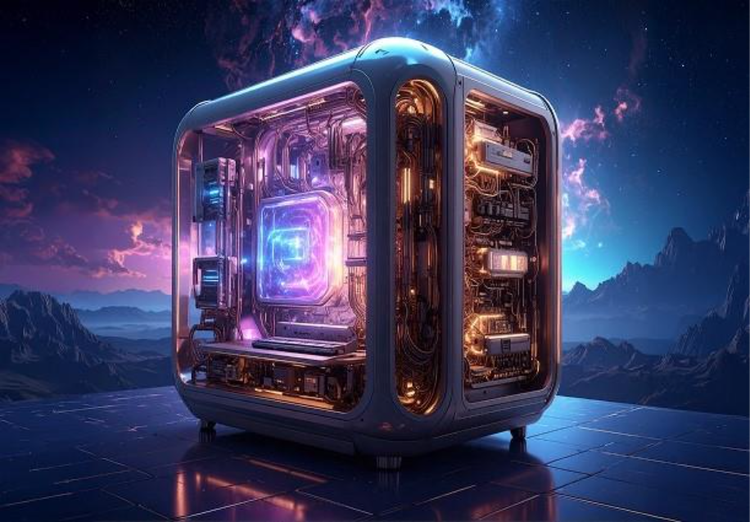
How generative AI works: From training to output.
Generative AI is all over the headlines and that’s not empty hype. This new technology is likely to be part of your life soon — if it’s not already. Learn how generative AI works and start streamlining your workflow.
Learn how | Learn how - How generative AI works: From training to output
What are the benefits of generative AI for creatives?
New generative AI tools are quickly changing how we work and create. Learn how you can use them to boost productivity and discover new possibilities while maintaining creative control.
Learn more | Learn more - What are the benefits of generative AI for creatives
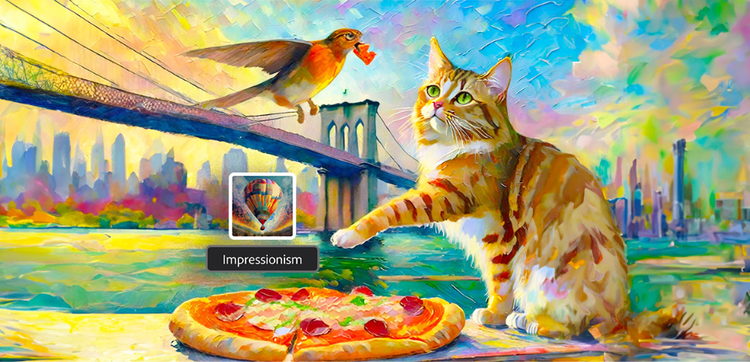
Explore art styles for AI prompts.
Surrealism, Cubism, Impressionism — find out how to create images in these and other art styles with generative AI.
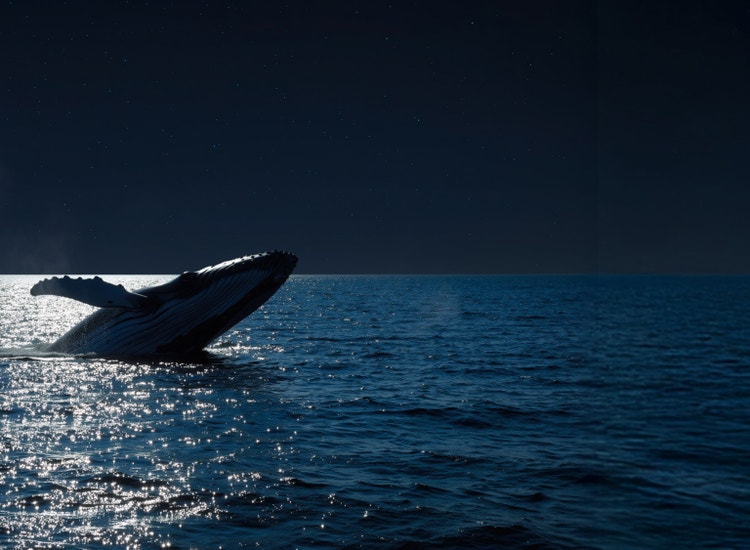
Create with Google Gemini 3.
Unlock next-level creative power with Gemini 3 (with Nano Banana Pro) integrated in the Firefly app and Photoshop. Now it’s easier than ever to produce stunning visuals, streamline workflows and bring your ideas to life faster.