https://main--cc--adobecom.aem.page/cc-shared/fragments/products/firefly/features/moodboard/desktop-marquee

Create a mood board from your imagination with Firefly Boards.

Firefly Boards is a super-flexible, easy-to-start, AI-powered workspace where you can upload or generate images, remix ideas and use image style references to apply specific elements. Creative professionals from graphic designers to interior decorators use mood boards to create visual collages that combine images, colours, textures, fonts and more to express a specific look or concept. A digital mood board makes it fast and easy to capture inspiration when it strikes. Create a mood board quickly with customisable templates and drag-and-drop tools. Use Firefly Boards for brainstorming, collaborating or sharing early concepts. An online mood board is a simple, inspiring way to visualise and communicate your creative direction.

Architectural mood board with vivid staircases and arches in warm and cool tones, ideal for design planning.

Create mood board concepts with confidence.

The magic of a mood board lies in customisation and creative exploration. With the help of a mood board generator, you can define and refine your vision quickly — no second-guessing or endless revisions. Use generative AI to bring your ideas to life with clarity and confidence. Need inspiration? Start with a mood board example or template to see what’s possible, then make it your own.

Creative mood board collage featuring surreal architectural visuals and user profiles for Josh Newton and Aaron Jackson.

Inspiring imagery all in one digital canvas.

Firefly Boards is the perfect tool for marketers, content creators and more to achieve faster team alignment. Everything you need to create a customised mood board, from inspiration to iteration, lives on a single, infinite canvas. Upload your images and sketches, pull from Adobe Stock or generate from scratch to shape your brand, fashion concepts, interior design ideas and more — without ever leaving the flow state.

How to make a mood board with Boards in Firefly.

It’s easy to get started. Open Firefly Boards and use the mood board maker to explore, design and create a mood board in minutes.

  • Gather visual mood board elements.
    Every great mood board begins with inspiration. Choose the images, colours and materials that spark ideas and reflect the style you want to explore.
    • Collect images, colour swatches and text that align with your vision.
    • Import your own assets, use Photoshop, Illustrator files and Adobe Stock images or generate new visuals with Firefly.
  • Add images to the mood board maker canvas.
    Open up a new digital mood board canvas using Firefly Boards to start transforming rough ideas into rich, dynamic visuals.
    • Go to Firefly Boards and select Create new.
    • Use the Import option to add your own images and files.
    • Search and add photos from Adobe Stock using the right toolbar.
    • Generate images with text prompts using the prompt bar at the bottom.
  • Generate variations or remix your mood board visuals.
    Expand your ideas with Firefly’s creative tools. Use AI-powered features to remix, refine and develop your mood board style.
    • Remix multiple images: Select multiple images from the canvas and click the remix button that appears above the selection to combine all of the images and generate a new set of variations.
    • Use style references: In the prompt bar, select the eyedropper icon and use the Style Reference feature to apply styles to a new generation.
    • Use composition reference: In the prompt bar, select the eyedropper icon and use the Structure Reference feature to guide the layout and structure of generated images to the selected image.
    • Extract sub-prompts: In the prompt bar, select the eyedropper icon and choose from the list of auto-generated text prompts describing individual image elements to add directly to a generation.
  • Edit and adjust your mood board images.
    Fine-tune the details of your digital mood board to match your vision. Firefly makes it easy to edit, reframe and polish every element of your mood board.
    • Select an image to access tools like Generative Fill, Expand, Remove Background, Cut, Copy and Flip.
    • Select multiple images to activate Arrange and Align options.
  • Add and edit text.
    When Text can help to guide your audience through the mood board’s narrative. Use it to add titles, labels or creative prompts.
    • Use the Text option in the left toolbar to place text fields.
    • Edit fonts, colours and styles in the Properties panel.
  • Add and edit shapes to support your mood board design.
    Shapes are a subtle but powerful way to structure your layout and highlight key elements in your digital mood board.
    • Choose the Shape tool in the left toolbar to draw boxes, circles or lines.
    • Adjust their appearance using the Properties panel.
  • Arrange and refine your mood board layout.
    Now that you have visualised the overall feel and elements of your mood board, use artboards to arrange and refine them to perfection.
    • Create artboards using the Artboard icon in the left toolbar.
    • Drag and drop assets inside the artboard.
    • Select multiple elements and add them to a single artboard.

https://main--cc--adobecom.aem.page/cc-shared/fragments/products/firefly/choose-from-industry-leading-models-with-a-single-adobe-sign-in-blade

Mood board with interior design and furniture images.
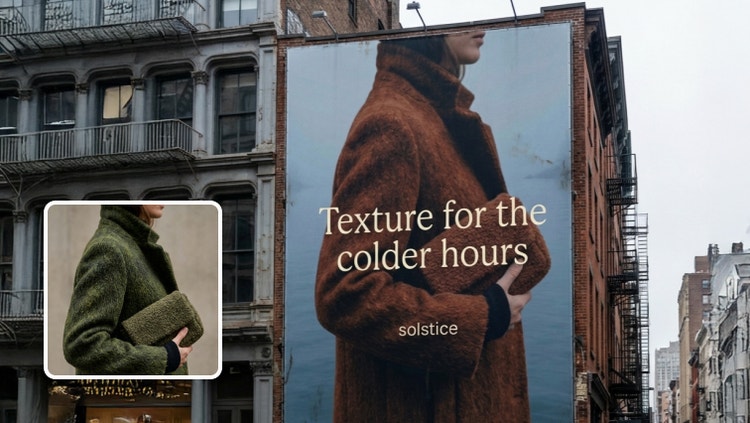
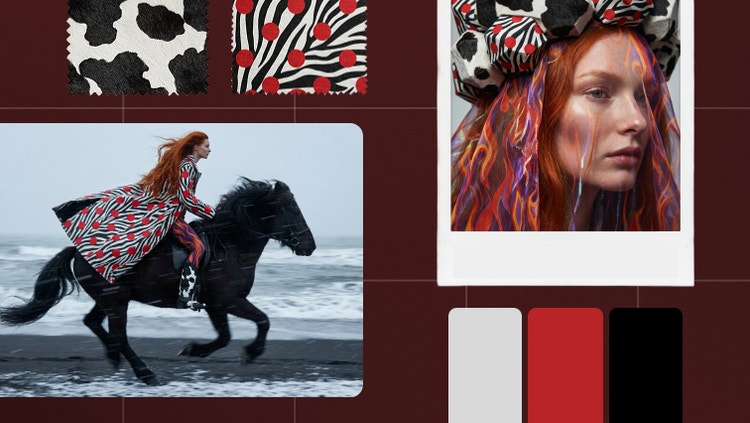
Mood board with fashion images.

Create magic faster with mood board templates.

Jump right into designing your mood board with templates. Whether you’re designing for fashion, branding or interior spaces, templates give your ideas structure so you can focus on creativity. Use a mood board generator to quickly build on a template and customise it to match your vision. Scroll down to explore mood board examples and find a starting point that sparks inspiration.

Fashion and jewellery mood board

Set the tone for a collection, campaign or personal style with a fashion-focused digital mood board. Start with a template tailored for runway, editorial or seasonal looks, then customise it with your colours, textures and silhouettes. Whether you’re designing for an earthy bridal theme or bold streetwear, templates help you to move fast while keeping your aesthetic clear and cohesive.

Interior design and furniture mood board

Visualise a space before creating it with a template made for interiors. Whether you’re designing a midcentury sitting room or a sleek, modern office, start with a layout that helps organise your colours, materials and furniture ideas. Use generative AI to expand and refine your concept and to create a flexible, fully customisable mood board that fully expresses your style story.

Remix content from the community.

Discover Firefly prompts to remix and submit your own images to the gallery.

Mood board maker FAQs

What is a mood board?

A mood board is a visual layout that combines images, colours, text and textures to express a creative concept or design direction. It helps clarify ideas and sets the tone for fashion, branding, interior design projects and more.

What is the best tool to create a mood board?

Firefly Boards is one of the best tools to create a mood board quickly and creatively. It combines templates, stock assets and generative AI in a seamless online experience.

Who is a mood board generator for?

A mood board generator is for anyone exploring visual ideas — designers, marketers, stylists, decorators and creatives of all kinds. It’s especially helpful when you need to move fast and stay inspired.

How do I make a mood board for free?

You can create a mood board for free using Firefly Boards. Simply log in with your Adobe account to access templates, import assets and start designing with AI-powered tools.

What is Firefly Boards?

Firefly Boards (Beta) helps you streamline the creative process, making it easier to visualise, refine and present your ideas with a generative-first approach to mood boarding. It allows you to quickly explore various artistic directions, blend images, transform parts of an asset and remix styles, backgrounds and other elements.

How does Firefly Boards use AI for its mood board maker?

Firefly Boards uses generative AI to support your creative flow. The mood board maker can generate new visuals, remix existing ones and apply different styles or compositions — helping you to explore and refine your ideas more effectively.

How do you create a mood board online using Firefly Boards?

To create a mood board online, gather images, text and colour swatches matching your concept. Then, use Firefly Boards to import assets, generate new content and design your layout using artboards, text and AI-powered tools.

How do you combine or remix images in Firefly Boards?

Once you have gathered the inputs for your mood board, you can easily edit, generate variations or remix images.

  • Remix multiple images: Select multiple images from the canvas as inputs to auto-compose a text prompt that combines all of the images and generates a new set of image variations.
  • Use style references: Match the style of the generated images to the selected style of your digital mood board.
  • Use composition reference: Guide the layout and structure of generated images to the selected image.
  • Extract sub-prompts: List the auto-generated text prompts based on the selected image and choose one to add directly to the text prompt.

How do you edit mood board images in Firefly Boards?

Select an image on the canvas and use the following editing and adjustment options:

  • Prompt: Open the prompt bar showing the prompt and generation settings used and edit the prompt and other inputs like style or structure references and styles to enhance your generation.
  • Edit: Use the Generative fill and Generative expand capabilities to edit the image.
  • Remove background: Remove the background of the image.
  • Find similar inspiration: Opens the Search panel and displays similar images available on Adobe Stock to match your mood board style.
  • Cut, copy or duplicate the image or paste any copied elements.
  • Rearrange, delete and flip the image.
  • Download: Download the image to your local device.
  • Open in: Open the image in Photoshop on the web or Adobe Express.

How does Firefly Boards ensure proper attribution and transparency in AI-generated content?

Firefly Boards has integrated content credentials to recognise the source of images, respect generative AI usage and training preferences and promote transparency regarding how content was created.

Will Firefly Boards train on my uploaded or generated mood board content?

No matter which generative AI models we may use within our creative apps, like the mood board maker, user content is not and will not be used to train generative AI models.

How does Adobe support partner models?

Today, when generating images in Firefly Boards, users can select between Adobe’s proprietary models or a non-Adobe model from the drop-down menu in the generate panel.

Are the outputs of non-Adobe models safe for commercial use?

We provide access to information on the non-Adobe models that users can use in Adobe apps. Still, it is the responsibility of the creator to decide whether non-Adobe models are appropriate for their project, considering factors such as the model’s focus, how it was trained and whether or not it is safe for commercial use. Please refer to the terms of service of the particular model that you are using as they apply here.