https://main--cc--adobecom.aem.live/cc-shared/assets/img/firefly.svg Adobe Firefly

Create free magic realism art with Adobe Firefly.
Type a description, choose your style, and generate magic realism art that blends the real and the surreal. Adobe Firefly models will produce commercially safe results you can use for any project.
- image
- tip: Describe a subject, an action, a place, a mood, or a style.
- Adobe Generative AI Terms
- https://main--cc--adobecom.aem.live/creativecloud/animation/testdoc/unity/generate.svg Generate
- Describe the magic realism art you want to generate
- Prompt
- Tip
- Unable to process the request
- Please describe what you want to generate.
- Prompt exceeds the max length of 750 characters
- Enter prompt


https://main--cc--adobecom.aem.live/cc-shared/assets/img/product-icons/svg/firefly-80.svg
Adobe Firefly
https://main--cc--adobecom.aem.live/cc-shared/assets/img/product-icons/svg/firefly-80.svg
Adobe Firefly
The next evolution of creative AI is here for all your ideas, with image, video, audio, and vector tools.
What is magic realism art?
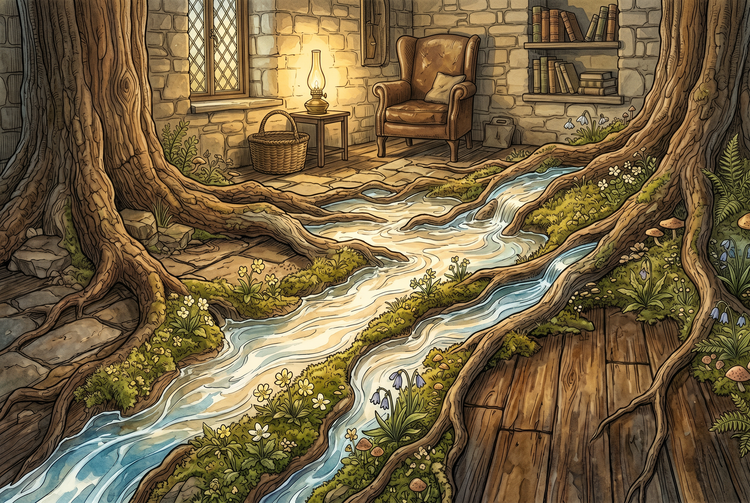
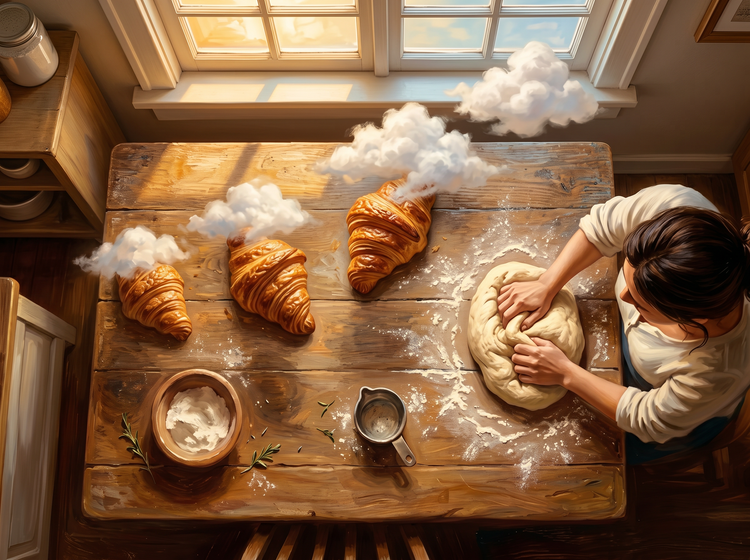
Magic realism art places impossible elements inside believable, everyday worlds. A woman pours tea and the steam becomes a flock of birds. A city exists inside a dewdrop. Roots of a tree become rivers that flow through a living room floor. The Adobe Firefly Generate Image tool is a magic realism art generator that turns descriptions like these into finished images for free. Describe the scene, the light, the mood, and the surreal element at the center of it, and Firefly will build the image from your prompt.
Create surreal scenes that match your vision.
Magic realism works because the impossible element is specific. It's not “something weird.” It's a woman writing letters whose ink becomes butterflies, or a house where all the mirrors show different rooms than the ones they're in. In the magic realism art generator, the specificity comes from you. Describe exactly what you see in your imagination. The more precise the prompt, the more recognizable the result.
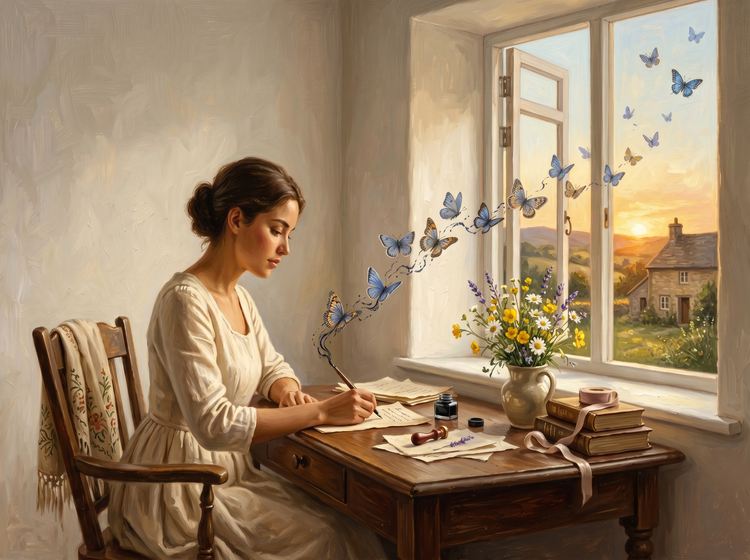
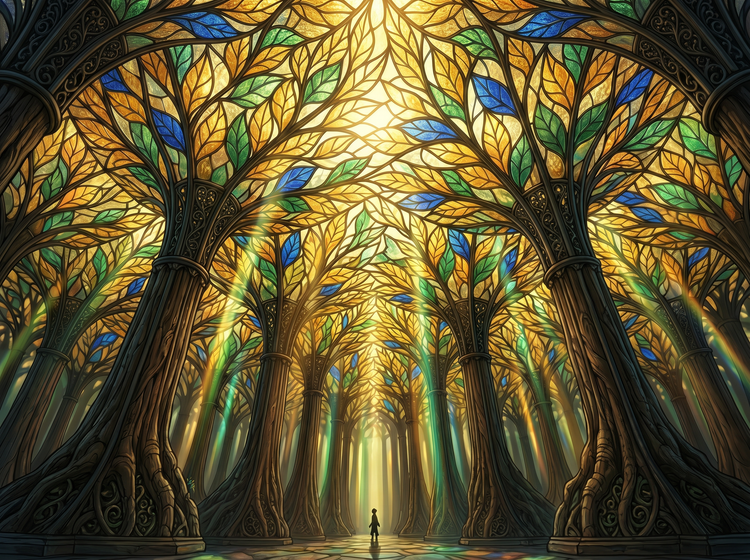
Amazing AI magic realism style.
Magic realism covers a wide range of visual registers. Some lean painterly and warm, with botanical detail and golden light. Others are cool and cinematic, with sharp focus and dreamlike depth of field. Use the Style picker to push your generated image toward watercolor softness, oil painting richness, or photographic realism with a surreal edge. Try multiple style combinations against the same prompt to find the version that matches the image you had in mind.
Commercially safe magic realism art.
The magic realism art you generate with Adobe Firefly models is commercially safe. Use it for editorial illustration, wall prints, digital downloads, or client projects without additional licensing concerns.

Prompts that unlock the style.
Magic realism prompts work best when they name the real scene, the surreal transformation, and the visual mood all in one description. “A lighthouse keeper whose lantern light turns into a school of glowing fish, soft watercolor, warm evening palette, impressionist detail” gives Generate Image a clear structural subject, a specific surreal element, a medium, and a color direction. Scenes with one strong impossible element tend to produce more legible results than prompts that pile on multiple surreal elements at once.
Magic realism painting styles.
Generate Image supports a wide range of painting and illustration styles that suit magic realism well. Use the Style picker to explore oil painting richness, soft watercolor washes, detailed botanical illustration, or sharp editorial photography. For AI magic realism, a painterly style with fine detail and warm, saturated color often produces the most immersive results. Experiment with the style settings to find the visual register that fits the mood of your scene.
Take it further in Adobe Creative Cloud.
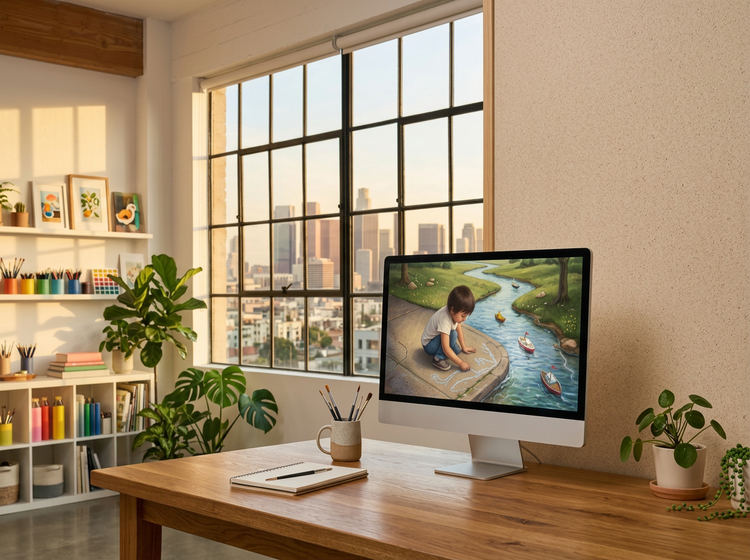
Once you have a magic realism painting you like, bring it into Adobe Photoshop on the web to refine the composition, adjust the color grading, or composite it into a larger scene. Or open it in Adobe Express to add text and turn it into a finished print or shareable post. Firefly fits into the Creative Cloud workflow you already use.
How to create magic realism art in Adobe Firefly.
Step 1
Open Adobe Firefly.
Step 2
Select Generate Image.
Step 3
Write your magic realism prompt.
Step 4
Set the style.
Step 5
Review and download.
- How to create magic realism art in Adobe Firefly.
- Steps on how to create magic realism art in Adobe Firefly
- PT3M
- firefly
Limitless scenes, one tool
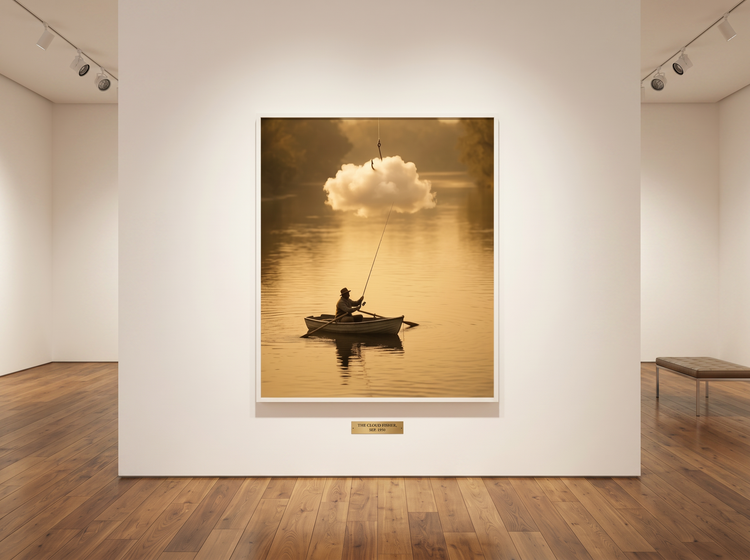
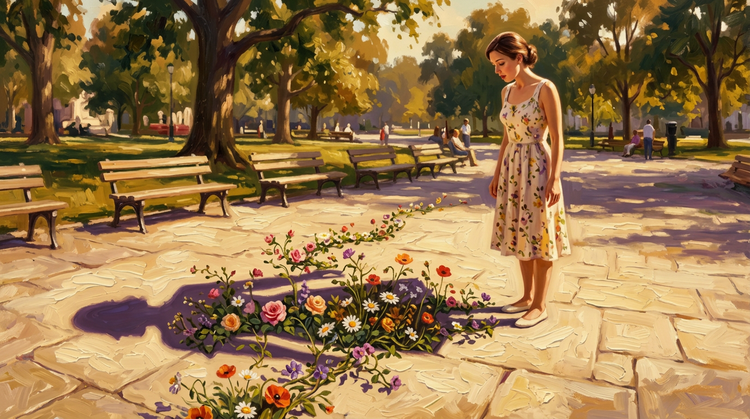
Whether your magic realism image is a woman whose shadow grows flowers or a fisherman pulling clouds from the sea, Adobe Firefly can handle it. The scene comes from your words. Firefly will generate from the full range of impossible-but-grounded descriptions the style requires.

A full range of painting styles
Magic realism pairs with almost any painting tradition. Oil, watercolor, gouache, botanical illustration, impressionism, cinematic photography. Use the Style picker alongside your prompt to control the medium and push the result toward the visual register you have in mind.
Commercially safe from the start
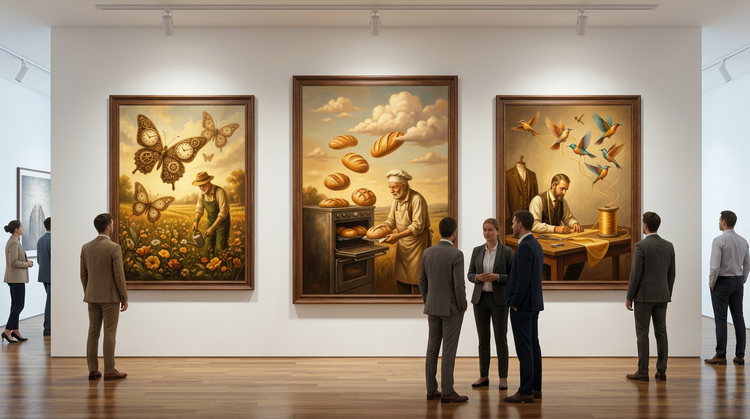
The magic realism art you generate in Adobe Firefly models is commercially safe. Use it for editorial illustration, wall prints, book covers, or client work without additional licensing. Your output, your rights.
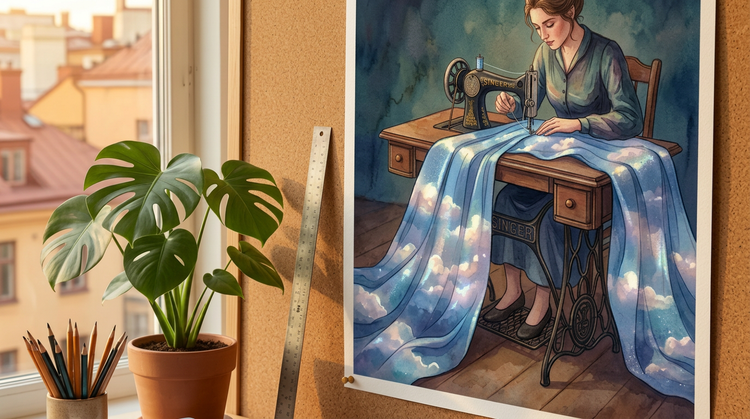
From generation to finished work
Generate the scene in Firefly, then bring it into your Creative Cloud workflow to refine, composite, or publish. The same result that works for a personal print will also work as a client deliverable.