https://main--cc--adobecom.aem.live/cc-shared/assets/img/firefly.svg Adobe Firefly

Add video effects to your clips for free in Adobe Firefly.
Upload a clip and describe the look you want. Adobe Firefly applies the effect to your footage, from film grain to stylized motion.

https://main--cc--adobecom.aem.live/cc-shared/assets/svg/s2-icon-upload-20-n.svg Upload your video

Or tap here
File must be MP4, less than 200MB, and 5–20 seconds.
By uploading your image or video, you agree to the Adobe Terms of Use and Privacy Policy and confirm you are 18 years of age or older.
https://main--cc--adobecom.aem.live/cc-shared/assets/svg/s2-icon-upload-20-n.svg Upload your video
Or tap here
File must be MP4, less than 200MB, and 5–20 seconds.
By uploading your image or video, you agree to the Adobe Terms of Use and Privacy Policy and confirm you are 18 years of age or older.
https://main--cc--adobecom.aem.live/cc-shared/assets/svg/s2-icon-upload-20-n.svg Upload your video
Or drag and drop here
File must be MP4, less than 200MB, and 5–20 seconds.
By uploading your image or video, you agree to the Adobe Terms of Use and Privacy Policy and confirm you are 18 years of age or older.
- Your media must be smaller than 200MB. Please upload a new file.
- Unable to process the request
- Your media must be a mov or mp4 file type. Please upload a new file.
- Only one file can be uploaded at a time.
- Your media must be at least 5 seconds long. Please upload a new file.
- Your media must be no more than 20 seconds long. Please upload a new file.

{{nbsp}}
Add video effects in a few steps.
Want a clip to look more cinematic, stylized, or polished? Describe the effect you have in mind and Adobe Firefly applies it to your video, so you can try ideas without learning complex editing software, all for free.
Prompt for the effect you want.
Write a prompt for the look you're after, such as “warm film grain,” a “dreamy glow,” or “a slow-motion feel.” Firefly applies it to your clip, and you can adjust your prompt to explore different effects.


Choose the right model for your clip.
Different models handle footage in different ways. Switch models from the model dropdown menu and compare how each one applies the same effect to your video.
Pair effects with the rest of your edit.
Create new scenes with the AI video generator, then add to the clip by generating sound effects or generate music.
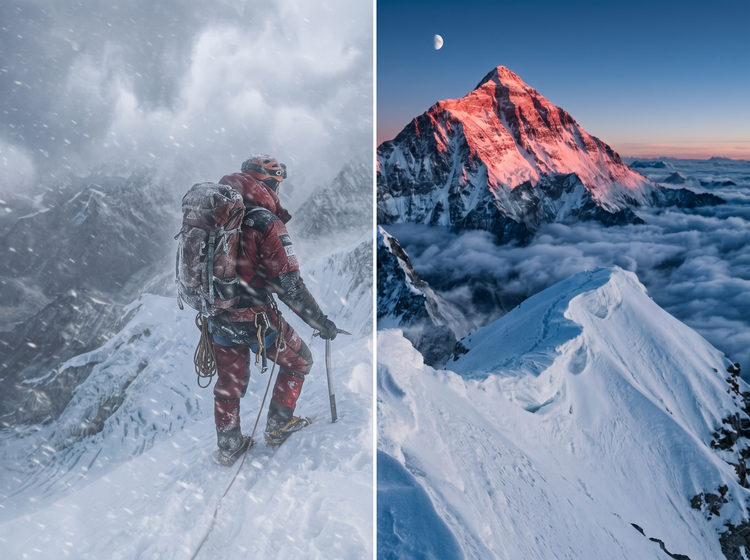
How to add video effects to a video with Adobe Firefly.
Step 1
Open Adobe Firefly and select the video editor.
Step 2
Access and add your video.
Step 3
Describe the effect you want.
Step 4
Choose a model and review your settings.
Step 5
Generate and download.
Steps on how to add video effects to a video using Adobe Firefly.
PT4M
firefly

Prompt-based control
Describe an effect in your own words, review the result, and refine your prompt to explore other looks for the same clip.

Top AI models, all in one place
Work with Firefly video models or partner models like Google Veo, Runway, Ray, and more in a single creative studio. Use the model dropdown menu to try a different model on the same clip.

Your complete creative studio
Edit footage, generate new scenes, and add effects without switching tools. Each step happens in the same studio.
Built for creators
Create with ease, move fast when you need results now, or refine every detail when precision matters. Firefly gives you the quality, speed, and flexibility to create your way, without the complexity.