Adobe Acrobat

Add pages to a PDF

Drag and drop a PDF file, then insert pages.

Add pages to a PDF

{{verb-widget-legal}}

How to add pages to a PDF online for free

Insert one or more pages into your PDF in just a few clicks. Bulk out your page count then reorganise and update existing documents. All you need to do is follow these simple steps:
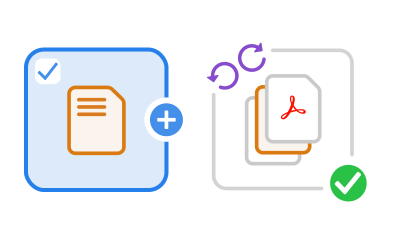
https://main--dc--adobecom.aem.page/dc-shared/assets/images/frictionless/how-to-images/add-pages-to-pdf-how-to.svg | A document with an addition symbol showing how to add a page to a PDF.

  1. Click Select a file above or drag and drop a PDF into the box with the dotted line.
  2. Choose the PDF you want to add pages to.
  3. Once Acrobat uploads the PDF document, you'll need to sign in.
  4. Select where you want to insert new pages, either before or after the page thumbnail.
  5. Choose the PDF file or files you want to add to your main document.
  6. Pick one or more page thumbnails, then drag and drop to reorder. You can also use the D elete and Rotate options in the toolbar, if needed.
  7. Click Save to save your new PDF document. Then download the new file or get a link to share it.

Try our free tool to add pages to your PDF

The Adobe Acrobat tool lets you add pages to a PDF for free in just a few clicks. It’s easy to use and works across any device, so you can organise, manage, and merge your documents wherever you are.

https://main--dc--adobecom.aem.page/dc-shared/assets/images/shared-images/frictionless/seo-icons/insert-pdf-page.svg | A page with a plus sign showing how you insert PDF pages with Acrobat

Add pages to a PDF file

Need to add one or more pages to a PDF? Do it quickly and easily with Adobe Acrobat online tools. Insert a single PDF file or multiple files as you need.

https://main--dc--adobecom.aem.page/dc-shared/assets/images/shared-images/frictionless/seo-icons/insert-pdf.svg | A stack of multiple Adobe Acrobat PDF files showing how to insert pages into PDF files

Insert up to 1,500 in a PDF

Provided the final file has a maximum of 1,500 pages and is no larger than 100 MB, you can add as many pages to your PDF as you like. Each added file can have up to 500 pages.

https://main--dc--adobecom.aem.page/dc-shared/assets/images/shared-images/frictionless/seo-icons/delete-add-rotate.svg | A dustbin, plus sign and arrow showing that you can not only add but also delete and rotate PDF pages

Reorder, delete, or rotate PDF pages

Once you’ve added new pages to your PDF online, you can use other Acrobat online tools to design your PDF exactly how you want it. Rearrange pages, rotate or delete them with ease.

https://main--dc--adobecom.aem.page/dc-shared/assets/images/shared-images/frictionless/seo-icons/private-pdf.svg | A lock symbol showing that users can trust Adobe Acrobat online tools for adding pages to PDFs

File security you can rely on

At Adobe, we consider your privacy and security crucial. Acrobat integrates security measures into every PDF document. We also delete all files from our servers, unless you sign in to save them.

https://main--dc--adobecom.aem.page/dc-shared/assets/images/shared-images/frictionless/seo-icons/nothing-to-install.svg | A cloud with the Acrobat logo indicating that you can store your saved PDF files online

Store and share your PDF files online

Easily access your PDFs from anywhere on any device when you sign in to Acrobat online tools. Make collaboration simple by sharing links to your PDF with others and collect all feedback in one online document.

https://main--dc--adobecom.aem.page/dc-shared/assets/images/shared-images/frictionless/seo-icons/best-pdf.svg | A perfectly organised PDF file

Simple and superb online PDF tools

We know the PDF – we invented and pioneered it, after all. We put that expertise into our Acrobat online tool so you can insert pages into your PDFs and keep work moving from anywhere.

Questions? We have answers.

Can I add multiple pages to a PDF?

Yes, with Adobe Acrobat, you can add multiple pages to a PDF for free. There’s no limit to the tool, so you can drag and drop as many pages as you need into the PDF file.

You can also use PDF editor tools to edit PDF text and images, combine multiple PDF files and annotate documents. Want access to more PDF tools? Try Adobe Acrobat Pro for free for seven days on Windows or Mac.
Can I insert pages anywhere in my existing PDF file?
Yes, you can quickly and easily add one or multiple files before or after any existing page in your PDF. When using Adobe Acrobat, simply upload your PDF files and select where you want to add pages. You can then reorder and rotate them to organise your document and delete any you don’t need.
How do you annotate PDF pages?
To annotate your PDF pages, open the document in Acrobat and click on the Comment tool. Then, just click where you want to annotate and type in your comments. Add sticky notes or text boxes and, depending on your needs, highlight or strike through existing text for extra clarity.
Can I add page numbers to a PDF?
Yes, you can add page numbers to a PDF for free using the online Adobe Acrobat tool. Simply upload the file you want to number, sign in to your Adobe account, and then select the pages you want to add numbers to. It’s quick, easy – and there’s no subscription required.
Where can I edit a PDF for free?
You can edit a PDF for free using the Adobe Acrobat online tool. Select the file you want to edit, then add text, comments, and fill and sign it. All you need is an Adobe account, and you can manage and reorganise your files in just a few minutes.

More resources

Content as a Service v3 - Thursday 5 December 2024 at 00:31

Verb
add-pages-to-pdf

Try these Acrobat online tools

Convert from PDF

Convert to PDF

Reduce file size

Edit

Sign & Protect

Generative AI

Convert from PDF
Convert to PDF
Reduce file size
Edit
Sign & Protect
Generative AI