How to create a blend with strokes in Adobe Illustrator.
with Alex Trochut
Alex’s tip on an easy way to make a sophisticated shading effect in Adobe Illustrator.
What you’ll need
Practice in the app
But the first thing, - I think it's to be excited about something that you know, - and that alone, it's so powerful.
You know, when it's done, - when the little voice inside you that you're like, okay, I feel like we, - we have arrived.
And this was this imaginary destination.
And yeah, I think like this is it. -
Set the starting paths.
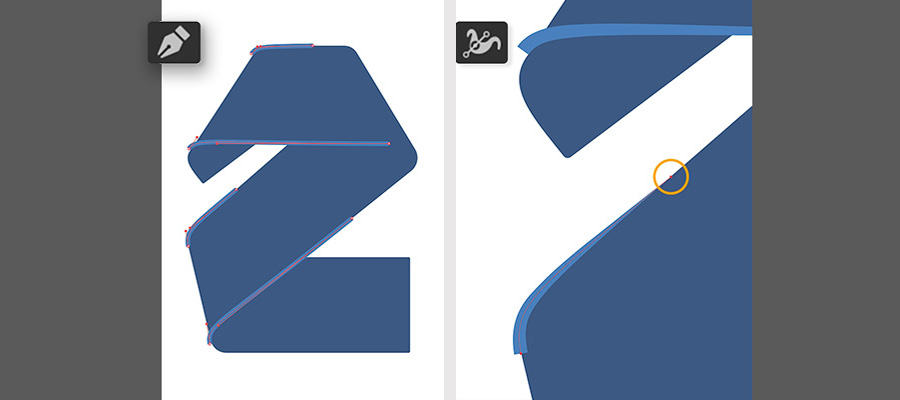
Draw two sets of lines along the top and left sides of the shape as shown here. To start, choose the Pen tool, set the fill colour to none, choose a stroke colour and set the stroke weight in the options bar at the top. Then click to start the line, click and drag to create a curve and click where the line should end. Press the Escape key to finish the line.
To taper the end of each line, choose the Width tool, select the point at the end of a line and drag down to decrease the width of the stroke.
Make the grade.
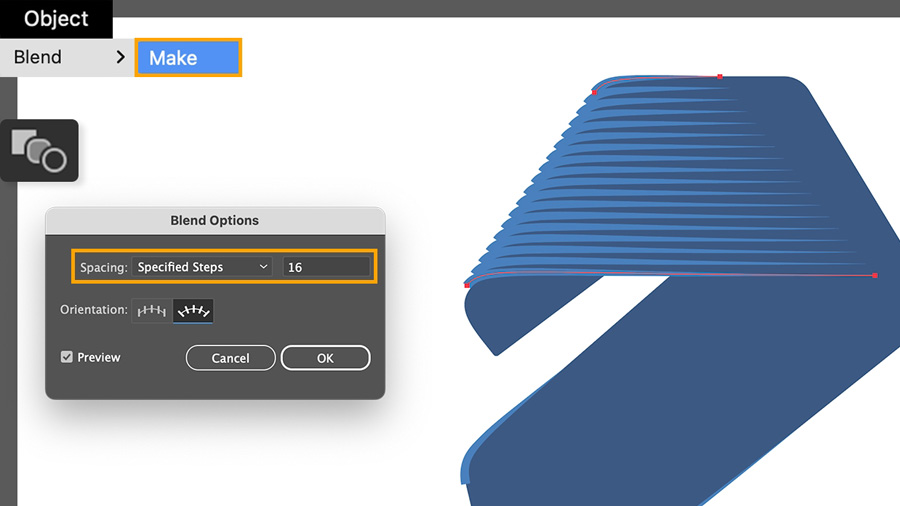
Create a repeating line-art design as an accent on the graphic. To do this, hold Shift to select the first and second line with the Selection tool.
Choose Object > Blend > Make to create the pattern. Then double-click the Blend tool to set the Blend Options to match the settings shown in the image.
Repeat the blend.
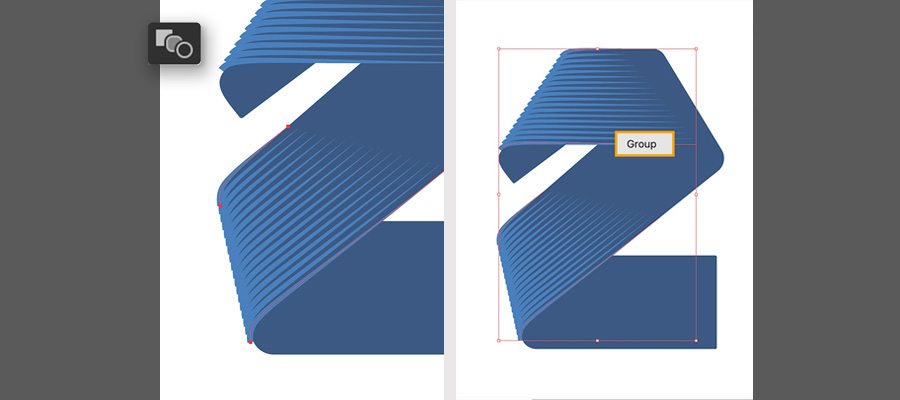
Blend the second set of lines using the previous steps. Then use the Selection tool to select both patterns and group them together (Object > Group).
Stay inside the lines.
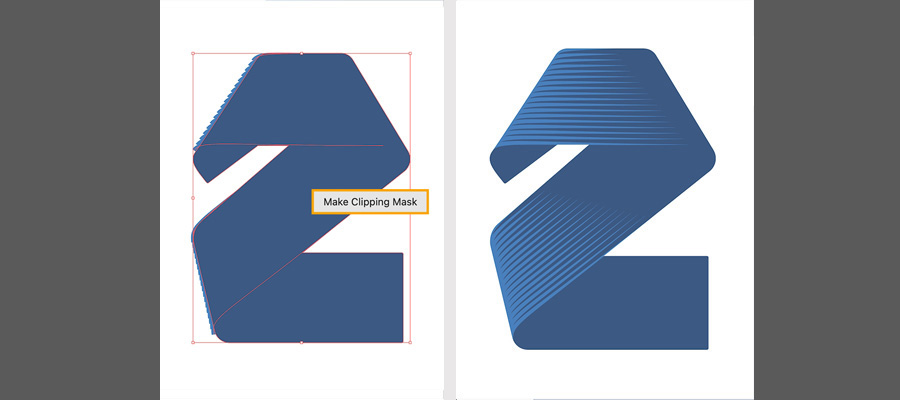
Contain the patterns within the shape. To do this, click to select the blue shape with the Selection tool, press Control+C (Windows) or Command+C (macOS) to copy it, and Paste in Place (Shift+Control/Command+V). Then drag with the Selection tool to select the shape and line patterns, right-click and choose Make Clipping Mask.
Try these tutorials with Illustrator
Create illustrations and other graphics with vectors.
You can control how Adobe websites use cookies and similar technologies by making choices below. But note that if you disable cookies and similar technologies entirely, Adobe websites may not function properly.
Cookies are small text files stored by your web browser when you use websites. There are also other technologies that can be used for similar purposes like HTML5 Local Storage and local shared objects, web beacons, and embedded scripts. These technologies help us do things like remembering you and your preferences when you return to our sites, measure how you use the website, conduct market research, and gather information about the ads you see and interact with.
You can make choices in the menu below about what cookies and other technologies you want us to use on Adobe sites when you visit them from this browser. You can always change those choices later by clicking on the Cookie Preferences link at the bottom of the page.
If enabled:
We can improve your experience by tailoring the site and the content to things we think might be of interest
We can better keep track of your preferences — like what language you prefer to use
We will better understand your likely interests so we can provide you more relevant Adobe ads and content on non-Adobe websites and in non-Adobe apps
It will help us improve the performance of our website and those of our partners who use the Adobe Experience Cloud
If disabled:
We won’t be able to remember you from session to session so the experience may not be tailored to your interests
You’ll still have access to the content of the site but certain features that depend on cookies may not function
You’ll still see ads, they just may not be as relevant to you
General information
You can control how Adobe websites use cookies and similar technologies by making choices below. But note that if you disable cookies and similar technologies entirely, Adobe websites may not function properly.
Cookies are small text files stored by your web browser when you use websites. There are also other technologies that can be used for similar purposes like HTML5 Local Storage, web beacons, and embedded scripts. These technologies help us do things like remembering you and your preferences when you return to our sites, measure how you use the website, conduct market research, and gather information about the ads you see and interact with.
You can make choices in the menu below about what cookies and other technologies you want us to use on Adobe sites when you visit them from this browser. You can always change those choices later by clicking on the Cookie Preferences link at the bottom of the page.
If enabled:
We can improve your experience by tailoring the site and the content to things we think might be of interest
We can better keep track of your preferences — like what language you prefer to use
We will better understand your likely interests so we can provide you more relevant Adobe ads and content on non-Adobe websites and in non-Adobe apps
It will help us improve the performance of our website and those of our partners who use the Adobe Experience Cloud
If disabled:
We won’t be able to remember you from session to session so the experience may not be tailored to your interests
We’ll still count your use of our site and services
You’ll still have access to the content of the site but certain features that depend on cookies may not function
You’ll still see ads, they just may not be as relevant to you
Operate the site and core servicesOperate site and measure engagement
Always active
These cookies are required, and they are used to enable the site and related services core functionality. Without them the site could not operate, so they cannot be disabled.
These cookies enable the site and related services’ core functionality and collect statistics about user engagement, such as counting active use to help us understand trends. These cookies cannot be disabled.
Measure performance
These cookies are used to analyze site usage to measure and improve performance. Without them Adobe cannot know what content is most valued and how often unique visitors return to the site, making it hard to improve information we offer to you.
These cookies are used to analyze site usage to measure and improve performance. Without them Adobe cannot know what content is most valued, making it hard to improve information we offer to you.
Extend functionality
These cookies are used to enhance the functionality of Adobe sites such as remembering your settings and preferences to deliver a personalized experience; for example, your username, your repeated visits, preferred language, your country, or any other saved preference.
Personalize advertising
These cookies are used to enable Adobe and our partners to serve ads more relevant to your interests. Without them you will still see ads, but they might not be as relevant to you.
Personalize advertising
These cookies are used to enable Adobe and our partners to serve ads more relevant to your interests. Without them you will still see ads, but they might not be as relevant to you.