Work more efficiently with Linked Smart Objects
Learn how to link to an external file and get the benefit of updating multiple Smart Objects at once.
Published

Work even smarter with linked Smart Objects.
Using Smart Objects is a great way to work non-destructively. You can embed a Smart Object directly in a Photoshop file or link to a separate file and update it and reuse it in multiple projects.
If you need help or have questions along the way, let us know in our forum.
In this lesson, I want to share something with you that's near and dear to my heart in Photoshop.
But I also think it's a bit of a game changer when it comes to working with images inside of Photoshop: linking smart objects.
That was a test.
Go right up to the word File on the pull-down menu, and you should see Place Embedded, Place Linked, and Package.
Now if you don't see all 3 of those, go out to the Creative Cloud site and download the latest version of Photoshop.
What's the difference between embedding and linking?
That's a good question.
We've been embedding for over 20 years.
Linking is relatively new.
When you embed an image into Photoshop into a layer, you're saying to Photoshop, "Give me a copy of it.
And you know what?
When you're done, throw the original away.
I don't need it anymore."
When you link—and I love linking—when you link, you're saying to Photoshop, "Keep an eye on the original for me.
And if anybody changes the original, I want to see the changes reflected in this document or documents."
So the obvious advantage here is say you're working with multiple designers— working on the same project.
You're sharing those assets.
Designers are making changes.
The changes are reflected instantaneously inside of the documents, and you're saving time, but you're also being consistent.
It's great!
Now here's my example for you.
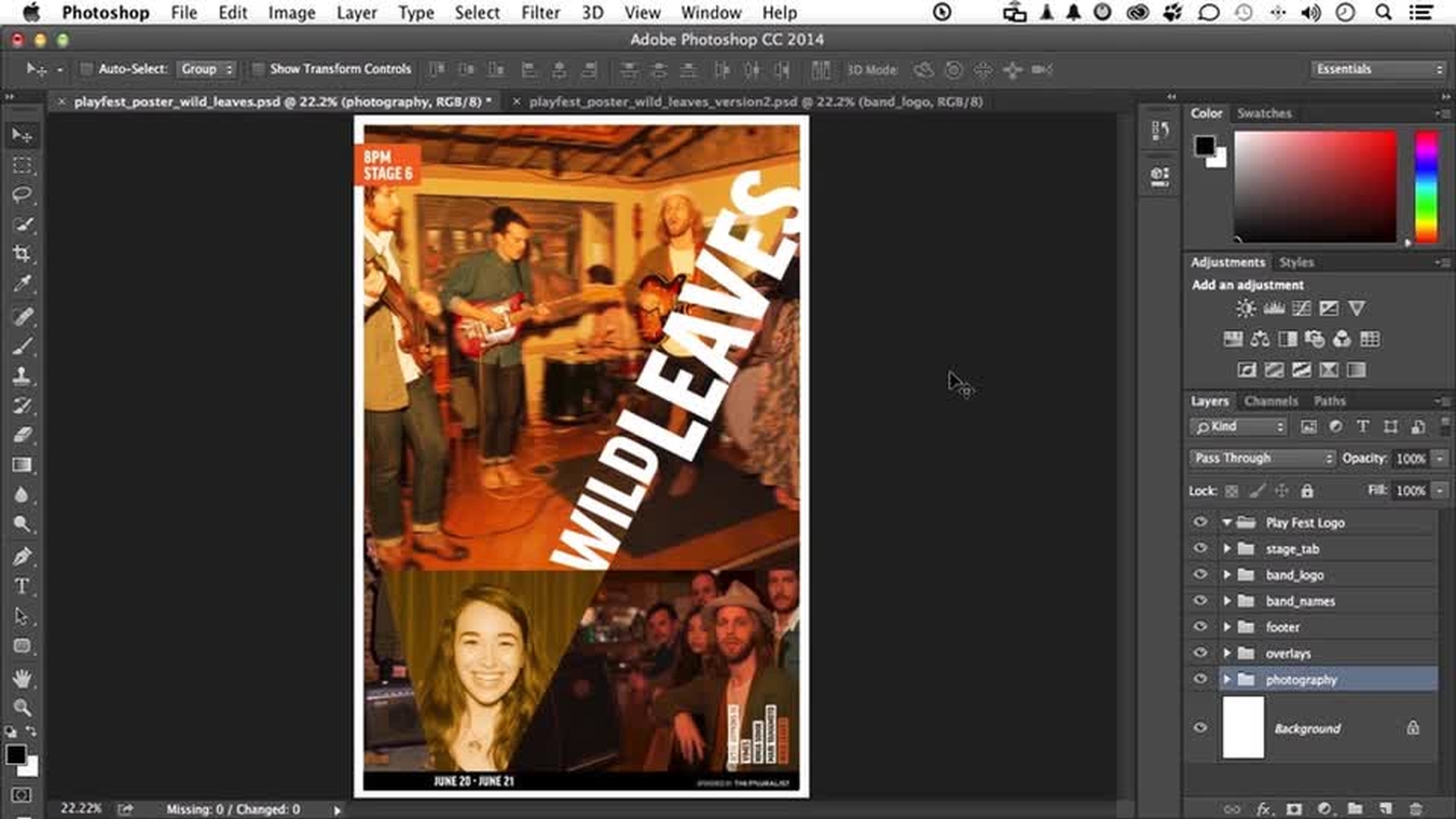
I've got a poster, the Wild Leaves.
They're going on tour, and they're going to be in 5 cities for 10 days.
So we need 5 different posters, and I only have 2.
But if you can do this twice, you can do it 100 times.
And if I come over here, you can see this one and this one.
Now notice there are things that are the same like the logo, information down here, the footer.
But there are some things, also, that are different.
The things that are the same—if you're working smart— should be linked.
Actually, I already have some of this set up to save time, but I will take you through the procedure.
Let's go into footer, right over here.
Incidentally, you do have these assets if you want to download them and follow along.
Common_bottom_bar is a linked smart object.
And how do I know that?
Now look right down here.
See that icon?
That is all I need to see.
I know this is a linked smart object.
Now if you don't have it open, I'm going to come up here and open up my properties.
And if you don't see it, go to the word Window.
You'll find it.
When I select this layer, Properties lights up.
I have an Edit Content button right here.
Now understand and remember what linking is.
Linking is linking to a physical file somewhere.
If I click Edit Content, I am literally opening up that file.
See right up here.
Now what I'm going to do is add something.
So we're going to go into File—this is how you do it— and go into Place Linked.
Now what I want is the Play_fest_logo, right there, and I'm going to place it.
And yes, if you're thinking this, I am placing a linked document inside of a linked document.
It's kind of interesting, but it does work.
I'm going to come down here, and I'm going to make that a little bit bigger.
Go big or go home.
Double click.
And I've got my move tool selected, so I'm just going to drag it over real quick, just like that.
I can get nice and pretty and fancy by using my up and down arrow keys, if I so choose.
Now I like that.
I'm happy with that.
I put it on the footer.
The footer is a linked smart object.
I'm going to close this one out.
I'm going to say Save, of course, and watch what happens.
There it is.
There it is on that one.
Total control.
It's changed based on the linked original.
That's where the power is.
Now you'll notice I do have one up here, too, and that's the same one.
If I come over here into Playfest logo, you will notice there it is; and that, too, is linked.
So they're all connected together.
Let's say marketing comes in and decides they want a change of color on one of these— actually on all of them because it's a logo.
So we come back, and we can do it a couple of ways.
But say we come back over into this one right here.
We go into footer, we select it, and we go back in to edit.
Now understand you could do it from the other one that was at the top because they're all the same thing.
If I select this here by coming over here—there it is, play_fest_logo— and go into Edit Content— let's do this.
Let me pull this back for a second.
They want the letter F the same color as the letter S.
Now I know the numbers for those colors, so I'm going to double click on the F right over here and change these to 240.
I'm using the Tab key to get to the next field, which makes it easier.
And I'm going to go 100, and I'm going to go 30, just like that, and click OK.
Now that's what I'm talking about.
I'm going to save it.
And there it is.
Now let's go ahead and save this one.
Now check it out.
This one's changed.
This one's changed.
This one's changed down here because they are all the same BIOT.
Playfest—it could be in a million places, but it's the one file that controls and reflects what we see inside of Photoshop.
That's why this is so powerful.
Now we've had an advantage in one respect.
We've had the documents open.
But what if you had 50 or 60 documents that were using the same image or asset?
You wouldn't have them all open, would you?
So let me show you a different way to kind of look at this.
What we're going to do is close—let me go ahead and save this one— and let's go ahead and save this one, too.
Then I'm going to close this one.
So that one's not open, but they both have a share on Wild Leaves.
So I'm going to go into—let me close this up.
I'm going to go into band_logo right here.
And that, again, is a linked, so I'm going to select it, open up my properties, and say Edit Contents.
Let's do this.
Let's take the word wild, and let's change it to that same color that I changed the letter F to.
Let's go ahead and double click here.
Okay.
Let's come over here, type in 240, tab 100, tab 30.
Click OK.
Got it changed.
Let's do one more thing though.
Let's go into our FX button down here, and let's put a stroke on the word wild— just something small, like about 3.
Let's see what that looks like.
That's not too bad.
And let's go ahead and put that on the inside.
Click OK.
Save it.
Now it's reflected here, isn't it?
But let me go ahead and open up the other one.
Now I'm going to drag it over from my other screen.
It's just easier this way for me.
And you can do that, too.
I like that about Photoshop.
See, this one didn't change because it wasn't open.
If it's open it's automatic.
It's going to change it.
If it's not open, it's going to ask you, "Do you want to change it?"
So if I come down here, you can see the word changed one, so it's giving me a visual that something needs changing.
But if we come back over here—let me go ahead and close footer.
We don't need that open.
And we get into band-logo, you can see down here that the logo has changed to a warning indicating that it is modified.
One is changed.
The reason I've got missing zero and changed one down here is because I've chosen Smart Objects right there.
Very easy to do—come up to the word Layer, go down to Smart Objects, and just say, basically, Update.
There you go.
Now let's look at one more thing here.
Let me go back to this one.
This image right here—let me go ahead and close some stuff down and open some others.
Notice the icon right here.
That is an embedded smart object.
Now if I select it, it says up here embedded not linked.
But if I say Edit Contents, it functions a lot like a linked smart object.
It's got layers.
I mean, we could put it into a black-and-white mode if we want to, save it, take it back.
It's going to work.
But the difference is because it's embedded, it only works in this one document.
If I have this particular image embedded in 15 documents and I make a change to this one, it's not going to change the other 15.
And you make a decision that, oh, man, I should have done that because it's going to be so much easier if they're linked as opposed to embedded.
What do you do?
Let's do this.
Let's get out of here, and let's save it.
And if I turn off the overlays here, you can see it did, indeed, turn it into grayscale.
Is it possible to convert something to linked?
And yes, it is.
You have a button right here—Convert to Linked.
Now it first has to be a smart object.
But if I click this button, it will say, "What do you want to name it, and where do you want to put it?"
And if I name it the same name as the layer, it will save it.
I can then use that document and go in link in other documents and then changing that one would change them all.
Conversely, if you have something linked you could later on embed it, if you want to do that, too, but the control that you have when you're working with these smart objects is absolutely amazing.
Now there is one more thing to consider.
If we move this document or if we move the files that they're associated with, it's possible you might see Missing down here has a 1 or a 2.
So in other words, if I go into the original folder where the links are and pull them out, well, it won't have access to them anymore.
If that happens, no big deal.
But if that happens, go up to the word Layer on the pull-down menu and go down to Smart Objects and choose Resolve Broken Link.
Now that means you're going to have to find where the original is.
That's up to you.
One more thing.
If you go up to the word File, we have a package option here.
Well, you're going to move this.
It's going into postproduction.
It's going to a service bureau to be printed.
Are you sure you have all the files and everything necessary for them to make this work?
Package.
You click it.
It will ask you where you want to put it.
The name will be the name of the document.
You will have a folder, and inside that folder will be everything necessary to make this work.
Package.
It's pretty cool.
It's a new feature.
Let's get out of here.
Linked smart objects, to me, are an amazing feature.
They can really help you get more efficient.
But they can guarantee consistency at the same time, so don't forget you've got them.
Don't forget to check out some of our other great learning resources on the Creative Cloud site.
I'll be seeing you around.

