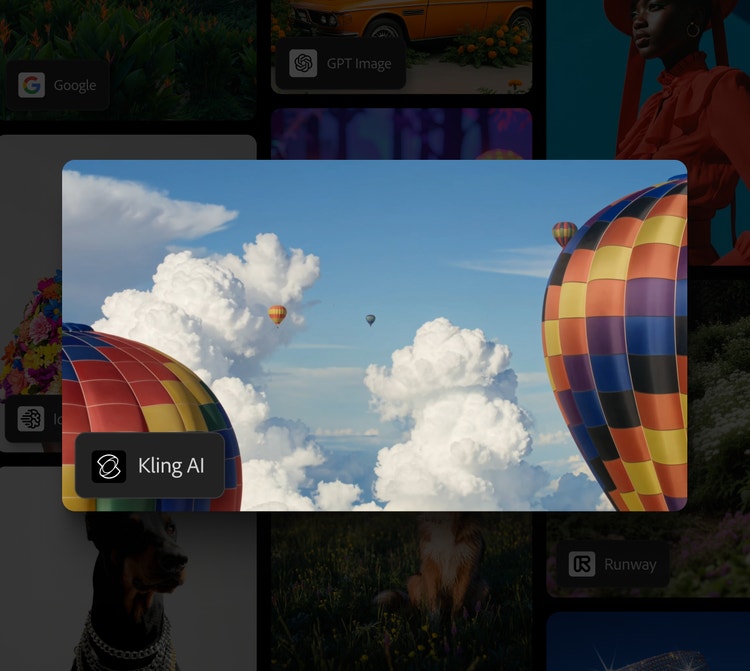
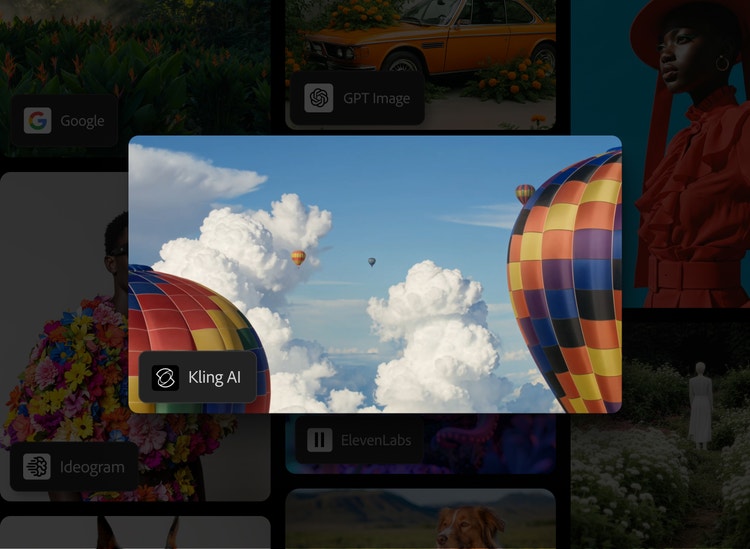
Create stunning videos with Kling AI in Adobe Firefly.
Go from concept to polished video in a few steps. Generate multishot cinematic videos with consistent characters, sync sound, and more, all in Adobe Firefly.
https://main--cc--adobecom.aem.live/cc-shared/assets/img/product-icons/svg/firefly-80.svg
{{nbsp}}
Generate with Kling AI | Generate with Kling AI - Adobe Firefly
https://main--cc--adobecom.aem.live/cc-shared/assets/img/product-icons/svg/firefly-80.svg
Adobe Firefly
Generate with Kling AI | Generate with Kling AI - Adobe Firefly
https://main--cc--adobecom.aem.live/cc-shared/assets/img/product-icons/svg/firefly-80.svg
Adobe Firefly
The next evolution of creative AI is here for all your ideas, with image, video, audio, and vector tools.
Generate with Kling AI | Generate with Kling AI - Adobe Firefly
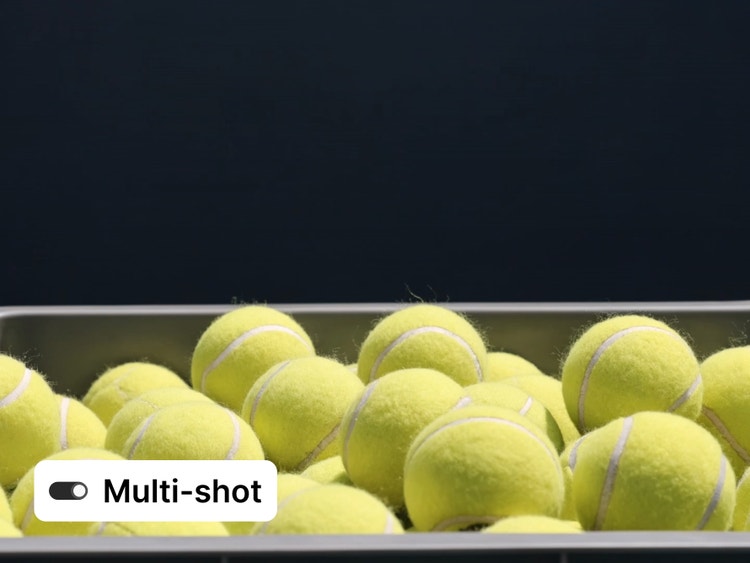
Create multishot stories in moments.
Go beyond just clips. With Kling 3.0 and Kling 3.0 Omni capabilities in Firefly, you can create up to six consecutive shots with a single prompt. Your characters, props, and environments stay consistent across scenes, and physics-driven camera movements respond to simulated motion like gravity, inertia, and collision.
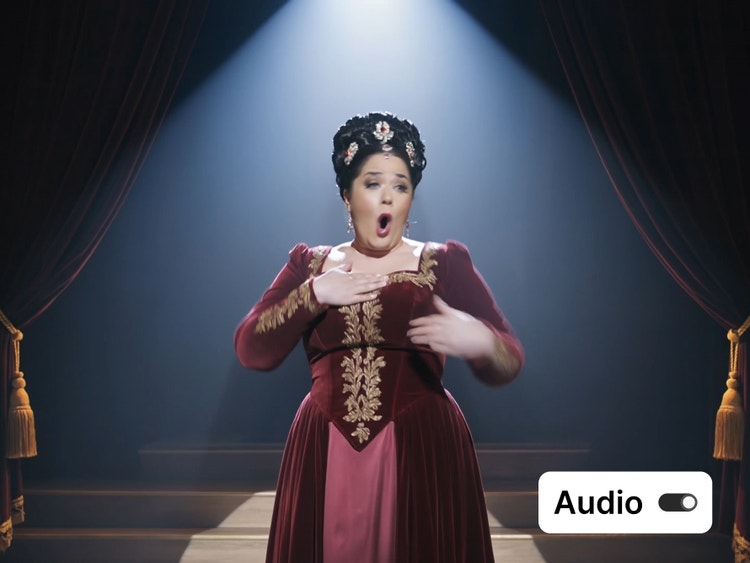
Generate cinema-quality sound.
Motion and sound are generated together right inside the Kling AI workflow, so they synchronize perfectly. Speech matches lip movements frame-by-frame, and unique voices are locked to characters throughout. Customize rhythm and pacing to suit the mood of your project.
Edit and refine scenes as you go.
Use prompts to modify elements, swap objects, extend scenes, and more. Kling AI makes it easy to adjust resolution, aspect ratio, and shot duration. You can also add reference images to guide the look of your video. Once generated, your video is ready to use, or you can keep refining it in a Adobe apps like Premiere or After Effects with a membership or free trial.
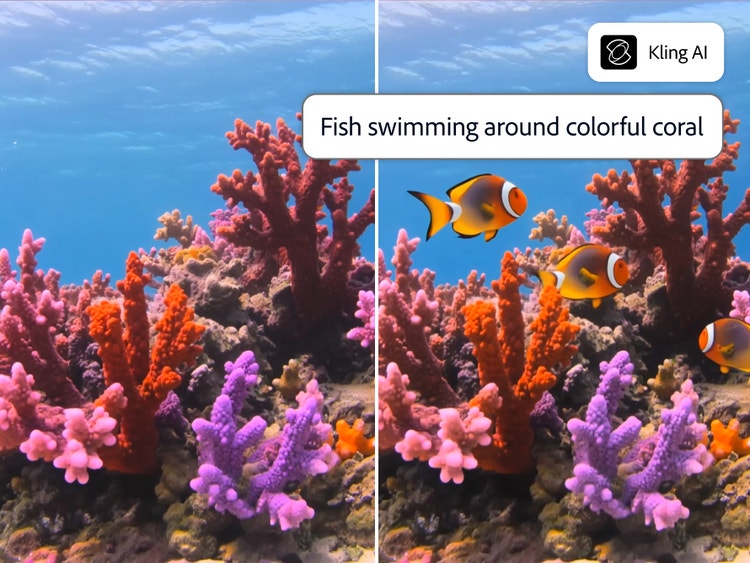
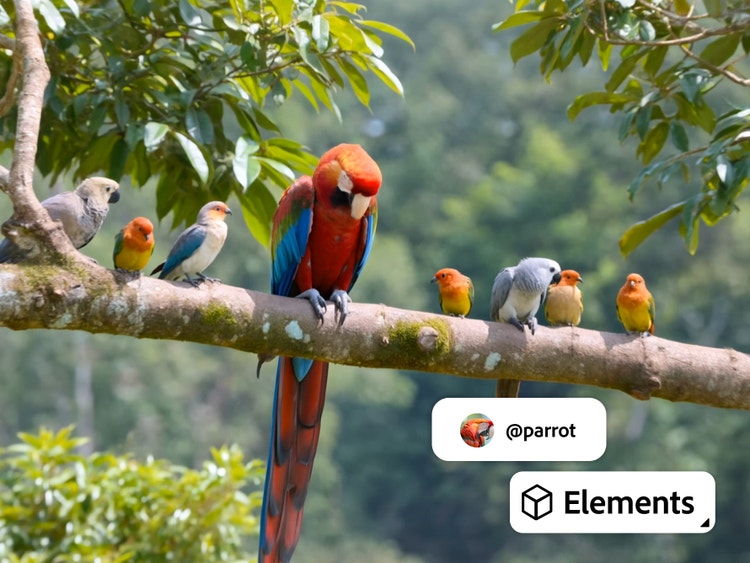
Keep assets consistent across scenes.
Control how characters, objects, and locations look and behave with Elements. To create an Element, upload up to four images, and then add a name and a short description. Tag Elements in your prompts to add them to your shots, and Kling will keep them consistent from scene to scene.
How to create videos with Kling AI in Firefly.
Learn how to create dynamic, multishot videos in just a few steps.
Step 1
Open Adobe Firefly.
Step 2
Select model.
Step 3
Set the number of shots.
Step 4
Upload and name your elements.
Step 5
Describe your video.
Step 6
Generate your video.
Step 7
Refine your edits.
Step 8
Download and use.
- How to create videos with Kling AI in Firefly.
- Steps on how to create videos with Kling AI in Firefly.
- PT5M
- firefly


Consistent characters
Keep your characters, objects, and environments consistent across scenes. Tag elements so you can apply the same edits to them across scenes and reuse them in other videos for a uniform look and feel.

End-to-end video creation
Handle the whole process of creating a cinematic multishot video in one place with Kling AI in Firefly. Video, audio, and refinement all happens in the same workflow, no app-switching.
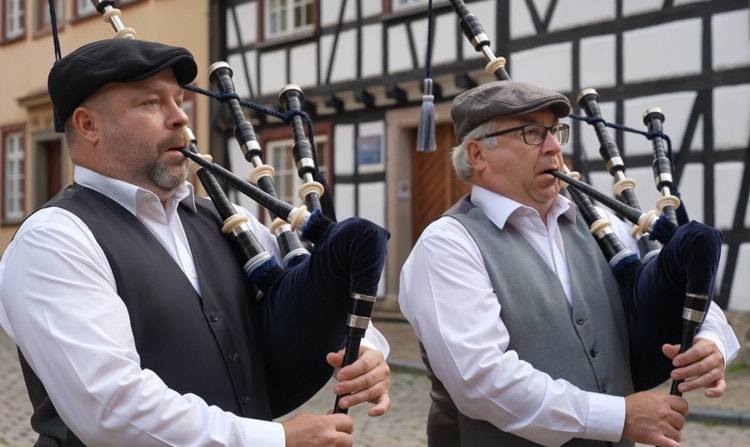
Natural audio
Kling AI automatically generates natural-sounding dialog and audio that accurately matches your scenes, no need to switch apps.
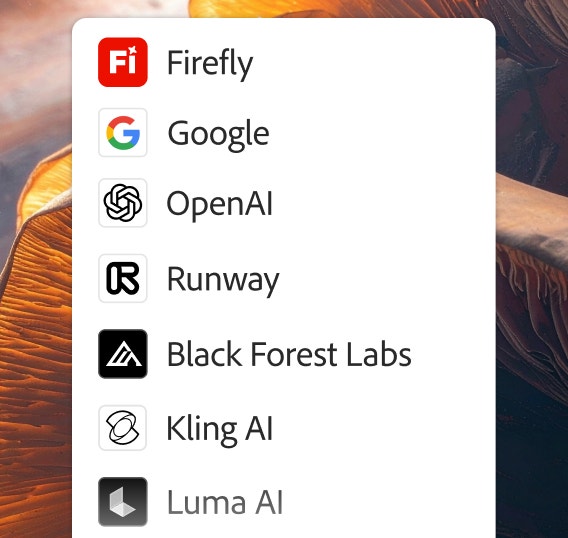
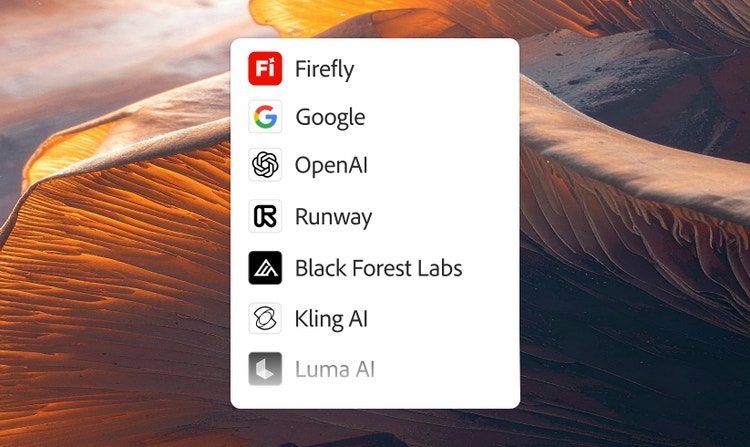
Multiple top AI models
Top AI models are integrated directly in Firefly so you can experiment with different visual results and create your best content ever. Choose models from Google, OpenAI, Runway, and more.
See what you can do in Firefly.




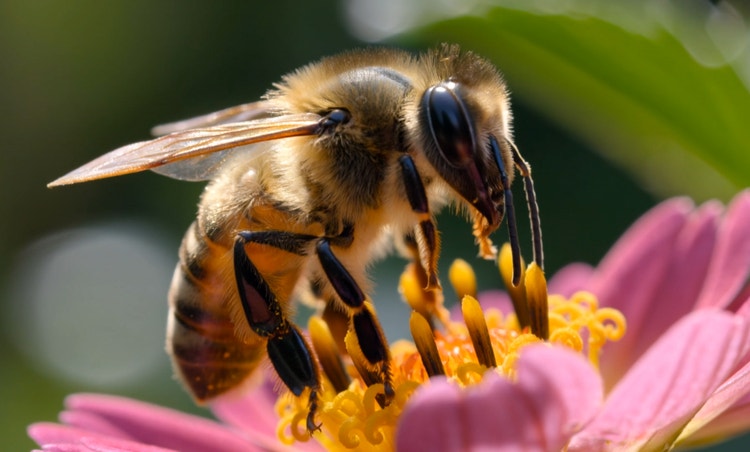
Discover even more features.
Questions? We have answers.
What is Kling AI and how does it compare to other AI video generators?
Can I edit videos with Kling AI in Adobe Firefly?
How do I generate videos with consistent characters?
Can I generate videos in Adobe Firefly using Kling AI?
Is Kling AI free to use in Adobe Firefly?
Can I use Kling AI in Adobe Firefly to generate videos with realistic audio?
Can I use Kling AI for commercial projects?
What is the difference between Kling 3.0 and Kling 3.0 Omni?
How long can Kling 3.0 videos be?
What languages does Kling 3.0 audio support?
What is the benefit of using Kling AI in Adobe Firefly versus other platforms?
Share this page.
Explore more Firefly tools.
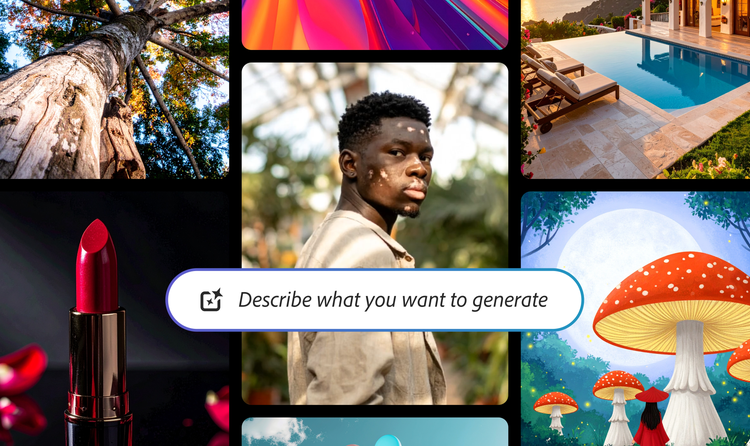
AI generated examples
From the way we explore ideas to the way we bring concepts to life, generative AI is transforming creative work. Explore generative AI examples of visuals, video, and sound created with Adobe Firefly to see what’s possible and spark ideas for whatever you create next.

Animated video examples
From GIFS and cartoons to explainers and ads, generative AI is transforming how creators produce animated videos. Explore AI animated video examples across styles and use cases, and see how Firefly can help you bring your vision to life.

AI video examples
Adobe Firefly makes it easy to create AI generated videos for ads, film, animation, and so much more. Keep reading to explore examples, prompts, and tools that can help you bring any idea to life.

How Generative AI works
Generative AI is all over the headlines, and that’s not empty hype. This new technology is likely to be part of your life soon — if it’s not already. Learn how generative AI works and start streamlining your workflow.