
- image
- https://main--cc--adobecom.aem.page/creativecloud/animation/testdoc/unity/generate.svgGenerate
- Edit prompt or enter your own text.
- Unable to process the request
- Prompt exceeds the max length of 750 characters
- Adobe models
- Choose a style


-
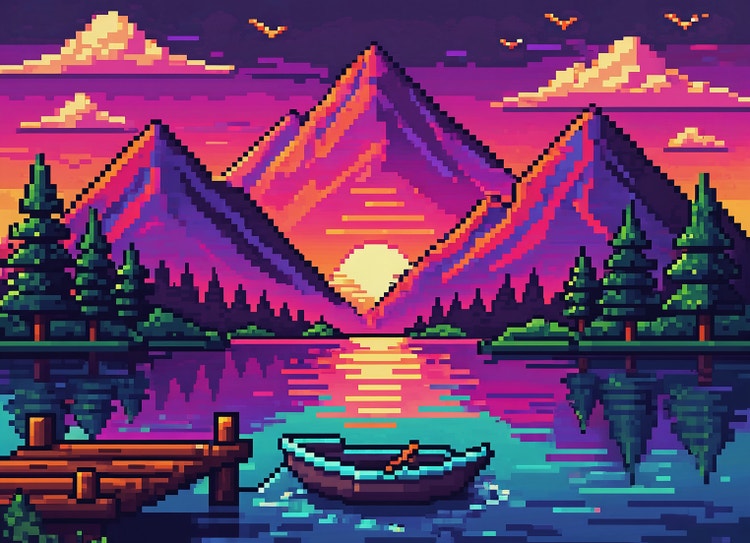
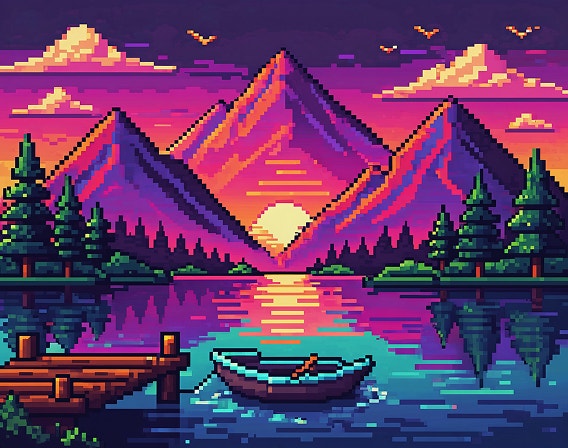
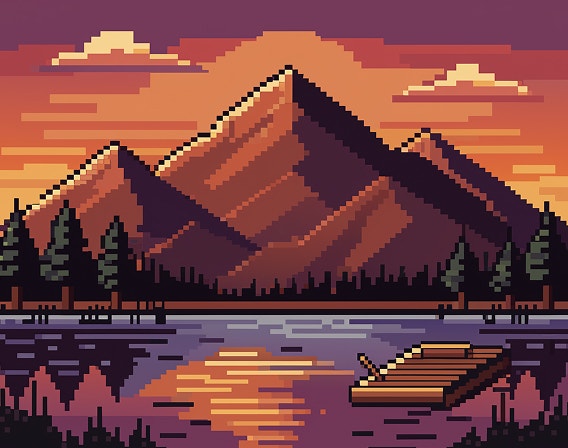
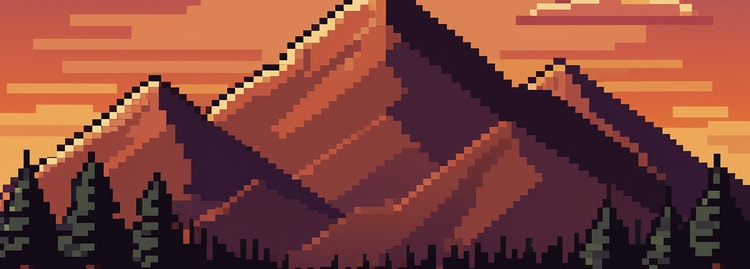
Pixel RPG game style, neon color palette.
A mountain scene at sunset looking over a lake. -
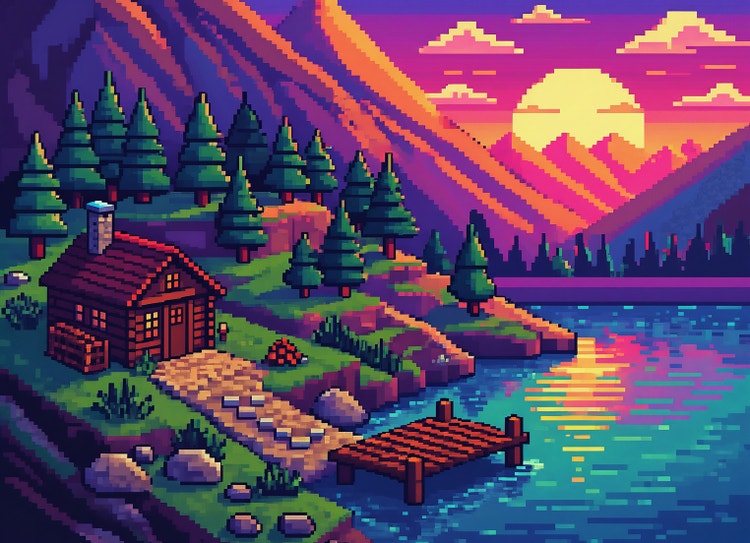
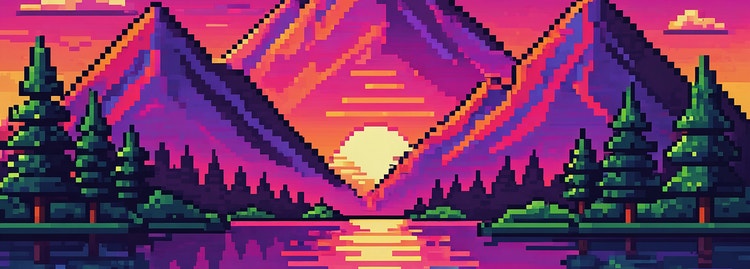
Pixel Isometric style, neon color palette.
A mountain scene at sunset looking over a lake. -
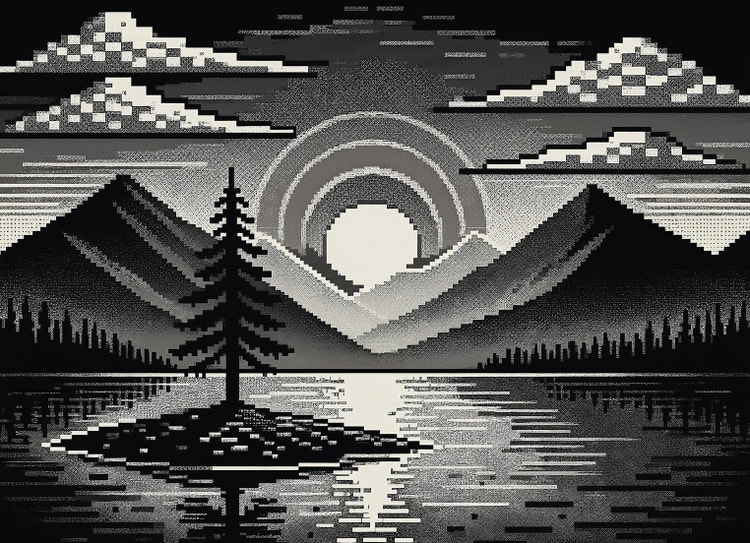
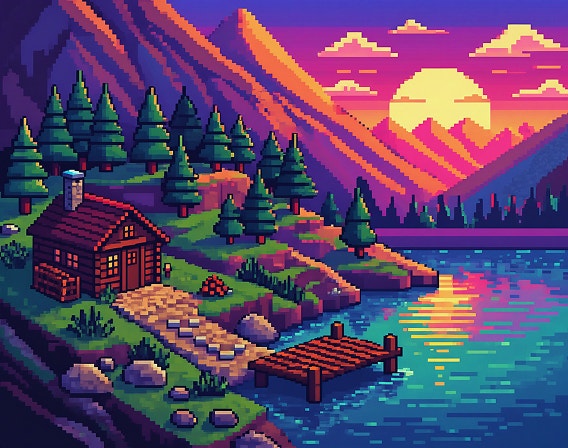
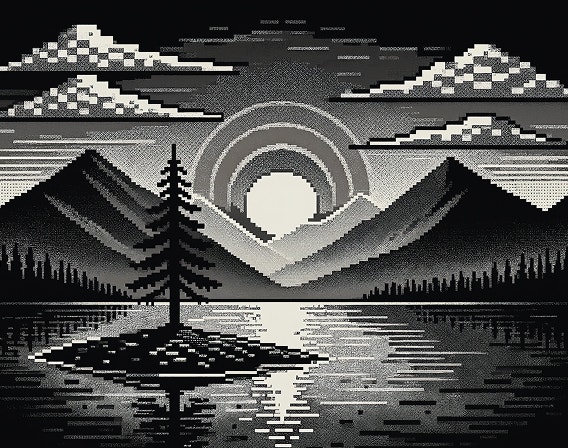
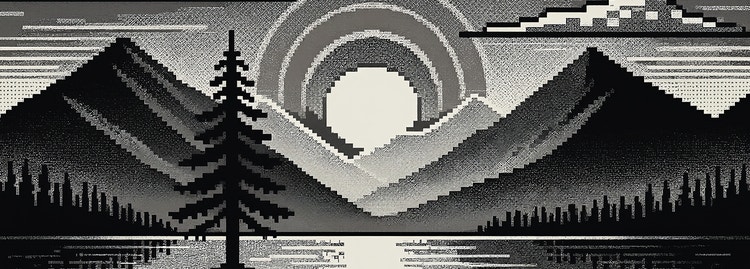
Pixel monochrome style.
A mountain scene at sunset looking over a lake. -
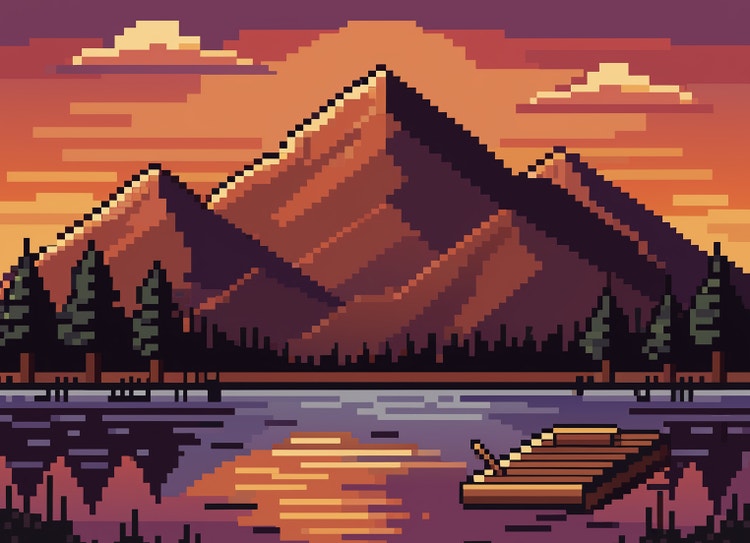
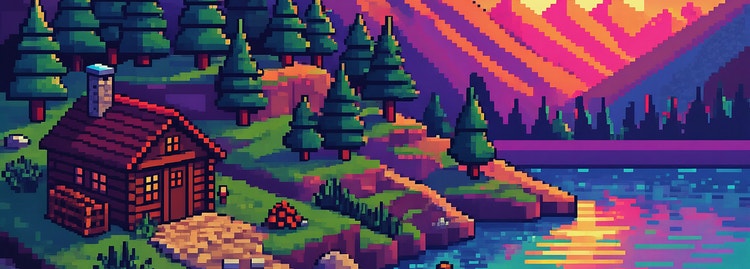
Pixel retro style.
A mountain scene at sunset looking over a lake.

https://www.adobe.com/cc-shared/assets/img/product-icons/svg/firefly-appicon-64-new.svg
Adobe Firefly
https://www.adobe.com/cc-shared/assets/img/product-icons/svg/firefly-appicon-64-new.svg
Adobe Firefly
The next evolution of creative AI is here for all your ideas, with image, video, audio, and vector tools.
Bold, blocky pixel art is just a few taps away.
Use the Generate Image feature to create fun, colorful illustrations that harken back to the early days of digital design. It’s easy to go from image to pixel art with Firefly.
Travel back in time with a powerful pixel art generator.
Pixel art is a form of digital artwork made of small blocks (pixels) that create a complete image. Pixel art was used in some of the earliest web and game designs and is still used today in everything from fashion to NFTs for its striking visual quality and nostalgia.
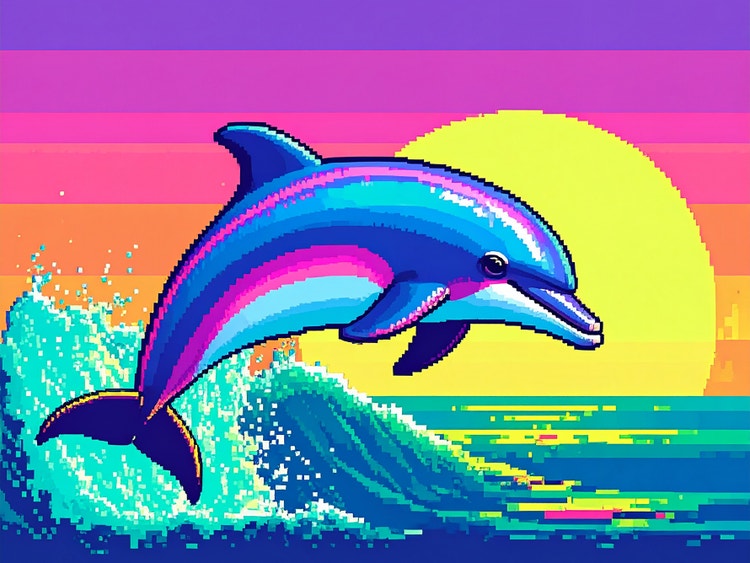
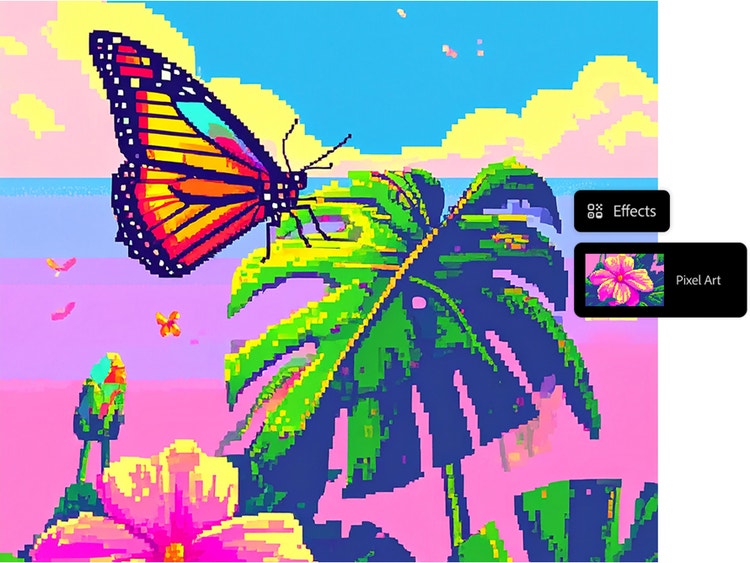
Go from prompt to pixel art.
It’s easy to create your own pixel art using the Generate Image feature in the Firefly web app. Simply write a descriptive prompt, select Pixel art from the Effects section, and generate your results. A pixel art generator like Firefly is ideal for creating characters, scenes, icons, and more.
Customize your results with the pixel art generator.
Get just the look you want by using detailed prompts and adjusting your settings. Use descriptive words like “retro” or even eras like “1980s” in your prompt. Try combining effects, such as selecting both the Pixel art and Simple options. Choose options from the Color and Tone dropdown menu such as Vibrant Colors.
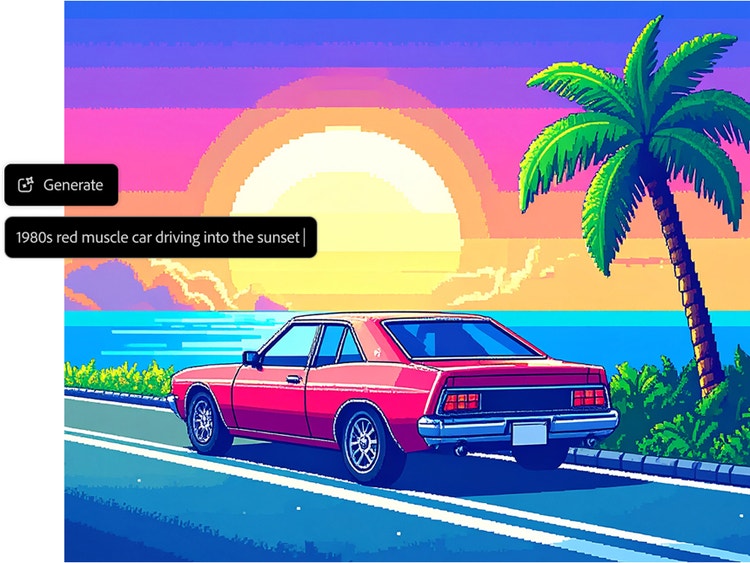
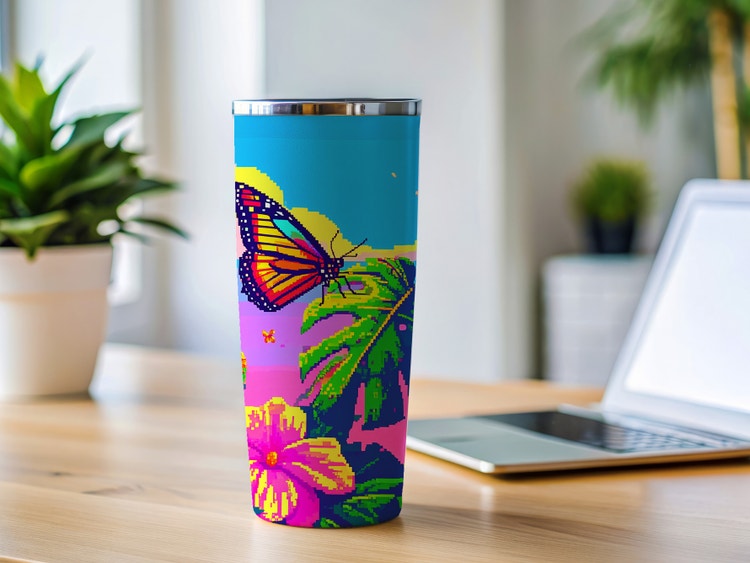
Pixelate images and apply them anywhere.
Simple, striking, and fun, your pixel art creations are ideal for creating games, avatars, NFTs, stickers (both digital and physical), and beyond.
Go from image to pixel art.
Transform any image or photo into AI-generated pixel art using Adobe Firefly. Just select Generate Image, upload a reference image, and then write a prompt to guide how it’s generated in a pixel art style.
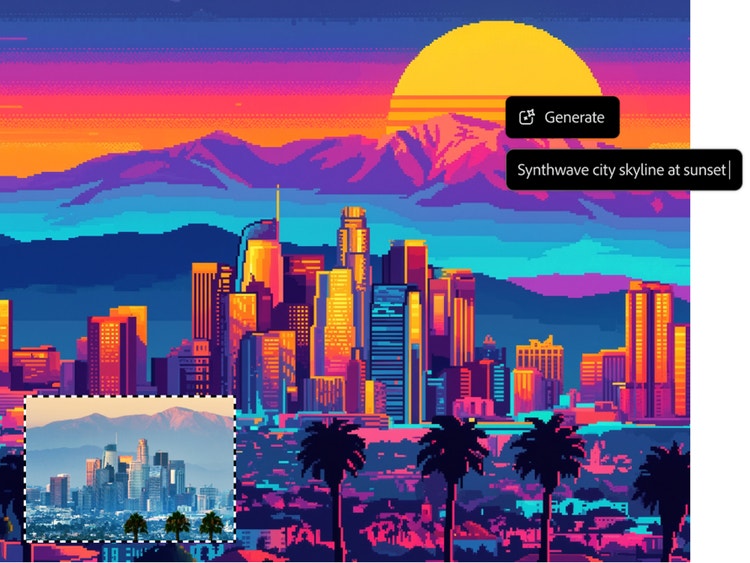
How to generate pixel art with Adobe Firefly.
Pixelated artworks are just a few clicks away when you use Generate Image as your AI pixel art generator.
Step 1
Log in to Firefly.
Step 2
Upload a photo.
Step 3
Write a text prompt.
Step 4
Select the Pixel art effect.
Step 5
Download and share.
- How to generate pixel art with Adobe Firefly.
- Steps on How to generate pixel art with Adobe Firefly.
- PT5M
- firefly
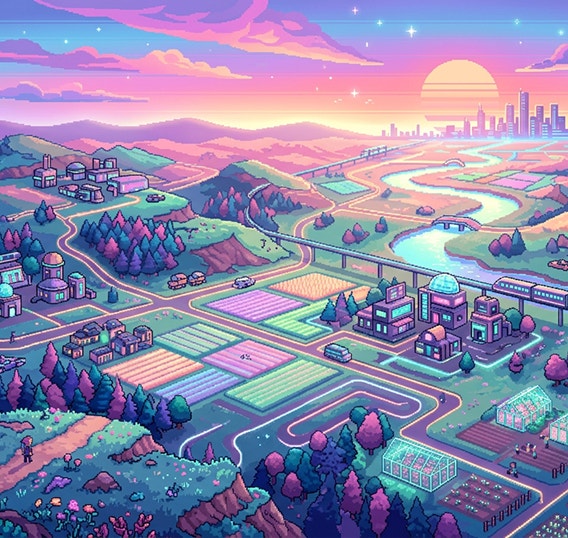
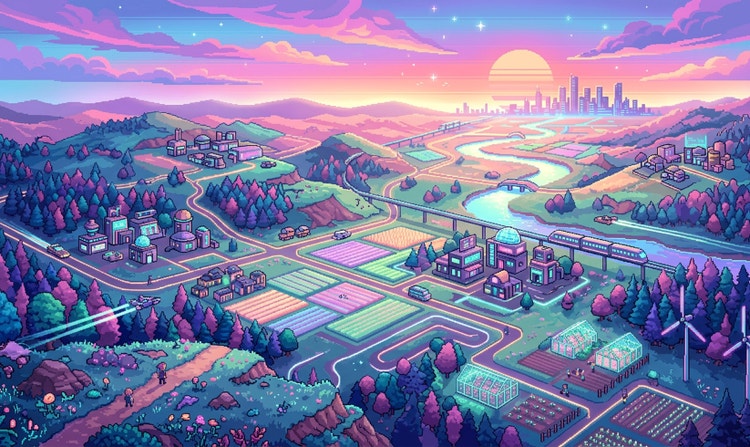
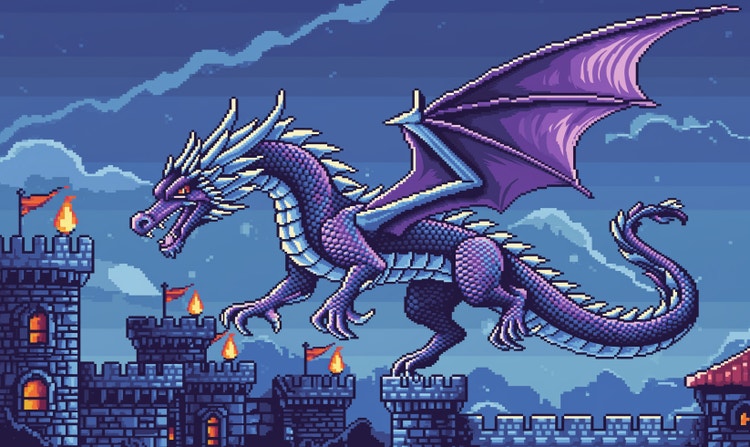
Authentic retro styles with creative control
Generate 8-bit and 16-bit -inspired pixel art with customizable color palettes, grid details, and composition controls to match classic game aesthetics or modern retro designs.
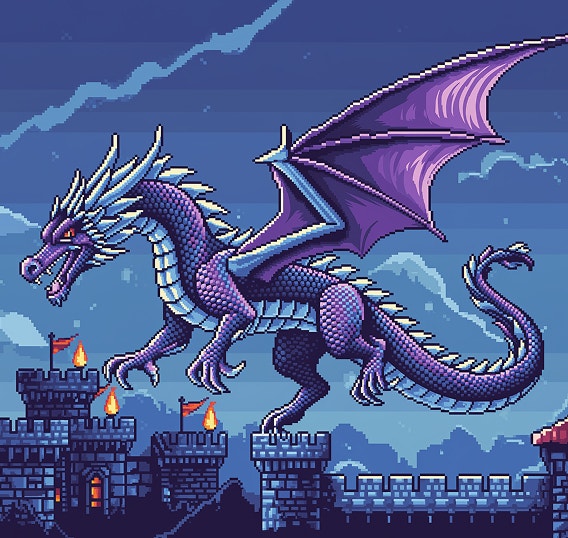
Built for real creative projects
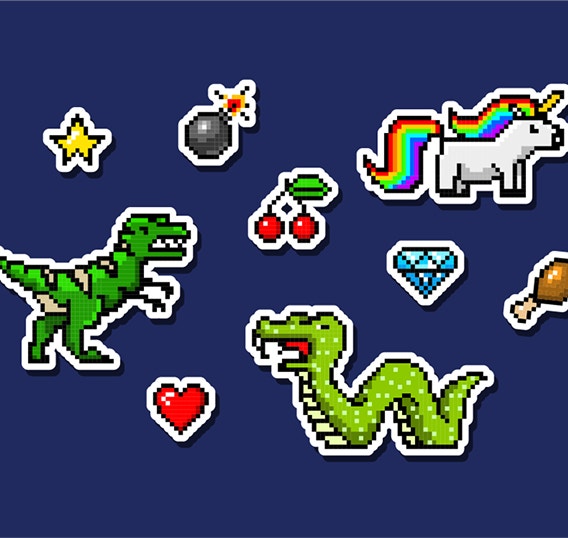
Create pixel art for indie games, sprite sheets, character designs, merchandise, social media visuals, and collectible art — all optimized for practical, production-ready use.
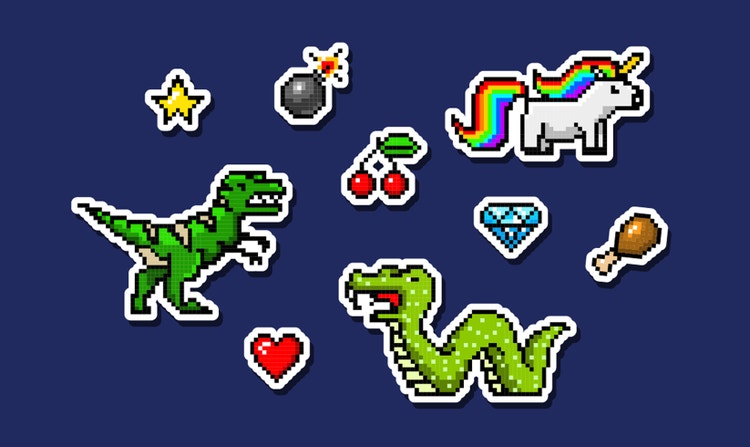
Consistent styles across assets
Easily maintain visual consistency across multiple pixelated images with matching colors, shading, and pixel structures.
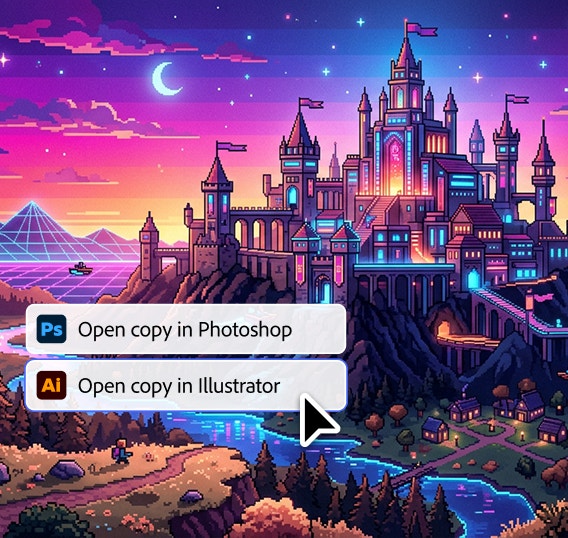
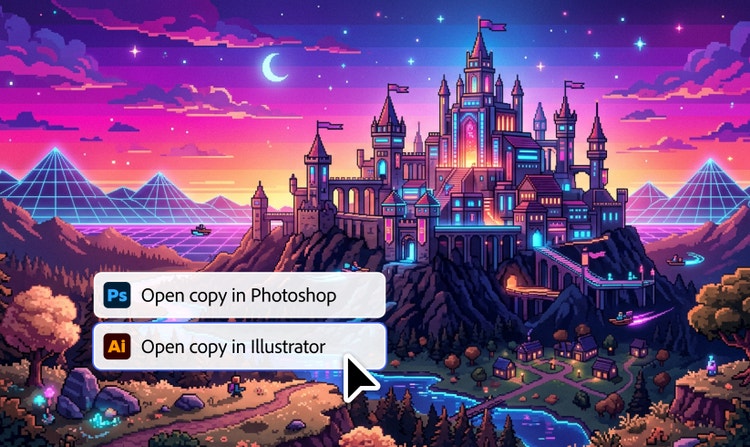
Seamless Creative Cloud integration
Refine, scale, and extend the pixel art you create in Firefly thanks to integration with apps like Adobe Photoshop and Illustrator.
See what you can do in Firefly.
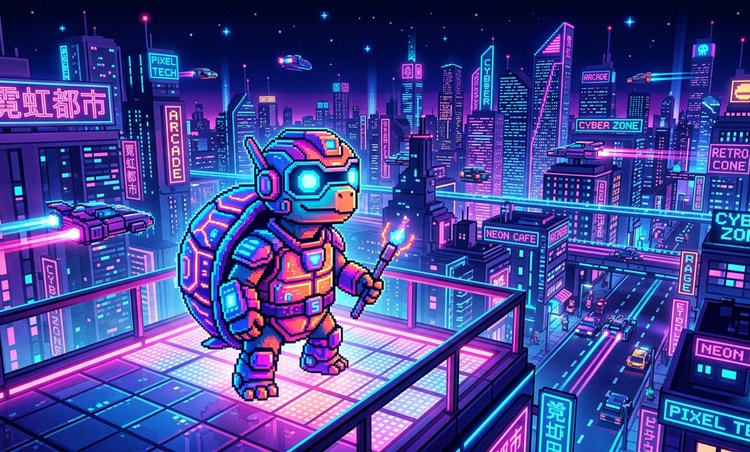
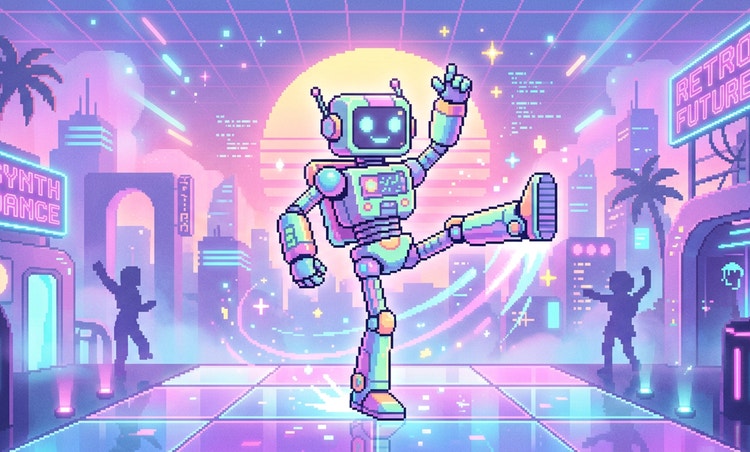
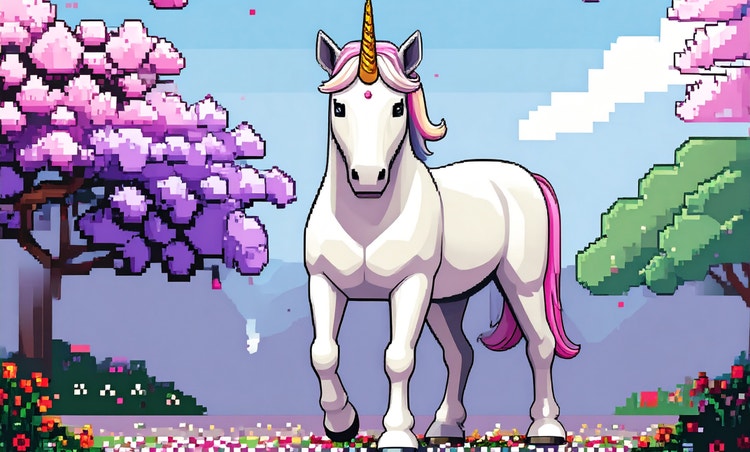
Discover even more features.
Questions? We have answers.
What are the best AI pixel art generators available?
Can I choose the pixel art style or size?
Am I free to use the pixel art I generate commercially?
What formats and resolutions are available for download?
Can I turn pixel art into animations?
What other third-party models can I find in Adobe Firefly?
How can I write a good prompt for generating pixel art?
A good prompt for a pixel art generator clearly defines both the subject and the visual style so the image translates cleanly into a pixel format. Be specific about details like pixel art style, sprite or icon size, color palette, resolution, and perspective to guide the generator toward crisp, readable generated pixel art.
For example, to create pixel art characters or avatars, try a prompt like, “A detailed portrait of an armored female knight, pixel art, limited color palette, clean outlines, high contrast.”
To generate pixelated textures or background images, try, “Seamlessly tiling rough cobblestone texture, pixel art, muted colors, top-down view, game asset.”
To generate a pixelated scene or setting, try, “A quiet neon-lit street in Tokyo, pixel art, isometric view, small sprite size, controlled color palette, cyberpunk aesthetic.”
Using clear subject descriptions and specific style constraints makes it easier to create pixel art with consistent structure, balanced color, and resolution that works well across icons, avatars, and other digital art programs.
Can I generate pixel art for free?
What makes a great pixel art generator?
Share this page.
Explore more Firefly tools.
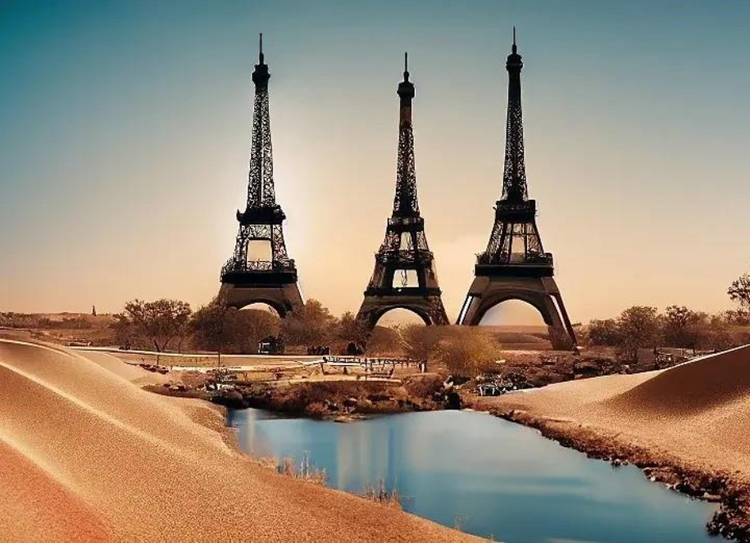
What is AI Art?
Generative AI is quickly becoming a vital tool for artists. Read on to learn about what generative AI art is, how to create it and how you can use it in your practice.
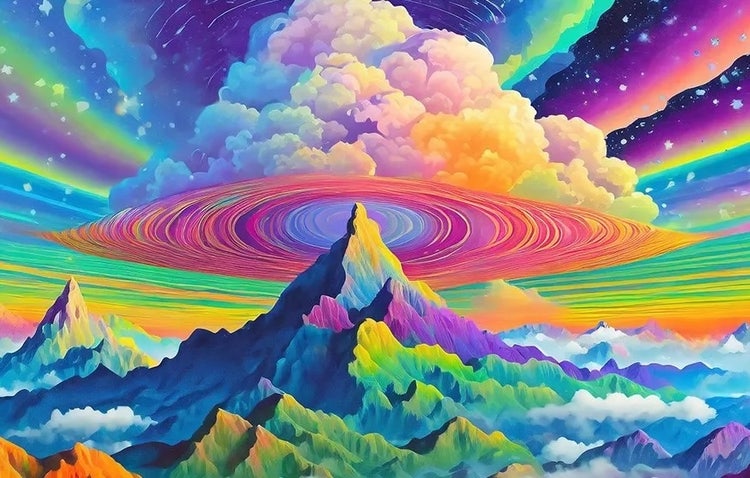
AI Art Use Cases
Discover the many applications of AI art and how it’s transforming the creative landscape.
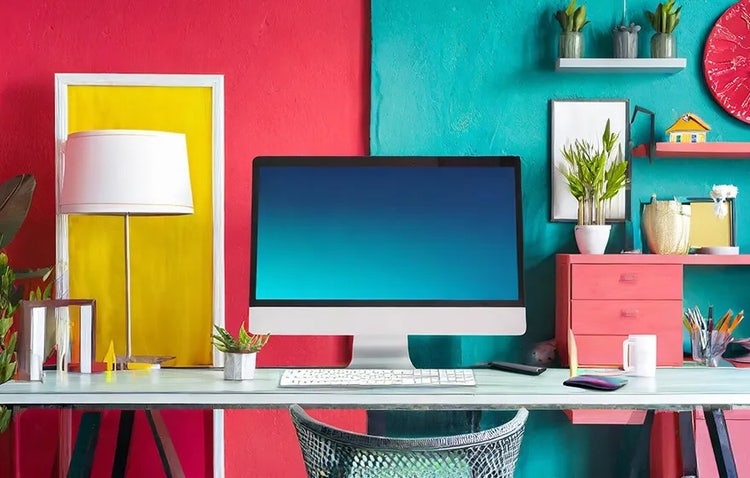
AI Art Prompts for Graphic Design
Learn how to write effective prompts for generative AI to get amazing results for graphic design.
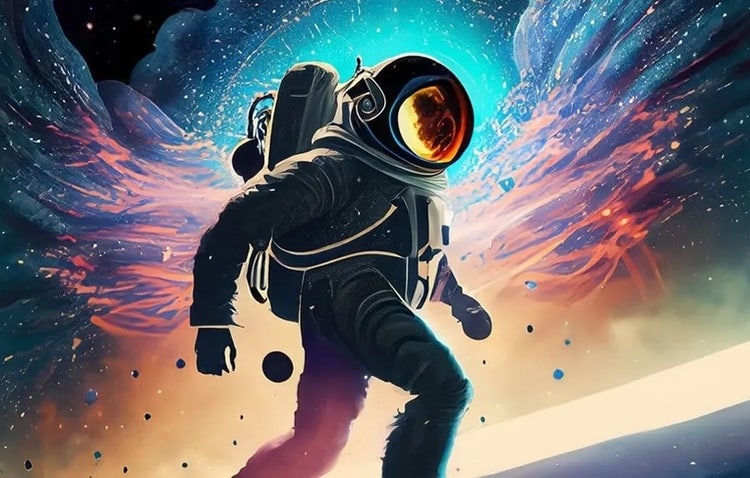
How AI Changes Creative Work
Generative AI produces impressive results but it still depends on human direction and imagination. Discover how it can enhance your ideas and open new creative possibilities.