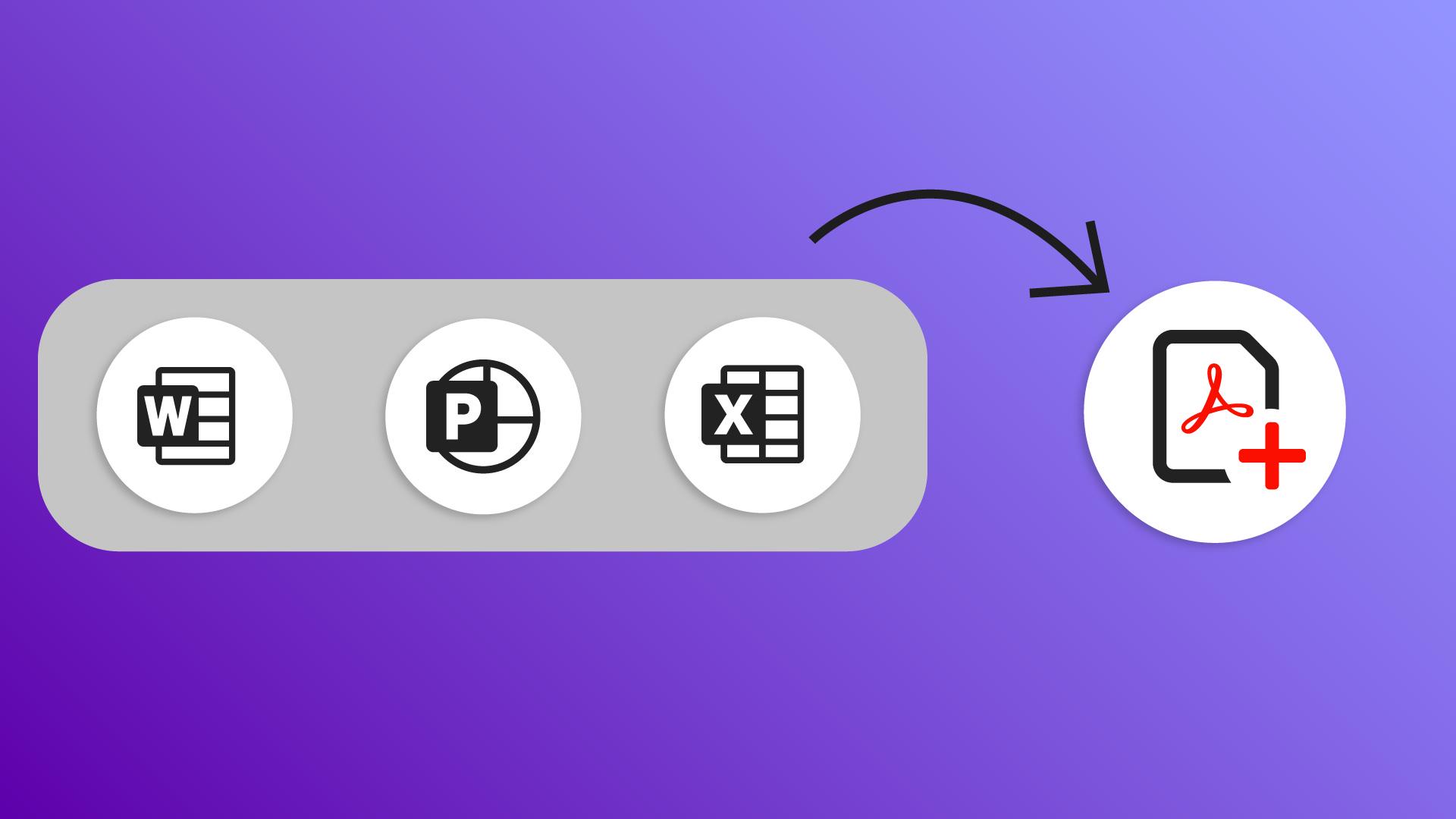
Apprenez à créer des PDF à partir de fichiers Word, PowerPoint, Excel et de contenu copié pour les partager, les réviser et recueillir des commentaires en toute facilité.
[Stefan Gruenwedel] : Bonjour, je m’appelle Stefan Gruenwedel.
Je suis formateur au sein de l’équipe Adobe Learn.
Dans cette vidéo, je vais vous montrer comment créer un PDF à partir de fichiers courants, comme Microsoft Word et PowerPoint.
Utiliser l’onglet Acrobat dans les applications Office
Commençons par PowerPoint.
J’ai créé un modèle de budget pour une société de production qui souhaite réaliser un film d’action de SF.
J’aimerais partager ce document pour recueillir des commentaires.
Le format PDF est idéal à cet effet.
Je peux utiliser PowerPoint pour créer un PDF de cette présentation.
En haut de l’écran, repérez l’onglet Acrobat.
Cliquez sur Créer un fichier PDF.
Si vous ne voyez pas l’onglet, installez le complément Adobe Créer un PDF.
Cet article HelpX vous explique comment procéder.
Vous trouverez le lien sur la page de ce tutoriel.
Le bouton Créer un fichier PDF permet de charger la présentation
Ouvrir un document et continuer à travailler dans Acrobat
dans le cloud d’Adobe et de la convertir en PDF.
Le fichier s’ouvre ensuite dans Adobe Acrobat.
Pour le modifier, utilisez les outils du panneau de gauche.
Testez par vous-même avec les fichiers d’exemple de ce tutoriel.
La procédure est la même pour un document Microsoft Word.
J’ai créé ce CV pour un ami qui veut travailler sur ce film à gros budget.
Comme il n’a pas Microsoft Office, je vais lui envoyer un PDF.
Comme tout à l'heure, je clique sur Créer un fichier PDF dans l’onglet Acrobat.
Une fois le document converti ouvert dans Acrobat, je peux le partager, le protéger, etc.
L’option Créer un fichier PDF est aussi accessible dans Microsoft Excel.
Pour finir, voici comment créer rapidement un PDF à partir d'un contenu web ou du texte d’un document,
Créer un PDF à partir d’un contenu copié
bref, de tout ce que vous copiez dans le presse-papiers.
Par exemple, prenons une page du site web d’Adobe sur les rapports L/H.
Pour créer un aide-mémoire de son contenu, sélectionnez la partie qui vous intéresse, copiez-la dans le presse-papiers, puis allez dans Acrobat.
Cliquez sur Créer en regard de l’icône d'accueil, puis choisissez l’option Presse-papiers.
Lorsque vous cliquez sur le bouton bleu, Acrobat crée un PDF à partir du contenu copié dans le presse-papiers.
C’est très pratique.
Remarque : les ressources Adobe Stock sont fournies à des fins d’entraînement uniquement. Voir les conditions
Ce que vous apprendrez
Utiliser l’onglet Acrobat dans les applications Office
Sélectionnez Créer un PDF depuis l’onglet Acrobat dans Word, PowerPoint ou Excel pour convertir votre document et l’ouvrir dans Acrobat. Si vous ne voyez pas l’onglet, suivez les instructions du guide HelpX pour installer le complément.
Ouvrir un document et continuer à travailler dans Acrobat
Une fois converti en PDF, votre fichier s’ouvre dans Acrobat où vous pouvez poursuivre votre travail.
Créer un PDF à partir d’un contenu copié
Copiez le contenu d’une page web ou d’un document, puis utilisez l’option Presse-papiers dans Acrobat pour créer un PDF et ainsi enregistrer votre sélection dans un fichier distinct.
You can control how Adobe websites use cookies and similar technologies by making choices below. But note that if you disable cookies and similar technologies entirely, Adobe websites may not function properly.
Cookies are small text files stored by your web browser when you use websites. There are also other technologies that can be used for similar purposes like HTML5 Local Storage and local shared objects, web beacons, and embedded scripts. These technologies help us do things like remembering you and your preferences when you return to our sites, measure how you use the website, conduct market research, and gather information about the ads you see and interact with.
You can make choices in the menu below about what cookies and other technologies you want us to use on Adobe sites when you visit them from this browser. You can always change those choices later by clicking on the Cookie Preferences link at the bottom of the page.
If enabled:
We can improve your experience by tailoring the site and the content to things we think might be of interest
We can better keep track of your preferences — like what language you prefer to use
We will better understand your likely interests so we can provide you more relevant Adobe ads and content on non-Adobe websites and in non-Adobe apps
It will help us improve the performance of our website and those of our partners who use the Adobe Experience Cloud
If disabled:
We won’t be able to remember you from session to session so the experience may not be tailored to your interests
You’ll still have access to the content of the site but certain features that depend on cookies may not function
You’ll still see ads, they just may not be as relevant to you
General information
You can control how Adobe websites use cookies and similar technologies by making choices below. But note that if you disable cookies and similar technologies entirely, Adobe websites may not function properly.
Cookies are small text files stored by your web browser when you use websites. There are also other technologies that can be used for similar purposes like HTML5 Local Storage, web beacons, and embedded scripts. These technologies help us do things like remembering you and your preferences when you return to our sites, measure how you use the website, conduct market research, and gather information about the ads you see and interact with.
You can make choices in the menu below about what cookies and other technologies you want us to use on Adobe sites when you visit them from this browser. You can always change those choices later by clicking on the Cookie Preferences link at the bottom of the page.
If enabled:
We can improve your experience by tailoring the site and the content to things we think might be of interest
We can better keep track of your preferences — like what language you prefer to use
We will better understand your likely interests so we can provide you more relevant Adobe ads and content on non-Adobe websites and in non-Adobe apps
It will help us improve the performance of our website and those of our partners who use the Adobe Experience Cloud
If disabled:
We won’t be able to remember you from session to session so the experience may not be tailored to your interests
We’ll still count your use of our site and services
You’ll still have access to the content of the site but certain features that depend on cookies may not function
You’ll still see ads, they just may not be as relevant to you
Operate the site and core servicesOperate site and measure engagement
Always active
These cookies are required, and they are used to enable the site and related services core functionality. Without them the site could not operate, so they cannot be disabled.
These cookies enable the site and related services’ core functionality and collect statistics about user engagement, such as counting active use to help us understand trends. These cookies cannot be disabled.
Measure performance
These cookies are used to analyze site usage to measure and improve performance. Without them Adobe cannot know what content is most valued and how often unique visitors return to the site, making it hard to improve information we offer to you.
These cookies are used to analyze site usage to measure and improve performance. Without them Adobe cannot know what content is most valued, making it hard to improve information we offer to you.
Extend functionality
These cookies are used to enhance the functionality of Adobe sites such as remembering your settings and preferences to deliver a personalized experience; for example, your username, your repeated visits, preferred language, your country, or any other saved preference.
Personalize advertising
These cookies are used to enable Adobe and our partners to serve ads more relevant to your interests. Without them you will still see ads, but they might not be as relevant to you.
Personalize advertising
These cookies are used to enable Adobe and our partners to serve ads more relevant to your interests. Without them you will still see ads, but they might not be as relevant to you.