Tracer des lignes droites et des courbes lisses avec précision
Délaissez les courbes de Bézier au profit de l’outil Plume de courbure d’Adobe Photoshop pour créer des tracés de façon intuitive et redimensionner les segments. Apprenez à définir des tracés de sorte qu’ils soient parfaitement visibles sur tout type d’arrière-plan.
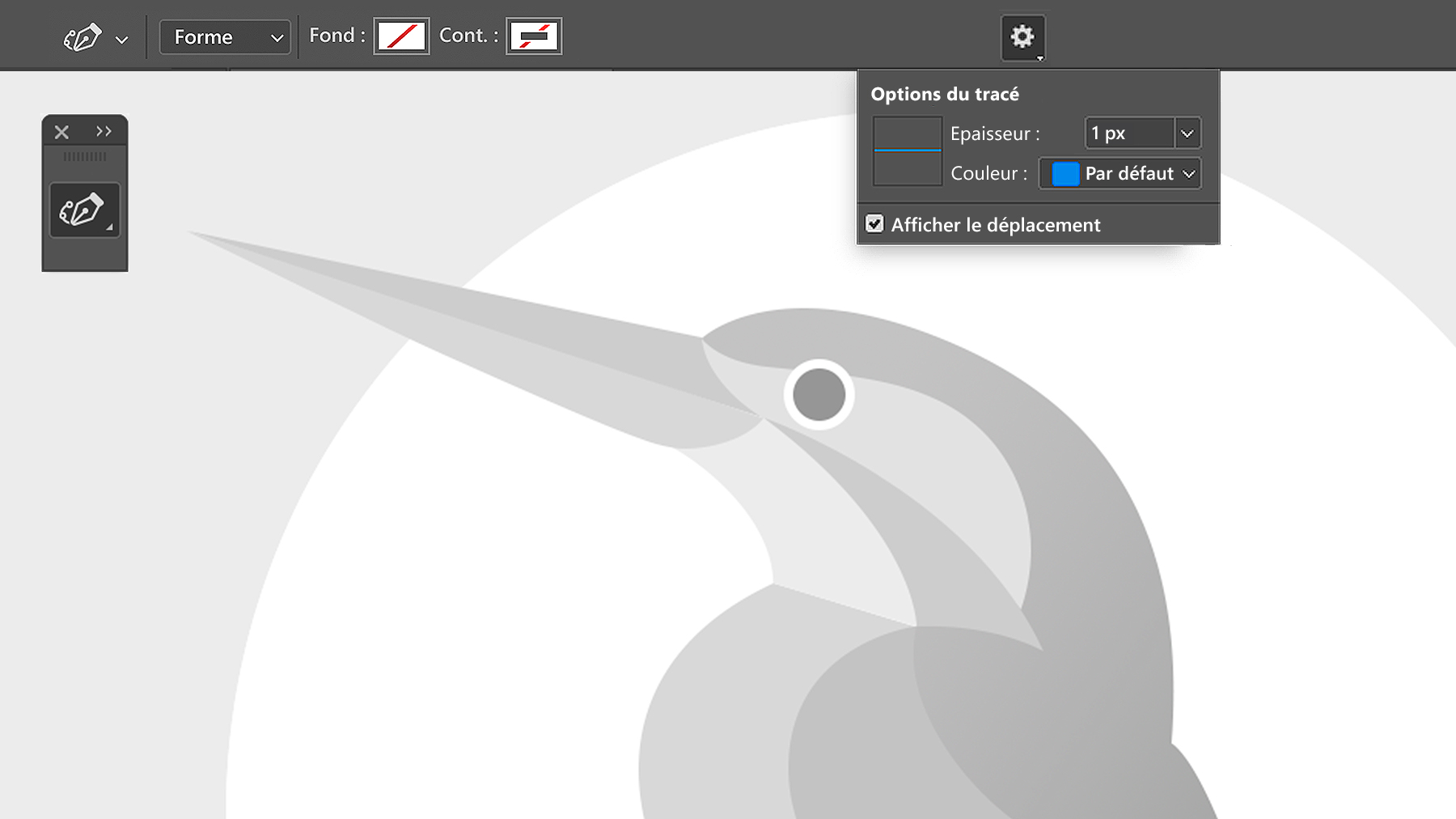
L’outil Plume de courbure se trouve sous l’outil Plume dans la barre d’outils. Sélectionnez-le, choisissez Forme dans le menu déroulant de l’outil accessible dans la barre d’options, puis définissez les couleurs de fond et de contour sur Sans.
Optimiser l’affichage de vos tracés
Cliquez sur l’icône d’engrenage dans la barre d’options pour accéder aux options du tracé. Réglez l’épaisseur et la couleur du tracé.
Remarque : ces paramètres influent uniquement sur l'aspect du tracé et permettent de mieux visualiser la forme. Le contour reste intact, mais vous pourrez le modifier lorsque vous appliquerez une couleur aux différentes formes.
L’option Afficher le déplacement permet de prévisualiser un tracé en fonction du mouvement du curseur.
Tracer des lignes droites
Cliquez une fois sur la zone de travail pour commencer à tracer une ligne droite, puis deux fois pour ajouter un angle.
Chaque fois que vous double-cliquez sur la zone de travail, vous créez un segment entre deux angles. Appuyez simultanément sur la touche Maj pour faire pivoter votre tracé par incrément de 90 et 45 degrés.
Appuyez sur Échap pour valider un tracé ouvert.
Tracer et modifier des courbes
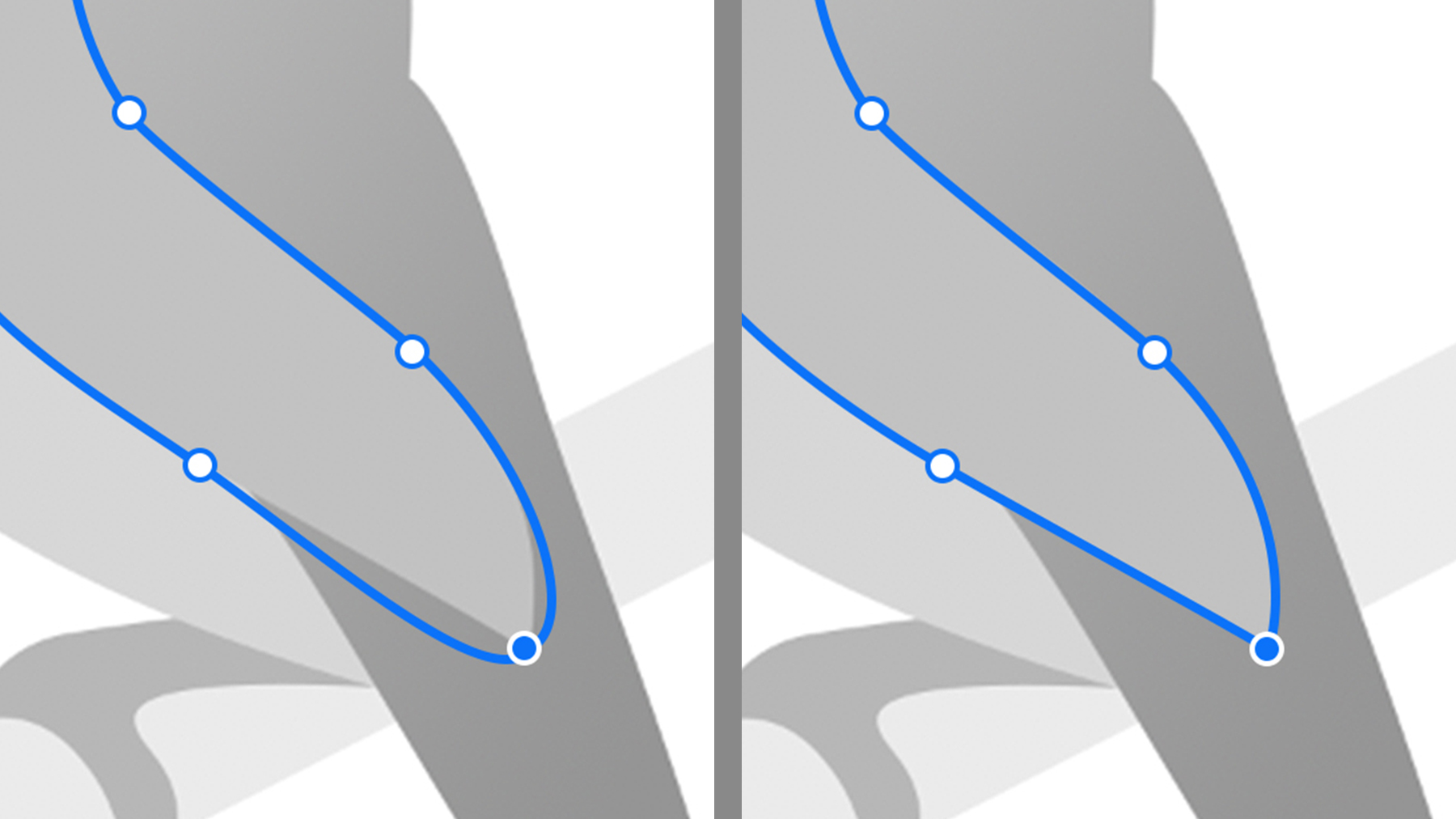
Cliquez une fois pour créer le premier point. Continuez à créer des tracés autour de la forme incurvée, en cliquant une fois sur la zone de travail pour ajouter un angle.
Vous pouvez repositionner un angle par simple glisser-déposer, sans avoir à changer d’outil.
Ajoutez d’autres angles pour mieux contrôler la courbe. Pour supprimer un angle, il suffit de le sélectionner et d’appuyer sur la touche Suppr.
Conseil : chaque forme et tracé sont automatiquement enregistrés sur un calque distinct dans le panneau Calques. Attribuez un nom unique à chaque forme. Pour ce faire, double-cliquez sur le nom du calque et saisissez-en un nouveau.
Courber des lignes droites et inversement
Pour incurver ou redresser un tracé, il suffit de double-cliquer sur un angle ou un point lisse. Vous pouvez aussi double-cliquer sur un point placé sur une ligne ou une forme que vous avez déjà créée pour la remodeler.
Ajouter une couleur aux formes
Sélectionnez un calque de forme, ou cliquez sur plusieurs calques en maintenant la touche Maj enfoncée pour leur appliquer à tous une couleur. Modifiez les couleurs de fond et de contour dans la barre d’options.
Nous espérons que vous avez apprécié le nouvel outil Plume de courbure de Photoshop. Pour en savoir plus, consultez la page Utiliser l’outil Plume de courbure.
Cookie Settings
General information
You can control how Adobe websites use cookies and similar technologies by making choices below. But note that if you disable cookies and similar technologies entirely, Adobe websites may not function properly.
Cookies are small text files stored by your web browser when you use websites. There are also other technologies that can be used for similar purposes like HTML5 Local Storage and local shared objects, web beacons, and embedded scripts. These technologies help us do things like remembering you and your preferences when you return to our sites, measure how you use the website, conduct market research, and gather information about the ads you see and interact with.
You can make choices in the menu below about what cookies and other technologies you want us to use on Adobe sites when you visit them from this browser. You can always change those choices later by clicking on the Cookie Preferences link at the bottom of the page.
If enabled:
We can improve your experience by tailoring the site and the content to things we think might be of interest
We can better keep track of your preferences — like what language you prefer to use
We will better understand your likely interests so we can provide you more relevant Adobe ads and content on non-Adobe websites and in non-Adobe apps
It will help us improve the performance of our website and those of our partners who use the Adobe Experience Cloud
If disabled:
We won’t be able to remember you from session to session so the experience may not be tailored to your interests
You’ll still have access to the content of the site but certain features that depend on cookies may not function
You’ll still see ads, they just may not be as relevant to you
General information
You can control how Adobe websites use cookies and similar technologies by making choices below. But note that if you disable cookies and similar technologies entirely, Adobe websites may not function properly.
Cookies are small text files stored by your web browser when you use websites. There are also other technologies that can be used for similar purposes like HTML5 Local Storage, web beacons, and embedded scripts. These technologies help us do things like remembering you and your preferences when you return to our sites, measure how you use the website, conduct market research, and gather information about the ads you see and interact with.
You can make choices in the menu below about what cookies and other technologies you want us to use on Adobe sites when you visit them from this browser. You can always change those choices later by clicking on the Cookie Preferences link at the bottom of the page.
If enabled:
We can improve your experience by tailoring the site and the content to things we think might be of interest
We can better keep track of your preferences — like what language you prefer to use
We will better understand your likely interests so we can provide you more relevant Adobe ads and content on non-Adobe websites and in non-Adobe apps
It will help us improve the performance of our website and those of our partners who use the Adobe Experience Cloud
If disabled:
We won’t be able to remember you from session to session so the experience may not be tailored to your interests
We’ll still count your use of our site and services
You’ll still have access to the content of the site but certain features that depend on cookies may not function
You’ll still see ads, they just may not be as relevant to you
Operate the site and core servicesOperate site and measure engagement
Always active
These cookies are required, and they are used to enable the site and related services core functionality. Without them the site could not operate, so they cannot be disabled.
These cookies enable the site and related services’ core functionality and collect statistics about user engagement, such as counting active use to help us understand trends. These cookies cannot be disabled.
Measure performance
These cookies are used to analyze site usage to measure and improve performance. Without them Adobe cannot know what content is most valued and how often unique visitors return to the site, making it hard to improve information we offer to you.
These cookies are used to analyze site usage to measure and improve performance. Without them Adobe cannot know what content is most valued, making it hard to improve information we offer to you.
Extend functionality
These cookies are used to enhance the functionality of Adobe sites such as remembering your settings and preferences to deliver a personalized experience; for example, your username, your repeated visits, preferred language, your country, or any other saved preference.
Personalize advertising
These cookies are used to enable Adobe and our partners to serve ads more relevant to your interests. Without them you will still see ads, but they might not be as relevant to you.
Personalize advertising
These cookies are used to enable Adobe and our partners to serve ads more relevant to your interests. Without them you will still see ads, but they might not be as relevant to you.