#1e1e1e

DESIGN

Mastering kerning: Enhance readability and refine your typography.

Discover how smart kerning adjustments can refine your typography and elevate your design work across print and digital projects.
Explore Illustrator

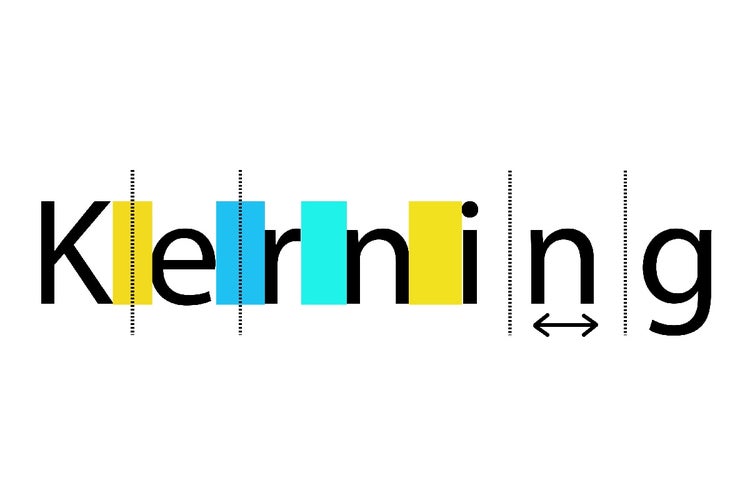
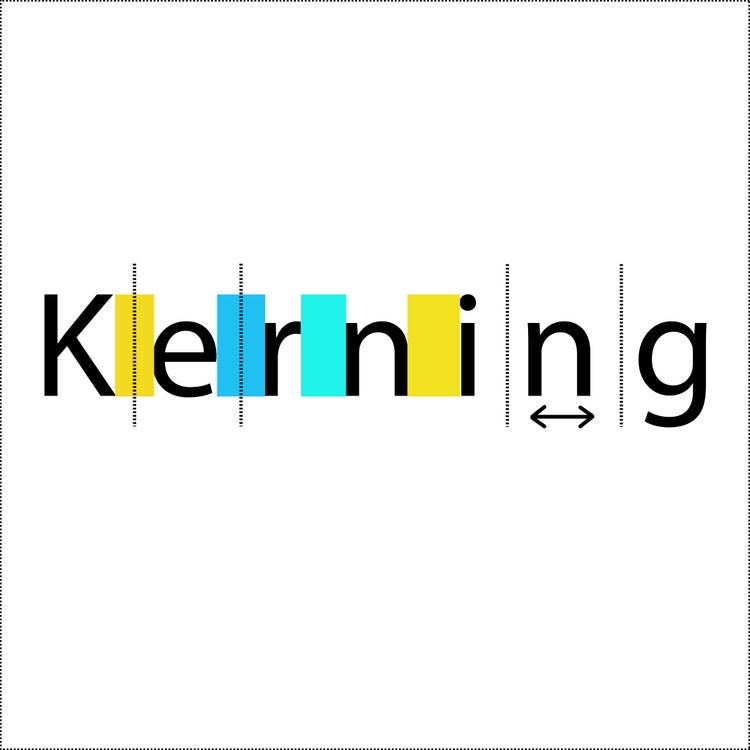
Illustration of the word 'Kerning' with colored blocks and arrows highlighting spacing adjustments between letters.
#F5F5F5
Typography is a fundamental element of visual communication, influencing how people read, feel and respond to your message. One of the most subtle yet impactful aspects of typography is kerning, the adjustment of space between individual letter pairs to improve visual harmony. Whether you’re designing logos, crafting editorial layouts, or creating branded motion graphics, understanding what is kerning and how to apply it correctly can elevate your work from average to professional. This article unpacks the art and technique of kerning typography, explains how to adjust font kerning manually in Adobe Illustrator, Photoshop and InDesign, and shows how optimised kerning enhances everything from digital content to print materials. For creative professionals in India, from freelancers to graphic designers, this guide provides practical insights, real-world use cases and step-by-step examples to make your text more readable, balanced and brand-ready.

What is kerning and why does it matter?

Kerning refers to the space between individual characters in a piece of text. Unlike tracking, which adjusts spacing uniformly across all characters, kerning is applied specifically between letter pairs.

Kerning meaning in typography:

  • Aims to make text visually even and aesthetically pleasing
  • Helps avoid awkward gaps or overlaps between letters
  • Ensures consistency in logos, headings and display type

Why kerning is important for creative professionals?

  • Improves readability in high-impact content like banners, headers and posters
  • Strengthens brand professionalism in logos, taglines and packaging
  • Enhances layout balance in magazines, websites and digital assets
  • Reduces design errors that lead to embarrassing visual results (e.g. “V A” appearing misaligned)

Example: In a logo, poor kerning between “T” and “o” can result in noticeable visual tension that distracts from the brand’s message.

https://www.youtube.com/watch?v=6t-yRv-LyLE

What causes bad kerning?

Even the best typefaces may have inconsistencies in spacing between certain letter pairs, particularly when displayed at large sizes or in all caps.

Common kerning issues:

  • Tight pairs: Letters like “A” and “V” or “T” and “o” may appear too close
  • Loose pairs: Letters like “W” and “a” or “L” and “T” may look too far apart
  • Inconsistent spacing: Random visual gaps in a word, especially in display fonts
  • Default kerning settings: Software often applies automatic kerning which may not suit your layout

Visual consequences:

  • Reduced legibility
  • Imbalanced logos or titles
  • Amateur-looking designs

Tip: Always review text at the display size it will appear, not just in your design file’s zoomed-out view.

How to adjust kerning in Adobe Illustrator, Photoshop and InDesign.

Adobe Illustrator:

  1. Select the Type Tool and highlight your text
  2. Place the cursor between two letters
  3. Press Alt + Left/Right Arrow (Windows) or Option + Left/Right Arrow (Mac)
  4. Alternatively, adjust kerning manually via the Character panel

Illustrator tip: Enable optical kerning in the Character panel for automatic adjustments based on character shapes rather than font metrics.

Adobe Photoshop:

  1. Select the Type Tool
  2. Highlight the characters to adjust
  3. Open the Character panel (Window > Character)
  4. Set a numeric value or use shortcut keys to tweak spacing

Photoshop tip: Use Photoshop for quick visual corrections on titles or social media posts, but avoid it for complex typography where vector fidelity is needed.

Adobe InDesign:

  1. Use the Type Tool to place the cursor between letters
  2. Adjust kerning using the Character panel or with Alt/Option + Arrow keys
  3. Use metrics for default font-based kerning or switch to optical for visual correction

InDesign tip: For large bodies of text, apply metrics kerning, but manually adjust display type and titles.

What is the difference between kerning, tracking and leading?

Understanding how kerning differs from other typography spacing tools helps you apply them appropriately.

Term
Kerning
Tracking
Leading
Function
Adjusts space between two characters
Adjusts space across a range of text
Adjusts vertical spacing between lines
Best Use Case
Logos, headings, titles
Paragraphs, body text, captions
Multi-line content, paragraphs
Tip: Apply tracking first, then refine with kerning. Always address kerning after choosing your font and size.

How to spot bad kerning and fix it.

Signs of poor kerning:

  • Letters look uneven or awkward
  • Some pairs feel too tight or too far apart
  • Words seem misaligned when centred
  • All-caps text feels “patchy” or unbalanced

Steps to fix kerning:

  1. Zoom in: Review letter spacing at display size
  2. Use guides: Draw baseline and cap height lines to check letter positioning
  3. Adjust incrementally: Start with -20 to +20 in Adobe tools
  4. Flip or blur test: Blur or flip text to focus on shape and spacing rather than letter identity
  5. Get peer feedback: A fresh eye often spots what you missed

Example: In the word “TRACKING,” the space between “A” and “C” may look too wide. Reduce kerning between those letters to improve balance.

Tips for kerning typography like a pro.

Best practices:

  • Start with headline text where poor kerning is most visible
  • Use optical kerning for decorative or display fonts
  • Review in black and white to remove colour bias
  • Use monochrome mockups to spot unevenness quickly
  • Save kerning presets in Illustrator for brand-specific typographic styles

Tip: Combine kerning with grid layouts to ensure alignment across typographic systems in print or web design.

How kerning affects branding and readability.

For small businesses and content creators, typography is often the first impression. Tight, well-kerned text communicates care, while sloppy spacing suggests neglect.

Why kerning matters for branding:

  • Builds trust and professionalism
  • Helps logos and taglines stand out
  • Improves scan-ability in web and mobile contexts
  • Avoids costly reprints from overlooked spacing errors

Example: A micro business in Delhi redesigned its product labels with proper kerning and increased customer engagement on social media due to better readability and aesthetic cohesion.

Creative use cases where kerning is critical.

  1. Social media videos.
  • Animate text reveals using kerning to enhance rhythm and flow
  • Create dramatic open-to-close effects with dynamic kerning adjustments in {{premiere}} or After Effects
  1. Voiceovers for reels and animations.
  • Align on-screen text with voice emphasis by fine-tuning kerning and spacing
  • Eliminate awkward gaps or crowded characters that disrupt visual harmony
  1. Short-form branded content.
  • Apply precision kerning to taglines in Instagram ads or product promos for a polished, professional feel
  • Use clean, well-spaced typography on thumbnails and event graphics to boost visibility and brand perception
  1. Narrated client proposals.
  • Present logos or title redesigns with improved kerning for a more refined look
  • Use before-and-after spacing examples to visually showcase the design improvement
  1. Remote collaboration and design consistency.
  • Share Creative Cloud files that include kerning guides and type notes as part of your design system
  • Use layer comments in Illustrator or Photoshop to flag specific spacing refinements and streamline approvals

Example:

An animator working remotely with a motion designer saved significant production time by using shared Illustrator files with pre-kerned text. The consistent spacing across assets not only accelerated the workflow but also ensured visual harmony from draft to delivery.

How Adobe Creative Cloud helps refine kerning workflows.

Adobe Creative Cloud offers advanced kerning features, ideal for typography-focused designers working across platforms.

Key apps:

  • Adobe Illustrator: Vector-based design with granular kerning control
  • Adobe Photoshop: Ideal for raster and text blending in composites
  • Adobe InDesign: Best for print layouts and editorial kerning precision
  • Creative Cloud Libraries: Store paragraph styles, type presets and branded text templates
  • Adobe XD: Use for prototyping UIs with pixel-perfect text alignment
  • {{premiere}} & After Effects: Add kerned type to video for consistent motion branding

Tip: Use Adobe Bridge to compare exported samples from different apps and check kerning results across file types and screen resolutions.

Refine your typography with confident kerning techniques.

Whether you're building a brand, designing a reel, or laying out a brochure, kerning is a vital part of professional typography. Knowing what is kerning, how to correct it and when to apply it can make all the difference in creating polished, readable and memorable designs. By learning how to adjust font kerning in Illustrator, Photoshop and InDesign, and applying those techniques in real-world use cases, you’ll deliver cleaner, more impactful visuals that elevate your creative work. With Adobe Creative Cloud, every element of kerning typography is within reach - enabling you to refine, collaborate and publish with confidence.

Frequently asked questions.

What is the difference between kerning, tracking, and leading in typography?

Kerning adjusts the space between specific character pairs, tracking changes the spacing uniformly across a range of text, and leading controls the vertical space between lines. Understanding all three helps build a more cohesive and readable text layout.

How important is font choice when considering kerning in Indian language typography?

Very important. Many Indian language fonts vary significantly in character width and shape. Choosing fonts with balanced native kerning pairs or adjusting them manually is crucial for readability, especially in scripts like Devanagari or Tamil.

How can I tell if the kerning in my design looks balanced and professional?

Good kerning ensures that the spacing between individual letters feels visually even and does not distract from the message. To check if your kerning is correct, zoom out and look at the text as a whole. It should appear smooth and readable without any awkward gaps or tight clusters. You can also try flipping the text horizontally. This trick removes the distraction of reading and helps you focus purely on the spacing between characters. Many designers in India refer to professional type guides or use Adobe apps such as Illustrator and InDesign, which offer precise control over kerning.

Is it possible to adjust kerning in Indian languages such as Hindi, Tamil or Bengali?

Yes, it is possible to adjust kerning in Indian scripts including Devanagari, Tamil and Bengali. Adobe applications such as InDesign and Illustrator support kerning for these scripts when used with modern OpenType fonts. However, the ability to kern effectively depends on whether the font has been designed with proper kerning pairs. For best results, choose professional Unicode fonts that are optimised for Indian language typesetting. Support for Indian language kerning has improved significantly in recent years, especially in digital design tools used across India.

Can inconsistent kerning affect brand perception in India’s multilingual markets?

Yes. Uneven kerning in logos or brand collateral can lead to misreading or visual discomfort. This is particularly critical in multilingual designs where character density and script flow vary, influencing how customers interpret your brand.

How can I automate kerning adjustments while retaining creative control?

Adobe InDesign offers optical kerning options that intelligently space letters based on character shape. You can override these with manual adjustments for fine-tuning. Learn more with Adobe InDesign.

Are there best practices for kerning in digital versus print design?

Yes. Digital typography requires attention to screen readability, so looser kerning is often used. In print, tighter kerning can be visually effective, especially in headlines or posters. Always preview your text in the medium it will appear in.

Which Adobe app is ideal for refining kerning in logo design?

Adobe Illustrator gives you precise control over anchor points and character spacing, making it ideal for logo work. It lets you adjust kerning in vector format, ensuring scalability. Try it with Adobe Illustrator.

How can I teach myself good kerning habits as a beginner?

Start by analysing professionally designed type samples. Use kerning games and online tools to practice visual spacing. Over time, you’ll develop an eye for what feels balanced and professional.

Can poorly kerned text impact digital ad performance in India’s mobile-first market?

Absolutely. On small screens, uneven letter spacing can reduce clarity and make headlines harder to read, potentially decreasing engagement or click-through rates. This makes responsive kerning practices essential for mobile design.

How can I showcase well-kerned typography in my portfolio?

Create comparison visuals showing before-and-after kerning adjustments. Use Adobe Photoshop to overlay guides and grids that demonstrate alignment. This showcases your technical skill and attention to detail. Explore more in Adobe Photoshop.

Can I use Adobe Express to create typographic posts for social media?

Yes. Adobe Express allows you to quickly design typographic visuals for platforms like Instagram or LinkedIn. It’s great for experimenting with type combinations and spacing.

https://main--cc--adobecom.aem.page/creativecloud/roc/blog/design/fragments/cc-apps-banner

You may also like

Content as a Service v3 - file-type graphic design collection - Monday 7 July 2025 at 23:17

https://main--cc--adobecom.aem.page/cc-shared/fragments/creativity-for-all/default