
Creativity for all
Photography, video, graphic design, illustration and so much more. Everything you need, wherever your imagination takes you.


PHOTOGRAPHY
From ecommerce galleries to social media posts, different platforms demand different image dimensions. Adobe AI makes it simple to bulk resize images helping Indian creators, marketers and business owners save time while ensuring every image looks its best, everywhere it’s published.
TABLE OF CONTENTS
How one creator saved hours with Adobe AI bulk resizing
How Adobe AI simplifies the batch resizing process
Resize photos in bulk with Adobe Photoshop
How to automate batch resizing with Photoshop Actions
Prefer a simpler workflow? Use Adobe Express to bulk resize online
What are the best tips for effective multi-platform image delivery
How can Adobe’s AI-powered products help you confidently bulk resize your images?
If you're creating visuals for Instagram, your own Shopify store, Amazon listings, or even email campaigns, you’ll know how time-consuming it can be to crop and scale images manually for every channel.
Each platform has its own size requirements and resizing images one by one can slow down your entire workflow. That’s where Adobe AI steps in. Bulk resizing helps you stay efficient while keeping quality consistent.
Photographers can quickly prepare client galleries optimised for both web and mobile. Bloggers and educators can resize visuals for use in WordPress, PDFs, and presentations without having to adjust each image individually. Start-ups can maintain consistent branding by producing platform-ready images for social media, websites, and marketing materials in one streamlined process.
Understanding how bulk image resizing works and why it matters for cross-platform consistency is essential for delivering high-quality visuals. This guide explores how Adobe’s AI-powered features make it easier to resize multiple images quickly and accurately, using intelligent subject detection, content-aware scaling, and automated presets to keep your projects sharp and consistent. Discover these features and more with Adobe Creative Cloud Pro.
Rohit, a lifestyle content creator, regularly shares photo stories on Instagram while posting behind-the-scenes videos on his YouTube channel. Before discovering Adobe AI, he spent hours resizing each image for the different aspect ratios and resolutions required by both platforms.
By using Photoshop’s Image Processor and platform presets in Adobe Express, he was able to prepare all his photos in one session, optimised for Instagram’s square format and YouTube’s 16:9 thumbnails, without compromising on quality. The AI-powered features automatically kept subjects centred, preserved resolution, and ensured consistent colour tones across every image.
With the resizing process cut down from several hours to just minutes, Rohit could focus on shooting more content, planning his posts, and engaging with his audience. The result was faster uploads, consistent branding, and seamless delivery across platforms.
Before Adobe AI, resizing images in bulk meant repetitive steps, manual input, and high risk of quality loss. Now, Adobe’s AI-powered features do the heavy lifting resizing multiple images to fit your chosen dimensions without compromising clarity or layout.
These features and more make Adobe’s batch image resizer feature ideal for product uploads, social content repurposing, and cross-platform campaign delivery.
Photoshop includes built-in tools that allow you to batch resize images in just a few steps, perfect for bulk image processing across digital platforms.
Here’s how to bulk resize using Photoshop’s Image Processor:
Adobe AI intelligently handles resizing based on your specifications, ensuring subjects stay centred and compositions remain visually balanced. Great for quickly preparing visual assets for marketplaces like Amazon, Etsy, or Flipkart.
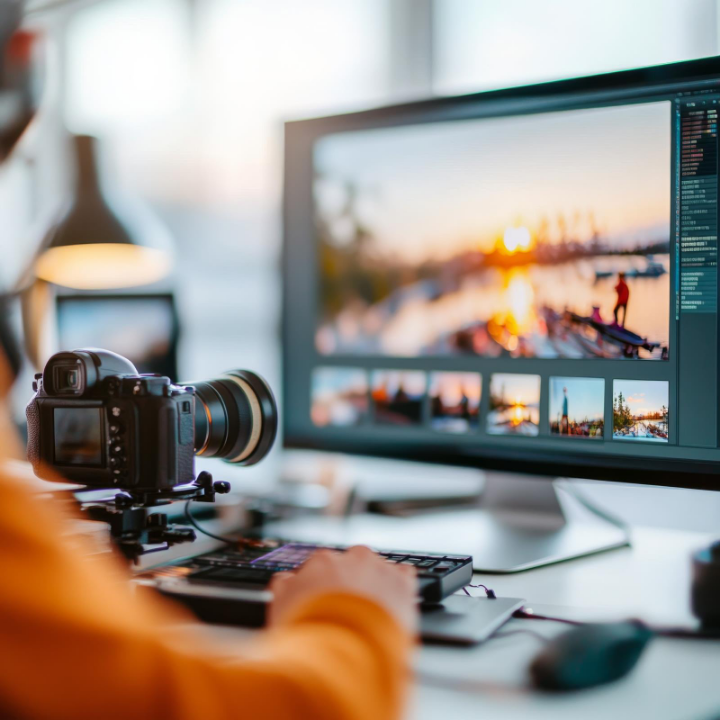
For repeat projects, you can set up Photoshop Actions custom sequences that apply your resize settings across hundreds of images with one click.
This is especially helpful for photographers, agencies and ecommerce teams managing seasonal catalogues or product updates. It’s also a powerful way to apply your brand style at scale. Try these capabilities and more with our 7-day free trial.
If you need a quick, browser-based solution, Adobe Express offers a lightweight bulk image resize tool perfect for on-the-go edits.
This tool is ideal for solopreneurs, educators, content creators and anyone working without full desktop software. No installation required.
To make the most of bulk resizing, keep these best practices in mind:
By applying these tips, you’ll save time and ensure every image works hard, no matter where it's published.
Whether you're managing a product line, designing for clients, or refreshing social channels, Adobe’s batch image resizer tools make sure your visuals are the right size, every time.
Once your photos are resized, you’re ready to:
Adobe AI doesn’t just help you batch resize images it helps you deliver them professionally, at scale, across the platforms that matter most.
Photography, video, graphic design, illustration and so much more. Everything you need, wherever your imagination takes you.
caas:business-unit/creative-cloud,
caas:products/photoshop,
caas:content-type/article,
caas:product-categories/photo,
caas:features/edit-photos,
caas:features/image-adjustment,
caas:features/photo-effects
Based on your location, we think you may prefer the United States website, where you'll get regional content, offerings, and pricing.



