An ultimate guide to Presets in {{lightroom}}.
Learn how to create, download and manage your own {{lightroom}} presets, whether you're using a mobile or desktop app. Presets help you apply consistent edits quickly, saving time and improving your workflow.
What are Presets?
If you're just starting out and wondering what are presets in Lightroom, think of them as custom filters that help you edit faster and more consistently.
Presets are saved adjustments that can provide a quick and easy way to apply enhancements to an image, whether those edits are subtle and change only a single slider or change several and give the image a completely different look and feel. You can use built-in presets that come with Lightroom, have Lightroom recommend additional presets using AI, download presets from the community and even make your own.
Presets can also include masks and, with Adobe’s AI masking, can be adapted to different images with different environments, subjects and backgrounds. Whether you're editing landscapes, portraits from a wedding or food shots for Instagram, using presets can help bring out the best in your photos.
Presets are also a great way to spark inspiration. A quick look through Adobe Photoshop Lightroom’s Preset library can help you experiment and try new features. You can quickly preview how a preset will appear on your image by simply hovering over it in the Lightroom app. When you find a preset that you like, simply click the preset to apply it.
Types of Presets:
There are a wide range of Lightroom presets available for free within Lightroom, making it easy to apply creative edits across your photos with a single click.
Premium presets are installed by default. They can be located under the Premium tab of the presets panel and have many different uses. Adaptive presets use Ai to mask and alter specific features of a photo such as the subject or a sky. Other presets can give your photos a stylistic edge, like a vintage or a cinematic feel.
You’ll also find Lightroom presets tailored for specific photography styles, such as night photography, travel photography, wedding or food shots, portraits and even flat lays, which are especially useful if you’re a creator in India working across diverse visual genres.
If you're exploring how to use Lightroom presets for different scenarios, these themed options help you apply consistent looks that align with your content goals.
Recommended presets have been developed by the Lightroom community and are suggested based on images with similar content. The Recommended tab is located right next to the Premium tab and can be used as a great source of inspiration and education.
To use Lightroom presets effectively, this tab helps you explore different looks and styles tailored to your image.
You can filter recommended presets by many different treatment categories, like Subtle or B&W. If you see a preset you like, hover the cursor over the preset thumbnail and click “More like This” to see similar presets. To save a preset to use again, hover on the preset until the three dots appear in the corner. Click the dots and then press 'save to your presets’. From there, the preset will be available in the Yours tab.
This is especially useful if you're working across different photo types, such as indoor portraits, nature shots or flat lays, which are popular content formats among Indian photographers and social media creators.
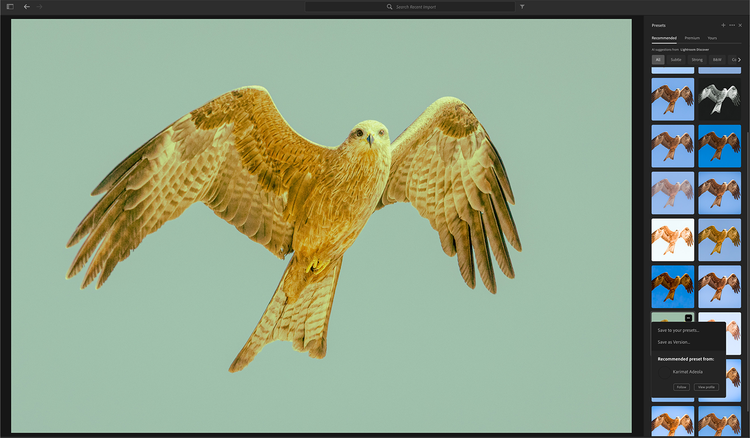
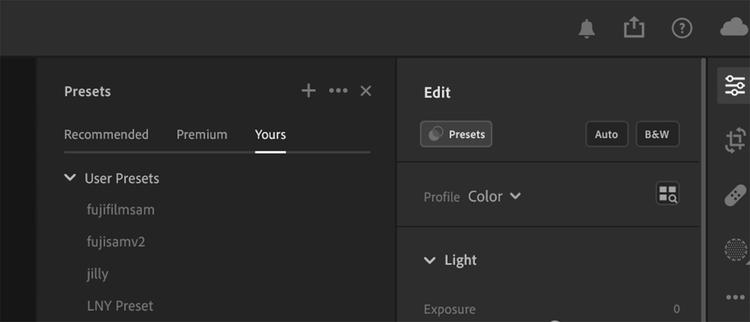
The Yours tab includes your own presets or those that you have downloaded from other sources.
If you're learning how to add presets to Lightroom mobile or desktop, this tab helps you quickly access and apply your saved or imported looks in one place.
Create and save your own presets
Creating your own preset is particularly efficient if you have your own unique style and if you use the same treatments repeatedly. Automating this process can streamline your editing workflow and free up your time to spend on more minute details.
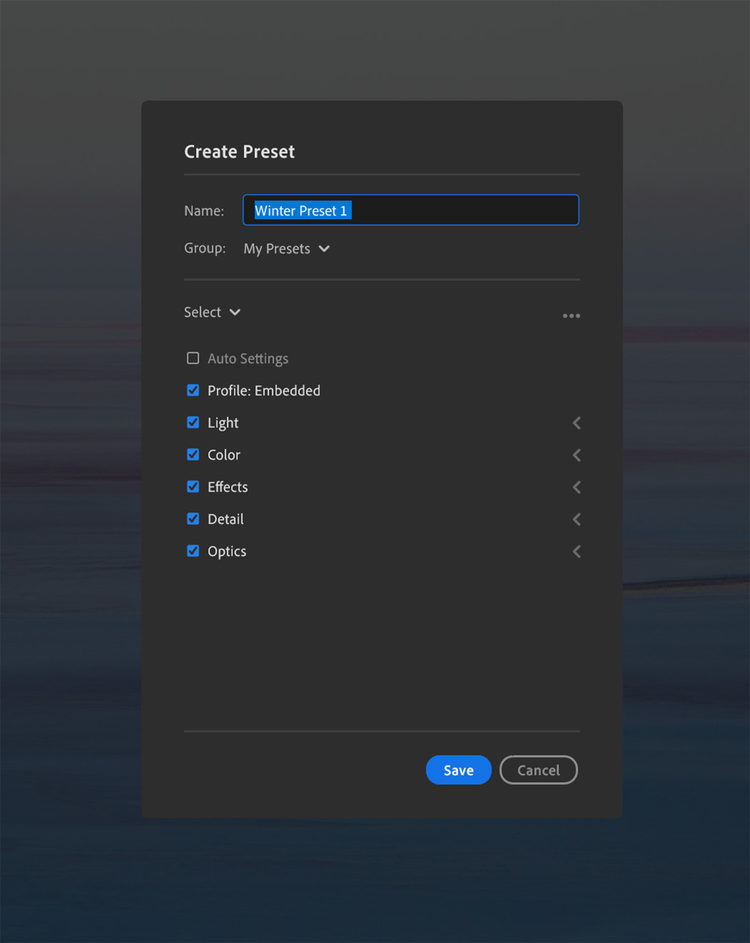
Making your own preset is very simple - after editing your photo, click the Plus icon and select Create your own preset. A dialogue box will popup, where you can edit the name of your preset and assign it to a Group (another word for folder) to help organise your presets.
You can then check the settings you want to include in the preset. For example:
- If you consistently adjust colours, select Colour Mixer and Colour Grading
- You may want to exclude certain effects like Vignette, especially if they aren’t suitable for all image types
- You can also include Tone Curve, Sharpening, or Light adjustments based on your style
This level of customisation is ideal for creators in India who often shoot diverse content and require a consistent, efficient editing workflow.
You can then check the settings that you want to save within the preset. For example, if you have settings that you apply over and over again when colour grading, you may save a preset that only includes Colour Mixer and/or Colour Grading but doesn’t include Effects like a vignette because you might not want to apply a vignette to all of the images that you apply the colour grading changes to.
After saving a preset, you can find it in the Yours tab for easy access.
Organising Presets

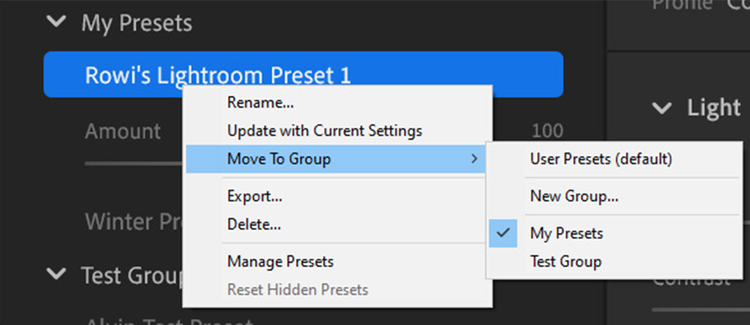
You can organise the presets you have created using Groups, which are like folders. This is an easy way to keep track of Presets that are relevant to a specific use case or perhaps a specific client. You can do this during the Create a Preset action. Alternatively, you can move a preset by right-clicking on it (control-click Mac) and then selecting Move to Group, then selecting the relevant group.
For example, wedding photographers in India may want to group presets for different ceremonies or lighting conditions, while social media creators might organise presets by platform or content theme.
For more presets, make sure that you check out Discover in Lightroom. Here, you can filter photos that come with downloadable presets created by the Lightroom community. Then, simply choose ‘Save as preset’ to download the preset which you can then find and apply under the Yours preset category.
Discover is also a helpful space for Indian users to learn editing styles from photographers across genres, from traditional events to modern lifestyle shoots.
How to install Presets in {{lightroom}}
If you want to install a customised preset that you’ve downloaded from the Internet, you can install them by going to File > Import Profiles and Presets.
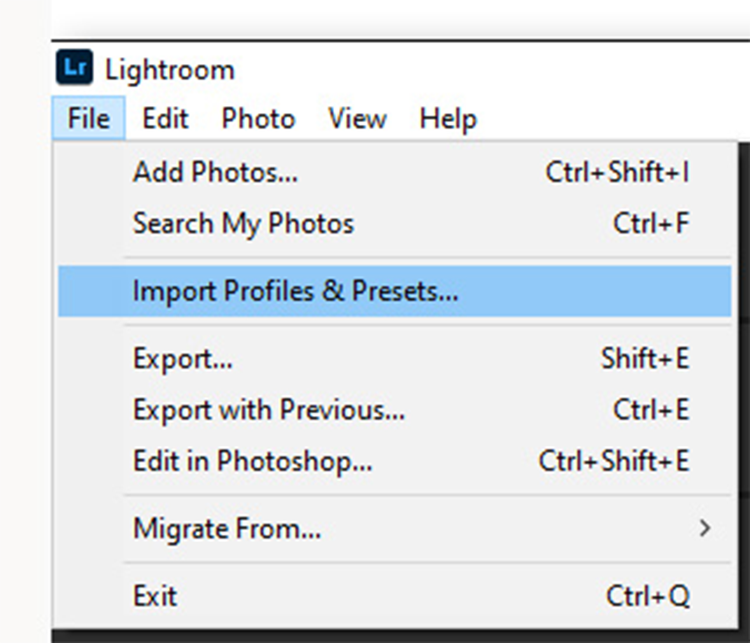
After selecting Import, locate your .XMP or .DNG preset file in the dialogue pop-up and confirm.
To use the installed preset, click the slider icon on the right-hand side to enter the Edit panel, then select the Presets option.
Your imported presets will appear in the Yours tab for immediate use.
If you’re learning how to add presets to Lightroom mobile, you can also sync installed presets from desktop to mobile by ensuring your Creative Cloud is logged in on both devices.
Do more with Adobe {{lightroom}}
Take your photo editing to the next level. Discover Adobe's principal evangelist, Julieanne Kost’s other image editing guides, including how to edit specific parts of an image, how to easily edit colour with colour grading and how to make light adjustments in Adobe Lightroom.
Using presets for different photography styles
Presets can enhance your editing efficiency, but choosing the right ones for your photography style is key to achieving a polished, professional look. Whether you are shooting portraits or travel landscapes, the right preset can save time while elevating the visual impact of your photos. Below are some suggestions tailored to popular photography styles in India.
- Portrait photography: Opt for presets that gently enhance skin tones, soften shadows and highlights, and maintain natural warmth. These are ideal for studio portraits, fashion shoots or candid family moments.
- Wedding photography: Look for presets with pastel tones, rich warmth or soft contrast that complement traditional Indian attire and vibrant decorations. These help maintain consistency across varying lighting conditions throughout the day.
- Travel photography: Use vibrant presets that enhance skies, greenery, and architectural details without making the image look overly processed. These work well for capturing landscapes, city scenes and cultural landmarks across India.
- Food photography: Choose presets that boost contrast, highlight textures, and enhance natural colours. This is particularly useful for showcasing the richness of Indian cuisine, from vibrant curries to subtle desserts.
- Product photography: Apply clean, minimal presets that highlight product features, ensure background consistency, and preserve true-to-life colours. This is especially helpful for ecommerce or social media campaigns.
After applying a preset, remember to make final adjustments based on the image’s lighting, composition and tone. Small tweaks help maintain visual consistency across your entire photo series.
For more {{lightroom}} tutorials, visit the Adobe Photography Explore page.