

How to compress a video without losing quality.
Compressing a video doesn’t have to mean sacrificing quality. This guide shows practical ways to shrink file size while maintaining sharp visuals across mobile and desktop devices.

https://main--cc--adobecom.aem.live/cc-shared/assets/img/product-icons/svg/firefly-80.svg
Adobe Firefly
https://main--cc--adobecom.aem.live/cc-shared/assets/img/product-icons/svg/firefly-80.svg
Adobe Firefly
The next evolution of creative AI is here for all your ideas, with image, video, audio and vector tools.
Key takeaways
- Video compression reduces file size without noticeably affecting quality.
- Editing your clips (adjusting resolution, trimming, speeding up unnecessary footage, etc.) can dramatically reduce file size.
- Online tools like Adobe Express and Adobe Firefly offer quick edits that can help compress videos.
- Proper compression ensures faster uploads, smooth playback, and compliance with platform limits.
What is video compression?
Video compression is the process of reducing a video file’s size by removing unnecessary data while maintaining as much visual quality as possible. With modern devices recording in HD or 4K, raw video files can quickly become very large, making them difficult to store, share, or upload online. Compression solves this problem by optimising the file so it takes up less space without noticeably affecting how it looks to viewers.
Lossless vs. lossy compression
Video compression generally falls into two categories: lossless and lossy. Lossless compression reduces file size without removing any original data, which preserves the video's exact quality. However, the file size savings are often limited. Lossy compression achieves much smaller file sizes by removing data that is less noticeable to viewers. When applied correctly, lossy compression can reduce file size significantly without noticeable quality loss.
6 ways to compress a video without losing quality.
Compressing a video effectively doesn’t have to be complicated. By combining technical adjustments and smart editing techniques, you can significantly reduce file size while preserving visual detail, text clarity, and smooth motion. This helps maintain a professional viewing experience across devices and platforms while avoiding the need to re-export or recreate low-quality content.
Here are several practical ways to compress your video, suitable for desktop and mobile workflows:
1. Use video compressors.

Video compression apps provide a quick way to reduce file size directly on your mobile device or desktop. Many apps automatically shrink videos in just a few steps. Some even offer presets for social media, making it easy to prepare clips for Instagram, TikTok, or YouTube. However, these apps often give limited control over compression settings. You may not be able to fine-tune frame rate, resolution, or export format, and the resulting video may lose clarity or have choppy motion if heavily compressed. Use these tools for fast, simple jobs, but for precise control and higher-quality results, professional or AI-powered editors are still the best choice.
2. Trim unnecessary footage.
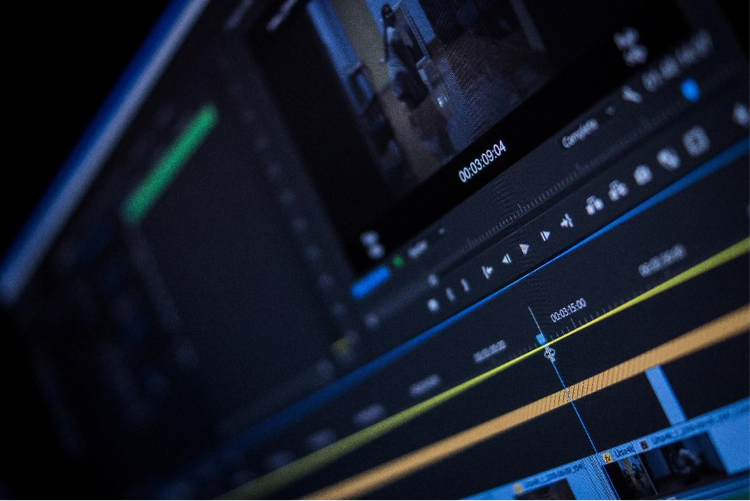
Frame rate, measured in frames per second (fps), determines how smooth motion appears in your video. Film typically uses 24 fps, television often uses 30 fps, YouTube supports 29.97 fps, and Instagram requires at least 30 fps. Lowering the frame rate can reduce file size, but if your video contains fast action, reducing it too much can lead to motion blur or choppy playback. Tools like Adobe Media Encoder let you test different frame rates during export. This can help you find the right balance between smooth playback and efficient video compression without noticeable quality loss.
3. Export as MP4.

One of the most reliable ways to compress a video is to export it as an MP4 file. Professional editing software like Adobe Premiere gives you full control over compression settings. You can import footage in formats such as MOV, WMV, AVI, and others, then export everything into a widely compatible MP4 file. During export, compression is applied automatically, allowing you to share high-quality videos directly to social media platforms without additional steps. MP4 is compatible across virtually all devices and platforms, making it the ideal format for compressed content.
4. Use an appropriate resolution.

Resolution controls the dimensions of your video and directly affects file size. For HD content, 1080p is standard, while dropping to 720p can reduce file size significantly. On smaller screens such as smartphones or tablets, viewers often won’t notice the difference. Desktop tools help you quickly choose output resolutions that meet platform requirements while keeping videos crisp and clear.
5. Gradually adjust the frame rate.

Trimming unnecessary footage is one of the simplest and most effective ways to reduce video file size without compromising quality. This method works by removing long pauses, repeated takes, or irrelevant content that does not contribute to your video’s story or purpose. Every second you cut directly reduces the total file size, making your video easier to share and store. You can use Adobe Express’ online trimmer to make trimming fast and intuitive, with touch-friendly interfaces for precise edits on the go.

6. Using online video editing tools.
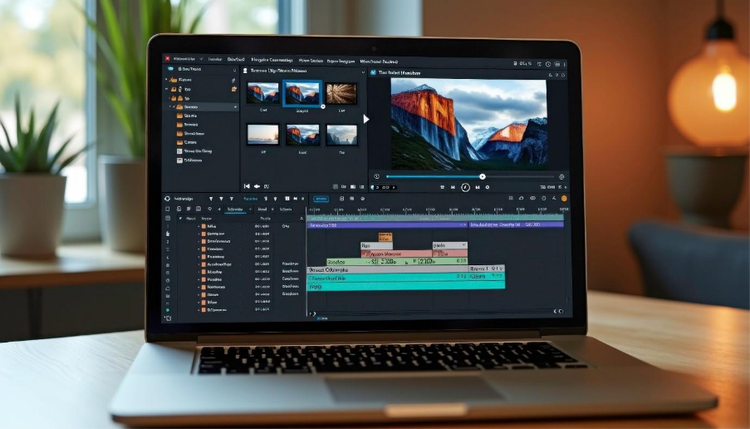
For quick compression without installing software, online video editors are a convenient option. For instance, Adobe Firefly video editor and Adobe Express online video editor allows you to upload videos, trim clips, adjust resolution and frame rate, and export directly as MP4. These platforms sometimes provide ready-made presets for social media, including optimised dimensions for TikTok, Instagram, and YouTube. They also let you apply basic edits, captions, and filters before compression. Using online tools is especially useful when you need a fast, cloud-based solution without switching devices or installing heavy software.
How to use Adobe Firefly to reduce video file size without losing quality.

AI tools like Adobe Firefly AI Video Editor make compressing videos easier and more efficient while maintaining high visual quality. Here's how it works:
- Trim, cut, and rearrange clips: The layered timeline makes it easy to shorten your video by removing unnecessary footage or rearranging sequences. By reducing runtime, you naturally lower the file size before export without compromising important content.
- Smart edits with plain language: You can use simple commands to remove unwanted objects, change backgrounds, or adjust key elements. This AI-driven approach saves time compared with manual editing and ensures that your compressed video still looks polished and professional.
- Support for multiple formats: Firefly lets you create vertical, square, or horizontal videos. Whether you’re making content for Instagram, TikTok, YouTube, or other platforms, the AI ensures your video fits the required dimensions while staying optimised for smooth playback and minimal file size.
- AI-assisted workflow: Repetitive tasks like aligning clips, syncing audio, or basic colour adjustments are automated, allowing you to focus on the creative side. The AI also helps maintain visual clarity after compression, so your video looks crisp even in a smaller file.
By combining smart editing tools with AI-powered compression, Adobe Firefly helps creators save time, reduce file sizes, and produce high-quality videos ready to share across multiple platforms without losing detail or clarity.
Why compress videos?
Video compression has practical benefits for creators and viewers alike:
- Reduces video file size for faster uploads and downloads: Smaller files upload more quickly, helping you share content faster whether you're using mobile data, Wi-Fi, or a broadband connection.
- Saves storage on phones and laptops: Smaller files free up space on devices, making it easier to manage large video libraries.
- Improves website loading and video playback: Smaller videos load faster and stream more efficiently, helping reduce buffering and improve the viewing experience.
- Meets platform upload limits: Many social media platforms and email services impose file size limits. Compression ensures your videos comply with these requirements.
When handled correctly, compression does not noticeably reduce visual quality. By selecting the right codec, maintaining appropriate frame rates, and adjusting resolution thoughtfully, you can significantly reduce file size while preserving detail and smooth motion.
Common mistakes to avoid when compressing videos.
Even with the best tools and techniques, video compression can go wrong if you’re not careful. Avoiding these common pitfalls will help you maintain visual quality while keeping file sizes manageable:
Reducing resolution too much.
- Continue in Adobe Express or Premiere if you need more advanced export and compression settings.
- Upload your video or drag your clips onto the timeline.
- Trim unnecessary footage by dragging clip edges or use the Split tool to remove unwanted sections.
- Use Auto Reframe to resize your video for your target platform, such as 9:16 for TikTok, 1:1 for Instagram, or 16:9 for YouTube.
- Export your project as an MP4 file.
While lowering resolution can shrink file size, going too low can make your video look blurry or pixelated, especially on larger screens. For HD content, 1080p is typically the sweet spot. Dropping to 720p or lower should only be done if viewers are primarily on mobile devices or if file size is critical. Always preview the video after reducing the resolution to ensure that important details are still clear.
Compressing multiple times.
Re-exporting a video repeatedly can degrade quality because each compression pass can remove more data. Avoid multiple compressions unless absolutely necessary, and try to apply all edits and adjustments before exporting the final file. Using professional tools like Adobe Premiere Pro or Adobe Premiere Rush allows you to fine-tune compression settings in a single export, preserving quality while reducing file size efficiently.
Lowering frame rate unnecessarily.
Reducing the frame rate can save space, but if it’s lowered too much, fast-moving scenes may appear choppy or blurry. Film generally uses 24 fps, television uses 30 fps, and platforms like YouTube and Instagram have specific minimum requirements (29.97 fps for YouTube, 30 fps for Instagram). Always match your frame rate to your platform and the type of content — for example, action-heavy videos need higher fps to maintain smooth motion.
Using outdated codecs.
Older codecs like MPEG-4 or older AVI formats are less efficient at compressing video, often resulting in larger files and poorer quality. Modern codecs such as H.264 or H.265 provide better compression while maintaining clarity. Using outdated codecs can also limit compatibility with social media platforms and mobile devices, so always check that your export format aligns with current standards.
Ignoring platform upload requirements.
Each platform has its own recommendations for file size, resolution, frame rate, and format. Ignoring these rules can lead to videos being rejected, automatically downscaled, or losing quality during upload. For example, Instagram prefers a minimum of 30 fps and specific dimensions for stories and reels, while YouTube supports up to 4K but has limits on file size. Always check the platform’s guidelines before compressing and exporting your final video.
Frequently asked questions.
Is it free to use Adobe Firefly video editor?
Is it possible to compress videos when you are offline?
Is it possible to compress videos on mobile devices?
Do I need to create an account or download apps to compress videos?
Does compressing video reduce quality?
Will compressing a video affect audio quality?
Can I maintain smooth motion while compressing videos?
Can you restore a compressed video to its original quality?
What video formats can I compress?
You may also like
