
How to improve video with AI: 5 video editing tips for beginners.
AI-powered tools are transforming video editing for beginners, making it faster, easier, and more professional. From enhancing visuals to improving audio, these tips help you create content that stands out.

Key takeaways
- Professional video editing enhances storytelling and viewer engagement.
- Consistent audio, pacing, and visual style improve overall content quality.
- AI tools accelerate learning for beginners and streamline the editing process.
- Accessibility features like captions increase reach and inclusivity.
Why is video editing important?
Video editing isn’t just a technical step in production. It’s an essential part of the process, which determines how your audience experiences your content. Here’s why video editing matters:
- Keep viewers engaged: Smooth pacing, logical sequencing, and well-timed transitions help maintain attention. Viewers are more likely to watch until the end when scenes flow naturally and storytelling is clear. For instance, removing long pauses or repetitive footage can prevent drop-offs.
- Highlight key messages effectively: Editing allows you to emphasise critical points with visual cues, text overlays, or cuts that direct attention. This ensures your audience quickly grasps the main message without feeling overwhelmed.
- Strengthen brand credibility and professionalism: High-quality editing shows care and expertise. Even simple improvements like balancing audio, stabilising shaky footage, or enhancing colours can make your videos look professional, which increases trust in your brand.
- Make content adaptable across platforms and formats: Editing enables you to create multiple versions of the same video, optimised for social media, YouTube, Instagram Reels, or TikTok. Cropping, resizing, and adjusting pacing ensures your content performs well on each platform.
- Increase accessibility: Editing enhances accessibility through clear visuals, crisp audio, and captions. Features like AI-generated captions or noise reduction make your videos inclusive for viewers with hearing impairments or those watching without sound.
5 AI-powered video editing tips for beginners.
AI has transformed the way beginners approach video creation. Tasks that once required advanced technical skills (like colour correction, transcript editing, or captioning) can now be done in minutes with intelligent tools. Here are some practical, beginner-friendly tips to help you leverage AI tools and create high-quality videos:
1. Improve video clarity with AI image upscaling.
AI video upscaling is one of the simplest starting points for improving your videos. It is the technology that enhances the resolution and sharpness of your footage without requiring you to reshoot. Instead of simply stretching pixels (which reduces quality), AI analyses each frame, detects patterns, and intelligently reconstructs missing details. This makes your video appear clearer, sharper, and more professional, even if it was originally recorded in lower resolution.
It’s particularly useful for:
- Repurposing older content
- Restoring archived footage
- Enlarging cropped clips
- Preparing videos for larger screens
- Fixing motion blur and noise
How to upscale your videos using Adobe AI.
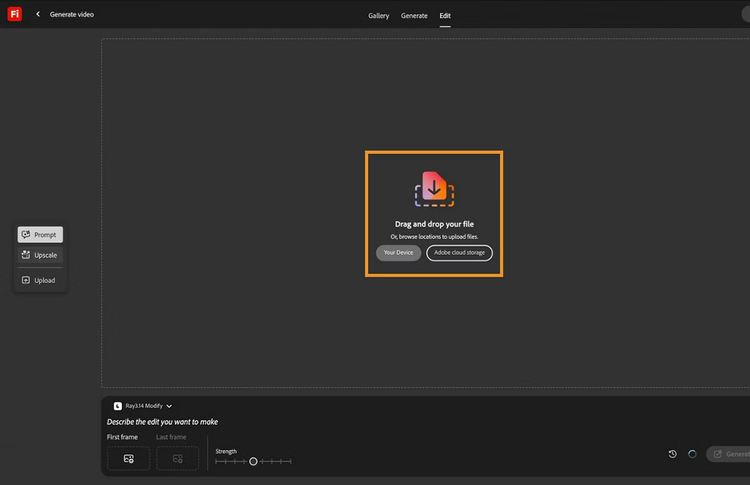
- Go to the Adobe Firefly homepage.
- Select the Edit tab to directly upload a video from Your device or Adobe cloud storage.
- Select the Upscale icon from the left toolbar to open the upscale settings panel.
- In the Enhancement section, choose between ‘Precise’ for maintaining a natural look with minor improvements or ‘Creative’ for stylistic refinement and boosting the overall appearance.
- In the Details section, select either ‘Subtle’ for light texture enhancement or ‘Bold’ for strong detail restoration and vivid clarity.
- In the Output resolution section, select either ‘1080p’ for standard HD playback or ‘4K’ for maximum clarity on large screens.
- Click Generate in the bottom-right corner to start the video upscaling process.
- Once processing is complete, your enhanced video will appear in the preview window. Click the Download button in the top-right corner to save your upscaled video file. You can also select Prompt to edit your video further using text prompts.
2. Enhance sound quality with AI audio tools.
Viewers are far more forgiving of average visuals than poor sound. If your audio crackles, echoes, or competes with background noise, most people will exit within seconds. Clear sound builds trust and keeps your audience focused on your message rather than the distractions in your recording.
Instead of manually adjusting levels and filters for hours, AI audio tools automatically analyse your sound, remove background noise, reduce echo, balance volume, and improve clarity. The result is cleaner, clearer audio that feels polished and professional from the very first second. This helps with:
- Building credibility and authority
- Improving message comprehension
- Increasing watch time and retention
- Creating a more professional brand presence
- Enhancing accessibility for all viewers
How to edit audio using AI in Adobe Premiere.
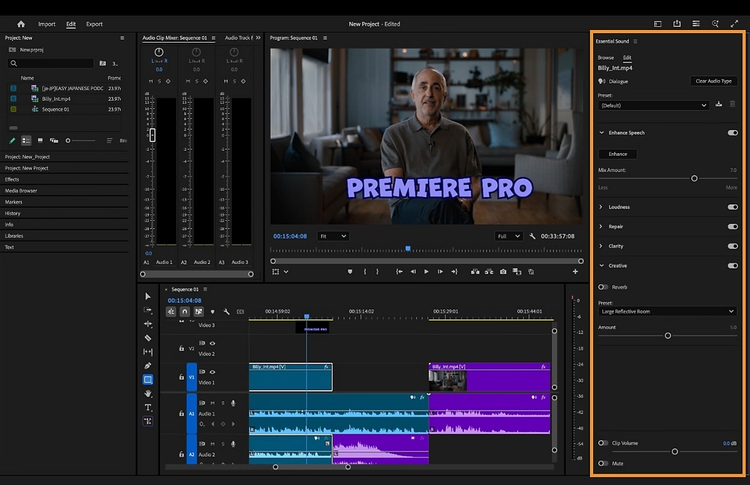
- Open Adobe Premiere and access the Essential Sound panel.
- Select the audio editing you want to do. You can:
- Unify Volume: Use Auto-Match to standardize volume across all clips, preventing sudden loudness jumps.
- Enhance Speech: Activate Enhance Speech to reduce background noise and improve dialogue clarity.
- Repair Dialogue: Adjust sliders (0–10) to reduce noise, rumble, reverb, and apply DeHum/DeEss filters.
- Improve Clarity: Use Clarity sliders to enhance EQ, dynamics, and vocal presence.
- Add Reverb: Apply Reverb presets to simulate room size and acoustic effects for depth and realism.
- Once satisfied, export your video with the improved audio to preserve all enhancements in the final file.
3. Fix colour with AI video editing.
Colour consistency plays a huge role in how professional your video looks. Beginners often face issues, like clips with mismatched colour tones across scenes, flat or dull colours that make footage appear lifeless, and overly saturated or unnatural hues.
Even minor inconsistencies can distract viewers as they make it harder for your content to feel polished. This is precisely why learning how to correct and balance colour is a key step in how to improve video editing skills for beginners.
How to apply auto color using Adobe Sensei ML technology.
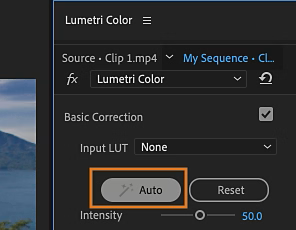
- Open Adobe Premiere.
- Enable the Lumetri Color panel. Go to Window > Lumetri Color.
- Select your clip and position the playhead on the section you want to enhance.
- In the Basic Corrections section at the top of the Lumetri panel, click the Auto button. The tool will instantly adjust exposure, contrast, highlights, shadows, whites, and blacks.
- Fine-tune adjustments. Use the reorganized sliders in Basic Corrections to tweak individual parameters.
- Adjust intensity.The new Intensity slider at the top lets you control how strong the Auto Color effect appears. Slide it back and forth to see the difference and find the perfect balance.
4. Improve pacing with text-based video editing.
Maintaining smooth pacing can be challenging, especially for beginners. Traditional timeline editing often requires scrubbing through clips, cutting pauses, and trimming filler words manually.
Text-based video editing in Adobe Premiere simplifies this by letting you work directly with your video transcript. Editing the text automatically trims, rearranges, and refines the corresponding video clips in the timeline, keeping both visual and audio elements in sync. This method speeds up editing while giving beginners precise control over pacing and flow.
How to edit video using text-based editing in Adobe Premiere.
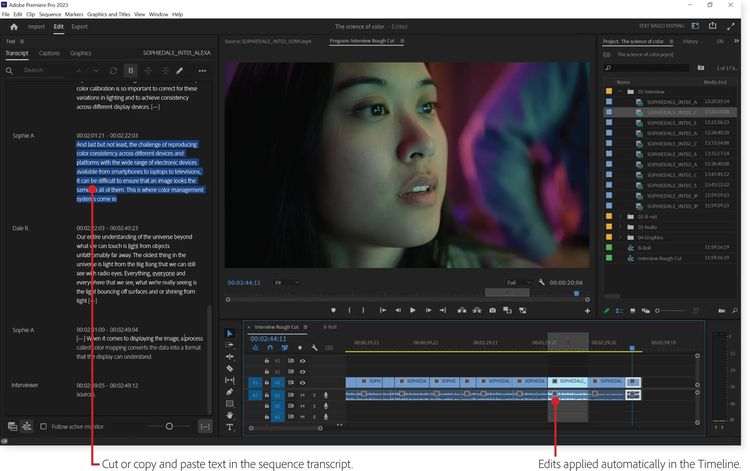
- Open your project in Adobe Premiere, and select the clip(s) you want to work on.
- Use the Text-Based Editing feature to automatically generate a transcript. Dialogue is aligned with timecodes, making it easy to search, navigate, and select clips directly from the transcript.
- Create a rough cut from the transcript. You can select, cut, and rearrange text directly within the transcript panel.
- You can detect and remove filler words like “uh” or “umm” in bulk directly from the transcript. You can also filter dialogue by speaker to selectively delete or rearrange portions of the video.
- As you edit the text, Adobe Premiere automatically trims and places the corresponding video clips in the timeline. You can view the visual changes in real-time, ensuring that the video structure follows your text edits perfectly.
- Once your rough cut is complete, fine-tune clips directly in the timeline.
- Adjust timing and transitions to match the spoken words exactly.
- After refining your sequence, go to File > Export > Media. Choose your desired format, resolution, and codec settings.
5. Automatically add captions with AI.
Captions not only make your videos more accessible to viewers with hearing difficulties but also increase engagement, especially on social media platforms where many users watch videos without sound. For beginners and marketers in India, adding captions can make content easier to understand and retain, while also improving reach and viewer retention.
AI-powered tools simplify the process by automatically generating captions from your video’s audio, saving you hours of manual typing. This ensures that your content is both professional and inclusive.
How to add captions using Adobe Express.
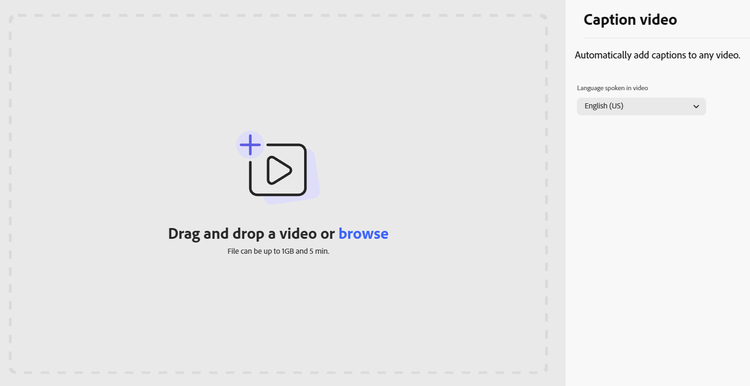
- Go to the Adobe Express homepage and select Video.
- In the Video Quick Actions section, click Caption Video.
- Choose the language spoken in your video from the Language spoken in video dropdown.
- Browse your device and select the video you want to caption.
- Use the Edit caption text field to make any necessary changes to the generated captions. Adjust spelling, grammar, or phrasing to ensure clarity and accuracy.
- Click Choose a style to select a preset caption design, or select Customize color to change text, shape, or shadow colours.
- Once captions are final, click Download to export your video with embedded captions.
Best practices for beginner video editing.
- Start with clean footage: Record in a quiet environment and use proper lighting. When your footages are good raw, they’re easier to edit in post.
- Plan before you edit: Outline your video structure to streamline workflow. You can use simple lists or storyboards, whichever works best for you and your process.
- Focus on storytelling: Prioritise the narrative over fancy effects. Flashy cuts and transitions are nice, but they’re useless if you don’t get your message across.
- Use templates wisely: AI-generated video templates can accelerate editing but take the extra time to customise to keep your brand consistent.
- Keep cuts clean: Trim excess footage to maintain pacing and viewer interest. Make sure every cut has a purpose and contributes to your overall story.
- Check accessibility: Ensure audio clarity and add captions to accommodate audiences who have trouble hearing, speak a different language, or simply choose to view videos on mute.
- Preview and adjust: Watch your edits on multiple devices and screens to spot inconsistencies and make adjustments as necessary.
- Export correctly: Use appropriate resolution and format for your target platform.
Frequently asked questions.
You may also like