https://main--cc--adobecom.aem.live/cc-shared/assets/img/firefly.svg Adobe Firefly

Turn photos into anime art with Adobe Firefly.
Upload a photo, describe the anime style you want, and get a polished illustration you can use in ads, social posts, and product marketing campaigns. No drawing skills required, and anime art generated with Adobe Firefly models is safe for commercial use.
https://main--cc--adobecom.aem.live/cc-shared/assets/svg/s2-icon-upload-20-n.svg Upload your image

Or drag and drop here
File must be JPEG (JPG), PNG, or WEBP and up to 100MB.
By uploading your image or video, you agree to the Adobe Terms of Use and Privacy Policy and confirm you are 18 years of age or older.
https://main--cc--adobecom.aem.live/cc-shared/assets/svg/s2-icon-upload-20-n.svg Upload your image
Or drag and drop here
File must be JPEG (JPG), PNG, or WEBP and up to 100MB.
By uploading your image or video, you agree to the Adobe Terms of Use and Privacy Policy and confirm you are 18 years of age or older.
https://main--cc--adobecom.aem.live/cc-shared/assets/svg/s2-icon-upload-20-n.svg Upload your image
Or drag and drop here
File must be JPEG (JPG), PNG, or WEBP and up to 100MB.
By uploading your image or video, you agree to the Adobe Terms of Use and Privacy Policy and confirm you are 18 years of age or older.
- File size larger than 100MB
- Unable to process the request
- We are unable to process this file type. Please try again.
- Only one file can be uploaded at a time.
- Image is smaller than the minimum dimensions (512 x 512 pixels). Please resize and try again.

https://main--cc--adobecom.aem.live/cc-shared/assets/img/product-icons/svg/firefly-80.svg
Adobe Firefly
https://main--cc--adobecom.aem.live/cc-shared/assets/img/product-icons/svg/firefly-80.svg
Adobe Firefly
The next evolution of creative AI is here for all your ideas, with image, video, audio, and vector tools.
What is the anime filter in Adobe Firefly?
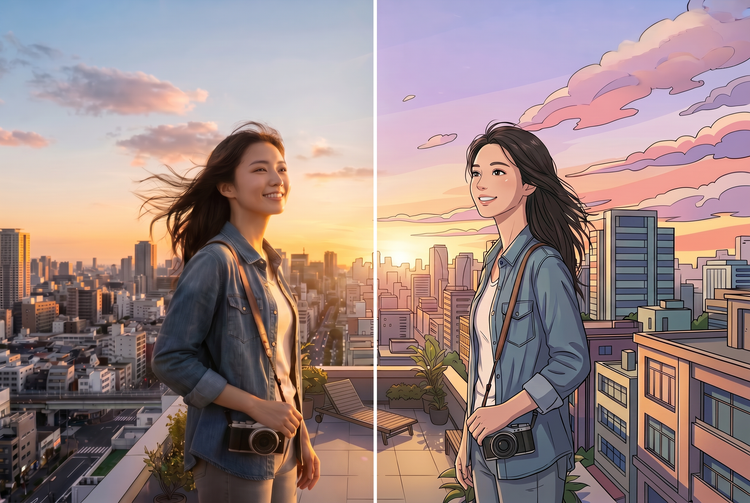
The anime filter or effect in Adobe Firefly is an AI-powered image-to-image tool that transforms any photo into an anime-style illustration. Upload a portrait, a landscape, or a character concept; add a prompt describing the look you want; and Firefly will apply the style while preserving the structure of your original image. The result will look intentional, not filtered. You'll get real control over whether the output leans toward soft shojo aesthetics, bold shonen linework, or something in between.
Describe the style you want.
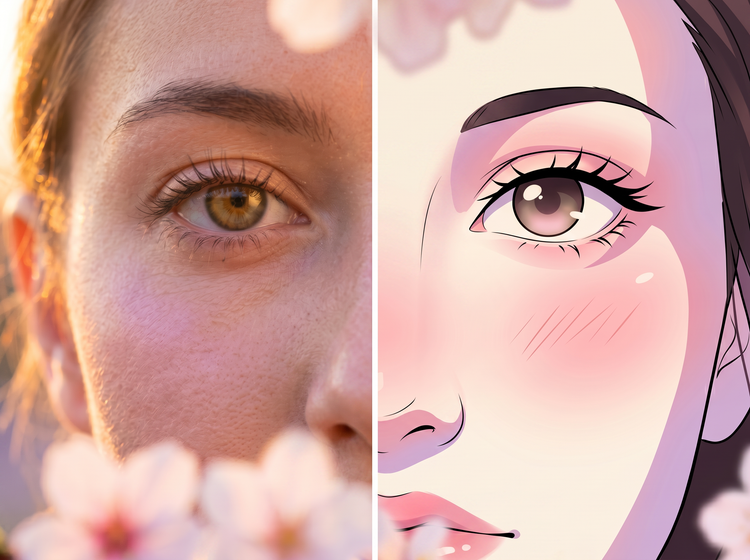
Anime covers a wide visual spectrum. Your text prompt will shape the direction the output takes. Write "soft shojo illustration, pastel tones, gentle linework" for something delicate. Write "bold shonen, high contrast, saturated colors, dramatic shadows" for something more intense. Include details about color palette, lighting, and mood. The more specific your prompt, the closer the result will look to what you had in mind.

Use on portraits, landscapes, and group shots.
The anime filter isn't limited to portraits. Upload a landscape photo and transform it into an illustrated scene. Start with a group shot and get a character ensemble. Use a city street photo as the base for an anime cityscape. Whatever the subject, the image-to-image tool reads the structure of your original and applies the anime aesthetic while keeping the composition intact.
Control how far the transformation goes.
The Strength slider in Adobe Firefly image settings lets you decide how closely the output follows your original photo. A lower value will keep the composition and subject structure close to what you uploaded. A higher value will give the tool more room to reinterpret the image in the anime style. Start low when likeness matters, and increase the strength when you want a more fully stylized result.


Download and keep building.
Once you have an anime-style result you're happy with, download it as a PNG and take it wherever you need it. Bring it into Adobe Photoshop to refine details or composite it into a larger scene. Open it in Adobe Express to add text and turn it into a post or product. Firefly fits into the Adobe Creative Cloud workflow you already use, so getting from generation to finished work is straightforward.
How to turn a photo into anime art with Adobe Firefly.
With the anime filter in Adobe Firefly, you can transform any photo into an anime-style illustration using a text prompt and an image upload. Whether you're working with a portrait, a landscape, or a character design, the image-to-image tool lets you steer the style while keeping the original structure of your shot.
Step 1
Open Adobe Firefly.
Step 2
Upload your photo and add a text prompt.
Step 3
Choose a model and adjust the Strength slider.
Step 4
Refine with Style settings.
Step 5
Download your anime-style illustration.
- How to turn a photo into anime art with Adobe Firefly.
- Steps on how to use the anime filter in Adobe Firefly
- PT5M
- firefly
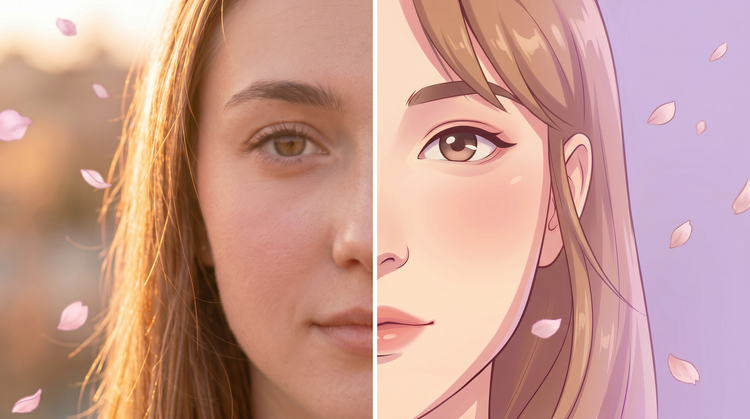
Keep what makes your photo work.
The Firefly image-to-image tool preserves the structure of your original photo. The composition, subject placement, and depth stay intact while the anime style is applied on top. The person in your portrait stays recognizable. The scene you started with stays intact. You're transforming the look, not losing the shot.
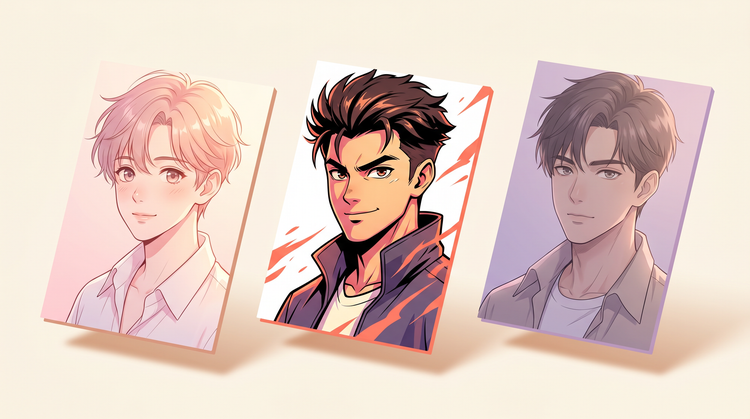
Pick the anime aesthetic that fits.
Firefly will let you steer toward the register you want. Describe a soft shojo style with pastel tones and gentle line weights, or push toward bold shonen contrast with saturated colors and dramatic lighting. Your prompt will shape the direction. The Strength slider will control how far the transformation goes.

Use your anime art anywhere.
Adobe Firefly models are trained on licensed and public-domain content, which means the images you generate are commercially safe. Use them in client work, on merchandise, in social posts, or as assets in a larger design project. If you use partner models inside Firefly, it's your responsibility to review those models' terms for commercial use.
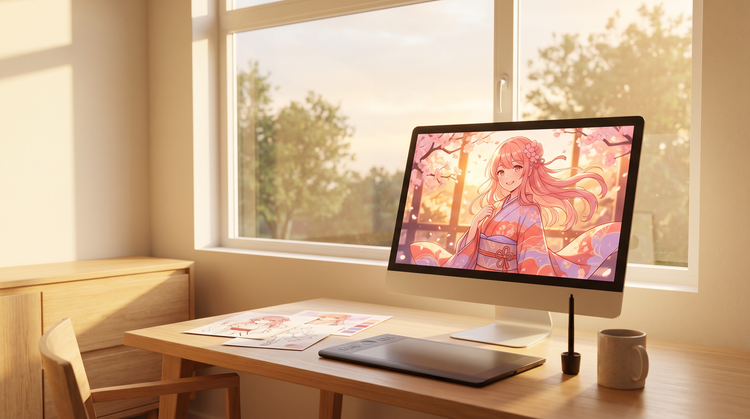
Take your illustration further.
Once you have an anime-style image you like, bring it into Photoshop on the web or Adobe Express to refine details, composite it into a larger scene, or build it into a template. Firefly will fit into the Creative Cloud workflow you already use.
Discover even more features.
Questions? We have answers.
Is the anime filter in Adobe Firefly free to use?
How do I turn a real photo into anime art using Adobe Firefly?
What's the difference between an anime filter and anime-style image generation?
How do I keep the structure of my photo while making it look like anime?
Can I use anime-style images generated in Firefly for commercial projects?
What file formats does the anime filter accept?
Can I use the anime filter on my phone or tablet?
Who uses the anime filter in Adobe Firefly?
Can I turn a group photo into anime art with the anime filter?
How do cosplayers and fan artists use the anime filter?
Share this page.
Explore more Firefly generative AI tools.
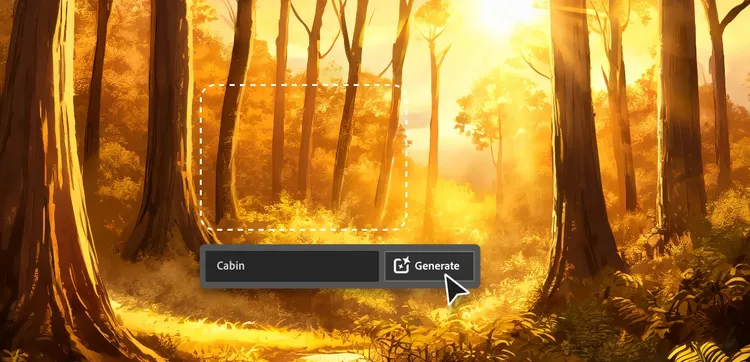
AI for graphic designers.
Learn about the AI tools available to graphic designers and how they can help you be more productive and take your work in surprising directions.
Turn words into artwork using Adobe Firefly as an AI painting generator.
You don't need paint or hours of spare time to make a frame-worthy work of art, just an idea and the power of generative AI.
Generative AI is changing creative work.
Generative AI can mimic human intelligence, but it can't replace it. Learn how it can help you take your creativity to new places.
How to write AI art prompts that get results.
The best prompts for AI aren't always obvious. These tips get you to your destination in record time.