To sign up for a 7‑day free trial of Adobe Acrobat Pro, go to the
official Acrobat free trial page on Adobe.com and select Start free trial. You’ll be asked to sign in with an Adobe ID (or create one if you don’t already have one), choose a subscription plan, and enter payment details. You won’t be charged until the 7‑day trial ends, and you can cancel at any time during the trial from your Adobe account if you decide not to continue. [adobe.com]
After clicking “Start free trial” from this web page, you will be asked to provide your email address. If you already have an Adobe ID, you’ll be asked to sign in. Otherwise follow our steps to start your free trial.
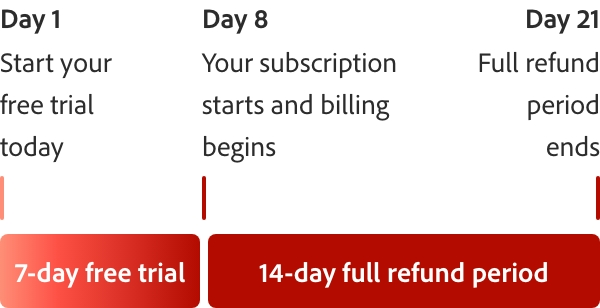
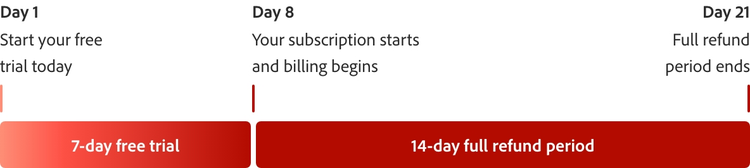
The Adobe free trial period begins on the day you sign up. At the end of the free trial period, your payment method will be charged unless you cancel. Cancel before your free trial ends and you won't be charged. When the free trial expires, you can still use Acrobat to view PDFs, comment and fill forms. To access premium features again, you will need to purchase Acrobat.
After the 7‑day free trial ends, your subscription may automatically continue as a paid plan (monthly or annual, based on the option you selected during sign‑up), in accordance with Adobe’s subscription terms, and charges may apply. If you do not wish to continue with your selected plan, you must cancel your subscription before the free trial ends to avoid being charged.
Installation of Adobe Acrobat Pro free trial will uninstall any earlier version of Adobe Acrobat on Windows devices by default. If you choose to retain the existing Acrobat software on your machine, change the default by unchecking the “Remove earlier version” option in Acrobat downloader UI. If you have uninstalled the previous version, then you can reinstall it when you are finished with the trial. Make sure you have your original serial number and installation files.
Yes, this free trial is available for both Windows and Mac OS.
Windows
- 1.5 GHz or faster processor
- Microsoft Windows Server 2016 (64 bit), 2008 R2 (64 bit), 2012 (64 bit) or 2012 R2 (64 bit); Windows 7 (32 bit and 64 bit), Windows 8 (32 bit and 64 bit) or Windows 10
- 1.5 GB of RAM
- 2.5 GB of available hard-disc space
- 1024 x 768 screen resolution
- Internet Explorer 11; Firefox Extended Support Release (ESR); or Chrome
- Video hardware acceleration (optional)
Mac
- Intel® processor
- Mac OS X v10.11, 10.12 or 10.13
- 1.0 GB of RAM
- 2.75 GB of available hard-disc space
- 1024 x 768 screen resolution
- Safari 9.0 for OS X 10.11, Safari 10.0 for OS X 10.12, Safari 11.0 for OS X 10.13 (browser plug-in for Safari is supported on 64-bit Intel processor only)
Browser
- These requirements apply to the Acrobat Pro subscription plan and are in addition to the desktop requirements listed above
- Microsoft Windows 10 using Microsoft Edge, Internet Explorer 11, Firefox or Chrome
- Microsoft Windows 7 using Internet Explorer 11 or later, Firefox or Chrome
- Mac OS X v10.12 (Sierra) or later using Safari 11 or later, Firefox or Chrome
- iOS: Native browser based on the iOS release and Chrome
- Android: Native browser that ships with the OS and Chrome
Yes, you can access a range of free information and support anytime, including tutorials, forums and expert advice. Just visit our
Adobe Customer Care page.
Adobe Acrobat will be set as your default PDF viewer, but you can reset Reader as the default by opening Reader DC application and going to Edit > Preferences > General. Click the Select As Default PDF Handler button and follow the on-screen instructions.
Yes, you can cancel your Adobe Acrobat Pro free trial at any time before the 7-day period ends. If you cancel within the trial period, you won't be charged. You can manage your subscription under 'Manage Plans' in your
Adobe account.
Windows: To uninstall your free trial version on a Windows device, close any open Adobe software on your computer, open the Windows Control Panel and double-click Programmes and Features. Click Acrobat Pro and select “Uninstall” from the menu.
Mac OS: To remove the trial on a Mac, use the Acrobat Uninstaller in the /Applications/Adobe Acrobat Pro folder.
Adobe Acrobat is available in over 25 languages, including English, German, French, Spanish and Italian. See the Acrobat system requirements page for more details.
During your 7-day free trial, you'll get access to over 70 tools that come with a paid subscription. That way, you can get the full Adobe Acrobat experience before deciding if you want continue your subscription.
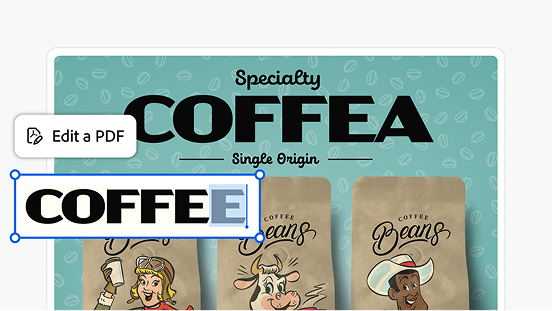
Yes, you can use the PDF editor during the free trial. When editing you can edit text, move components and more, all within your browser. Sign up to a free trial today to get access to the PDF editor.
Yes, the Adobe Acrobat Pro free trial includes access to Adobe Document Cloud tools and features. This allows you to store, share, and access your PDF documents online, as well as use features like sending documents for e-signature and tracking their status.