Key takeaways
- Adobe’s PDF page remover lets you remove one or more pages from a PDF in just a few steps, delivering speed, reliability, and security with every click.
- Deleting a page from a PDF is simple with Adobe’s easy-to-use tool. Just upload your file, click the page thumbnails, and remove the selected pages.
- You can use the PDF page remover tool across any device, including Windows, Mac, iPhone and Android.
How to delete pages from a PDF online for free
To delete pages from a PDF online, all you need to do is drag and drop your document into our free online tool. Select the PDF pages you want to remove, then save and download your new document.
- Select your file. Click the blue Select a file button or drag and drop your file from your desktop or file browser into the dotted, rectangular box to upload your PDF.
- Sign in to your account. Once Acrobat has uploaded the file, sign in or register for an Adobe account for free.
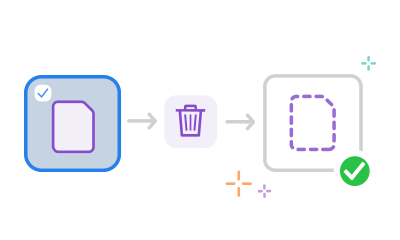
- Choose the pages you want to delete. To remove pages from a PDF, highlight the page thumbnails you wish to remove. You can delete a single page or a selection from the PDF.
- Delete the PDF pages. Next, navigate to the top toolbar and click the dustbin icon. This will remove the chosen pages from your PDF.
- Save and share your PDF. Finally, click Save and enter a new name for your edited PDF to download your file to your device. Alternatively, share your PDF online with a link to encourage collaboration.
Try our free PDF page remover online

Delete pages from a PDF in seconds
Use Adobe Acrobat's online services to easily remove pages from a PDF. Simply sign in, upload your PDF document, and download or share your edited file.

Remove only selected pages from a PDF
Sign in and highlight the specific thumbnails of the pages you want to delete from the PDF. Once you've finished highlighting the unwanted pages, click the dustbin icon in the toolbar at the top to remove them from the PDF.


Share your edited PDF
Once you're happy with your PDF, it's easy to share it with others. Your collaborators will have the same view as you, so it's a great way to collect feedback or request signatures. You can even compress your PDF to make sending easier.

Remove pages from a PDF on any device
You can access the PDF page remover and other Acrobat online tools on any device and any operating system. From desktops to laptops and smartphones, you can easily use the tools you need wherever you are.

Use trusted tools to delete pages from a PDF
Acrobat lets you work seamlessly. Delete pages from a PDF quickly and easily to get the results you need in a flash. Rest assured, your PDF edits are safe with powerful encryption and GDPR-compliant procedures, so your data stays secure.
How to delete pages from a PDF with Adobe Acrobat Pro
With Adobe Acrobat Pro, you have even more capabilities to remove pages from a PDF.
- Open your PDF. Launch Adobe Acrobat Pro on your desktop and open the document you want to edit.
- Access Organise Pages. Click the Tools tab at the top of the page and select Organise Pages.
- Select your pages. Highlight the thumbnail of the PDF page you wish to delete. Alternatively, hold down the Ctrl or Command key while clicking the thumbnails to remove multiple PDF pages.
- Delete your page from the PDF. Click the dustbin icon in the top toolbar to remove the selected PDF pages.
- Save your new file. If prompted, confirm your choice, then go to File > Save to store your edited document.
How to delete pages from a PDF on Windows
You can easily remove one or more pages from a PDF on Windows using the Print to PDF feature:
- Open the PDF file in your default web browser.
- Press Ctrl + P on your keyboard to open the print window, then set the destination/print to Microsoft Print to PDF.
- Under the Pages settings, select Custom to choose specific pages you wish to keep.
- Click Print, choose a save location, and save the new file. Your original document will remain untouched.
How to remove pages from a PDF on Mac
To remove one or multiple pages from a PDF on Mac, follow these simple steps:
- Open your PDF file in the Preview app.
- Click the View menu at the top and select Thumbnails (or Contact Sheet) to open the sidebar.
- Click the thumbnail of the page you want to remove, or hold the Command key to select multiple pages at once.
- Press the Delete key, or go to Edit > Delete in the top menu. Then click File > Save to confirm your changes.
How to delete pages from a PDF on your phone.
Removing pages from a PDF on your phone – whether it’s an iPhone or Android – is just as simple with built-in system tools or dedicated apps. Here’s how:
Remove a page from a PDF on iPhone.
- Open your PDF in the Files app.
- Tap the Share icon, select Print, then uncheck the pages you want to delete.
- Tap the Share icon again and select Save to Files to save your updated document.
Delete a page from a PDF on Android.
- Open your PDF in the Google Drive app.
- Tap the three dots, select Print, then uncheck the pages you want to remove.
- Set the printer to Save as PDF, then save the document on your device.
See our in-depth guide on how to open and edit a PDF on your smartphone.
What is the best free tool to delete pages from PDFs?
The best free tool for deleting pages from PDFs depends on your needs and preferences. As the creator of the PDF, Adobe Acrobat online offers a great way to delete pages in a PDF for free.
Quick, seamless, and reliable, the online PDF page remover lets you drag and drop a PDF, select the pages you want to remove, and download the updated document from your browser – all with no cost or additional software. If you’re not signed in, uploaded files are automatically deleted from our servers after you’re done.
Questions? We have answers.
If your PDF is password-protected, you will need to first unlock the file to delete a PDF page:
- Upload your PDF to the online tool and sign in to your account.
- You will be prompted to enter the password to open the file.
- Once unlocked, select the PDF page you wish to delete.


Use Acrobat tools for free
- Sign in to try 25+ tools, like convert or compress
- Add comments, fill in forms and sign PDFs for free
- Store your files online to access from any device
Create a free account | Create free account Adobe Acrobat Sign in
Try these Acrobat online tools

An Acrobat PDF icon representing the best Word to PDF converter