Introduction
Shape Layers give you the ability to create vector graphic elements inside of a composition.
Creating graphics that are vector give you the ability to scale the size of that layer as large as you like without losing quality.
Shape layers also have their own set of extra animation properties which can help you create advanced looking animation relatively quickly.
In this project,
Preparing to create shape layers correctly
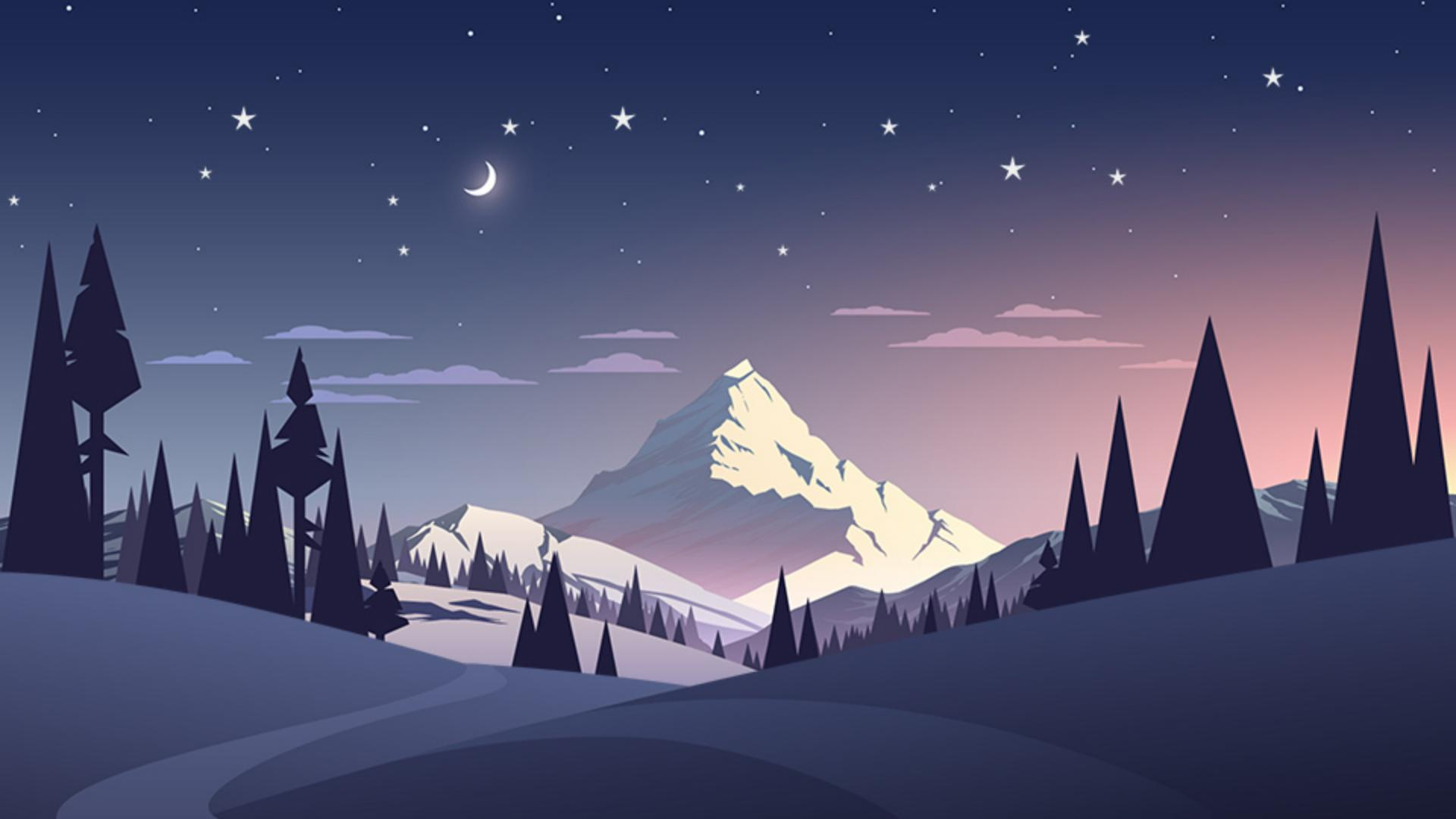
we're going to focus on how to create shape layers by adding a couple little stars into our skyline.
Now to add shape layers, the first thing you want to do is make sure that you have nothing selected in the Timeline.
More importantly, you want to make sure you do not have any layers selected.
As if you have a layer selected, when we use these tools instead of creating shape layers, they will actually create masks on those layers.
So, looking in the Timeline, I can see I don't have any layers selected.
Then I can go up to the Tool Panel in the upper left hand corner of the interface and I'll click and hold on this rectangle.
Yours may have any of these other tools, but the tool that I want to choose is a Star tool
Using the Star tool to draw custom vector shapes
because the Star tool is extraordinarily versatile.
The Star tool can create not only stars, but it can create shapes of multiple points.
Now to show you how that works, once we have the Star tool chosen, I want you to go to the right side in the upper middle portion of the interface here, and you notice we have Fill and a Stroke.
Now, I don't want there to be a stroke on the star, so I'm going to hover over the stroke and on Windows, you'll hold down Alt.
On the Mac, you'll hold down Option and click multiple times until you get the No symbol and that'll tell us we have no stroke.
Now, let's set the Fill color to something white.
So, I'll go ahead and click in the Fill color here and I'll choose white and click OK.
Now, once I've done that, I can go to my skyline and click and drag and notice as I'm dragging, I have a star that I've drawn out.
If I hold Shift as I drag, it I'll keep that star vertical.
If I hold Control as I drag on Windows or Command as I drag on the Mac, notice I can change the angle of the stars.
So, I like something that's a little more like a typical Texas Star, so I'll choose something like that, and I know that's extraordinarily large but we'll deal with that in a second.
Now, once I have that chosen, I can let go of the Control key and I can go over and use the up and down arrows to add more points to my star or less points to my star.
I like a traditional five pointed star so I'm going to go ahead and let go, and then I'll press V to grab my Selection Tool.
Once I've got my Selection Tool, I can position the star anywhere I like.
Now if I want to make adjustments to the shape layer,
Editing shape layer properties and transforms
I can come down to the layer itself and open up the Polystar options.
And down here, notice it has its own set of transform options.
In addition to the transform options on the layer itself, so I want to open the transform Polystar option, and in here, I can go ahead and decrease the scale of that star.
And if I like this,
Duplicating and arranging multiple shapes in one layer
I can go ahead and duplicate this star.
So, I'm going to go ahead and click in this empty area here in the Timeline to deselect everything, and I'll click once on Polystar 1 and I'll press Control D on Windows, or Command D on the Mac.
That will duplicate that star, then I can go ahead and open up the options for Polystar 2, open up its transform options and I can move its position somewhere else in the scene.
Of course, I can adjust its scale and really make it something tiny or make it something larger.
So, I encourage you to go on through and create as many stars as you like and add them into your project.
And when you're finished, go ahead and notice if I scroll up to the top of the Timeline and collapse Layer 1, you'll see I only have one shape layer and it contains multiple star objects.
So, when it comes to creating shape layers, I recommend using the Creation Tools in the upper left hand corner of the interface.
And in my opinion, the most versatile of all these shape creation tools is the Star Tool.
Since it does give you the ability to create so many different points in different styles of shapes with one tool.





