Introduction
In this tutorial we are going to discuss Motion Tween and Graphic Symbols, in order, to make our little robot move.
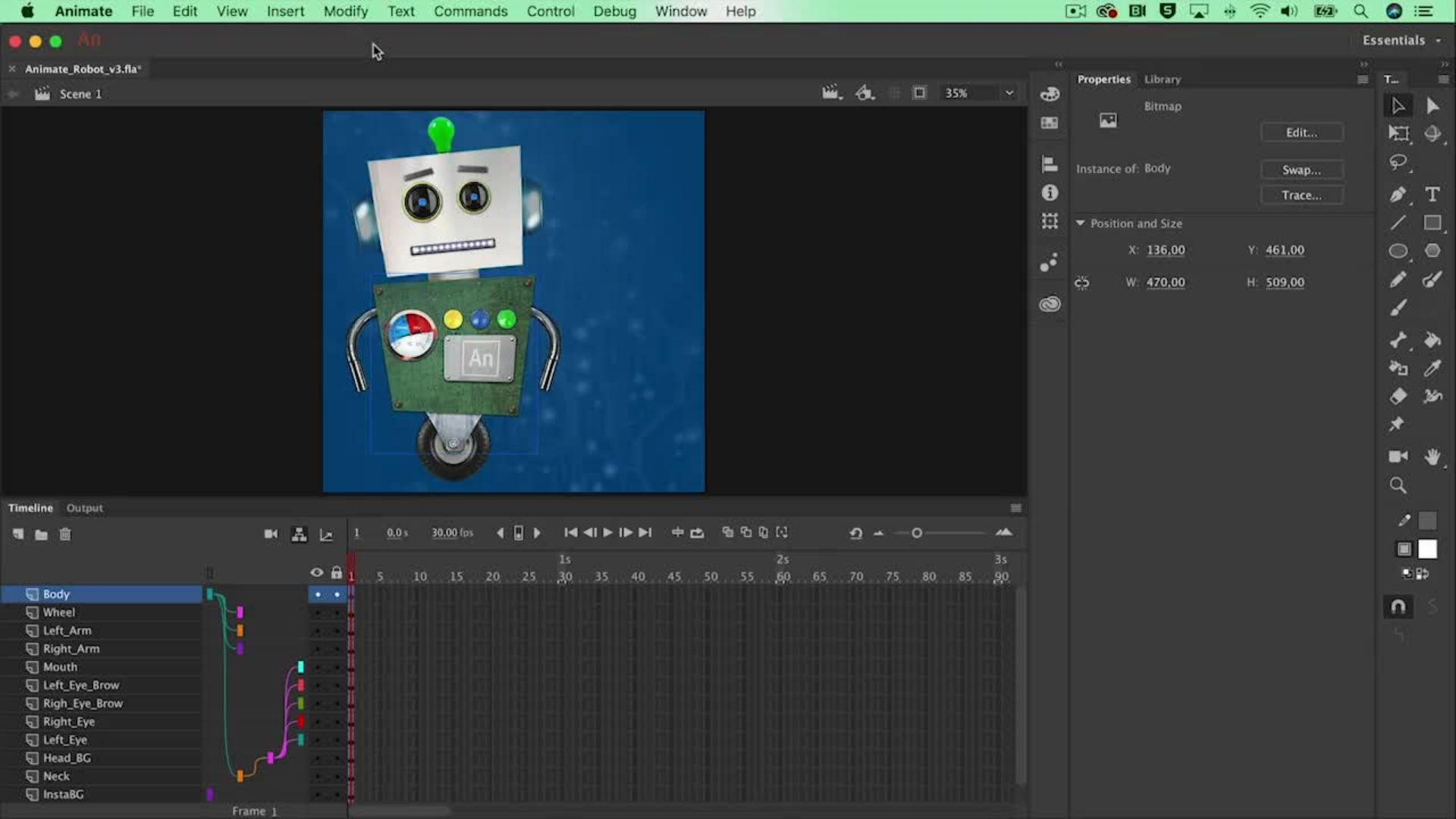
So at first, I would like to select my Body, and move it out off Stage.
When we clip everything that's outside of the Stage, our content, this is what finally we'll end up in our export at the end.
So it's always good to have a little clean look at what your product is going to look like.
Of course, I want to see my robot in order to make it move
Creating a motion tween with graphic symbols
and I want to make use of the right click Create Motion Tween option.
And the Motion Tween will need our object to be a symbol.
So we'll need to convert this first into a symbol.
So I'm going to go for Modify, Convert to Symbol... and give it a name, Body, for instance, and I'm going to leave that as a Graphic symbol.
And now what I need to do is right click and Create Motion Tween.
And that will give us 1 second of time to animate, and of course, I can extend this to 2 seconds if I want to.
Immediately you will see that the only layer that has got 2 seconds of time is the Body layer.
So I want to see everything else as well, so I'm going to select the final frames over here underneath frame number 60, I'll right click and just Insert Frame.
And that will keep everything visible until the end of the animation.
Animating the body entrance and adjusting pivots
The next thing that I would like to do is make sure that my robot makes an entrance, so I'm going to select my robot at frame number 20, move it onto the Stage.
There we go.
And this is our first animation.
And probably he will need to lean forward a bit to anticipate on the motion.
So what I could do is rotate our robot a little bit, but that makes it rotate from the center of the whole selection.
I want to make it rotate right over here, where it connects to the wheel. so what I could do is select the Free Transform Tool, select the body and just move to a white dot over here where it's connecting to the wheel and now this is going to be the rotation.
Looks much better.
And when it comes to a stop it needs to move backwards, forward again a bit, something like this.
And while I'm doing this, it will make all these keyframes for my little robot.
Probably, it's a little bit too slow so, what I could do is just select all these keyframes, over here, move them towards frame number 1011.
When you've converted an object to a symbol, they will live in your Library, over here, so everything is already converted in here.
Adding motion tweens to character parts
So I want to make a Motion Tween of the head as well.
Let's right click Create Motion Tween, that will give me the same orange bar as well, and of course, I will need to rotate the head a bit.
But in this case the rotation point is also on the wrong spot, so let's alternate the frame and move on.
Something like this.
Animating and controlling wheel rotation
Of course, I would like to rotate the wheel as well.
Let's select the wheel, which is already a symbol, a graphic symbol.
When you double click on it, it will open up the wheel so I'm not in Scene 1 anymore, but in an underlying Timeline.
Let's convert this to a symbol as well, because I want to make it rotate.
Let's add a Motion Tween in there, let's select the Motion Tween, search for the Properties and let's say it needs to rotate about 2 times clockwise in the amount of 1 second, and we can already see that there's another extra keyframe.
Let's go back to Scene 1 and see if that works.
Only it keeps on spinning in the end of course, when it comes to a stop, it will need to stop, so let's select it over here, make another keyframe by hand with a right click, Insert Keyframe, and because of the fact that this is a graphic symbol, we can say well I don't want it to Loop anymore in the Properties, I want it to play a Single Frame, and it already selects frame number 13, because that's the position where we are at the moment, and that will make sure that it will stop.
So this is how we work with Motion Tween, and combining it with Graphic Symbols, and in the next video we will bend the arms with another technique.



