Introduction
[Jan Kabili]: It's always amazing to see how Photoshop can remove a large object or sometimes even a person from an image.
One way to try removing a large object is by filling over it with a special fill command: Content-Aware Fill.
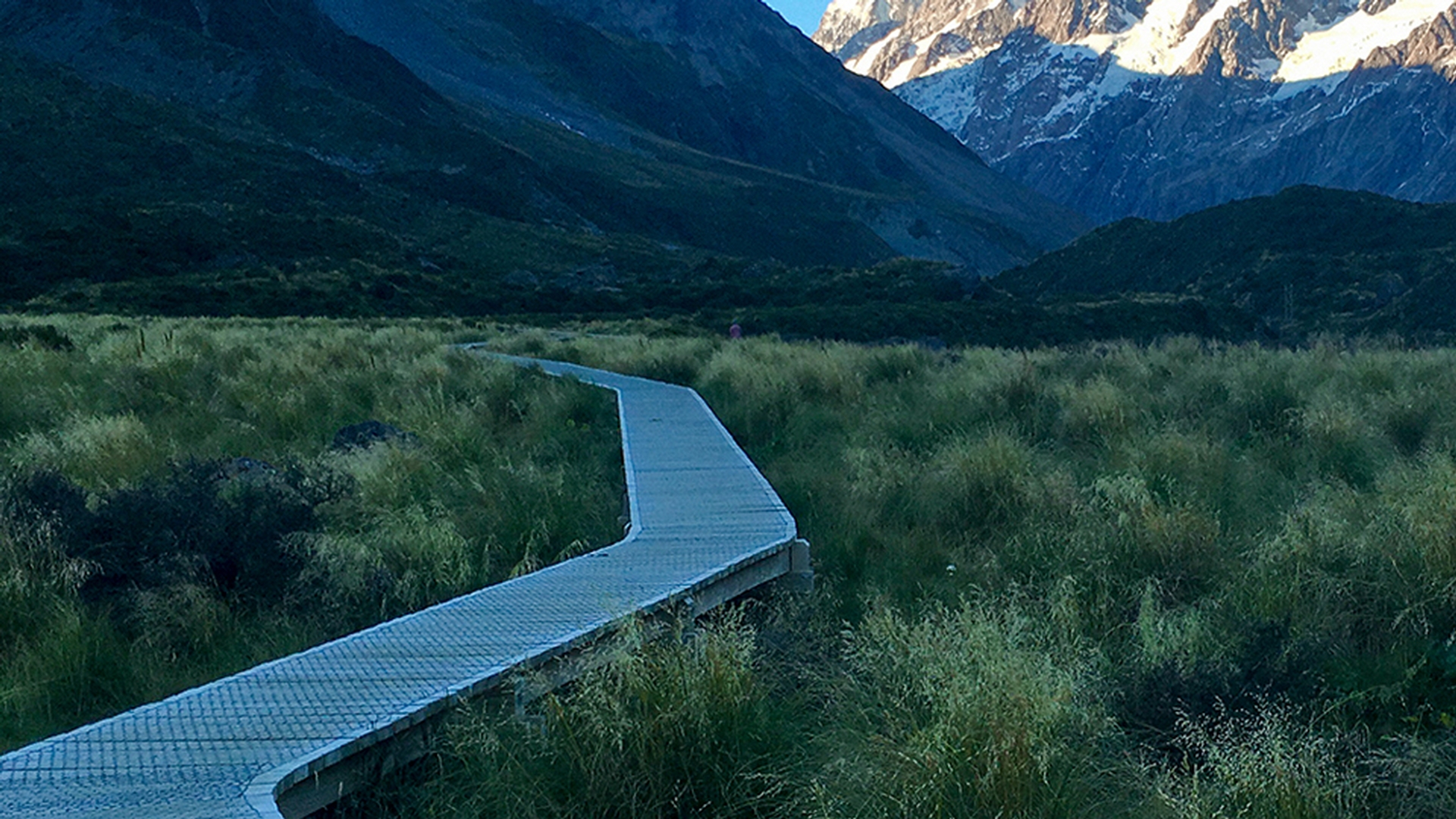
Let's try it on this image, where we can remove this large wooden walkway.
The first step is to make a rough selection
Selecting a large object for removal
around the object you want to remove.
We'll use the Lasso tool, but you could use a different selection tool of your choice, keeping in mind that your selection has to include a little of the background, as you'll see.
I'm going to click on the Lasso tool in the Tools panel and then move into the image and draw a selection outside the walkway.
Now this is important: You have to include a small bit of the surrounding area inside the selection all the way around.
Down at the bottom, I'm going to go outside the Document window, and all the way around, and back to the beginning, and then release my finger from the mouse or trackpad to complete the selection.
Removing objects with content-aware fill
Now comes the main step: Go up to the Edit menu and choose Fill..., and in the Fill dialog box, go to the Contents menu and choose Content-Aware.
Then just click OK.
In just a second the walkway is gone.
Let's deselect by going to the Select menu and choosing Deselect or using the keyboard shortcut Command + D on Mac, CTRL + D on Windows.
What Photoshop has done is to automatically take some grass from outside of the walkway, use it to cover up the walkway, and then blend the result in with the surrounding area.
It really is amazing.
Now here's a bonus tip:
Refining results with the clone stamp tool
If you see any blurry areas where the walkway was, you can try using the Clone Stamp Tool to cover that area.
To do that, go over to the Tools panel and select the Clone Stamp Tool, and then go up to its Options Bar to the Opacity slider, click there, and drag the Opacity slider to the left to lower the strength of the opacity of the Clone Stamp Tool.
And then click in a blank area to close that slider.
Move into the image and find some grass that isn't blurry.
If your brush tip is really small, press the right bracket key on the keyboard, which is near the P key on the keyboard, a couple of times to make the brush tip bigger.
Then sample some of the non-blurry grass by holding down the Option key on the Mac or the ALT key on Windows, so the cursor changes to this target symbol.
Click to sample there and then remove your finger from the Option key or the ALT key.
Now move over the area that's a little bit blurry and click and drag to add some texture back in there.
Saving the edited image
If you do like the result go up to the File menu, choose Save As..., and save your image in the Photoshop format.
You'll be surprised at how big a change you can make to an image by removing large items.
With only a few clicks you have a whole new image to display or to use as a background for a new design.