How to scan a book to PDF: Fast, easy, and without damaging your books
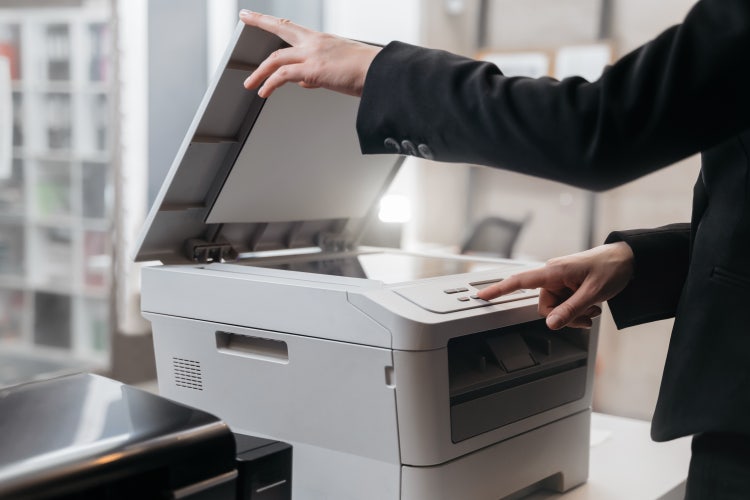
Digitizing books makes studying, researching, and organizing information dramatically easier. Instead of carrying heavy textbooks or flipping through physical pages, you can scan a book to PDF and access everything on your laptop, tablet, or phone. With technology, you can have all the information of a textbook — and more — at the click of a button.
This article provides a comprehensive guide on how to efficiently scan books into PDF format without damaging them. You will learn about different scanning methods, including non-destructive and destructive techniques, and practical tips for using tools like Adobe Scan. The article also covers how to organize, annotate, and extract text from scanned pages, as well as how to convert these scans into study notes and flashcards. Additionally, it explains the benefits of digitizing books and offers workflows to create a seamless, paper-free learning experience.
How to scan a book quickly (At a glance)
To get started with scanning your book efficiently, follow these straightforward steps. This quick overview will guide you through choosing the right method, capturing your pages, and preparing your digital files for easy access and use. Let’s dive into the essential actions to digitize your book with speed and care.
- Choose a scanning method: phone app, flatbed scanner, or book scanner.
- Decide between non‑destructive or destructive scanning.
- Capture pages using a scanning app like Adobe Scan.
- Use OCR to convert images into searchable text.
- Merge, reorder, and clean pages.
- Save as a searchable PDF.
Scanning a book: Non‑Destructive vs. Destructive methods
Scanning books can be approached in two primary ways, each designed to meet different needs and types of books. Understanding these methods will help you choose the best approach for your specific situation, whether you want to preserve the book's condition or prioritize speed and precision.
Non-destructive book scanning.
Non‑destructive scanning preserves the spine and pages. This method uses a specialized book scanner designed to preserve the book's spine and prevent damage during scanning.
Best for:
- Textbooks you still need
- Library books
- Rare or fragile books
- Books you want to keep intact
Tools:
- Phone apps (Adobe Scan)
- Overhead book scanners
- Professional digitization services
Destructive book scanning.
Destructive scanning involves removing the spine so pages can be scanned flat. This process consists of unbinding and removing your book’s pages.
Best for:
- Old books you no longer need in physical form
- Large textbooks you want to digitize quickly
- High‑volume scanning
Benefits:
- Fastest method
- Highest precision
- Clean, flat scans
Practical tips for scanning books.
Effective scanning starts with smart strategies that save time and protect your books. These practical tips help you approach the process methodically, ensuring high-quality results while minimizing effort and damage. Follow these expert recommendations to make your scanning experience smoother and more efficient.
-
Determine your reason for scanning
Your purpose for scanning will shape your approach and workflow. Whether you’re sharing a few pages, archiving a chapter, or digitizing an entire textbook, tailoring your strategy ensures efficient and effective results.
- Sharing a few pages → use your phone
- Archiving a chapter → scan selectively
- Digitizing an entire textbook → consider professional services
-
Break it up
Scanning an entire book at once is overwhelming and is not best practice. Instead, break the task into manageable sections to avoid feeling overwhelmed and to maintain focus and quality throughout the process.
-
Use Your Phone
The easiest scanning solution is right in your pocket. Adobe Scan lets you:
- Capture pages quickly
- Auto‑detect edges
- Scan two pages at once in Book Mode
- Save directly to PDF
-
Combine your scans
Scanned pages often save as separate PDF files, which can quickly become difficult to manage and navigate. Merging these individual scans into a single, cohesive PDF ensures that chapters and sections remain organized and easy to access. This not only streamlines your digital library but also enhances your ability to search, annotate, and share the content seamlessly. By consolidating your scans, you create a polished, professional digital book that’s ready for study, reference, or distribution. You can also split PDF files at a later time if needed.
How to scan a book to PDF using Adobe Scan.
Adobe Scan allows you to simultaneously scan both the left and right pages of a bound book. The app’s book-scanning feature will help you scan an entire book in less time by scanning two pages at a time, automatically splitting the capture into separate pages.
To scan the pages of a book:
- Open the Adobe Scan app and tap the Camera icon.
- Select Book as the document type.
- Set the optional settings as desired.
- Rotate your camera to a landscape view for better capture of both sides.
- Align the dotted divider line to your book’s center binding and adjust the borders. The divider line and the borders automatically identify the book binding.
- Verify the scanning order.
- You can modify each page as required and tap Save PDF.
How to organize scanned book pages
After you are done scanning books into PDF files, you can organize them and rearrange their pages as you need.
To organize pages in PDF files using Adobe Acrobat, you will need to:
- Open the Organize Pages tool from the top menu or the right pane (Tools > Organize Pages).
- Select one or more page thumbnails.
- Use Shift to select a page range.
- Drag and drop pages to reorder PDF pages how you want.
- You can also copy a page by clicking a thumbnail and holding Ctrl while dragging and dropping it to a second location.
- Save your file. Select a folder or click Choose a Different Folder and navigate to the folder you want. Name your document and click Save.
You can also reorder pages for free online using Adobe Acrobat online services.
To organize your PDF books using digital folders, follow these steps:
- Click the Search icon.
- Enter a keyword in the Search box at the top of the application window.
- Press the Enter key.
- You will see a list of all the stored documents that match your search criteria.
How to mark up and highlight digitized books
If you’re looking to mark up and highlight your scanned books, Adobe offers online tools that allow you to mark the desired PDF from any device with an online editor. To do this, simply follow these steps:
Simplify these steps:
- Open Acrobat online.
- Select the highlighter tool.
- Choose a color.
- Drag to highlight text.
Simplify these as well:
- Open the PDF in Acrobat.
- Use the Comment tool.
- Add notes, text boxes, underlines, or strikethroughs.
- Save or share.
How to turn scanned books into study notes
Turning scanned pages into effective study notes is a crucial step in maximizing the value of your digital books. This process helps distill large volumes of information into clear, concise insights that are easier to review, remember, and apply. By transforming raw scanned content into organized notes, you enhance your learning efficiency, improve retention, and create resources that can be quickly referenced or integrated with AI study tools. Mastering this step empowers you to leverage your scanned books for deeper understanding and smarter study workflows.
Workflow:
- Scan book pages using Adobe Scan.
- Use OCR to convert to text.
- Highlight key ideas.
- Export text.
- Summarize into:
- Bullet points
- Study guides
- One‑page summaries
- Flashcards
Benefits of scanning books to PDF.
There are various benefits when it comes to scanning your books to a PDF format. These are a few examples:
- Improved back health. If you’re a student, you may have to purchase textbooks for school and carry them in your backpack to class, the library, or other places. Digitizing your books can improve your back health, as it reduces the weight being carried by your back around campus. In addition, by having your books converted to a digital format, you will be able to read from a digital device without needing to carry heavy books.
- More physical storage space. Scanning books to PDF saves space. Though a folder of digital books may never replace a physical bookshelf, by digitizing your books, you will be able to still preserve the content and clear space in your office or home.
- Enhanced searchability and accessibility. If you are looking for a specific reference in a physical book, you may have a harder time finding that quote than if you were searching for that same phrase in a digitized version of that book. With a digitized read, access is easy, and the content will be searchable, too. Beyond that, you can use PDF AI with digitized versions of books to summarize information for you.
- Markup and highlighting tools. Having a digitized copy of a book can also help when it comes to making notes or highlighting text. If you want to keep the physical copy intact, you can scan your book to PDF and mark it up as much as you want, deleting digital notes if necessary.
- Convenient shareability. Scanning a book to PDF means that you can easily email pages and share them online in a few simple clicks. You won’t need to meet in person to lend a book to a friend or share pages because you can simply share your digitized version — no matter where they are.

