ACROBAT | 6-MINUTE READ
DOC vs DOCX: Main differences and similarities.
Learn what makes DOC vs DOCX files unique and the best use for each.
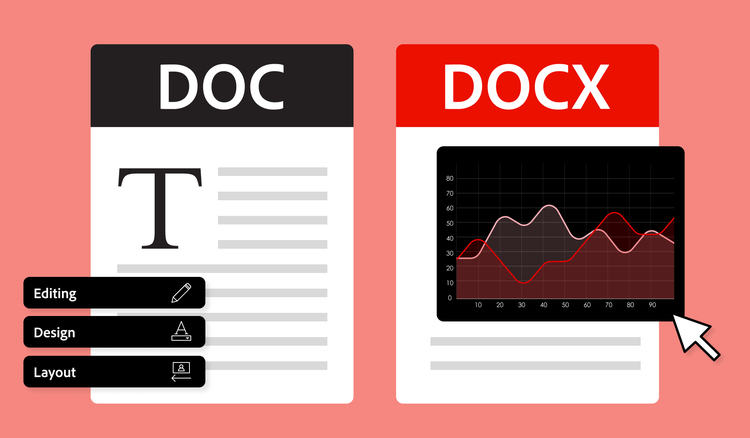
Word processing remains vital for conducting business, attending school, and creating content in general. These programs are designed to help users effectively read, write, edit, and format content that can be shared or repurposed in other applications.
Originating from the development of the most widely well-known word processor, Microsoft Word, DOC files became the standard for document generation and file sharing in 1997. While these files remain supported by Word, they created challenges when trying to use them with other programs.
To address these compatibility issues, Microsoft introduced the .docx file format in 2007. However, with the .doc option still available within Word, many users do not understand the difference between the two and when to use each.
What are DOC and DOCX files?
Microsoft Word supports both .doc and .docx extensions as file formats. These files can contain more than plain text, allowing for creative copy formatting and the inclusion of images and tables that can help writers achieve their content goals. Many writers and creatives then repurpose the content in these files in other applications by transforming them into different formats, like converting Word to PDF.
While Microsoft Word uniquely generates DOC and DOCX files, they can also typically be opened by various word processing software applications, such as Google Docs or Apple Pages.
Even though they are similarly named, .doc vs .docx file extensions have their own definitions and characteristics.
A DOC file is a binary file, which means it uses a hierarchical folder system for data storages that contain streams of information. This complex format design, proprietary to Microsoft, preserved the design and structure of the Word document but made it more difficult to use in other applications while retaining the desired text formatting.
A DOCX file is an XML-based file that approaches data storage much differently than the DOC format. XML formats produced by Microsoft applications contain larger single files that are then zipped. This compression helps preserve much more information about the file, including formatting specifications. This structure is one component of the larger Microsoft Office Open XML (OOXML) specification, which was designed to increase cross-platform compatibility for documents produced using Microsoft applications.
DOC vs DOCX: Differences and similarities.
When comparing doc vs docx, both will produce a text document that you can write and edit using Microsoft Word and other word processing software applications. However, functional differences exist beyond the technicalities of their file storage structures.
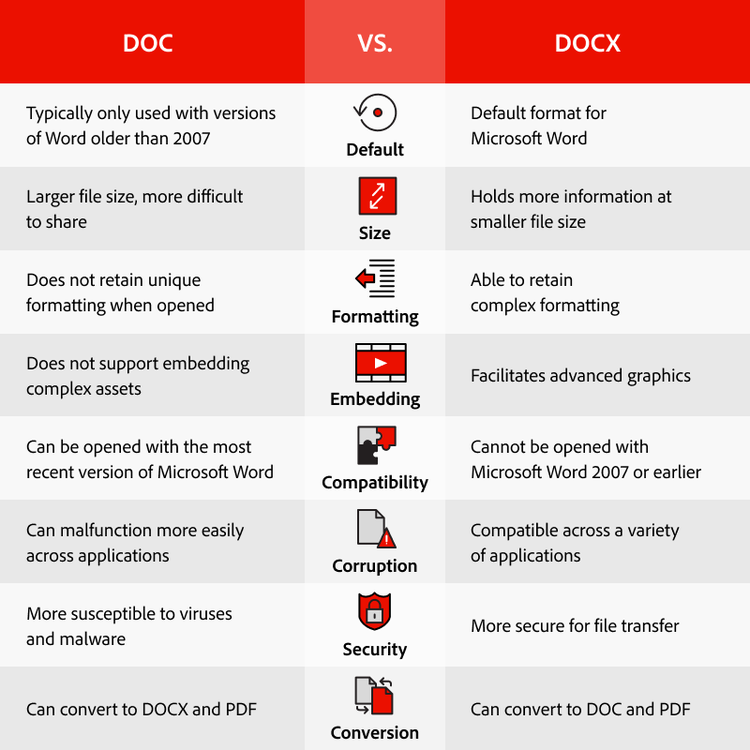
Here are some of the most critical differences between .doc vs .docx file types:
- Default. The DOCX format has been the default for Microsoft Word since it was established nearly two decades ago. While DOC is available, this is typically only used when working with versions of Word older than 2007.
- Size. While DOCX files may hold more formatting information, DOC files are actually larger and more difficult to share because of their binary structure. The maximum file size for a DOC file is 512 MB, while a DOCX will be much smaller at 32 MB.
- Formatting. Because DOC files are not compatible with all word processing software, they often do not retain their unique formatting when opened. Instead, using a .docx format can help retain complex formatting and prevent time-consuming repeat work.
- Embedding. If you want to embed advanced graphics such as videos, images, or charts/graphs into a Word document, use a .docx file format. The .doc format does not support embedding complex assets within documents.
- Compatibility. A DOC file can be opened with the most recent version of Microsoft Word, although a compatibility message may appear. However, you cannot open a DOCX file with Microsoft Word 2007 or earlier.
- Corruption. A DOC file is also more likely to become corrupt since the format is an older file structure that can malfunction more easily within a variety of applications.
- Security. Newer DOCX files can be more secure for file sharing and transfer than DOC files. A .doc file is more open to being infected with macros that can introduce viruses and malware on a computer.
- Conversion. The latest version of Microsoft Word can open both file types, and to enhance compatibility, Word also makes DOCX to DOC conversion easy. The Adobe Acrobat PDF converter can transform both DOCX and DOC files into PDF files.
Converting from DOC to DOCX and vice versa.
Microsoft Word 2010 and later includes support for converting a document to a docx and converting a docx to a doc where needed. This capability, supported on Windows and Mac, can help you work with others who may have different versions of word processing software to avoid compatibility issues and loss of important formatting or functionality.
To convert an older .doc file to .docx, follow these steps:
1 Open the file in Microsoft Word.
2 Click File > Save As.
3 Click the Save as type drop-down list. (On a Mac, click the File Format drop-down list.)
4 Select Word Document (.docx).
5 Click Save.
The steps are similar when saving a .docx file as a .doc file for backward compatibility:
1 Open the file in Microsoft Word.
2 Click File > Save As.
3 Click the Save as type drop-down list. (On a Mac, click the File Format drop-down list.)
4 Select Word 97-2003 Document (.doc).
5 Click Save.
One alternative to sharing a .doc file, which may lose its formatting or become corrupt through repeated saving and file transfers, is to convert the .docx file to a PDF. This conversion will preserve all of the formatting, graphics, and copy in your document while ensuring that the recipient can view it without compatibility issues.
To create a PDF from a .doc or .docx file directly from Microsoft Word:
1 Open the file in Microsoft Word.
2 Click File > Save As.
3 Click the Save as type drop-down list. (On a Mac, click the File Format drop-down list.)
4 Select PDF.
5 Click Save.
Conversely, if you receive a PDF and need to change it to a Word document, you can use Acrobat to convert PDF to Word with its free online converter.
Ultimately, the file format you choose to work with should be one that is the most reliable and easily accessible for you and the people you are sharing the document with. While DOC files may have led the way in the past, DOCX has become the standard in word processing file formats for Microsoft Word users.
A DOCX file and compatible word processing software may be one of the most effective ways to write or edit text content, but PDFs continue to be a standard in file sharing. Acrobat can make it quick and easy for you to create a PDF from a Word document and share your files securely while preserving the formatting you worked hard to achieve.
Frequently asked questions.
Is DOCX more secure than DOC?
While any file can become corrupted or contain malware, DOCX files are typically considered more secure than their older DOC counterparts. A .docx file extension is built on XML, which tends to include more security. A .doc file extension makes it easier for malicious macros to embed in the file and introduce computer viruses.
Should I convert DOC to DOCX?
A .doc file may be required if you, or someone you are working with, are using a version of Microsoft Word 2003 or earlier. You will not be able to open a DOCX file on older versions of Word. However, if you are using Microsoft Word 2010 or later, using the DOCX file format is a best practice.
What is the most common word processing file format?
The DOCX file is the most used word processing file format and is the default for Microsoft Word 2010 and newer. Users working with word processing software such as Apple Pages or Google Docs can also view, create, and edit DOCX files that remain compatible with Microsoft Word users.
Can you recover a corrupted .doc file?
A .doc file can become corrupted for many reasons, including errors during saving and computer malware interference. A corrupted .doc file may be recoverable depending on the level of damage to the document. To do this:
1 Open the file in Microsoft Word.
2 Click File > Open.
3 Click Browse, then select the file in the search results.
4 Locate the Open button and click the arrow to the right.
5 Select Open and Repair.
Keep exploring