Acrobat
How and when to add a watermark to a PDF.
Easily add and customise watermarks in your PDFs to enhance security, improve organisation, and create a professional touch.


Acrobat
Easily add and customise watermarks in your PDFs to enhance security, improve organisation, and create a professional touch.

Published by Adobe Acrobat India on 22 April 2025
Launch Adobe Acrobat and open the PDF file where you want to add a watermark.
In the Add watermark window, you can adjust the watermark’s source, position, and appearance:
Text-based watermarks:
Image-based watermarks:
Tip: If you need to convert an image (JPEG or PNG) to a PDF before using it as a watermark, try Adobe’s image-to-PDF converter.
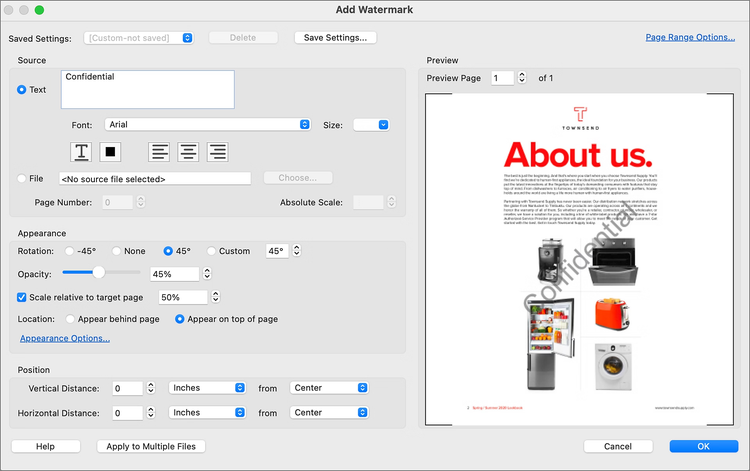
Use Page range options to determine which pages the watermark appears on.
Modify Appearance settings to fine-tune visibility:
Tip: If multiple watermarks exist in a PDF, this method updates only the first watermark added and discards all others.
To remove a watermark from a single PDF:
To remove watermarks from multiple PDFs:
Tip: If a PDF is password-protected, you’ll need to unlock it before removing watermarks.
When using an image watermark, adjust its dimensions with these options:
While watermarks are an effective way to protect and brand documents, Adobe Acrobat offers additional tools for document security: