Adobe Acrobat
How to add QR codes in PDF invoices for UPI payments.
Learn how to generate QR codes for UPI payments, insert them into your invoices, and speed up your payments while enjoying secure, error-free transaction.

Published by Adobe Acrobat India on 5 Janury 2026
Digital payments have reshaped the way businesses in India get paid, and QR codes now sit at the heart of that change. Adding a UPI QR code to your PDF invoices makes transactions faster and simpler. No typing, no errors, just instant payments. Whether you’re a freelancer, small business owner, or enterprise seller, embedding a QR code ensures every invoice is payment-ready the moment you send it.
Plus, with tools like Adobe Acrobat, creating, adding, editing, or updating QR codes in your PDFs takes just a few minutes.
What are QR codes?
Quick Response (QR) codes are the modern evolution of traditional barcodes. They store data in a grid of black-and-white squares that can be scanned by a smartphone or other devices. While they’re often used to link to websites, QR codes can also contain information like email addresses, phone numbers, payment links, or even event details, making them a fast, flexible way to share data instantly.
Why should I add QR codes to PDF invoices?
QR code payments have become a cornerstone of India’s digital payment landscape. They are an integral part of the Unified Payments Interface (UPI) system because they power the countless of daily transactions between businesses and customers across the country.
By adding a UPI QR code to your PDF invoices, you:
- Accelerate payments: Customers can scan the QR code with their mobile phones and pay instantly through UPI apps like Google Pay, PhonePe, or Paytm.
- Reduce errors: Customers can avoid the manual entry of UPI IDs or bank details, which is already tedious in the first place.
- Project professionalism: QR codes are not just a design upgrade. They make your invoices look modern, trustworthy, and tech-savvy.
- Ensure secure transactions: UPI QR codes are linked to verified accounts and payment information is encrypted during transactions to make sure no personal data is compromised.
How to create a QR code for PDF files.
Before embedding the QR code in your invoice, you’ll need to generate one. Follow these easy steps:
-
Open your preferred UPI application.
There are many reliable options available: Google Play, BHIM (Bharat Interface for Money), Amazon Pay UPI, CRED, PhonePe, and more.
-
Navigate to the QR section.
Once there, enter your UPI ID or payment link. Input the payment amount if you’re requesting a fixed amount or leave it blank to give customers the liberty to enter the amount themselves.
-
Generate the QR code.
Tap the “Generate” button and download the QR code image. Save it as a PNG or JPG file for high-quality printing or embedding.
-
Test the QR Code
Use a UPI app to scan the code and verify that it opens the correct payment page.
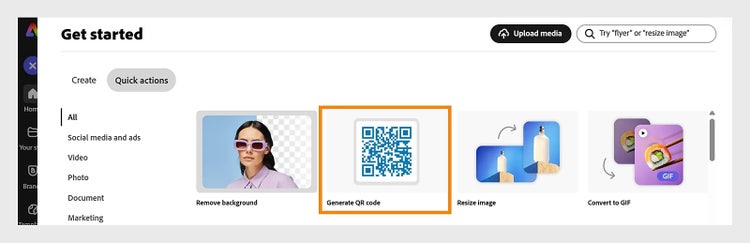
Online QR generators such as Adobe Express free QR generator can also be used for this. For example, you can enter a custom URL, generate a QR code, and even customise the style and colour of the image to fit your branding.
How to add a QR code to a PDF invoice using Adobe Acrobat.
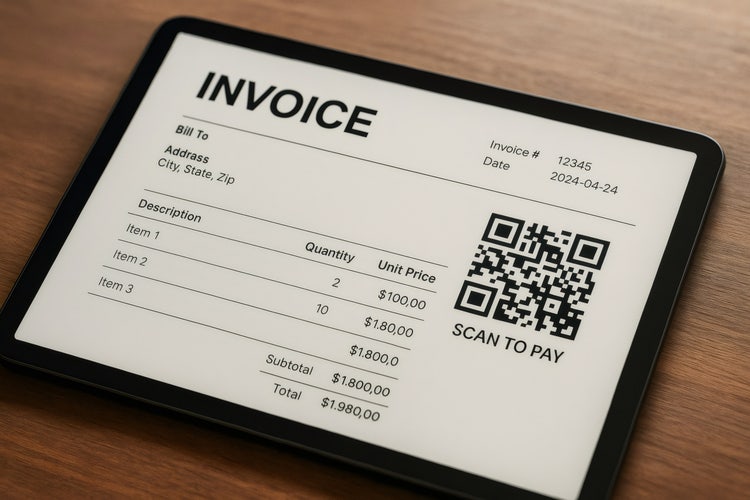
Here’s a simple step-by-step guide to embedding your QR code into a PDF invoice:
- Go to Adobe Acrobat online and open your PDF invoice.
- Select Edit and click Image. Upload the QR code you generated.
- Position, resize, and adjust the QR code. Ideally, the QR code should be placed near the payment summary or total amount section. You can crop, rotate, flip, align, and arrange the image as needed.
- Add a label to your QR code. Add text and insert a text instruction, such as “Scan this QR code to pay via UPI.”
- Save and share the invoice.
How to replace or edit a QR code in a PDF.
Need to update your payment details or replace an old QR code? You can easily do it in Adobe Acrobat:
- Open the PDF in Acrobat.
- Select Edit from the global bar, then click on the existing QR code.
- Choose Replace Image from the left pane and upload the new one.
- Adjust the position and size, if necessary.
- Select outside the image to apply the changes.
- Save your updated file.
On top of adding and editing images to your PDFs, you can do more modifications with your PDF using Adobe Acrobat online service:
Select pre-designed templates in Adobe Express and start editing.
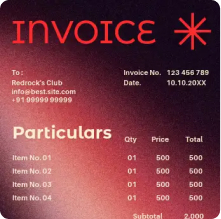
Invoices

Project proposals


Contracts

Travel intinerary

Annual reports

Frequently asked questions.
More resources
Content as a Service v3 - Thursday 11 December 2025 at 15:46