Acrobat
How to hyper compress PDF to 100KB online.
Learn how to extreme compress PDF files to 100KB using Adobe Acrobat. This quick guide explains simple ways to reduce PDF size while keeping quality for easy sharing and uploads.
Acrobat
Learn how to extreme compress PDF files to 100KB using Adobe Acrobat. This quick guide explains simple ways to reduce PDF size while keeping quality for easy sharing and uploads.
Published by Adobe Acrobat India on 29 October 2024
(Modified: 5 January 2026)
JUMP TO SECTION
What is hyper compression in PDF files?
Why hyper compress PDFs to 100KB?
A step-by-step guide to hyper compress PDFs
Different sizes of PDF compression.
Tips for maintaining quality while compressing a PDF
Features of Adobe Acrobat PDF compressor tool
PDF hyper compression is a process that reduces a document's file size as much as possible without sacrificing content quality. However, it's important to note that extreme compression may lead to a slight reduction in image or text quality. You can compress PDFs with high quality by removing unnecessary elements, optimising images, and using specialised compression technologies. It lets you speed up downloading and sharing on your device.
Compression optimises a file by eliminating redundant codes or data. This operation is particularly handy if you need help with storage spaces or if your PDF exceeds the email attachment limit in size.
Using an extreme PDF compressor helps you reduce your file size to 100KB efficiently. Here are some key reasons why hyper compressing PDFs can be useful:
Reducing a PDF to 100KB is not just about meeting size limitations. It's about making sharing files much easier and more efficient. With the help of an extreme PDF compressor, you can achieve smaller file sizes without losing quality. Here are some key benefits of hyper compressing your PDF files:
Considering the growing need and demand to hyper compress PDF files to 100KB, Adobe Acrobat online offers a dedicated tool that lets you compress files directly from your browser. It’s compatible with all devices and ensures secure, high-quality compression.
Here’s how you can use it step by step:
Step 1: Choose a large PDF file or drag & drop them into the drop zone as shown.
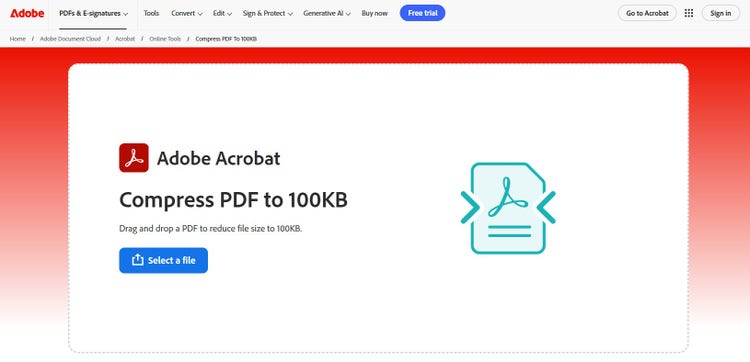
Step 2: Click on the ‘Select a file’ button to upload your PDF from your device or cloud storage.
Step 3: After selecting the PDF, choose the compression level you want from the options provided, such as High, Medium, or Low.
Then, click ‘Compress’ to proceed.
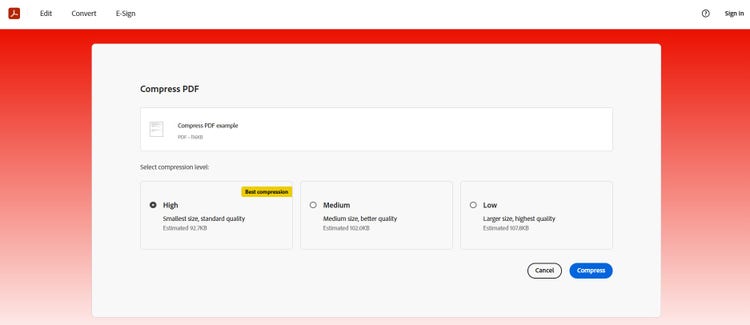
Step 4: The tool will now extreme compress PDF online and automatically reduce your file size to the selected level within seconds.
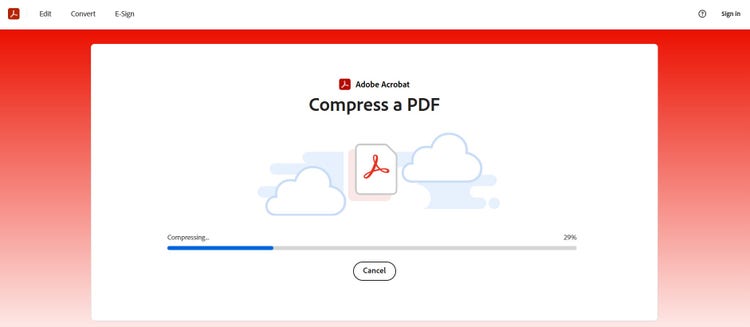
Step 5: You may download your compressed PDF file or log in to share it with others. Since your file is now smaller, you will have more room on your device for other data.
You can also continue working with your PDF for free using Adobe Acrobat online. You can edit PDF, convert PDF, merge PDF, organise PDF, or compress another PDF.
The ideal PDF file size depends on your purpose and the level of detail required in the document. You can use Adobe Acrobat online to compress PDFs to different sizes based on your need.
Regardless of file size, you must always keep the quality in check. Below are some key PDF compression tips to ensure an optimal balance between size and clarity.
Consider elements like compression quality, customising options, and ease of usage. Our online PDF compressor by Adobe Acrobat is a reliable and trusted tool in this domain, with robust security measures to keep your data safe. When using any online tool, it's important to ensure that your data is secure and that the tool is not storing or using your files for any other purpose.
Find out what PDF compression options are available through the scheme. This entails understanding the differences between settings such as "High Quality" and "Extreme Compression," in addition to any further customisation options.
You may select the PDF compression level that best fits your requirements. Select the High compression option if you need the lowest size offered. You can choose between Medium and Low compression to reduce the file size without compromising quality.
Most of a PDF file's size is typically attributed to its images. Consider employing image compression tools or software to optimise photos individually before hypercompressing your PDF. With no loss in image quality, this can aid in additional PDF file size reduction.
The Acrobat online PDF compressor optimises file size while considering the quality requirements for fonts, images, and other file contents. Simply drag and drop a PDF file into the tool to allow Acrobat to reduce PDF size to 100KB without sacrificing quality.
Most of a PDF file's size is typically attributed to its images. Consider employing image compression tools or software to optimise photos individually before hypercompressing your PDF. With no loss in image quality, this can aid in additional PDF file size reduction.
The Acrobat online PDF compressor optimises file size while considering the quality requirements for fonts, images, and other file contents. Simply drag and drop a PDF file into the tool to allow Acrobat to minimise PDF file size without sacrificing quality.
Be careful while submitting private or sensitive files to online hypercompression tools. Verify that your tool prioritises security and provides encryption or additional privacy safeguards to protect your information.
With a little effort and knowledge, you can effectively decrease the size of your PDF files without sacrificing quality.
You can compress your PDF files to a suitable size limit while maintaining the quality of your document. Our Compress PDF tool ensures great print quality for your compressed PDF files.
Our Compress PDF tool is compatible with various web browsers, such as Google Chrome, Microsoft Edge, Firefox, or any other browser you like. You can even reduce PDF size to 100KB using your mobile device.
We will automatically delete your compressed PDF from our servers unless you save the file by signing in to your Adobe Acrobat account so you know it's secure and only you can access it.
You can select the compression settings like the image quality, type and level of compression used to get the best results you desire.
Compressing PDF files to 100KB helps you manage and share documents more efficiently. With Adobe Acrobat, you can extreme compress PDF online to reduce file size while keeping quality. It’s a quick and reliable way to handle PDFs for uploads, sharing, or storage.