
Acrobat
Quick accounting guide - How to import tables from PDF to Excel.
Import tables from PDF to Excel with this quick accounting guide using Adobe Acrobat.
Acrobat
Import tables from PDF to Excel with this quick accounting guide using Adobe Acrobat.

Leveraging and effectively utilising data is essential for acquiring valuable business insights that can drive growth and success. Analysing project reports and creating strategic plans based on this data is crucial for thriving businesses. However, dealing with data received in PDF files can be challenging. The process involves extracting the data into applications such as MS Excel or Tableau to facilitate easy computation and analysis. Therefore, it is advantageous for accountants to use tools that enable data extraction from PDFs to Excel.
Discover the powerful features of Adobe Acrobat, which allows for the seamless import of tables from PDF to Excel. This comprehensive guide will not only walk you through the entire process but also highlight the major uses of this feature and discuss advanced functionalities that can simplify the conversion of PDF to Excel. The simplicity of this process will give you the confidence to handle any PDF data with ease, making the entire process more efficient and effective.
There are several effective methods for importing tables from PDFs into Excel. This guide will explore the most commonly used ones, including conventional copy-and-paste, PDF to Excel conversion tools, OCR, manual re-creation, and other online conversion services.
Each method has its strengths, so choosing the one that best suits your needs will depend on the complexity of your tables and the quality of the PDF.
PDF tables may be converted into Excel format using software and web resources. Adobe Acrobat Online tools convert PDF files into editable Microsoft Excel documents accurately.
The steps involved are as follows:
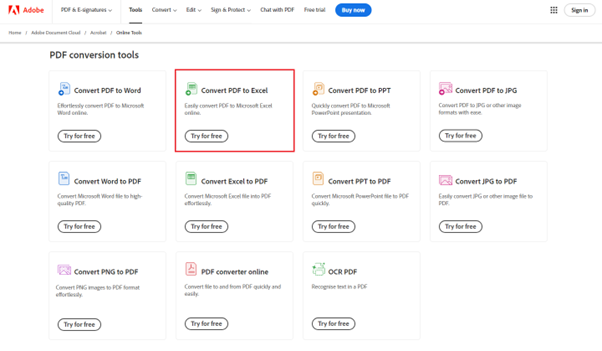
Step 1: Open your web browser and go to Adobe Acrobat online services. You will find the PDF to Excel converter tool in the PDF conversion tools section. Click ‘Try for free’.
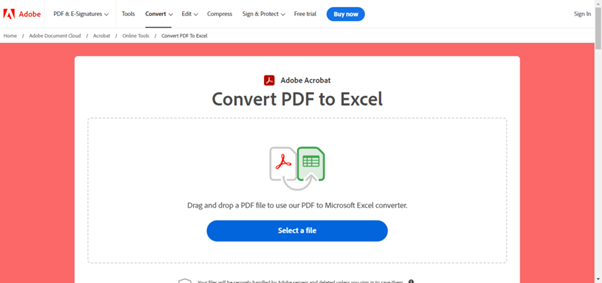
Step 2: You can now choose your PDF by clicking the ‘Select a file’ button or dragging and dropping the PDF into the drop zone when you want to convert to the XLSX file format.
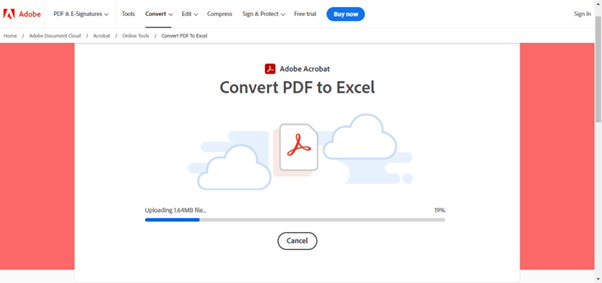
Step 3: Wait for Adobe Acrobat to upload and briefly convert your PDF to Excel.
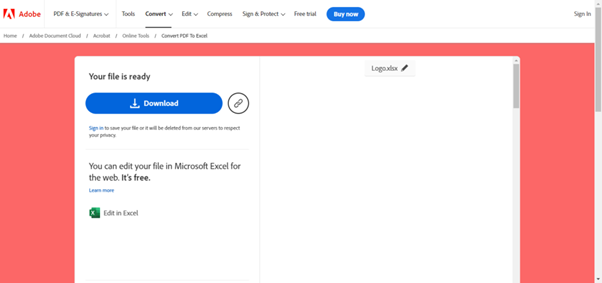
Step 4: You can download your file simply by logging in or getting a link to share it with your team.
Adobe Acrobat provides several sophisticated methods for converting PDF files to Excel. Let’s take a brief look at how it is done:

Having the right tools at your fingertips can make all the difference, especially if you're an accountant with a lot of numeric data. Here are some of Adobe’s online PDF tools that can simplify your work and boost productivity.
Importing tables from PDF to Excel is a proficient skill. Simpler tables only require copy-and-paste procedures, whereas more complicated tables require specialised software. By efficiently leveraging the Acrobat converter tool, you can save time, increase accuracy, and reduce the scope for manual errors through multiple reworks.
Focus on in-depth analysis with instant data import features and scale your business to new heights.

