
#1E1E1E

Acrobat

How to download and manage PDFs on an iPhone: A simple guide.

A complete guide to help iPhone users download, edit, sign, and manage PDF files using built-in tools and Adobe Acrobat's mobile solutions.

Explore Adobe Acrobat


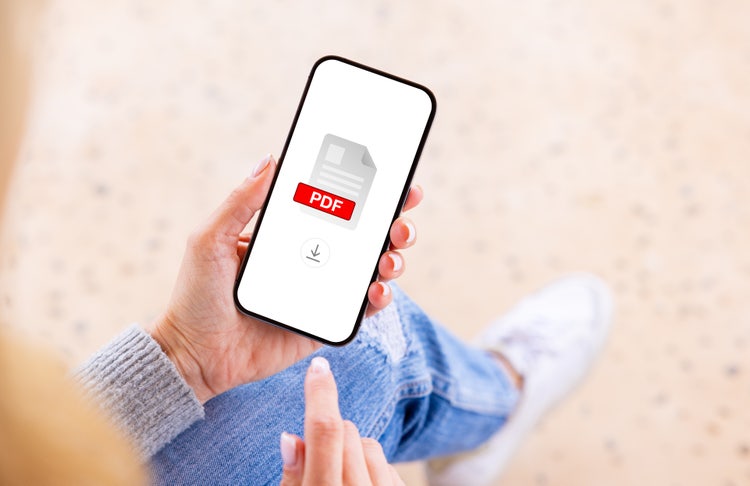
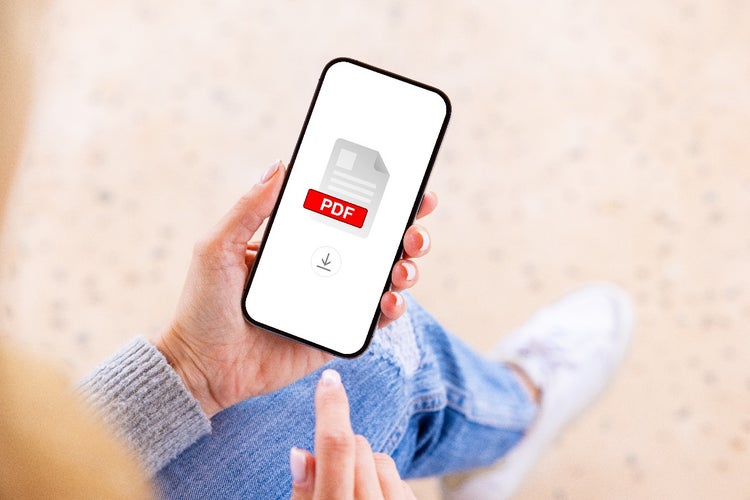
Person holding mobile phone downloading a PDF.

In today’s mobile-first world, many users rely on their iPhones not only for communication and browsing but also for managing essential documents like PDFs. Whether it’s reading an eBook, signing a work contract, editing a resume, or converting images into a shareable format, the ability to create, edit, and organise PDFs directly from an iPhone is more than just convenient - it’s a productivity necessity. Apple’s iOS includes a range of helpful tools, and when combined with powerful apps like Adobe Acrobat, users can transform their iPhones into fully capable PDF workstations. This guide walks through the most common PDF tasks on an iPhone including how to download, scan, sign, and edit files, offering tips and solutions that suit beginners and regular users alike.

Key takeaways.

  • iPhones offer built-in ways to download, read and store PDFs using Safari, Apple Books and the Files app.
  • Adobe Acrobat enables users to edit PDF files, scan documents and add signatures directly on an iPhone.
  • Creating PDFs from web pages, photos and text is easy with Apple’s native features and Adobe’s mobile tools.
  • Users can manage and organise PDFs efficiently using the Files app and Acrobat's page tools.
  • A 7-day free trial of Adobe Acrobat provides access to premium mobile editing and security features.

What is the best way to download a PDF on iPhone?

If you're wondering how to download PDF in iPhone devices, here are simple methods that work in most situations:

  • Tap a PDF link in Safari or another browser
  • When the file opens, tap the Share icon (square with an arrow)
  • Choose "Save to Files" to download it to your device or iCloud
  • Alternatively, select "Copy to Books" to add it directly to the Apple Books app

Files saved to iCloud or the Files app can be easily organised into folders or opened in third-party apps like Adobe Acrobat.

How do you open and read PDFs using Apple Books?

The Apple Books app is a built-in iOS feature that allows users to view and organise PDFs with ease.

  • Download or share a PDF to Books from any app
  • Open the Books app to view your document library
  • Tap a PDF to open it in full-screen reading mode
  • Use the bookmark tool or page navigation for longer documents

This is an excellent option for students or readers who want to keep their PDFs separate from other file types.

How can you edit a PDF on iPhone using Adobe tools?

If you’re asking how to edit PDF on iPhone, Adobe Acrobat for iOS provides reliable and intuitive tools for making changes.

  • Download and install the Adobe Acrobat Reader app from the App Store
  • Open your PDF in Acrobat
  • Tap the Edit icon to change text, images or formatting (subscription may be required)
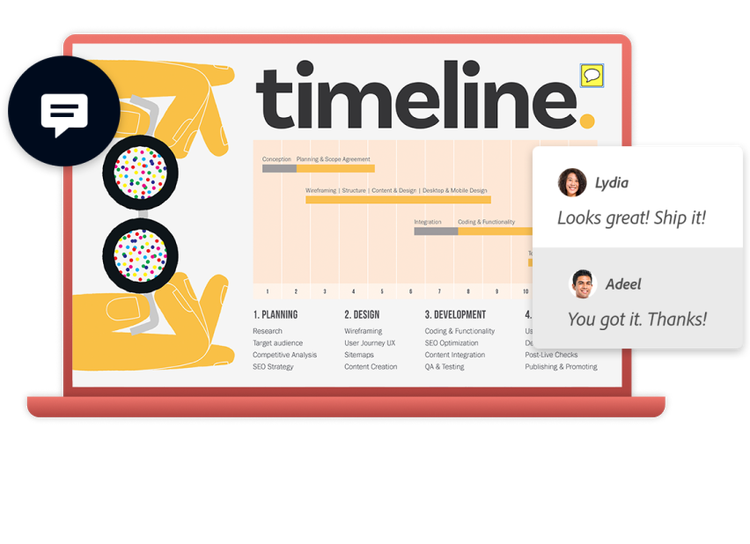
  • Use the comment tools to annotate, highlight or add notes
  • Save or share the edited file directly from the app

You can explore these options using the PDF editor for iPhone to gain control over your document content.

How do you scan and create a PDF using an iPhone?

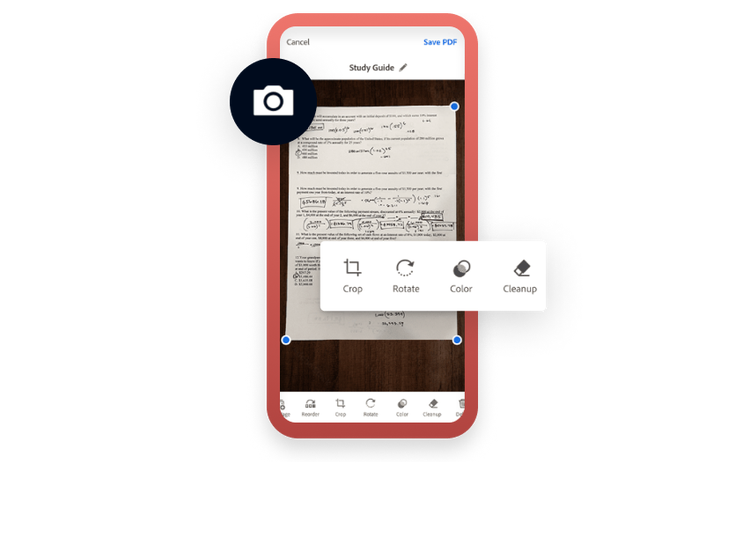
For users wondering how to scan PDF iPhone style, iOS and Adobe offer quick, high-quality scanning features.

  • Open the Adobe Scan app or the Notes app on your iPhone
  • Point your camera at the document and capture the image
  • Adjust corners and apply filters for clarity
  • Save the scanned document as a PDF

The Adobe scanner app is especially useful for business receipts, handwritten notes or ID proofs.

How do you create a PDF in iPhone apps?

Understanding how to create PDF in iPhone apps is a useful skill for converting content into shareable formats.

  • Open any app that supports printing (e.g. Notes, Safari, Mail)
  • Tap the Share icon and choose Print
  • Use a two-finger outward swipe on the print preview
  • Tap Share again and select "Save to Files" or your preferred destination

You can also use the create PDF tool from Adobe to combine multiple files or generate high-quality documents.

How can you sign a PDF on iPhone securely?

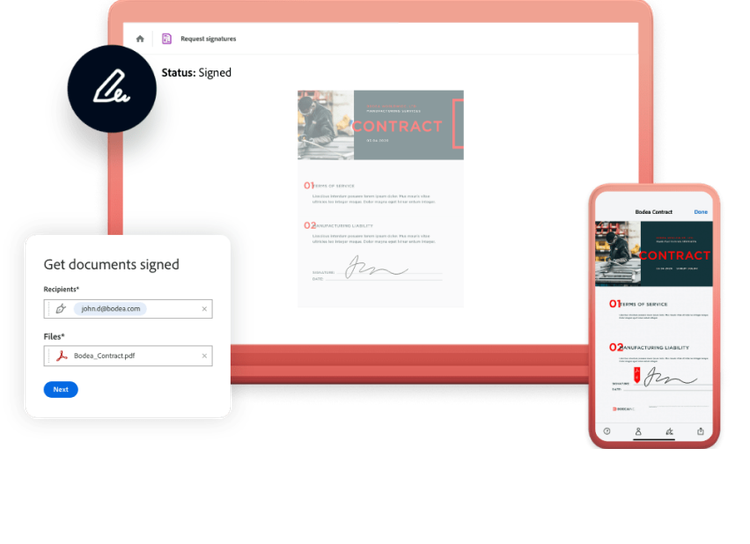
To sign a PDF on iPhone, there are native and third-party options available.

  • Open the PDF in the Files app, Books app or Acrobat
  • Tap the markup or pen icon to add your signature
  • Use your finger or Apple Pencil to draw your signature
  • Position and resize it as needed

Adobe offers more control with its fill and sign tool, allowing you to save your signature and reuse it across multiple documents.

https://main--dc--adobecom.aem.page/dc-shared/fragments/roc/blog/with-acrobat-work-from-anywhere

How do you manage and organise PDFs on iPhone?

Efficient organisation helps you keep track of important documents on the go.

  • Use the Files app to create folders and subfolders
  • Rename PDFs for easy identification
  • Move files between local storage and cloud services like iCloud or Dropbox
  • Use the Adobe Acrobat app to mark favourites, filter by recency or apply labels

With the organise PDF feature, you can reorder, delete or insert pages directly from your iPhone.

What are common issues users face with PDFs on iPhone?

PDF handling is generally smooth on iOS, but a few common challenges may occur:

  • PDFs fail to download from Safari
  • Files won’t open in certain apps
  • Document formatting breaks during edits
  • Difficulty adding digital signatures to locked files

To fix these:

  • Try a different browser or clear cache
  • Open with Adobe Acrobat Reader for full compatibility
  • Avoid editing scanned or encrypted files without proper tools

You can troubleshoot advanced issues using modify PDFs features available in Acrobat Pro.

Is there a free way to test Adobe PDF tools on iPhone?

Yes, Adobe offers a trial for users who want to explore premium features without immediate payment.

  • Download Adobe Acrobat Reader from the App Store
  • Sign in with an Adobe ID to enable syncing and cloud access
  • Start a 7-day trial to access advanced tools like PDF editing, export and password protection

To explore these capabilities, visit the free trial download page and link your account.

https://main--dc--adobecom.aem.page/dc-shared/fragments/roc/blog/acrobat-reader-scan-web

Frequently asked questions.

Can I save a PDF directly from email to my iPhone?

Yes, you can save a PDF from email to your iPhone using the built-in Share function:

  • Tap the PDF attachment within the email
  • Tap the Share icon (square with an upward arrow)
  • Select “Save to Files” or “Copy to Books” depending on where you want to store the document

How do I convert a photo into a PDF using an iPhone?

To convert a photo into a PDF on your iPhone, you can use native iOS tools:

  • Open the Photos app and select the image
  • Tap Share, then select “Print”
  • Use a two-finger outward swipe on the preview
  • Tap Share again and choose “Save to Files”

Can I combine two PDFs on iPhone?

Yes, you can combine two PDFs on your iPhone using the Adobe Acrobat app:

  • Open Adobe Acrobat and tap “Combine Files”
  • Select the two or more PDFs you want to merge
  • Tap “Combine” to create a single file

Is it possible to extract pages from a PDF on iPhone?

Yes, it is possible to extract pages from a PDF using Adobe Acrobat on iPhone:

  • Open the PDF in Acrobat
  • Use the Organise Pages feature to select the pages you want to extract
  • Save the selected pages as a new PDF file

How do I highlight text in a PDF on iPhone?

To highlight text in a PDF on your iPhone, open the file using Adobe Acrobat:

  • Tap the comment or markup tool
  • Select the Highlight option
  • Drag your finger over the text you want to emphasise

Adobe Acrobat is ideal for securely signing legal PDFs on an iPhone:

  • You can create and save reusable signatures
  • You can track the status of sent documents
  • You can apply digital certificates if needed

Does Apple Books allow form filling in PDFs?

No, Apple Books does not support interactive form filling:

  • Use Adobe Acrobat or similar apps for this functionality
  • Fill, sign, and submit forms directly within the Acrobat app

Can I lock a PDF on iPhone before sharing?

Yes, you can lock a PDF on your iPhone before sharing it using Adobe Acrobat:

  • Open the PDF in Acrobat
  • Apply password protection through the security settings
  • Share the encrypted file securely

What happens if a downloaded PDF is blank or not opening?

If a PDF is blank or not opening on your iPhone, try the following:

  • Re-download the file from the original source
  • Use Adobe Acrobat Reader instead of the default viewer
  • Check if the file is encrypted or damaged

Are there shortcuts for sharing PDFs on iPhone?

Yes, iPhone offers multiple sharing shortcuts for PDFs:
  • Add frequently used PDFs to your Favourites in the Files app
  • Use the Share Sheet to send documents via AirDrop, Mail, or messaging apps instantly

More resources

Content as a Service v3 - Wednesday 9 July 2025 at 16:10

https://main--dc--adobecom.hlx.page/dc-shared/fragments/roc/blog/do-more-with-acrobat-blade