Acrobat
OCR text recognition for PDFs: Make your scanned documents searchable and editable.
Learn how to make your scanned documents searchable and editable using OCR. Enhance productivity and streamline document management.

JUMP TO SECTION
Understanding OCR: A primer for PDFs
What are the steps to edit scanned PDFs online with Adobe Acrobat?
Step-by-step guide: OCR scanning for text recognition
Unlocking possibilities: Leveraging OCR PDF and beyond
Enhancing accuracy: Tips for effective PDF text recognition
OCR best practices: Navigating PDF text recognition challenges
Document management and preservation have undergone a complete revolution in today's digital era. Individuals and companies now heavily rely on digital documents to organise, preserve, and access crucial information.
As we shift towards paperless solutions and adopt electronic records, the demand for efficient tools to convert scanned documents into PDF files or other formats has never been higher. This is where OCR, or Optical Character Recognition, becomes useful.
Get ready to transform your scanned documents into searchable and editable PDFs with Adobe. Explore the power of user-friendly OCR tools by directly scanning text from images. Learn to use OCR text recognition in a PDF file to make it editable instantly.
Understanding OCR: A primer for PDFs.
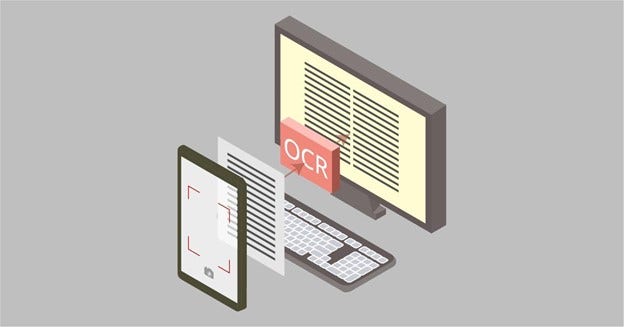
OCR is essential for converting paper documents into digital files or extracting text from images. However, it goes beyond simple conversion. OCR technology enables computers to analyse images and recognise letters and numbers, much like teaching a machine to interpret the text on a page. This process uses advanced technologies like artificial intelligence and machine learning.
PDF is the standard format for most digital files, maintaining consistent formatting across devices. However, they often contain images and scanned pages that are static & non-editable. This is where OCR comes in to convert documents into editable, searchable PDFs, streamlining document management for you.
What are the steps to edit scanned PDFs online with Adobe Acrobat?
With Adobe Acrobat online services, you can modify your PDFs in any way you want. You can convert them to different file formats, merge and extract, compress, or password-protect your PDFs to make them secure. Most importantly, PDF text recognition can make your scanned documents editable and searchable.
Look at this quick guide on how to edit scanned PDFs online with Acrobat:
Step 1: Open your favourite browser and search for Adobe Acrobat PDF OCR tool online.
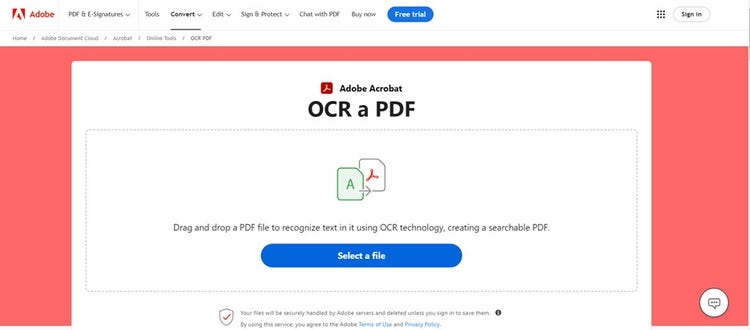
Step 2: Click on ‘Select a file’ and choose your PDF to upload. You can also drag the file from its folder and drop it into the designated area.
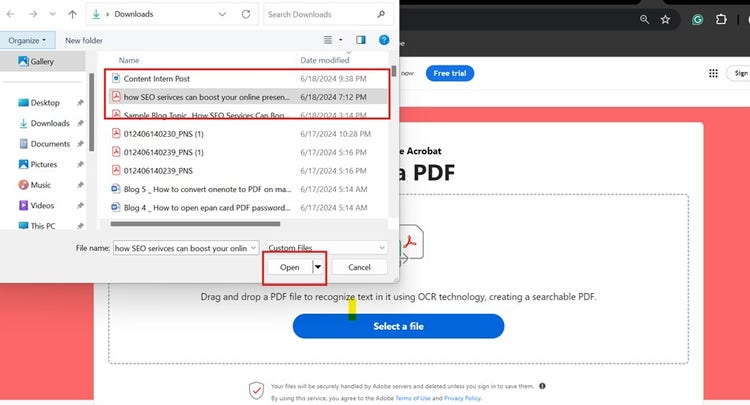
Step 3: Once the file is uploaded to Acrobat cloud storage, OCR technology automatically recognises the text within.

Step 4: Your PDF will now turn searchable, allowing you to edit, highlight, and annotate the text.

Step 5: Sign in to your Adobe account to download the converted file and share it with your network through a link.
Step-by-step guide: OCR scanning for text recognition.
Let’s learn how to convert an image to PDF through text recognition using Adobe Acrobat Pro.
Step 1: Open the PDF.
Launch the Adobe Acrobat desktop app and open the image-only PDF you want to convert.

Step 2: Access the Scan & OCR tool.
Navigate to the tools option and select ‘Scan & OCR’ to scan text from the image.
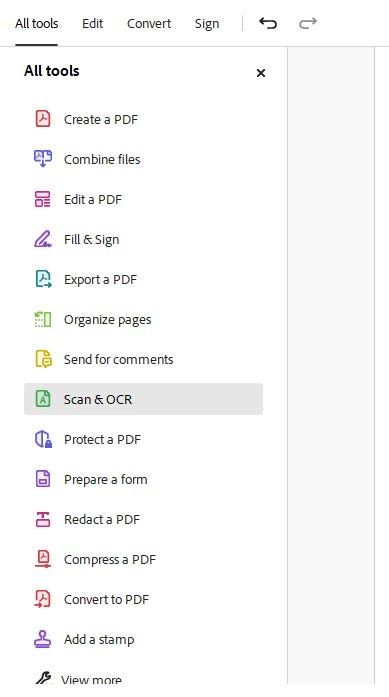
Step 3: Click on Scan & OCR tool.
- Choose the ‘recognise text’ option.
- Then, in the files section, if your PDF contains numerous pages, click on ‘multiple files’.
- A dialogue box will appear where you must select the files you want to convert.
- Once selected, click OK to start the process.

Follow these steps below if your file only has a few pages:
- Choose the ‘recognise text’ option.
- Now select the option ‘In this file’.
- Now, choose the primary language of your file.
- Once done, click on ‘recognise text’.
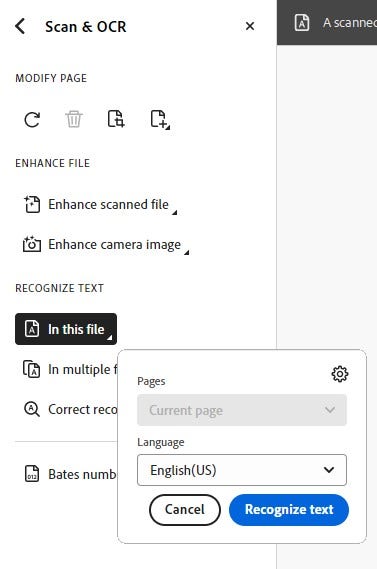
Step 4: Save the converted PDFs.
- Decide where to save your file and choose the folder in which you want your converted files to be stored.
- You can rename the files if you want.
- Once done, click on ‘Save’.
Step 5: Use the ‘Enhance files’ option for accurate conversions.
- In the ‘Scan and OCR’ tool, click on the ‘Enhance files’ option.
- Choose ‘Enhance scanned files’ to enhance a scanned document.
- Now, select the pages you want to enhance.
- Ensure that the recognised text is accurate and properly checked.
- Once done, click ‘Enhance’ and wait for your documents to be ready.
If you want to enhance camera images, follow the steps below:
- In the ‘Scan and OCR’ tool, find and click the ‘Enhance files’ option.
- Now choose the option to ‘enhance camera images’.
- Choose the images you want to enhance.
- Once selected, click the ‘enhance’ button and wait for the tool to enhance your image quality.
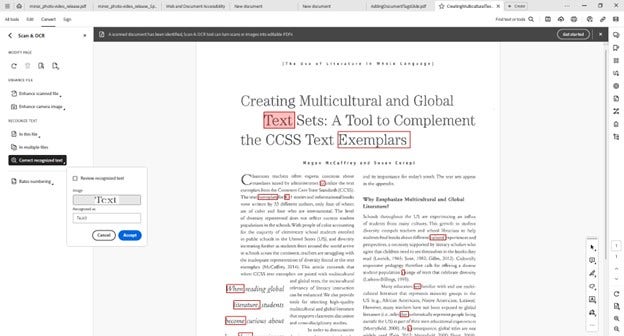
Step 6: Correct recognised text if your OCR makes mistakes.
- In the ‘Scan and OCR’ tool, click the ‘Correct recognised text’ option.
- Now click on the option to review recognised text to check for potential errors in the PDF.
- Correct all the mistakes you find.
- Once done, click accept; the tool will save the corrections made.
Step 7: Auto-tag or organise your documents.
- Go to the ‘tags’ panel on the right corner of the screen.
- Now right-click on the option ‘No Tags Available’.
- Select the option to ‘add tags to the document’.
- This automatically adds suitable tags to your documents based on size and style.
Step 8: Save.
Once you complete all the edits and corrections and your PDF is converted per your preference, save the file to your device.
Unlocking possibilities: Leveraging OCR PDF and beyond.

Converting an OCR PDF to Word or other formats opens up a world of possibilities, including:
Data extraction.
OCR technology enables efficient data extraction from scanned documents like receipts, forms, and invoices. This automation streamlines data entry and analysis, allowing businesses to gather valuable insights and improve accuracy.
Document preservation and digitisation.
PDF OCR technology allows companies to digitise and preserve valuable content from physical files. Digitised documents are easier to retrieve and archive, reducing the risk of data loss and ensuring accessibility.
Text mining and information retrieval.
Researchers, academicians, and professionals can use OCR technology to extract information from large volumes of scanned images and documents. This capability can remarkably improve data-driven decision-making and innovation.
Content management and collaboration.
OCR PDF technology enhances content management and collaboration by allowing you to edit, annotate, and search within scanned PDF documents. It improves workflow efficiency and increases overall productivity among teams.
Enhancing accuracy: Tips for effective PDF text recognition.
While OCR technology significantly improves text recognition in PDF documents, following these tips can maximise usability and effectiveness:
- Use high-quality scans: Ensure clear and extractable text using a high-resolution scanner and OCR technology features. High-quality scans produce crisp images without distortions.
- Prepare documents carefully: Ensure all pages are clean, flat, and free from creases, smudges, or imperfections that could impact scan quality.
- Leverage post-processing techniques: Enhance OCR results by formatting documents, normalising text, or translating content. Adjusting font styles and sizes can improve consistency and legibility.
Adhering to these practices can unlock the full potential of Adobe OCR technology, making document management more efficient and effective.
OCR best practices: Navigating PDF text recognition challenges.
While OCR technology offers significant advantages, it also has challenges that can affect accuracy and efficiency. Understanding them is crucial for optimising OCR processes. Some common challenges include:
- Handwritten text: Handwritten text poses a unique challenge for OCR technology due to the variability in individual writing styles. Recognising different handwritings can be challenging for OCR software. To enhance accuracy, leverage advanced handwriting recognition tools, such as Google Cloud Vision API and Microsoft Azure Cognitive Services. These tools use machine learning to interpret various handwriting styles better, making it easier to digitise and process handwritten notes, documents, or personal letters.
- Multiple font formats and styles: Documents containing various font formats and styles can complicate OCR text recognition and lead to inconsistencies and errors in the OCR output. Font-matching tools, such as Adobe fonts, can help mitigate this risk by ensuring more accurate recognition of diverse text styles. These tools allow you to upload an image with text to identify the fonts used, which can then be matched to ensure consistent recognition in OCR processes.
- Character and language recognition: Character and language recognition, especially for non-Latin characters, is another challenge for OCR technology. Enabling and choosing language detection features in the PDF OCR editor can improve the accuracy of multilingual document recognition, ensuring that documents with diverse languages are accurately processed.
Frequently asked questions
How does OCR enhance text recognition in PDFs?
PDFs with scanned images cannot be searched or edited directly. OCR solves this by converting those images into editable text. It enables keyword searches, copying and pasting content, and direct text editing within the PDF, making the document much more functional.
Why is OCR important for PDF documents?
OCR is important for PDF documents because it allows them to be more useful while protecting their layout and formatting. Using OCR technology, you can easily find information, copy text, and work with documents in all your digital workflows.
How does OCR contribute to PDF accessibility?
OCR enhances PDF accessibility by converting scanned images into searchable text. This transformation allows assistive technologies, such as screen readers, to convert the text to speech or braille. As a result, visually impaired users can access and interact with the document’s content, making it more inclusive.
What exactly is OCR scanning for PDFs?
In PDFs, OCR technology scans images of the text and converts them into editable documents. This not only allows you to copy the text but also edit and search the text within the document, helping you enhance the usability of the documents.
Keep exploring
https://main--dc--adobecom.hlx.live/dc-shared/fragments/seo-articles/seo-caas-collection