Acrobat
How to scan receipts and extract data using OCR PDF tool
Learn how to scan receipts and extract data using the OCR PDF tool. Effortlessly convert your receipts into searchable PDFs and streamline your financial records.

Have you ever misplaced an important receipt for tax filing or warranty claims? Probably yes! Paper receipts are easy to lose around the house, at the office, while travelling, in fact, anywhere really. It can be quite frustrating when that happens. Luckily, there's an excellent solution to this - Optical Character Recognition (OCR). This technology converts scanned PDF documents and extracts data from your receipts promptly.
This article will provide detailed information about how you can convert PDF documents, how to scan various receipts, and extract their content using the PDF OCR tool.
Three methods to scan receipts using OCR tool.
Here's how you can conveniently scan receipts and convert them into searchable PDFs:
- Use your smartphone camera as an OCR receipt scanner.
- Use a dedicated OCR receipt scanner and software on a computer (optional).
- Use the Adobe Acrobat OCR PDF tool to scan receipts
Use your smartphone camera as an OCR receipt scanner.
Utilise Adobe Acrobat Reader on your smartphone to scan receipts for free.
- Download the Adobe Acrobat Reader mobile app from the App Store.
- Launch the app and position your phone's camera over the receipt.
- Capture the image, and Adobe Acrobat's OCR technology will extract the text.
- Save the scanned receipt as a searchable PDF on your device or upload it to Adobe cloud storage for easy access.
Use an OCR receipt scanner and software with a computer.
An OCR receipt scanner with accompanying software is specialised to scan your receipts efficiently. This software includes dedicated tools that perform OCR processing on the scanned images. It can offer functionalities like:
Advanced data extraction: Go beyond basic text capture by extracting specific pieces of information, such as the merchant's name, date, amount, and item details, for easier expense management.
Batch processing: Process large volumes of receipts efficiently and save time.
Integration with accounting software: You can easily integrate some types of software with accounting systems to provide automatic expenditure input for more efficient financial planning.
This can benefit companies handling a bulk of receipts and people who need advanced data extractions.
Use Adobe Acrobat OCR PDF tool to scan receipt.
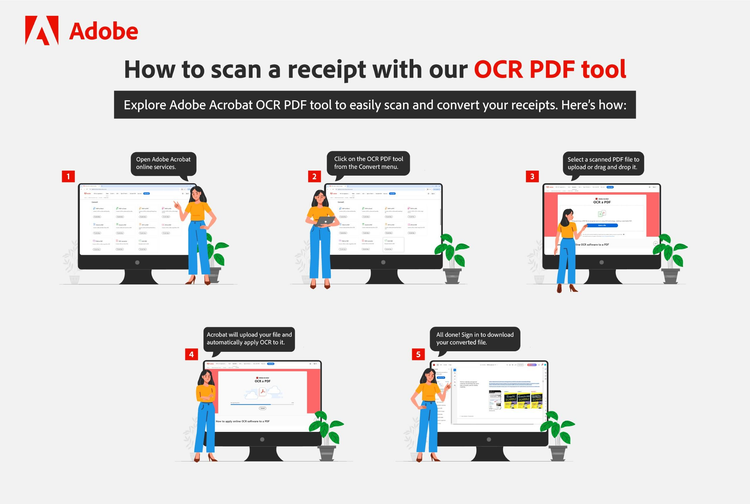
Using the Adobe Acrobat OCR PDF tool, you can easily scan and convert your receipts. Here’s how:
- Open Adobe Acrobat online services and navigate to the OCR PDF tool from the Convert menu.
- Select a scanned PDF file to upload or drag and drop it.
- Allow Acrobat to upload your file and use OCR to recognise the text within.
- Once done, sign in to download your converted file.


Adobe Acrobat
Easily edit your scanned PDF documents with OCR.
With optical character recognition (OCR) in Adobe Acrobat, you can extract text and convert scanned documents into editable, searchable PDF files instantly.
How does an OCR PDF tool scan a receipt?
OCR technology converts printed text into digital text, making it easier to store, search for, and manage your receipts. Here’s how the process works:
- Image capture: A scanner, a smartphone camera, or both can be used to save a clear photo of the receipt.
- Text recognition: The OCR software first analyses the image, then identifies the characters, converting them into digital text.
- Data storage: The extracted text is then stored as a PDF or in any other digital format, making it easy to search, copy, and perform other operations later.
This technology improves the usability of scanned documents, allowing you to quickly find specific information and perform tasks like copying text or searching for keywords.
Benefits of using Adobe Acrobat OCR PDF tool to scan receipts.
Using Adobe Acrobat's OCR PDF tool offers several advantages:
Saves time: This software allows you to convert receipts into a digital format (PDF documents or other formats) quickly, saving time and effort.
Reduces errors: By recognising text and numbers, this tool helps minimise mistakes in extracted figures, ensuring reliable records.
Increases accessibility: It enables access to scanned receipts from the cloud at any time and from anywhere.
Manages finances: You can use electronic records to simplify financial management activities such as tracking expenses, budgeting, and tax preparation.
Advanced features of the OCR PDF tool.
You can achieve a lot by using OCR technology. The Acrobat OCR PDF tool offers advanced functions for improving the management and usability of scanned receipts:
Searchable PDFs: This feature allows you to search for specific information displayed on scanned receipts.
Reordering pages: You can better organise multi-page receipts by combining PDF files to consolidate numerous receipts into one location for more efficient storage.
Converting files: Easily change different types of documents to PDFs for consistent, easy-to-access information.
Frequently asked questions.
What types of receipts can be scanned with the OCR PDF tool?
OCR PDF tools can scan various types of receipts, including printed receipts from stores, e-receipts, and even handwritten receipts. The accuracy may vary for handwritten text.
Why does OCR not recognise my text?
In some cases, the OCR PDF tool might not be able to recognise your text due to poor quality scans, illegible handwriting, or scripts that it does not work with, like Indian languages.
How to scan a receipt with an iPhone?
To scan a receipt with an iPhone:
- Download Adobe Acrobat Reader: Acrobat Reader allows you to edit PDFs seamlessly or convert images into PDF and then use them further.
- Launch the app and capture the receipt: Take a snapshot of the receipt using your phone's camera.
- Save as PDF: Through the OCR technology integrated in the app, the scanner will convert such scanned images into a searchable PDF.
Why has the text become garbled when editing a scanned PDF in Acrobat?
Sometimes your text may appear garbled as it is not properly embedded in the PDF or registered. In such cases, the PDF tool tries to look for local texts which turns the text garbled. To avoid or rectify this, follow the steps:
- Open your PDF document using Adobe Acrobat.
- Navigate to Tools > Edit > Scanned Documents > Settings.
- You can deselect the 'Use available system font option and prevent Acrobat from detecting local scripts.
- Click on OK to save.
Keep exploring
https://main--dc--adobecom.hlx.live/dc-shared/fragments/seo-articles/seo-caas-collection