Adobe Acrobat
How to write an executive summary with AI.
Learn how to write an effective executive summary using AI. Whether it’s for a project report, business plan, or client proposal, you can leverage Adobe AI technology to help you create polished, professional reports in minutes.

https://main--dc--adobecom.aem.live/dc-shared/fragments/promo-banners/acrobat-studio
Published by Adobe Acrobat India on 5 Janury 2026
JUMP TO SECTION
What is the purpose of an executive summary?
Where is the executive summary placed in a report?
Executive summary vs. abstract: What’s the difference?
Format and structure of an executive summary
How to write an executive summary using AI
An executive summary is often the first (and sometimes the only) part of a report that busy readers look at. Because it highlights the main goals, insights, and recommendations, it plays a crucial role in helping people quickly understand the essence of your project or business plan.
Where small businesses, startups, and freelancers regularly prepare proposals, tenders, and project reports, writing a well-structured executive summary can make all the difference.
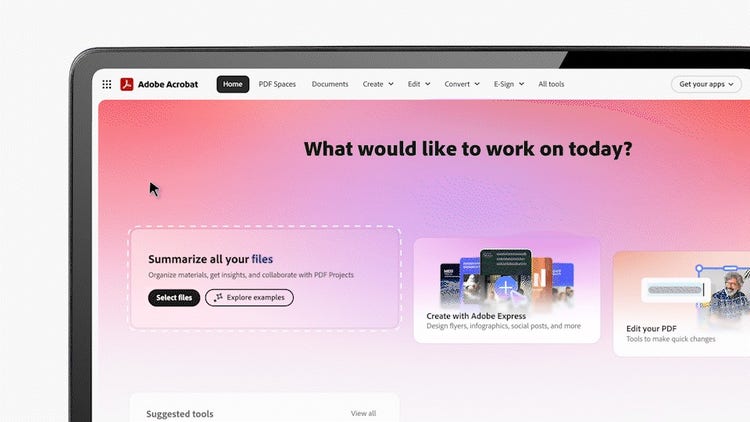
However, creating one can be tricky, especially when you’re trying to be concise without losing impact. That’s where Adobe Acrobat Studio can help. It assists in automatically summarising lengthy reports, polishing your writing, and ensuring your summary sounds clear and professional.
In this guide, we’ll explore what an executive summary is, its purpose and placement, the ideal format, and how AI can make the process faster and more effective.
What is an executive summary?
An executive summary is a concise overview of a business proposal, report, or project. It gives readers a clear picture of its key points: the problem, proposed solution, key findings, analysis, and recommendations. In a business plan, it might explain the company’s goals, market opportunities, and growth strategy. In a project report, it summarises objectives, timelines, and outcomes.
What is the purpose of an executive summary?
The main goal of an executive summary is to provide a quick yet comprehensive understanding of what the document covers and help readers gain a comprehensive overview of the full report, even without the need to go through every page. In India’s fast-paced industries like IT services, startups, or consulting, an executive summary can help save valuable time, make sure important information is communicated effectively, and build confidence in your projects.
Where is the executive summary placed in a report?
An executive summary usually appears at the very beginning of a report, right after the title page and before the table of contents. This placement ensures that readers can quickly grasp the overall message before diving into the detailed sections. Some shorter documents may integrate it directly into the introduction, but in professional or client-facing reports, a standalone executive summary is the norm and is preferred. The goal is accessibility: it should be the first thing readers see.
Executive summary vs. abstract: What’s the difference?
Although both an executive summary and an abstract provide condensed versions of longer documents, they serve different purposes.
An abstract is typically used in academic or research settings and focuses on providing a concise encapsulation of a study’s objective, methodology, and results. It’s largely informational and is limited to around 100-300 words.
An executive summary, on the other hand, not only summarises findings but also outlines next steps, business implications, or proposed actions. It aims to influence decision-making and drive action, and it can run 1-2 pages long.
Format and structure of an executive summary.
A well-structured executive summary typically follows a logical flow that mirrors the main report, allowing readers to connect each section easily. Here’s a breakdown of what to include:
- Purpose or background.
Start by explaining why the report was created. Mention the project’s objective or the issue it addresses. For example, if it’s a market analysis, describe the goal of understanding customer trends or improving business performance. This section sets the context and helps the reader understand why the report matters. - Key findings or analysis.
Summarise the most important discoveries, metrics, or insights without diving into data-heavy details. Highlight what your analysis revealed, such as performance results, survey outcomes, or research conclusions. Keep it factual, relevant, and focused on results that matter. - Recommendations or next steps.
Outline your action plans, process improvements, or strategic initiatives. The goal is to guide readers toward a clear direction or decision, making your summary actionable rather than purely informative. - Conclusion.
End with a concise summary that reinforces the main takeaway. This can be a brief statement of expected outcomes, benefits, or overall significance that boosts confidence in your analysis and recommendations.
How to write an executive summary using AI.
Artificial intelligence is transforming how professionals and small businesses create, edit, and polish reports. Instead of starting from a blank page, AI tools like Adobe Acrobat Studio’s PDF Spaces and AI Assistant can help you quickly generate high-quality executive summaries that are accurate, consistent, and tailored to your audience. Here's a quick workflow on how:
Step 1: Organise your files in PDF Spaces.
Upload all your reports, financial documents, or proposals into PDF Spaces. This keeps everything in one place and helps AI Assistant quickly access all relevant information. Once uploaded, AI Assistant can analyse all the content across your PDFs, identify the most important points, and use them to generate a coherent, well-structured summary.
Step 2: Ask AI Assistant to create a draft summary.
After your documents are in place, you can interact directly with AI Assistant. Use a simple prompt like “Create a one-page executive summary for this project report” or “Summarise key findings and recommendations for the business plan.”
The AI Assistant will instantly draft a professional, easy-to-read summary that highlights your report’s purpose, main findings, and next steps. You can also refine the tone to sound formal for investors, persuasive for clients, or neutral for internal updates.
Try Acrobat AI Assistant with these sample prompts.
Step 3: Refine and personalise your summary.
Review the AI-generated summary and tweak the tone or details accordingly. Remember that while AI can take a major chunk of the work off your hands, it is still important to review, proofread, and make sure all the details of your report are correct.
Step 4: Polish your presentation in Adobe Express.
Copy and paste your final summary into a professional Adobe Express executive summary slide template to ensure that your final document is not only accurate, but also professionally formatted and visually appealing. You can customise to add your branding, visuals, or charts and then export as a clean, ready-to-share PDF file. You can also explore other templates for business reports, business plans, proposals, and other relevant documents.
Step 5: Review, sign, and share.
Give your executive summary a final check, then make it official by adding signatures. With Fill & Sign, you can sign directly in the PDF and forego the hassle of printing or scanning. It is ideal for internal approvals, progress reports, or quick document sign-offs.
For formal submissions or agreements, the e-signature feature can help you to request and track signatures from others digitally. You can send your completed executive summary or report to team members, clients, or partners, and they can sign it from any device for faster turnarounds. This is particularly useful as more professionals in India are switching to digital spaces for remote collaboration.
The best part is that these tools are readily accessible online, no need to download any software. Simply sign in to your account, upload your PDF, fill out essential fields, attach your signature, and then download your new file. It’s that easy.
Try our online tools to enhance your PDF.

Easily update text, images, and links in your PDF.
--- #b6b6b6

Trim PDF pages to the perfect size or layout.
--- #b6b6b6
https://main--dc--adobecom.hlx.live/dc-shared/assets/images/product-icons/frictionless-svg/number-pdf-pages.svg | Number PDF pages Number PDF pages

Add page numbers for clarity and order.
--- #b6b6b6

Add passwords and permissions to secure your PDFs.
--- #b6b6b6
Tips for a professional and polished executive summary.
To make your executive summary stand out, follow these best practices:
- Keep it short and impactful. Aim for one page or less.
- Write it last. Draft your summary after finishing the full report so you can capture the key takeaways accurately.
- Focus on clarity. Avoid technical language unless your audience is familiar with it.
- Tailor it to your audience. Emphasise results and insights relevant to clients, investors, or internal stakeholders.
- Leverage AI to your advantage. Utilise it to create drafts and check for grammar, tone, and readability.
Frequently asked questions.
More resources