https://main--cc--adobecom.aem.live/cc-shared/assets/img/firefly.svg Adobe Firefly

Create light academia art with Generate Image in Adobe Firefly.
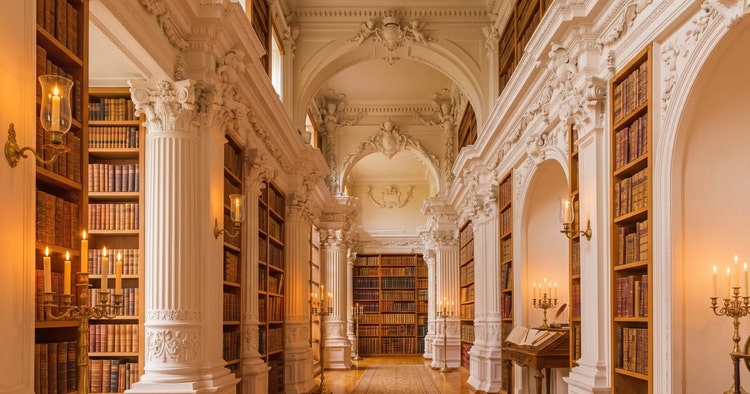
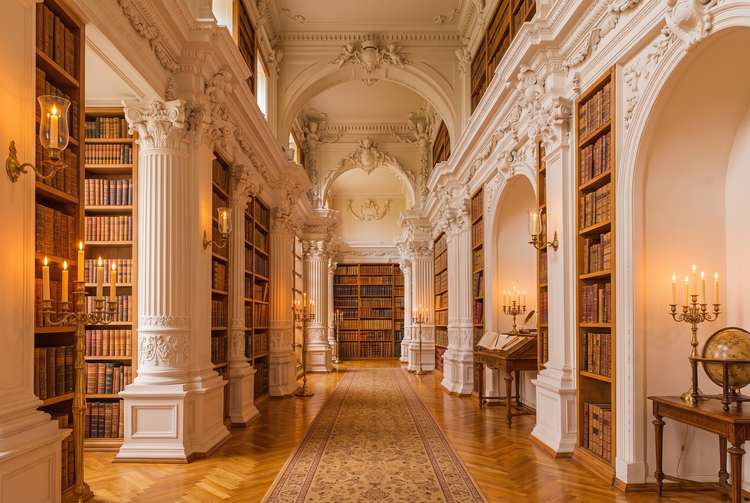
Translate your aesthetic vision into finished images. Describe candlelit libraries, aged manuscript textures, and classical archways, and Adobe Firefly will generate art that captures the warmth and scholarly atmosphere of light academia.
- image
- Describe a scene, a mood, a texture, or a style.
- Adobe Generative AI Terms
- https://main--cc--adobecom.aem.live/creativecloud/animation/testdoc/unity/generate.svgGenerate
- Describe the light academia image you want to generate
- Prompt
- Tip
- Unable to process the request
- Please describe what you want to generate.
- Prompt exceeds the max length of 750 characters
- lightAcademiaAesthetic

https://main--cc--adobecom.aem.live/cc-shared/assets/img/product-icons/svg/firefly-80.svg

Adobe Firefly
The next evolution of creative AI is here for all your ideas, with image, video, audio, and vector tools.
Generate light academia art from a text description.
Light academia is a visual style built on warmth, texture, and quiet intellectual atmosphere. With Generate Image in Firefly, you can create any image, from honey-toned, candlelit interiors to weathered parchment or carved stone archways.
Capture the aesthetic with precise prompts.
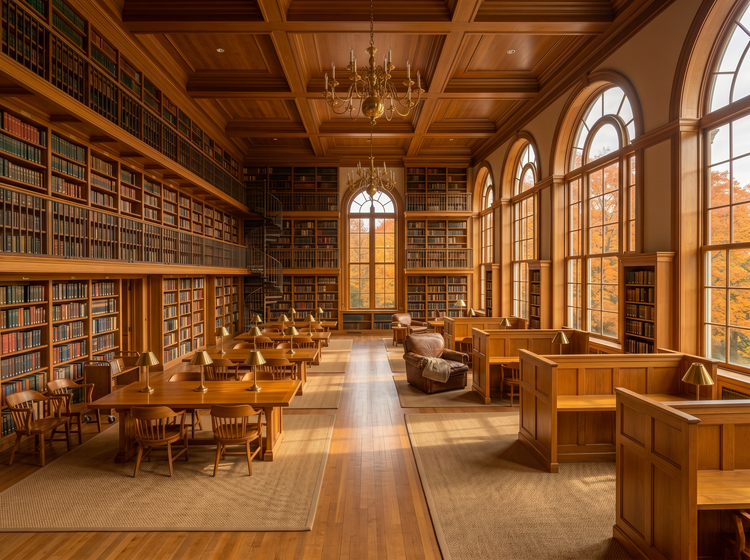
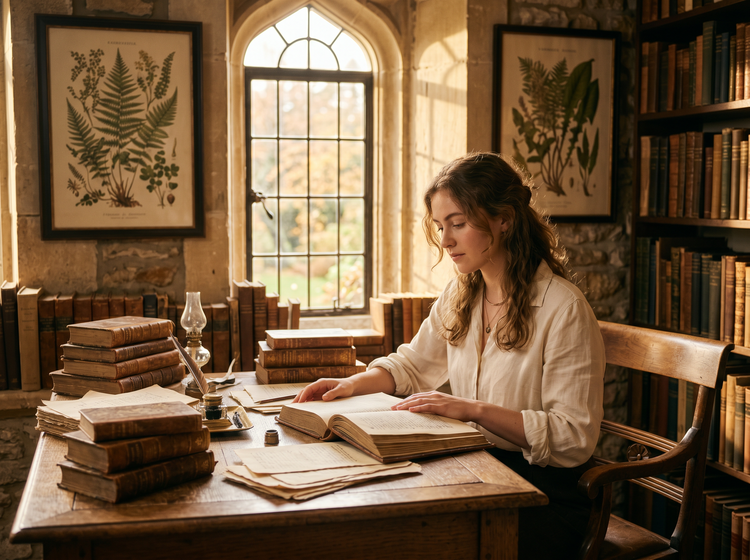
With a detailed description, you can generate outputs that feel true to the light academia style. Try phrases like “candlelit library with oak shelves,” “aged manuscript textures with faded ink,” “muted gold and sepia palette,” or “classical column archways in warm afternoon light.” Layer atmosphere, texture, and color direction, and reference specific moods, materials, and settings to produce images that match your vision.
Refine until every detail is right.
Adjust your prompt between generations to shift the color temperature warmer, deepen a shadow, or bring more texture into the foreground. You can also use the image editing tools in Adobe Firefly to fine-tune specific areas of your result, adjusting composition and atmosphere without starting over.
Take your light academia art further.
Once you have a result you’re happy with, you can continue developing it across the full Adobe Firefly creative studio. Expand the canvas, swap out backgrounds, or layer in additional elements using generative editing tools. From a first prompt to a polished, finished piece, you can move through ideation, generation, and refinement in one place, without switching between tools or losing your creative momentum.
How to generate light academia art with Adobe Firefly.
Step 1
Open Adobe Firefly.
Step 2
Write a descriptive prompt.
Step 3
Select your style settings.
Step 4
Generate and review your results.
Step 5
Download and use your artwork.
- How to generate light academia art with Adobe Firefly.
- Steps on how to generate light academia aesthetic art using Adobe Firefly Generate Image.
- PT5M
- firefly

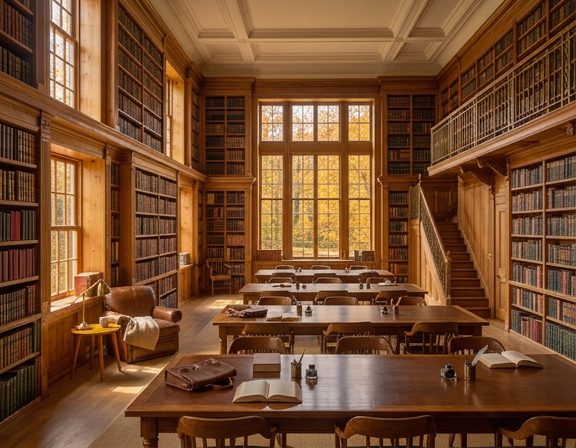
Deep style vocabulary
Adobe Firefly understands nuanced aesthetic language. Describe lighting, texture, material, and atmosphere in the same prompt, and Firefly will compose them into a cohesive result.
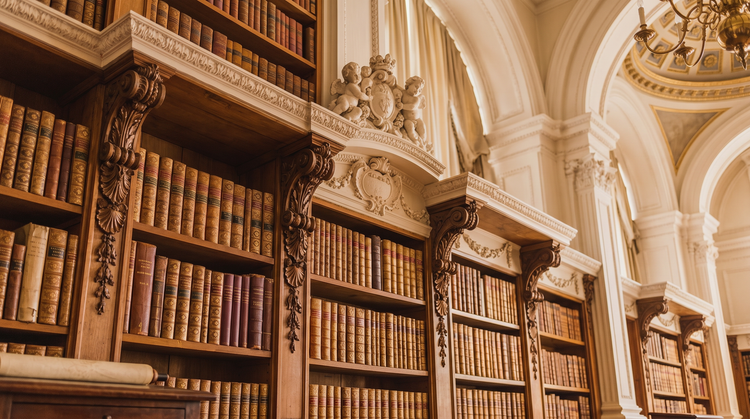
Top AI models in one place
Adobe Firefly brings together its own models and top partner models in a single creative studio. Switch between models to explore different interpretations of your prompt, from soft painterly outputs to sharper editorial results, all without leaving the workspace.
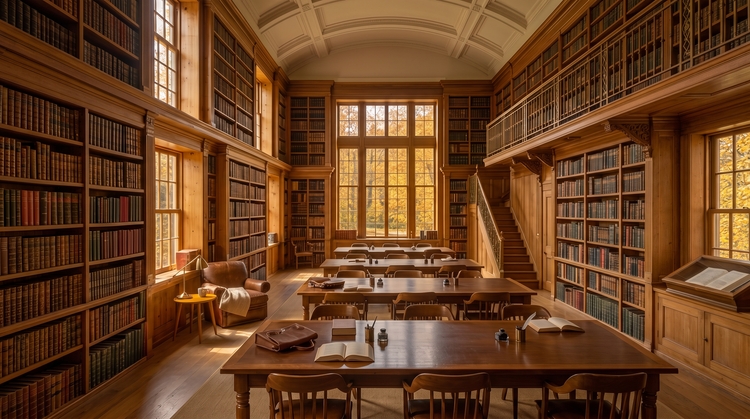
Precision editing tools
Generation is the first step. Use the built-in editing tools to refine specific areas of your image, adjust backgrounds, or expand the canvas. You can keep working until the result matches your vision exactly.
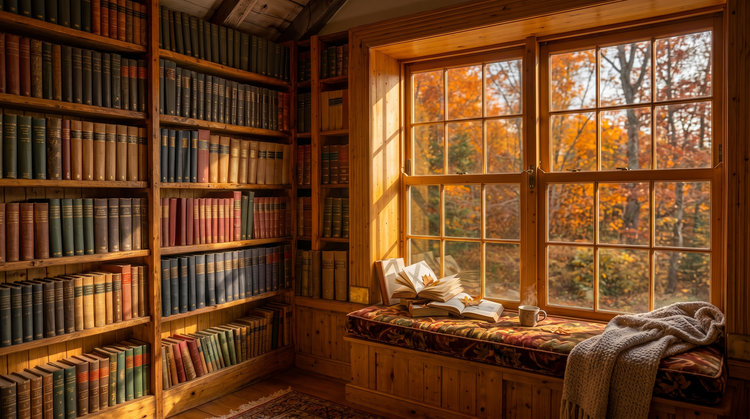
Seamless integration
Your generations move easily into the rest of your creative workflow. Open your light academia art in Adobe Photoshop on the web for detailed retouching, or bring it into Adobe Express to use in templates and social layouts.
Questions? We have answers.
What prompts work best for generating light academia images in Adobe Firefly?
Can I use Adobe Firefly light academia images for commercial projects?
How do I get the warm candlelit color palette in the Adobe Firefly Generate Image tool?
What is the light academia aesthetic?
What’s the difference between light academia and dark academia art?
What art styles work well for light academia images?
What can I use light academia art for?
Is Adobe Firefly free to use?
Do I need an art background to generate light academia images?
Can I generate other aesthetic styles in Adobe Firefly?
Share this page.