https://main--cc--adobecom.aem.live/cc-shared/assets/img/firefly.svg Adobe Firefly

Free AI video editor tools built for creators.
Brainstorm new video ideas, move into story creation, and finish with editing and assembly with AI. Whether you need a quick result or detailed control, you can go from idea to finished video with Firefly.

https://main--cc--adobecom.aem.live/cc-shared/assets/svg/s2-icon-upload-20-n.svg Upload your video

Or tap here
File must be MP4 or MOV, less than 200MB, and 5–20 seconds.
By uploading your image or video, you agree to the Adobe Terms of Use and Privacy Policy and confirm you are 18 years of age or older.

https://main--cc--adobecom.aem.live/cc-shared/assets/svg/s2-icon-upload-20-n.svg Upload your video
Or tap here
File must be MP4 or MOV, less than 200MB, and 5–20 seconds.
By uploading your image or video, you agree to the Adobe Terms of Use and Privacy Policy and confirm you are 18 years of age or older.

https://main--cc--adobecom.aem.live/cc-shared/assets/svg/s2-icon-upload-20-n.svg Upload your video
Or drag and drop here
File must be MP4 or MOV, less than 200MB, and 5–20 seconds.
By uploading your image or video, you agree to the Adobe Terms of Use and Privacy Policy and confirm you are 18 years of age or older.
- Your media must be smaller than 200MB. Please upload a new file.
- Unable to process the request
- Your media must be a mov or mp4 file type. Please upload a new file.
- Only one file can be uploaded at a time.
- Your media must be at least 5 seconds long. Please upload a new file.
- Your media must be no more than 20 seconds long. Please upload a new file.

https://main--cc--adobecom.aem.live/cc-shared/assets/img/product-icons/svg/firefly-80.svg
Adobe Firefly
https://main--cc--adobecom.aem.live/cc-shared/assets/img/product-icons/svg/firefly-80.svg
Adobe Firefly
The next evolution of creative AI is here for all your ideas, with image, video, audio, and vector tools.
What are the Al video editor tools in Firefly?
Discover video ideas and use cases with Quick Actions. Build a complete story scene by scene, then bring it to life in the Firefly video editor. Or jump straight from Quick Actions into the editor for a quick, polished result.
Prompt to edit video with AI.
Create a video with generative AI and use plain language to make edits in the Edit tab of the Generate Video module. Add or remove objects or change backgrounds to take your video from almost there to picture perfect.

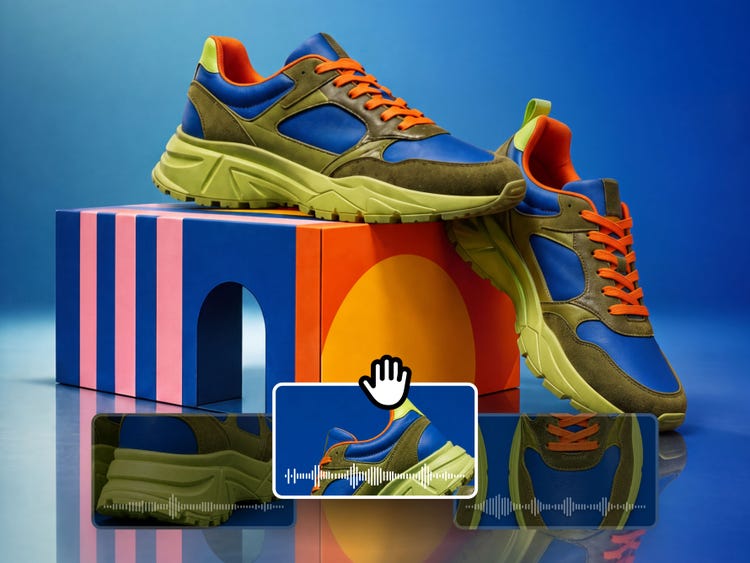
Refine any frame, fast.
Take the video you generated in Quick Actions and then trim, reorder, or regenerate any frame with editing tools, all in Firefly.
Drag and drop video editing.
A simplified timeline lets anyone arrange, preview, and edit clips. Go from raw assets to a finished video faster with Firefly editing tools.
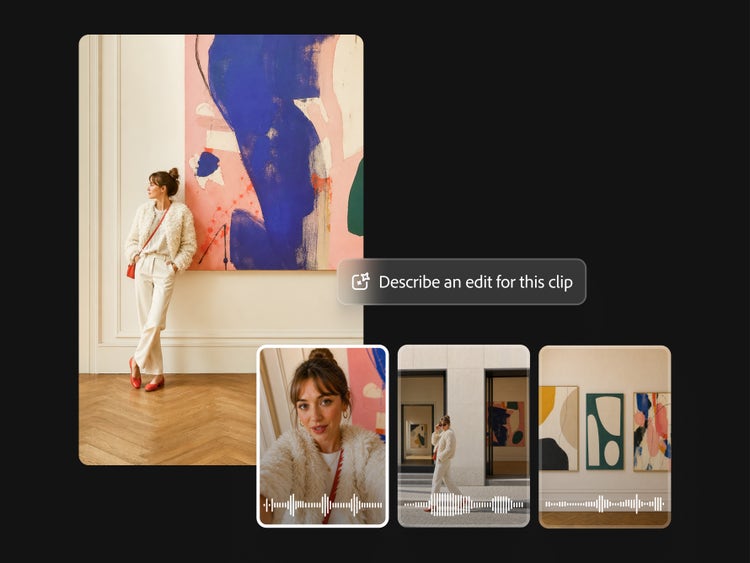

Enhance audio and make color adjustments.
In the AI video editor, you can clarify dialog and balance levels across speech, music, and ambience with Enhance Audio. And there’s no need for a separate color changer. Quickly adjust exposure, contrast, saturation, and temperature using simple sliders, or try one-click looks for quick enhancements.
Drop in a new scene and refine it with the AI video editor.
In the Firefly video editor, any video you’ve generated in Firefly will appear in your Generation History, so it’s easy to add to your timeline. You can also generate new scenes in the video editor and edit them together to create finished stories.
- Edit different types of social media video formats (vertical, square, horizontal).
- Create interview and podcast cuts using Text-Based Editing.
- Integrate B-roll quickly into product reviews and tutorials.


Level up your demos, tutorials, and training videos.
From initial idea to final cut, build the compelling video content you need with the AI video editor. Experiment with partner models, including Kling 3.0, a powerful AI video generator that’s ideal for fast, high-quality video production.
How to use the AI video editor tools in Adobe Firefly.
Step 1
Open Adobe Firefly.
Step 2
Select a Quick Action and start creating.
Step 3
Assemble your footage.
Step 4
Refine in the Firefly video editor.
Step 5
Preview, adjust, and export.
- How to use the AI video editor tools in Adobe Firefly.
- Steps on how to use the AI video editor tools in Adobe Firefly.
- PT5M
- firefly
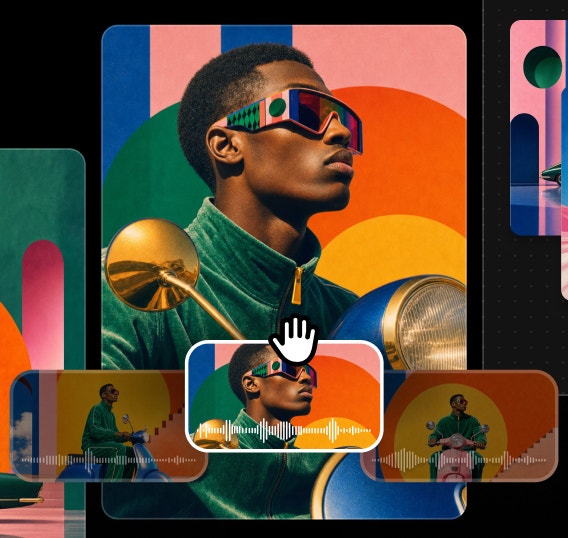
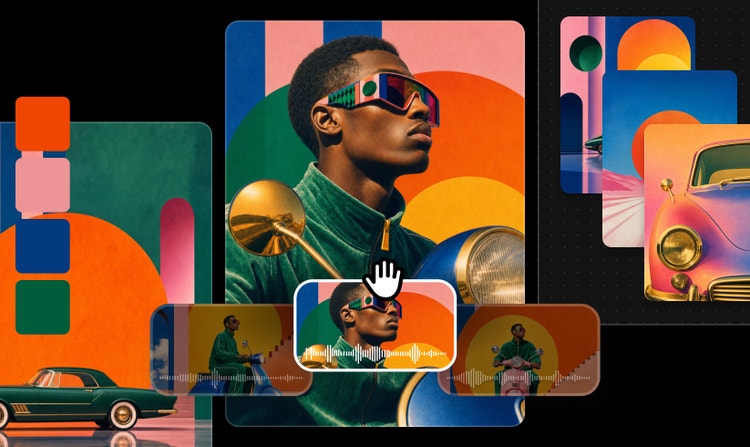
All the tools you need in a single app
Firefly offers both prompt-based AI video editing and timeline-based tools, allowing you to create, refine, and rearrange content without switching platforms.
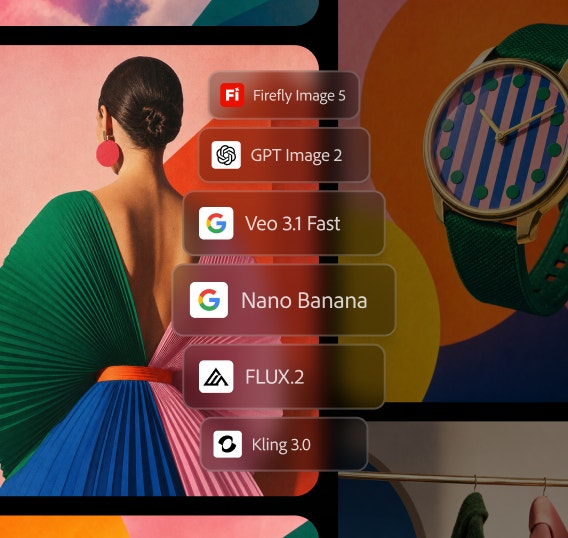
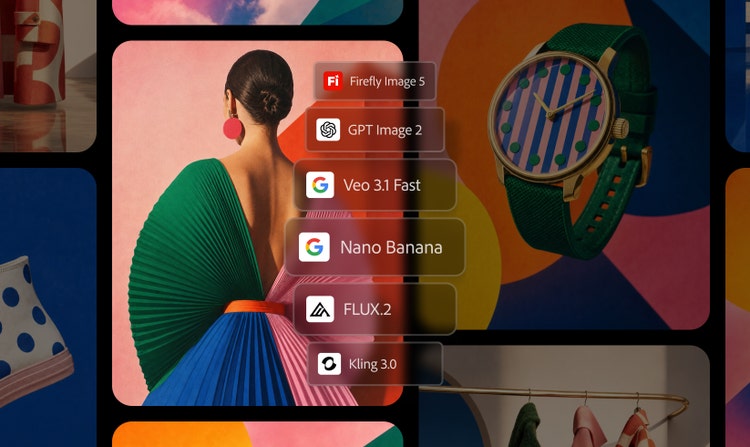
Multiple AI models
Access leading video models in one place, compare outputs, and refine results faster — giving you more creative flexibility than standalone tools.
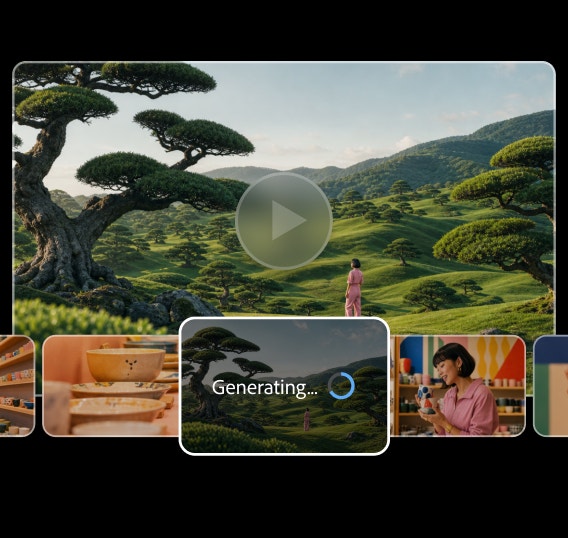
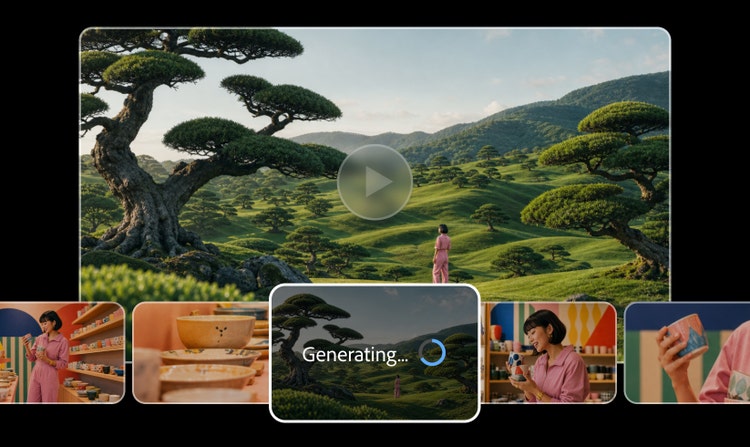
Built for creators
Create with ease, move fast, or refine every detail when precision matters. Firefly gives you the quality, speed, and flexibility to create your way, without complexity.
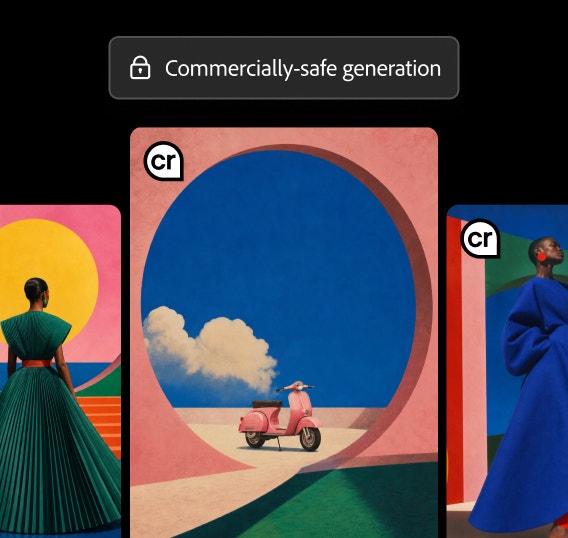
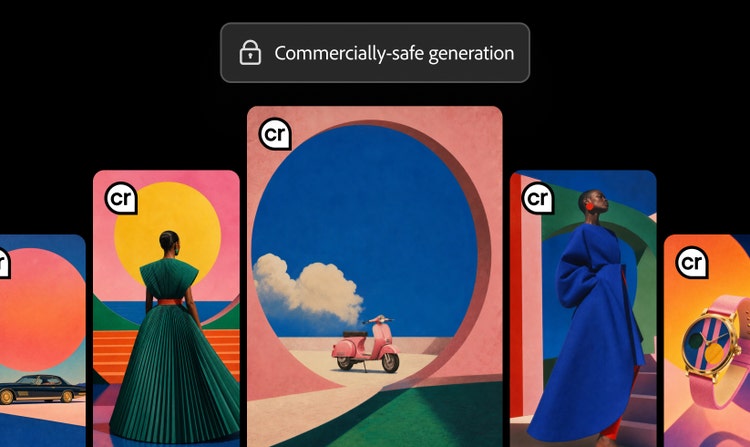
Your creation remains yours
Firefly models are trained on licensed and public-domain content, so you can use them for marketing, client work, and business projects.
See what else you can do in Firefly.


Discover even more features.
Questions? We have answers.
What is an AI video editor?
What AI video editing capabilities are included in Adobe Firefly?
Adobe Firefly offers two options for editing videos with AI:
- In the Edit tab of Generate Video, you can upscale your video or write a prompt to guide edits. This includes scene-aware video transformations: You can change characters, costumes, and objects, or redirect action in your scene using text prompts, first and last frames, and character references.
- In the timeline-based Adobe Firefly video editor (currently in beta and available on desktop), you can trim and arrange clips and generate video and audio directly within the editing workflow. You also have access to your Adobe Firefly generation history, making it easy to bring together generated video, images, voice, and soundtracks. Text templates and editable text properties are available as well for creating more compelling content.
How do I go from an idea to a finished video in Adobe Firefly?
When should I use quick assembly versus more advanced editing?
Do I need video editing experience to use the AI video editor tools in Adobe Firefly?
On what devices can I use the Adobe Firefly video editor?
The Adobe Firefly Video Model (for video generation and prompt-based editing) is available on desktop browsers at firefly.adobe.com and on the Adobe Firefly mobile app for iOS and Android. You can generate video clips using Text to Video and Image to Video from your phone or computer, and your creations sync across devices through Generation History.
The Adobe Firefly video editor is currently available only on desktop (macOS and Windows) using the Chrome browser. Other browsers like Edge, Firefox, and Safari may not support all features yet.
What types of videos can I make with the Adobe Firefly AI video editor?
Can I use the videos I create with the Adobe Firefly AI video editor in commercial projects?
Can I generate new video clips in the Adobe Firefly video editor?
There are two ways to generate new video clips:
- Generate Video: Use Text to Video or Image to Video in the Adobe Firefly web app to generate clips, then access them in the Generation History panel.
- Generate Media panel in the video editor: Open the Generate Media panel directly within the editor, enter a text prompt, and add your new clip straight to the timeline without leaving your workspace. Both methods produce video clips you can drag and drop or export into your project.
Is the AI video generator free to use?
What is the best AI video editor?
Share this page
Explore more Firefly tools.
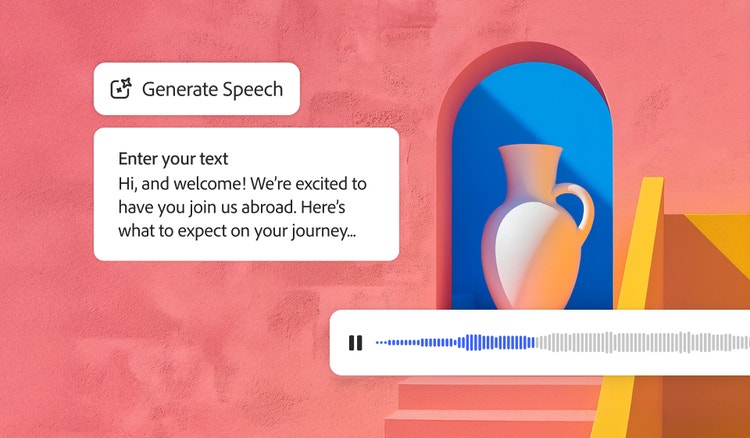
Generate Speech
Quickly turn text into natural-sounding speech for videos, podcasts, and eLearning. Add realistic, high-quality voices in 20+ languages with customizable emotion, pacing, and emphasis with AI text to speech.

Generate Soundtrack
Generate Soundtrack analyzes your video to match your story and compose custom, emotionally rich music for every platform. Go from ideas to tracks instantly with Firefly’s AI music generator — licensed to use anywhere.

Generate Sound Effects
Imagine any sound effect and create it with Generate Sound Effects. Describe the effect, upload reference audio, or act it out into your mic — then easily add your high-quality effect to any video.

Avatar Generator
Create a studio-grade video featuring an engaging, lifelike avatar with Text to Avatar. It’s fast, easy, and always safe for commercial use. Perfect for business, education, or social media content.