ACROBAT | 6-MINUTE READ
PowerPoint meaning and tips to create one.
Learn more about PPT, including the pros and cons of the programme.
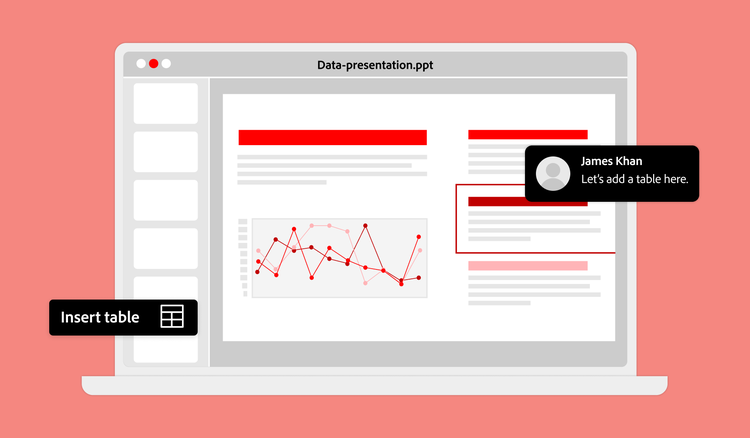

PPT, also known as a PowerPoint presentation, is presentation software built by Microsoft. This design tool helps users to communicate a specific idea, whether in a professional, academic or casual environment. It’s easy to create captivating, engaging multimedia presentations with this handy software tool.
Here’s how you can make the most of a .PPT file, including the basic features of the programme.
What is PPT?
Have you ever typed “PPT meaning” in your search browser? The abbreviated term refers to the PowerPoint programme within the Microsoft Office Suite, which also includes Microsoft Word and Excel. So, what is a PowerPoint, exactly?It’s an intuitive presentation software that contains graphic design tools and other slideshow features. Users can create beautiful presentations with captivating visuals with effective text and data to support a user’s messaging.
A PPT is used in schools, offices, community groups and other personal environments to craft an effective multimedia presentation. Every new software update contains more design-friendly, creative, interactive and customisable features to suit a user’s needs. The software contains tools like images, text, animations, sound clips and other digital objects.
PowerPoint also allows multiple users to co-create and co-author files simultaneously. Whether off-line or online, colleagues and peers can work together or separately on the same .PPT file to maximise collaborative power. With multiple users authorised to edit and create in the same file, the PowerPoint can be easily updated from anywhere at any time. Also, PowerPoint can be converted into a PDF file, which can help secure consistent formatting across different devices and operating systems.
How to create, open or edit a .PPT file.
Creating a PowerPoint presentation is simple and intuitive for almost all users. The programme contains templates, easy-to-use design features and other handy tools.
Create a .PPT file by opening PowerPoint in the Microsoft Office Suite. After opening the software, select Blank Presentation. Then, start writing text on the slide or choose animations or graphics to insert. To add additional slides, click New Slide.
Above all else, remember to save and name your presentation. You can enable the AutoSave feature by opening File > Options > Save and selecting Save AutoRecover information every X minutes. After you set your preferred time interval, the programme will save your changes appropriately.
The software also has fantastic visual design tools to elevate a basic presentation. When viewing different design themes, you can view a preview of the theme and choose different colour variations to better suit your interests. Themes feature complementary colours, fonts and special effects to provide a visually appealing design. A theme can call attention to graphics, charts and other data to secure the attention of your audience.
If you don’t know where or how to start your presentation, try one of the provided templates in a prepared design format. Also, if you already have some PowerPoint ideas within a PDF, Adobe Acrobat can convert that PDF to PPT.That way, you don’t have to rewrite or start the PowerPoint from scratch.
Another special feature of the PowerPoint software is the Insert tab, where you can add additional design elements like pictures or shapes. You can select pictures from the image selection or search for illustrations, such as icons, charts or shapes. Once the dialogue box opens, you can search through the pictures and illustrations and follow the prompts to insert them.
Pro tip: Looking for a specific PowerPoint tool? Type in the Search box at the top of the .PPT file to find creative PowerPoint commands or browse the Internet for answers.
Pros and cons of .PPT files.
PowerPoint is a comprehensive design tool with pros and cons depending on how you plan to use the software.

Multipurpose .
PowerPoint is a powerful tool that’s applicable for multiple purposes, whether academic, business or personal. It’s also customisable to several industries, like finance, entertainment, tech, non-profit and others. Its versatility makes it a widely popular software that’s available in almost every office environment.

Design-friendly .
PowerPoint has several design capabilities, so users can creatively elevate their presentations with charts, graphs, images, audio clips and animation in addition to text. These design elements enhance your presentation and complement a user’s text to communicate a more comprehensive story. PowerPoint can easily depict growth or downturn, such as in sales, students’ grades or donation funds.

More than presentations .
PowerPoint can do more than create presentations. It has the power to create business proposals, design storyboards or user interface designs.

Distracting animations .
PowerPoint has dozens of available tools and features and users easily go overboard with design elements. Avoid adding numerous animations, transitions or sound bites that distract your audience from the core point of your presentation.

Risk of inconsistency across devices .
Even though PowerPoint is compatible with multiple operating systems, the programme runs best on a Windows operating device. So, there’s a small chance that an advanced design element may not function on a different operating system. To ensure consistency across devices, consider converting the PPT to PDF, which can also be password-protected.

Larger file sizes .
PowerPoints can easily become large files. A .PPT file with multiple audio, visuals and other graphics can mass a large amount of data, which may make it slow or prone to lag.
The difference between .PPT and .PPTX.
The PowerPoint presentation software was developed by Microsoft and supports the .PPT and .PPTX file extensions. The PPT file is the original file format released by Microsoft in 1987 and is available for use on Microsoft Windows and Mac operating systems.
PPTX was designed to combat the large file sizes commonly associated with PowerPoint. It’s an XML-based structure equipped with ZIP compression to minimise the file’s data size. PPTX was first introduced in 2007 and is compatible with earlier versions of PowerPoint. Even though both files are equipped with the standard PowerPoint features, PPTX is a better choice for more detailed presentations.
You’ll also come across a .PPS and .PPSX file format, which bars any viewers from editing access, but they can still interact with the presentation’s content. It’s available in view-only mode and the presentation will automatically start and transition once the file is opened.
Frequently asked questions.
PowerPoint files (PPT) can be used for a range of purposes.
PPT is often used in education, for teachers presenting in-person or remote courses, and for students working on assignments — both may need to know how to cite a PPT to support their research.
PowerPoint files are also common in corporate or professional settings, for communicating training, sales reports or internal updates. Marketing teams often use PowerPoint with graphs or charts to share sales and lead-generation data, and many professionals use it to present business proposals or sales materials.
PowerPoint is generally considered intuitive to use, making it popular for personal projects too — such as putting together family photos, a digital portfolio, or a travel itinerary.
Beyond PowerPoint, there are a few categories to consider. Cloud-based presentation tools let multiple people edit the same file at once in a browser. Open-source office suites can offer a downloadable alternative, often at no cost, with similar slide-building features. There are also design-focused platforms like Adobe Express, which offer templates and drag-and-drop layouts rather than traditional slide structures.
If real-time collaboration matters most, cloud-based tools are often worth considering. If cost is the priority, open-source options are worth exploring. And if visual impact matters most, design-led platforms can be a good fit.
Converting a PPT to PDF is generally the more straightforward route, since Acrobat's online tool lets you upload the file and download a PDF version within seconds, keeping the layout in place.
Moving to Google Slides works a little differently — you'll need to upload the PPT to Google Drive, open it, then select File > Save as Google Slides. Both routes keep your original file intact, so you're not editing the source version directly.
File compression and image compression tend to make the biggest difference to loading speed. Acrobat offers a few compression levels depending on how you're using the file:
- High quality, for presenting in person
- A middle option, for internet use
- The lowest setting, for emailing your deck
A lower setting typically won't noticeably affect image quality, though it's worth checking the result still looks presentation-ready afterwards.
Beyond images, removing any 3D models, unused slide masters, or excessive animations can trim further weight from the file — 3D models are often especially heavy, so swapping them for a static image can free up considerable space.
Unused slide masters and layouts sit hidden in the background, so clearing them out under View > Slide Master can reduce the file size further without affecting your visible slides.
You can try troubleshooting a PPT file that won't open using the following methods:
- Check whether the file is blocked — Windows sometimes flags downloads as unsafe. Right-click the file, open Properties, and select Unblock if the option appears. This can happen with files from email attachments or unfamiliar websites, even when the file itself is fine.
- Launch PowerPoint in Safe Mode by holding Ctrl while opening it, which disables add-ins that might be interfering. If the presentation opens fine in Safe Mode, an add-in is likely the cause.
- Update PowerPoint via File > Account > Update Options, since outdated versions can sometimes struggle with certain files — this is particularly common after Windows upgrades.
You may be able to recover a corrupted PPT file using the following methods:
- Start with PowerPoint's built-in Open and Repair feature. Select File > Open, choose the damaged file, then click the dropdown arrow next to Open. This scans the file structure and recovers what's still intact, often restoring the presentation within seconds.
- Check whether a previous version of the PPT exists by right-clicking the file, selecting Properties, then Previous Versions — this relies on Windows having saved earlier snapshots automatically.
- As a last resort, third-party repair tools can attempt to rebuild the file structure and recover slides that manual methods can't reach, including text, images and embedded charts from more severely damaged files.
Keep exploring