ACROBAT | 6-MINUTE READ
How to delete a blank page in Word.
Learn how to delete a blank page in Word with some keyboard shortcuts.


Whether it’s in a long research paper or a holiday itinerary, sometimes that extra blank page at the end of your copy just won’t disappear.
Even though the task sounds self-explanatory, deleting a blank page in Word can be difficult depending on your device, formatting settings or how the document was created. Hidden paragraph marks, section breaks or layout issues can all contribute to the problem.
Thankfully, you can try a few foolproof methods for both Mac and Windows to end your extra page struggle — whether you’re cleaning up a document for print, sharing it as a PDF or combining multiple Word files.
How to delete a page in a Word file.
Deleting a page in Word is usually straightforward, but it depends on whether the page contains text, images or formatting elements.
If you’re trying to remove a page with content, the key is selecting everything on that page and deleting it fully.
Here’s how to do it:
- Place your cursor at the beginning of the page you want to delete.
- Click and drag your mouse to highlight all of the content on that page.
- Press Delete (or Backspace on Mac) on your keyboard.
How to delete a blank page in Word.
Learning how to delete pages in Word means getting familiar with the Delete key. For this method, simply scroll to the extra page, click anywhere and then click Delete.
If that doesn’t seem to do the trick, delete that phantom page in the Navigation Pane, which gives you a visual overview of your document.
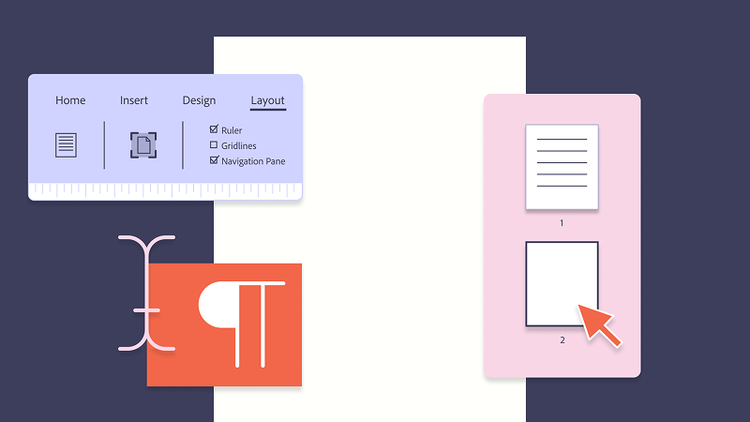
- In the Word Menu ribbon, click the View tab.
- In the sidebar, click the Pages option.
- View the page thumbnails in your document.
- Click the blank page thumbnail and click Delete.
Blank pages can sometimes appear after adding external content — especially when you insert a PDF into Word. Formatting shifts or extra spacing may push content onto a new, unintended page, so it’s helpful to double-check layout settings after making any insertions.
How to delete a page in Word on Windows.
Windows has a keyboard shortcut to help find your paragraph marks and delete that spare blank page. Follow the steps below to see how to remove a page in Word.
- Tap anywhere within your Word document.
- Press the keyboard shortcut Ctrl+Shift+8 to locate the paragraph marks (¶) in your document.
- Scroll to the page that needs to be deleted or press Ctrl+G and enter the specific page number. This keyboard action brings you to that page.
- Find the extra paragraph marks (¶) or page break.
- Select the paragraph marks (¶) or page break and press Delete until the blank page is erased.
How to delete a page in Word on a Mac.
Deleting a blank page on a Mac is easy, but it requires pressing a different keyboard shortcut than Windows.
- Click anywhere in your Word document.
- Press the keyboard shortcut Command+8.
- View the paragraph marks (¶) within the Word document.
- Scroll down to the blank page that needs to be removed or press Option+Command+G and enter the specific page number.
- Select the paragraph marks (¶) or page break and keep clicking the Delete key until the blank page is erased.
How to troubleshoot deleting a page in Word.
A frequent challenge in Word is removing an unwanted blank page at the end of a document. This often happens because Word includes a non-deletable end-paragraph that occasionally spills onto a new page. To eliminate the blank page, you need to ensure that this final paragraph fits on the preceding page. One simple trick is to reduce the font size of the paragraph so it doesn’t force a page break.
Follow these steps:
- Press Command + 8 (or Ctrl + Shift + 8 on Windows) to display paragraph marks.
- Locate the paragraph mark (¶) at the end of the document and select it.
- In the Font size box, type 01 and press Enter. This shrinks the paragraph enough to fit on the previous page, which should remove the blank one.
- Press Command + 8 again to hide paragraph marks.
If the paragraph still doesn’t fit, you can also reduce the bottom margin slightly:
- Go to the Layout tab > Margins > Customised Margins.
- Set the bottom margin to a smaller value, like 0.3 inches and click OK.
This adjustment helps squeeze the final paragraph onto the previous page and eliminate the extra one entirely.
If you’re managing multiple Word files or exporting them to PDF, layout issues like blank pages can become more noticeable. In those cases, it helps to know how to combine Word documents before finalising your file. And if you’re working with a PDF version and need to fix extra pages post-export, you can easily delete PDF pages online using free tools.
If you’re still having trouble deleting a page, try the following tips:
- Check for section breaks. These can create new pages. Go to Home > ¶, locate the break and delete it.
- Tables or images spilling over. If a table or image extends slightly beyond the bottom margin, it may force Word to add a blank page. Resize or reposition the object.
- Header and footer content. Sometimes, a header or footer element causes spacing issues. Double-click the area and delete any unnecessary content.
- Document protection. Ensure the document isn’t locked or restricted from editing. Check this under File > Info > Protect Document.
- Compatibility mode issues. Older .doc formats can behave differently. Try saving the file as a .docx and reattempt the deletion.
Frequently Asked Questions.
Word typically includes an end paragraph mark at the end of a document to help maintain its structure and formatting.
You can try removing it by revealing paragraph marks with Ctrl+Shift+8 on Windows or Command+8 on Mac, then deleting the mark. If that doesn't work, open the Paragraph box in the Word ribbon and set the line spacing to single at exactly 1pt.
Sometimes, page breaks can cause extra blank pages at the end of your document. A useful trick is to click the Show/Hide button in the Paragraph section of the Word ribbon, which should reveal any section breaks so you can delete them.
If you experience formatting issues with page breaks, it's worth checking for compatibility issues — if you're editing a document created in an older version of Word, it may not be fully compatible with your current version. You can convert the old document to the newer format via File > Convert, though you may see some layout changes.
Alternatively, you can keep editing the document in compatibility mode, which occurs automatically when the file is opened, though you won't have access to the newest Word features. You can save the document in the old format using Save As.
The core difference lies in how each program handles a trailing blank page. Microsoft Word ties it to a paragraph mark that can't easily be deleted outright, so you often need to shrink its font size to 1pt or reduce the bottom margin to around 0.3 inches to pull it back onto the previous page.
In Google Docs, placing your cursor at the start of the blank page and pressing Backspace or Delete usually clears it; if not, check for extra paragraph spacing that could be forcing the extra page. In Apple's Pages, you can typically find the blank page through page thumbnails and delete it directly.
Pages is Apple's word processing app, which usually comes pre-installed on Mac computers, so some users find it more accessible than installing Microsoft Word separately. If you're having trouble deleting an extra blank page in Apple Pages, try the steps below:
- Go to View or the Page Thumbnails button in the menu toolbar. Page Thumbnails may appear as a small page icon.
- Click the icon to view page thumbnails on the left of your screen.
- As with Word, locate the blank page you want to delete in the thumbnails.
- Click the thumbnail of the blank page, then click Delete.
Google Docs is an online word processor similar to Microsoft Word, and it's free to use with a Google account. You can delete an extra blank page in Docs by either removing the page's content or adjusting the margins.
- In the Google Docs menu toolbar, click View.
- Uncheck Show print layout.
- Open File > Page Setup.
- Adjust the bottom margin from 1 to 0.5.
If you’re working from Word on your mobile device, then the keyboard shortcut may not be the same. Try one of two methods to delete a blank page in the Microsoft Word app on your phone:
Delete copy. If the page you want to delete includes content, click Delete or use the Cut feature (the scissors icon).
Remove paragraph breaks. Remove the hidden end paragraph or section breaks by revealing them.
1. In the Home tab, click the Show/Hide button. The button may be presented by a paragraph mark (¶).
2. Highlight the section break and click Delete.
Formatting issues often need a slightly different fix than a simple blank page.
1. Check for section breaks first, since these can sometimes force a new page even when there's no content on it. Turn on paragraph marks under Home > ¶ to spot them, then delete any that shouldn't be there.
2. Tables or images that spill just past the bottom margin can also push a blank page into existence, so resizing or repositioning them can help. Try shrinking the object slightly, or nudging it upward until it sits within the margins.
3. It's also worth checking your header and footer for stray spacing — double-click into the header or footer to remove any unnecessary content sitting there.
Word doesn't have a built-in way to select multiple pages at once, but a couple of approaches can get you close.
- Click at the very start of the first blank page you want to remove, then press Ctrl+G to open Go To. With Page selected, type \page and click Go To to select everything on that page. Without closing the box, type the page number just after your last blank page and press Enter — this extends the selection through to that point, so pressing Delete removes the whole range at once.
- For scattered page breaks throughout a longer document, switching to Find and Replace can let you search for and delete them in bulk rather than page by page. It's worth saving a copy first, since Replace All applies across the entire document at once.
Yes, a few shortcuts can help you find and clear a blank page quickly.
- On Windows, press Ctrl+Shift+8 to reveal paragraph marks, which show roughly where breaks and extra line spacing are on the page. Scroll to the blank page, then select and delete any stray marks or breaks you find. On a Mac, the equivalent shortcut is Command+8.
- You can also press Ctrl+G, or Option+Command+G on a Mac, to open the Go To box and jump straight to a specific page number — useful if the blank page sits somewhere in the middle of a longer document rather than at the end.
Keep exploring